ShockWatch SpotBot Cellular Manuel utilisateur

PRODUCT MANUAL

1. Introduction ............................................................................................................ 3
2. Initial setup .............................................................................................................4
3. Configure your SpotBot ......................................................................................... 9
4. How to use your SpotBot ......................................................................................13
a. Start a Trip ................................................................................................................................. 13
b. Stop a Trip ................................................................................................................................. 14
c. Other information about batteries and settings ........................................................... 14
d. Login and password recovery .............................................................................................15
e. The Dashboard ........................................................................................................................ 16
f. Asset (SpotBot Page) ............................................................................................................. 17
g. Change the Date Range ....................................................................................................... 22
h. Set notification emails .......................................................................................................... 22
i. Change asset name ................................................................................................................ 23
5. User Management .................................................................................................24
6. Managing Data recorded in your SpotBot .......................................................... 25
a. Access a PDF or CSV report in your SpotBot .............................................................. 25
b. Clear the Trip data ................................................................................................................. 28
7. Regulatory Compliance ....................................................................................... 29
2
This document is written and published by ShockWatch, Inc. All rights reserved. No Portion of this document
may be copied, reproduced or transcribed without express consent of ShockWatch. ShockWatch reserves the
right to change this document and its products. Every effort has be made to ensure accuracy in content.
CONTENTS
PRODUCT MANUAL

3
This document is written and published by ShockWatch, Inc. All rights reserved. No Portion of this document
may be copied, reproduced or transcribed without express consent of ShockWatch. ShockWatch reserves the
right to change this document and its products. Every effort has be made to ensure accuracy in content.
PRODUCT MANUAL
Every year more than $12B in goods are lost and over $100B are
damaged during transport.
SpotBot is a reliable solution that allows you to keep track of your
shipment and how it is being handled.
• Get immediate alerts in case of mishandling with the impact level and location.
• Keep track of your shipment with hourly location updates.
• Control your cargo environment with hourly temperature readings.
And, you can access all this information - wherever you are - through
our web based SpotSee platform.
Dimensions 7.000” x 5.250” x 1.375” or 17.78 x 13.335 x 3.5 cm
Weight 1.304 lbs or 590 gr with batteries, 1.104 lbs or 500 gr
without batteries
Impact detection 3-Axis, ±200 g Digital MEMS Accelerometer up to ±200 g
Other features Location information
Temperature range -40˚C to 85˚C or -40˚ F to 185˚F
Power Supply Batteries: 6 x 1.5V Lithium AA Batteries (will work with 1.5
Alkaline AA Batteries although they are not recomended)
Battery life in
normal cellular
coverage conditions
1 (summary / event) per day 243 Days
1 (summary / event) per hour 95 Days
(if Alkaline batteries are used a lower battery life is expected)
Communication Global cellular network
1. INTRODUCTION
SPOTBOT BETA MAIN SPECIFICATIONS

PRODUCT MANUAL
2. INITIAL SETUP
4
This document is written and published by ShockWatch, Inc. All rights reserved. No Portion of this document
may be copied, reproduced or transcribed without express consent of ShockWatch. ShockWatch reserves the
right to change this document and its products. Every effort has be made to ensure accuracy in content.
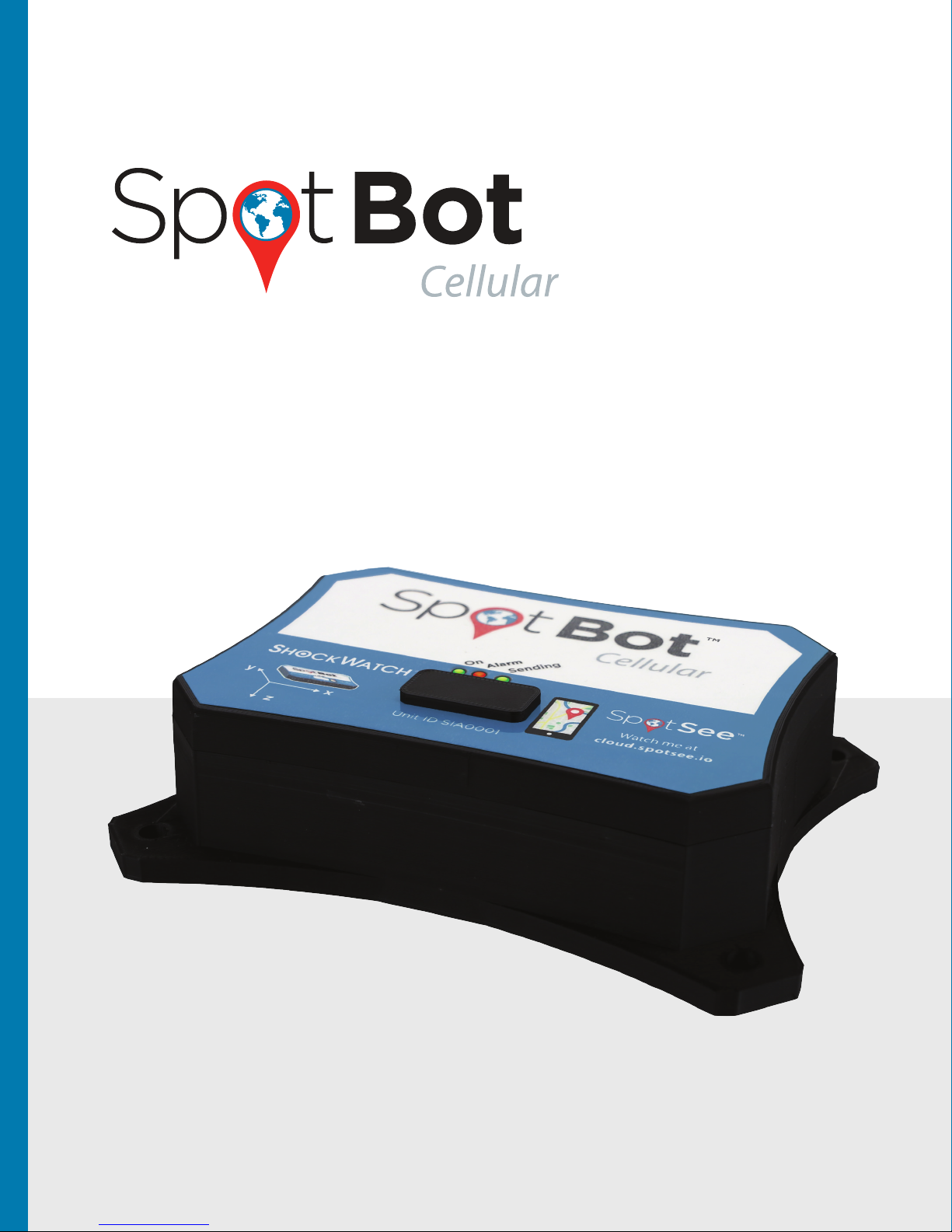
First, familiarize yourself with your new SpotBot. On the front of the device you will see 3
LED indicators, 2 buttons and a USB port.
Remove the battery cover at the bottom of the SpotBot. Place the batteries in the correct
position. Once the batteries are inserted properly, close the battery compartment and
make sure the screws are tight without applying excessive force.
Left LED (ON) Indicates if a trip is started/stopped. A trip is started when the LED flashes once per
minute. This LED will be yellow when battery power is low.
Middle LED (ALARM) Red LED indicates that an alarm impact has been detected.
Right LED (SENDING) Green LED flashes when the unit is sending data to the SpotSee Cloud.
Button A Enables start and stop of a Trip.
Button B This recessed button will delete all data in the SpotBot (insert a pin in the hole to access
the button).
USB Port To connect the SpotBot to a computer for configuration and download, via micro USB cable.
Included with your SpotBot are 5 no tamper stickers for your use.
We recommend you use the stickers over the rubber cover as an added guarantee that no one will
tamper with the SpotBot during a trip.
Green LED
Trip on/off
Button A
Start/stop
Button B
Clear trip data
USB Port
Green LED
Unit transmitting
Red LED
Alarm Detected

Go to activate.spotsee.io to activate the
unit. The unit ID and Customer No. are
required to complete this task. The Unit ID
can be found on your SpotBot label and
Customer No. is located on the invoice.
If it is the first time you have activated
a unit, follow the prompts to create the
admin user.
A valid email is required.
ACTIVATION
PRODUCT MANUAL
5
This document is written and published by ShockWatch, Inc. All rights reserved. No Portion of this document
may be copied, reproduced or transcribed without express consent of ShockWatch. ShockWatch reserves the
right to change this document and its products. Every effort has be made to ensure accuracy in content.
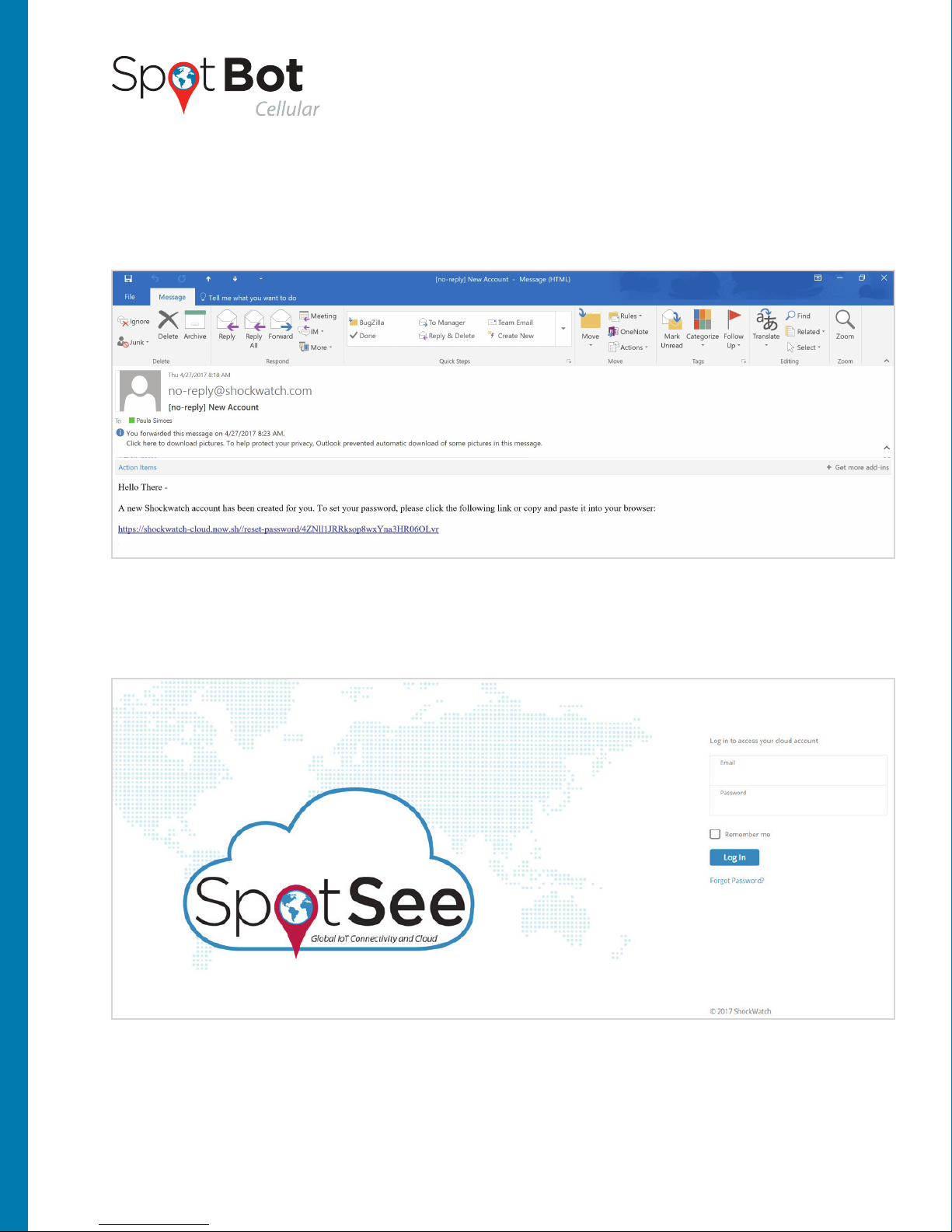
Once completed you will get an email to create your password on the SpotSee Cloud.

First, locate your user account information that was sent to you via email and follow the
instructions to retrieve your password.
If you can’t find the email, please make sure to check your Clutter or Spam folders.
Then, use the password with your email address to login into the SpotSee platform
at Cloud.Spotsee.io
ACCOUNT SETUP
6
This document is written and published by ShockWatch, Inc. All rights reserved. No Portion of this document
may be copied, reproduced or transcribed without express consent of ShockWatch. ShockWatch reserves the
right to change this document and its products. Every effort has be made to ensure accuracy in content.
PRODUCT MANUAL
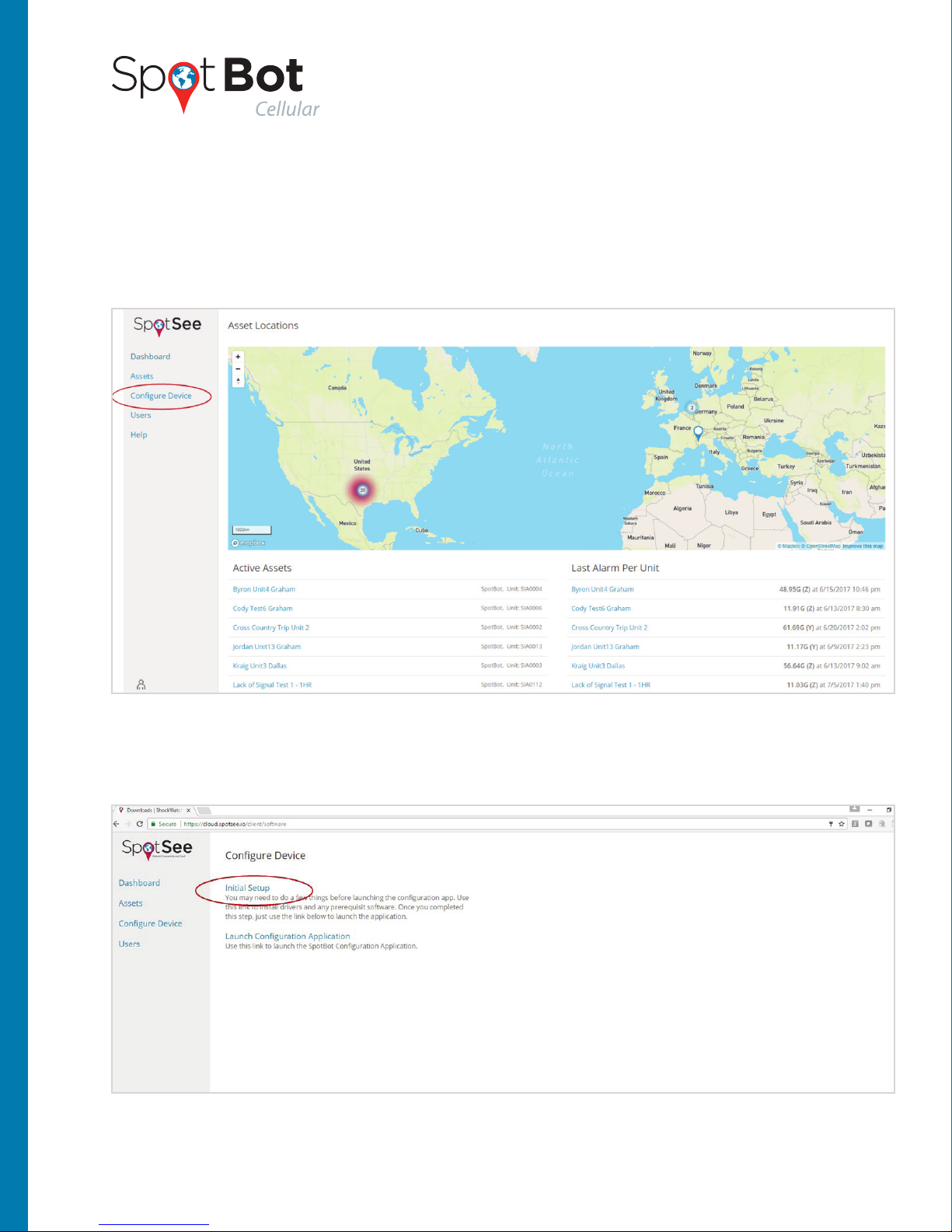
The first time you use the SpotBot portal on your computer, you may need to install some
drivers if using Windows 7. Click “Configure Device” from the menu options on the left side
of the home screen.
Then, select “Initial Setup” as indicated below.
INSTALLING DRIVERS
INITIAL SETUP
7
This document is written and published by ShockWatch, Inc. All rights reserved. No Portion of this document
may be copied, reproduced or transcribed without express consent of ShockWatch. ShockWatch reserves the
right to change this document and its products. Every effort has be made to ensure accuracy in content.
PRODUCT MANUAL
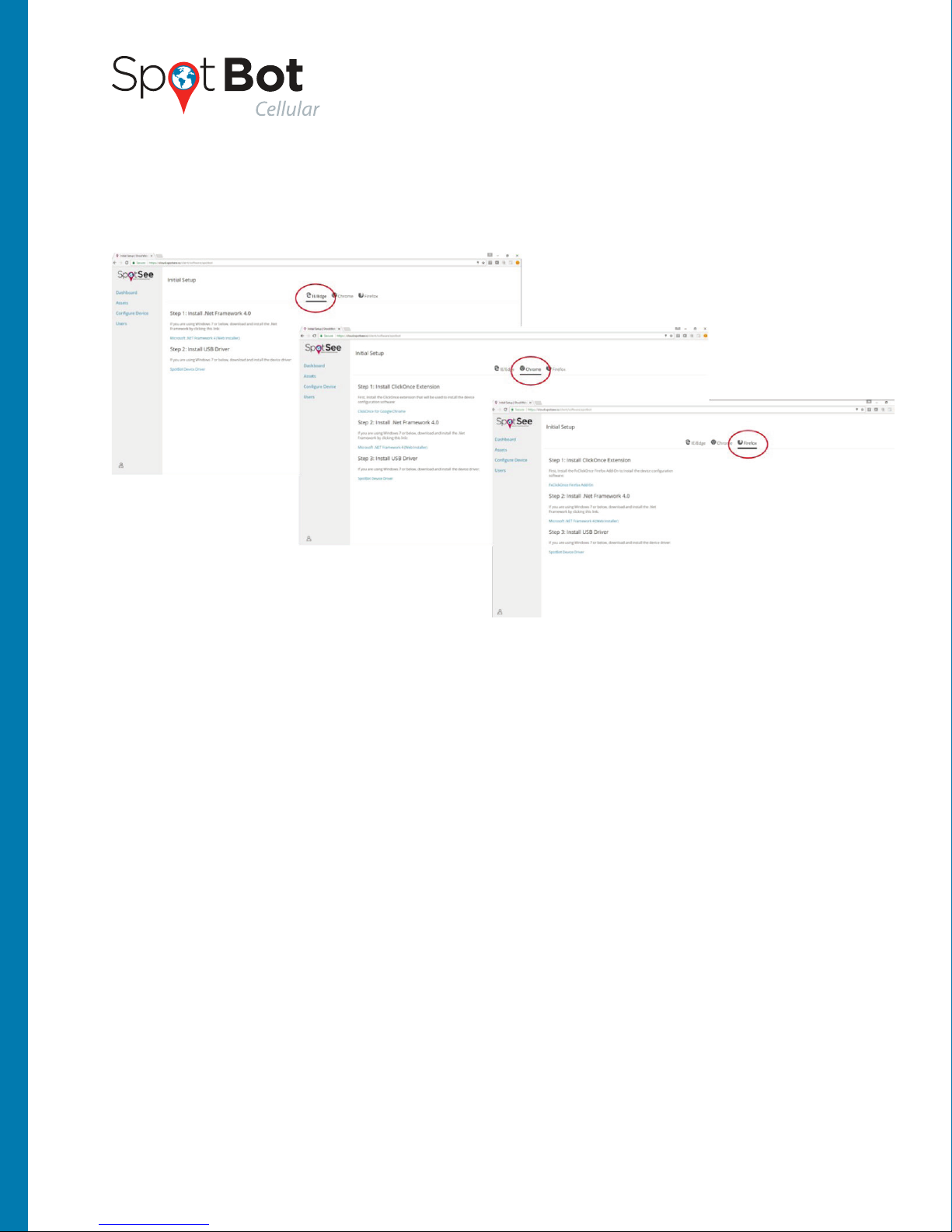
Choose the web browser you are using (i.e. IE, Edge, Chrome or Firefox) and follow all the
steps in the platform. We do not currently support Safari.
8
This document is written and published by ShockWatch, Inc. All rights reserved. No Portion of this document
may be copied, reproduced or transcribed without express consent of ShockWatch. ShockWatch reserves the
right to change this document and its products. Every effort has be made to ensure accuracy in content.
PRODUCT MANUAL
9
This document is written and published by ShockWatch, Inc. All rights reserved. No Portion of this document
may be copied, reproduced or transcribed without express consent of ShockWatch. ShockWatch reserves the
right to change this document and its products. Every effort has be made to ensure accuracy in content.
PRODUCT MANUAL
3. CONFIGURE YOUR SPOTBOT
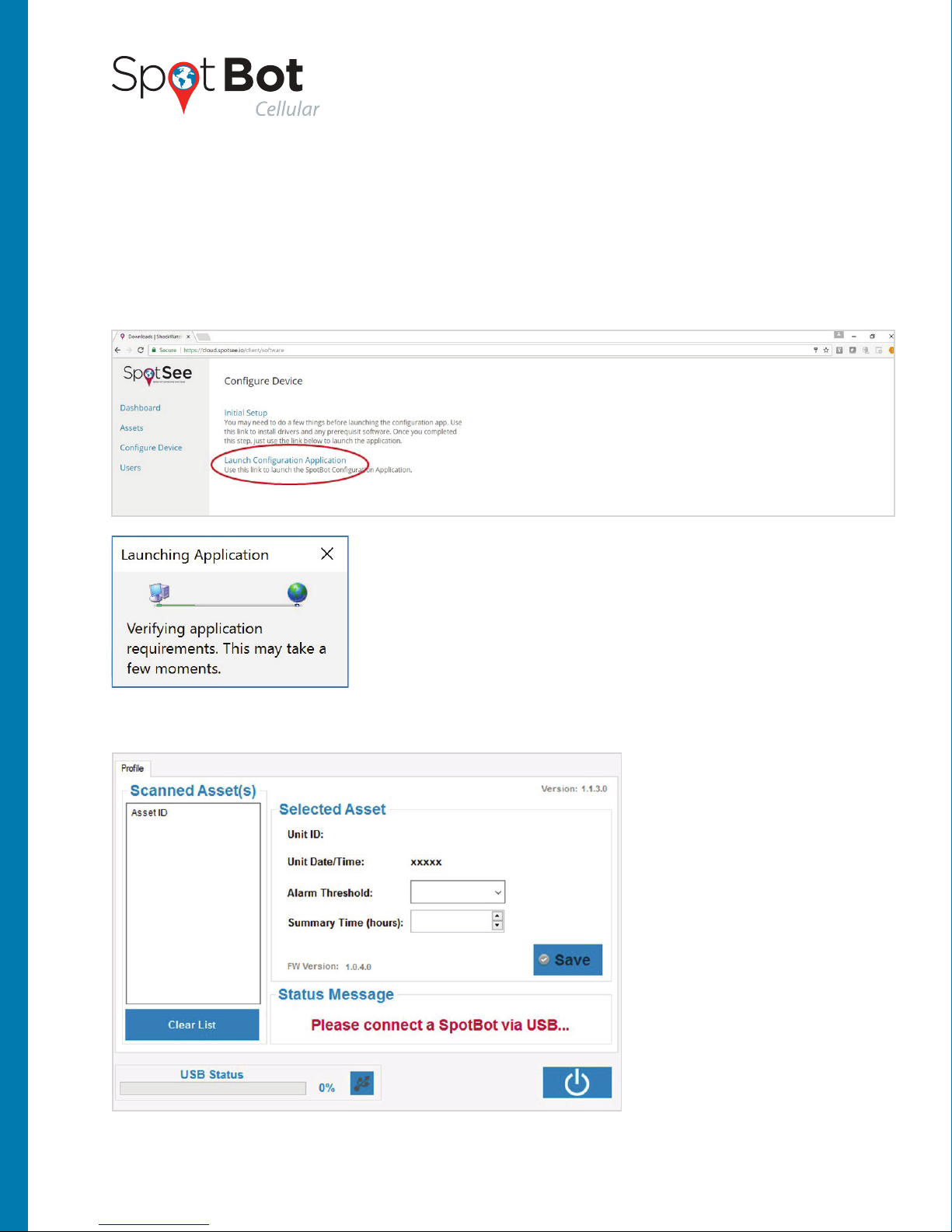
Next, go to cloud.spotsee.io -> configure device and select “Launch Configuration
Application.”
DEVICE SETUP
You should see a small application launcher window popup.
Once the requirements are verified, the “SpotBot Settings App” should open.*
*If your app fails to open,
please go back to Initial
Setup and repeat those
steps carefully.

Next, plug the SpotBot into your computer using the
USB cable provided with your SpotBot.
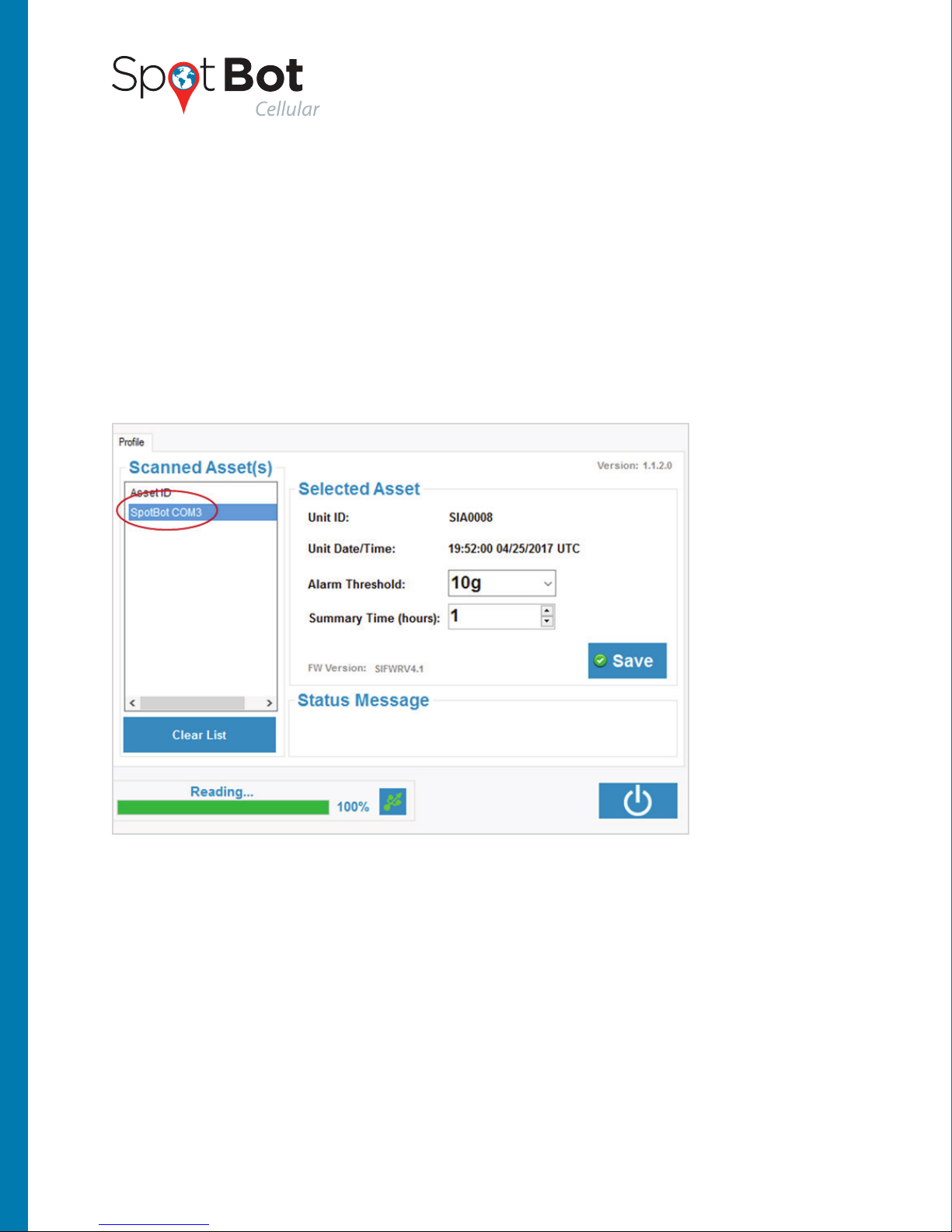
Your SpotBot should show up under Scanned Assets
(if it does not automatically show
press the Start/Stop - Button A on the SpotBot).
10
This document is written and published by ShockWatch, Inc. All rights reserved. No Portion of this document
may be copied, reproduced or transcribed without express consent of ShockWatch. ShockWatch reserves the
right to change this document and its products. Every effort has be made to ensure accuracy in content.
PRODUCT MANUAL
Select your SpotBot device from the left column.
Autres manuels pour SpotBot Cellular
1
Table des matières
Autres manuels ShockWatch Instrument de mesure
Manuels Instrument de mesure populaires d'autres marques

Endress+Hauser
Endress+Hauser Proline Promag 50 Caractéristiques techniques

Siemens
Siemens SITRANS F Coriolis FCT030 Manuel de la liste des pièces

KLINGER
KLINGER CMF V Series Manuel utilisateur

EXFO
EXFO FTB-2 Manuel d'exploitation et d'entretien

Keysight
Keysight M8290A Manuel utilisateur

ADTEK
ADTEK MW-5 Manuel utilisateur