
Shenzhen Kinan Technology KC2108i Manuel utilisateur

- 1 -
CAT5 KVM over IP Switch
(
KC2108i / KC2116i/KC2132i
)
User Manual
www.szkinan.com
@all right reserved Shenzhen Kinan Technology Co., Ltd
Printing date: 2016/12
Version: V2.1

KC2108i /KC2116i/KC2132i User Manual
- 2 -
Contents
1. Product Overview.............................................................................................. 4
1.1 Brief Introduction....................................................................................... 4
1.2 Features ...................................................................................................... 4
2. Installation and Start-up.................................................................................... 5
2.1 Panel View.................................................................................................. 5
2.2 system requirement .................................................................................... 5
2.3 When the server is up and running............................................................. 6
2.4 When the server is dead.............................................................................. 6
2.5 Rack Mounting........................................................................................... 7
2.6 Single Station Installation .......................................................................... 7
2.7 Cascade Installation.................................................................................. 10
2.8 Opening the console..................................................................................11
2.9 LED OSD configuration............................................................................11
3. OSD Operation................................................................................................ 13
3.1 OSD Menu Operation............................................................................... 13
3.2 OSD functions.......................................................................................... 14
F1............................................................................................................ 15
F2............................................................................................................ 18
F3............................................................................................................ 19
F4............................................................................................................ 21
F6-Edit port name................................................................................... 22
F7-Set Quick View port.......................................................................... 22
F8-LOUT................................................................................................ 22
3.3 Cascade Function ..................................................................................... 23
4. IP Settings........................................................................................................ 24
4.1 Initial IP Configuration via Network........................................................ 24
4.2 ConfigurationSetup via Serial Console.................................................... 25
5. Logging in......................................................................................................... 26
5.1 Remote Console ....................................................................................... 27
6. IP Menu Options.............................................................................................. 35
6.1 Remote Control........................................................................................ 35
KVM console ......................................................................................... 36
Telnet console......................................................................................... 36
6.2 Virtual Media............................................................................................ 41
CD/DVD Image...................................................................................... 45
Use Image on Windows Share (via SAMBA)........................................ 45
Creating an Image .................................................................................. 51
Making a Drive Redirection................................................................... 54
Virtual Drive........................................................................................... 59

KC2108i /KC2116i/KC2132i User Manual
- 3 -
6.3 User Management .................................................................................... 59
Change Password ................................................................................... 60
Users and Groups................................................................................... 61
6.4 KVM Settings........................................................................................... 63
User Console.......................................................................................... 63
Keyboard/Mouse.................................................................................... 67
Video...................................................................................................... 68
Network.................................................................................................. 70
Dynamic DNS........................................................................................ 71
Security .................................................................................................. 74
Certificate............................................................................................... 77
Serial Port............................................................................................... 81
Date / Time............................................................................................. 82
Event Log............................................................................................... 83
6.6 System Maintenance ................................................................................ 86
Device Information ................................................................................ 86
Even log.................................................................................................. 88
Update Firmware.................................................................................... 89
Unit Reset............................................................................................... 92
7. Appendix........................................................................................................... 94
USB Emulation Keyboard.............................................................................. 94
Mac Keyboard........................................................................................ 94
Sun Keyboard......................................................................................... 95
Specifications................................................................................................. 96
FAQ................................................................................................................ 97

KC2108i /KC2116i/KC2132i User Manual
- 4 -
1. Product Overview
1.1 Brief Introduction
KVM - over - IP (Hereinafter refers to IP-KVM) reloads the local keyboard,
mouse and video to a remote management console, operator can safely get the
BIOS level access, maintenance, support and recover system fault by using the
standard Internet browser. It has passed SLL security certification and has been
encrypted.
IP-KVM can easily access and control the remote KVM via LAN or Internet. It
gathers the compressed video signal and the keyboard/mouse signal, then converts
them into digital signal and transmits to the remote computer. IP-KVM supports
remote access and provides solutions for control non-invasion remote.
It is easy and fast to install the KVM console; you just need to connect
corresponding cables to the right ports of KVM and its module without software
configuration. Connect multiple computers with RJ-45 connector and CAT5 cable,
transmitting distance is up to 150M without a KVM extender.
1.2 Features
Access and control up to8/16/32 computers
Supports USB keyboard and mouse console
Two level password security--only authorized users view and control computers;
up to four users and an administrator with a separate profile for each
Convenient computer switching via front panel LEDs, hotkeys and OSD menu
Auto scan feature for monitoring user-selected computers
Hot pluggable --add or remove computers without having to power down the
switch
Broadcast mode--operations simultaneously performed on all selected
computers
Easily select port via mouse
Manage server all around the world
Remote access to the KVM(Keyboard, video and mouse) through modem
Support any operating system even in BIOS level, during start up or in blue
screen
Support virtual media and hardware redirection
Supports JAVA browser remote control
All transmitting data are encrypted with SSL 265 bits
SSL certificate management
Automatically senses video resolution for best possible screen capture
High-performance mouse tracking and synchronization

KC2108i /KC2116i/KC2132i User Manual
- 5 -
2. Installation and Start-up
2.1 Panel View
2.2 system requirement
Hardware
Item
Description
Local Host
8 or 16 PC/server
Local Console
One USB keyboard, one USB mouse and one monitor
Remote Console
1 PC or multiple computers connected to the network
Software
Item
Description
Local Host
No required extra software
Remote Console
(1)Java operating environment:version1.4.2 or higher
(2)Browser: Microsoft Internet Explorer (version6.0 and
above or Netscape or Mozilla or Safari)

KC2108i /KC2116i/KC2132i User Manual
- 6 -
2.3 When the server is up and running
The KVM-over-IP gives you a full control over the remote server. The
Management Console allows you to access the remote server’s graphics, keyboard
and mouse and to send special commands to the server. You can also perform
periodic maintenance of the server. Using the Console Redirection Service, you are
able to do the following:
1.Restart the system.
2. Watch the boot process.
3. Boot the system from a separate partition to load the diagnostic
environment.
4. Run special diagnostic program.
2.4 When the server is dead
Obviously, fixing hardware defects is not possible through a remote management
device.
Nevertheless KVM-over-IP gives the administrator valuable information about the
type of a hardware failure. Serious hardware failures can be categorized into five
different categories with different chances to happen:
1.Hard disk failure 50%
2.Power cable detached, power supply failure 28%
3.CPU, controller, main board failure 10%
4.CPU fan failure 8%
5.RAM failure 4%
Using KVM-over-IP, administrators can determine which kind of serious
hardware failure has occurred
Type of Failure
Detected by
Hard disk failure
Console screen, CMOS set-up information
Power cable detached,
power supply failure
Server remains in power off state after
power on command has been given.
CPU Controller, main board
failure.
Power supply is on, but there is no video
output.
CPU fan failure
By server specific management software
RAM failure
Boot-Sequence on boot console

KC2108i /KC2116i/KC2132i User Manual
- 7 -
2.5 Rack Mounting
The IP-KVM can be put on the desktop or rack mounted in standard 19” /1U rack:
Make sure all the connecting computers and external device are shut down
before installation.
Put the KVM switch in a fit place; screw the brackets to the two sides of the switch,
then screw the switch to the 19” rack. Keep a certain distance between the host
computer, switch, monitor, keyboard and mouse when installation.
2.6 Single Station Installation
CONSOLE
5
4
RS232 LAN
CONSOLE
RS232 LAN
100V~240V AC/47~63Hz
231
6
100V~240V AC/47~63Hz
1615141312111091 2 3 4 5 678
1615141312111091 2 3 4 5 6 7 8
Diagram 2.1 Install KVM components
Table 1.1
No.
Explanation
1
Ground Connection Screw
2
Power Input(AC or DC)
3
Power Switch
4
Local Console
5
PC Connection Port
6
IP Port

KC2108i /KC2116i/KC2132i User Manual
- 8 -
Structure and Size
Single Station Installation:
1)Make sure the IP KVM has been connected to the ground.
2)Connect PC or server to KVM with KVM adapter and CAT5 cable according
to number 2 and 3 in below diagram.
3)Connect IP KVM’s LAN port to the Internet (see number 5 in below
diagram).
4)Connect 220V AC power(see number 4 in below diagram), then turn on
power switch and the KVM start auto-checking and make “beep” sound.
5)Release the release catch; pull the KVM console all the way out to expose
the display panel.
6)Power on KVM and it will start auto checking.
7)Power on PC or server.
Diagram 2.3 Installation diagram

KC2108i /KC2116i/KC2132i User Manual
- 9 -
Module
PS/2 CPU module
USB CPU module
Table 1.3: Module LEDs
Components
Function
Power LED
Flashing green light
The module is power on
Green light keeps on
The module has been
connected to the KVM
Link LED
Quickly flashing
The module is communicating
with the host
Orange light keeps on
The module has been
selected by the KVM switch
KC2108i /KC2116i/KC2132i User Manual
- 10 -
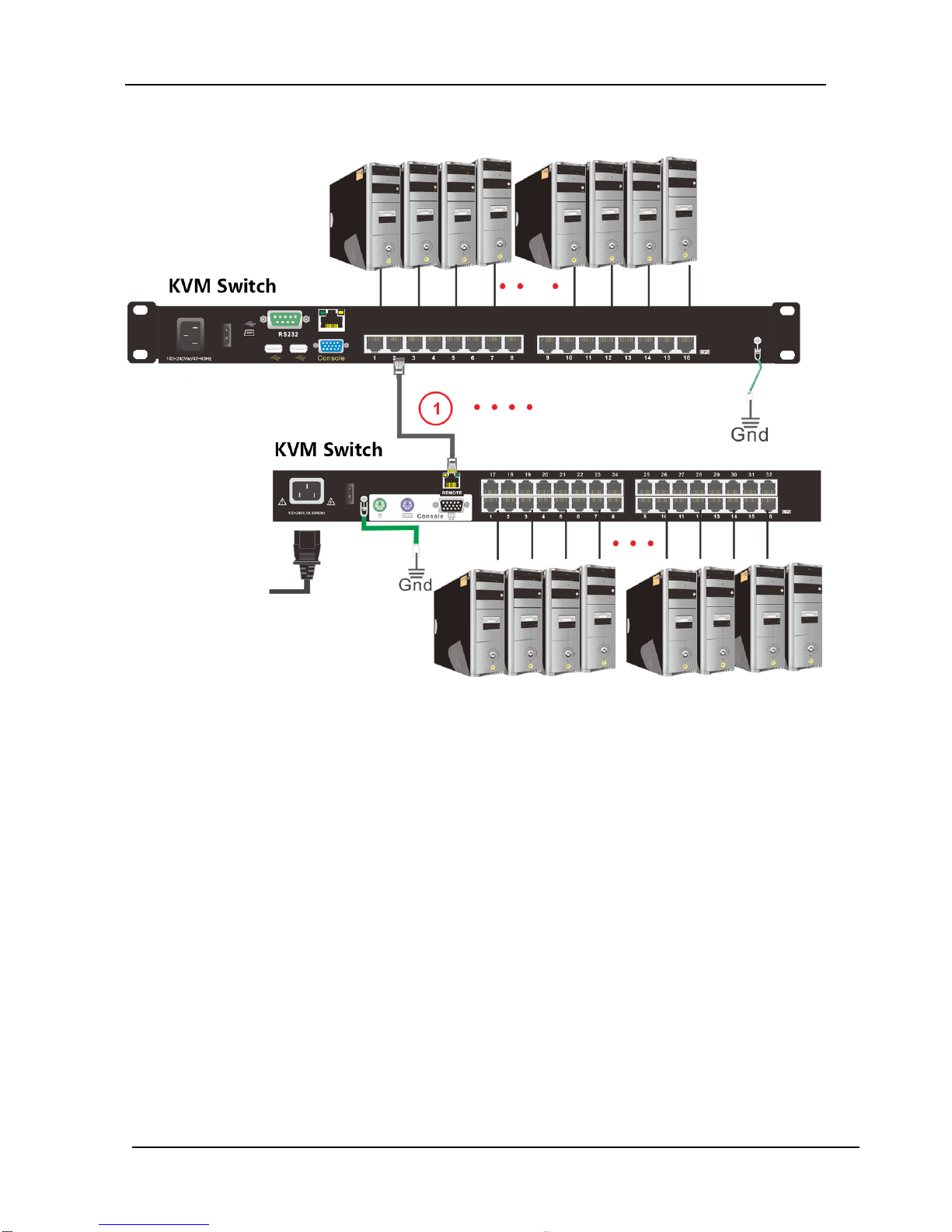
2.7 Cascade Installation
Diagram 2.4 Cascade installation
Explanation:
1. Connect one port of the CAT5 cable to any RJ45 port of the KVM, and
connect the other port to the RJ45 port with “Chain in “of another KVM.
2. Repeat above operation to cascade more KVM switches.
8 port: cascaded up to 8 KVM switches
16 port: cascaded up to 16 KVM switches
32 port: cascaded up to 32 KVM switches
3. Connect host computers according to 2-4.
Ce manuel convient aux modèles suivants
2
Table des matières
Autres manuels Shenzhen Kinan Technology Changer

Shenzhen Kinan Technology
Shenzhen Kinan Technology HD1102 Manuel utilisateur

Shenzhen Kinan Technology
Shenzhen Kinan Technology CAT5 Manuel utilisateur

Shenzhen Kinan Technology
Shenzhen Kinan Technology KVM-1508 Series Manuel utilisateur

Shenzhen Kinan Technology
Shenzhen Kinan Technology KVM-1708A Manuel utilisateur


