
Sena PRISM Manuel utilisateur

User's Guide
www.sena.com
Bluetooth®Action Camera
PRISM

PRISM
© 1998-2014 Sena Technologies, Inc. All rights reserved.
Sena Technologies, Inc reserves the right to make any changes and improvements to its product without providing prior notice.
Sena™is a trademark of Sena Technologies, Inc. or its subsidiaries in the USA and other countries. PRISM™, SMH10™, SMH5™,
SMH5-FM™, SPH10™, SPH10H™, SPH10H-FM™, SMH10R™, SPH10S™, SPH10H™, SR10™, SM10™, EXPAND™, Bluetooth Pack
for GoPro®, and 20S™are trademarks of Sena Technologies, Inc. or its subsidiaries. These trademarks may not be used without
the express permission of Sena.
The Bluetooth®word mark and logos are owned by the Bluetooth SIG, Inc. and any use of such marks by Sena is under license.
iPhone, iPod touch are registered trademarks of Apple Inc. Zumo™is a trademark of Garmin Ltd. or its subsidiaries. TomTom™
is the trademark or registered trademark owned by TomTom International B.V. Other trademarks and tradenames are those of
their respective owners.

PRISM
English
CONTENTS
1. PACKAGE CONTENTS...............................................................................................................5
2. GETTING STARTED....................................................................................................................7
2.1 Assembling ...................................................................................................................................................8
2.2 Powering On and Off.....................................................................................................................................9
2.3 Voice Prompt .................................................................................................................................................9
3. CAMERA MODES AND MENU SYSTEM..................................................................................10
3.1 Button Operations .......................................................................................................................................10
3.2 Camera Modes............................................................................................................................................10
4. VIDEO MODE ............................................................................................................................12
4.1 Video Mode Operations ..............................................................................................................................12
4.2 Video Mode Settings...................................................................................................................................14
4.3 Video Recording Time.................................................................................................................................14
5. SINGLE SHOT MODE ...............................................................................................................15
5.1 Single Shot Mode Operations .....................................................................................................................15
5.2 Single Shot Mode Settings..........................................................................................................................16
6. BURST SHOT MODE ................................................................................................................17
6.1 Burst Shot Mode Operations.......................................................................................................................17
6.2 Burst Shot Mode Settings............................................................................................................................18
7. TIMELAPSE MODE ...................................................................................................................19
7.1 Timelapse Mode Operations.......................................................................................................................19
7.2 Timelapse Mode Settings............................................................................................................................21
8. PLAYBACK ................................................................................................................................22
Videos and Photos (HDMI)..................................................................................................................................22

PRISM
9. CAMERA SETTINGS..............................................................................................................................24
9.1 Camera Settings Operations.......................................................................................................................24
9.2 Video Settings .............................................................................................................................................25
9.3 Audio Settings.............................................................................................................................................26
9.4 Device Settings ...........................................................................................................................................29
9.5 SD Card Formatting ....................................................................................................................................33
10. BLUETOOTH AUDIO RECORDING..........................................................................................34
10.1 Bluetooth Audio Recording with Sena Headsets ........................................................................................34
10.2 Bluetooth Audio Recording with Non-Sena Headsets ................................................................................35
10.3 Settings of Bluetooth Audio Recording .......................................................................................................36
11. Bluetooth Remote Control..........................................................................................................37
11.1 Remote Control by Sena Headsets ............................................................................................................37
11.2 Remote Control by Non-Sena Headsets .....................................................................................................38
12. CAMERA CONNECTION...........................................................................................................39
12.1 Connecting to a Windows PC ....................................................................................................................39
12.2 Connecting to a Mac...................................................................................................................................39
12.3 Connecting the Camera to a TV..................................................................................................................40
13. CAMERA HOUSING..................................................................................................................41
14. CAMERA MOUNTING ..............................................................................................................42
14.1 Helmet Mount ..............................................................................................................................................43
14.2 Motorcycle Mounting System......................................................................................................................44
15. FAULT RESET...........................................................................................................................48
PRISM Device Manager ......................................................................................................................................49
16. CAMERA SOFTWARE...............................................................................................................49
17.
CAMERA SPECIFICATIONS........................................................................................................................50
PRISM
5
English
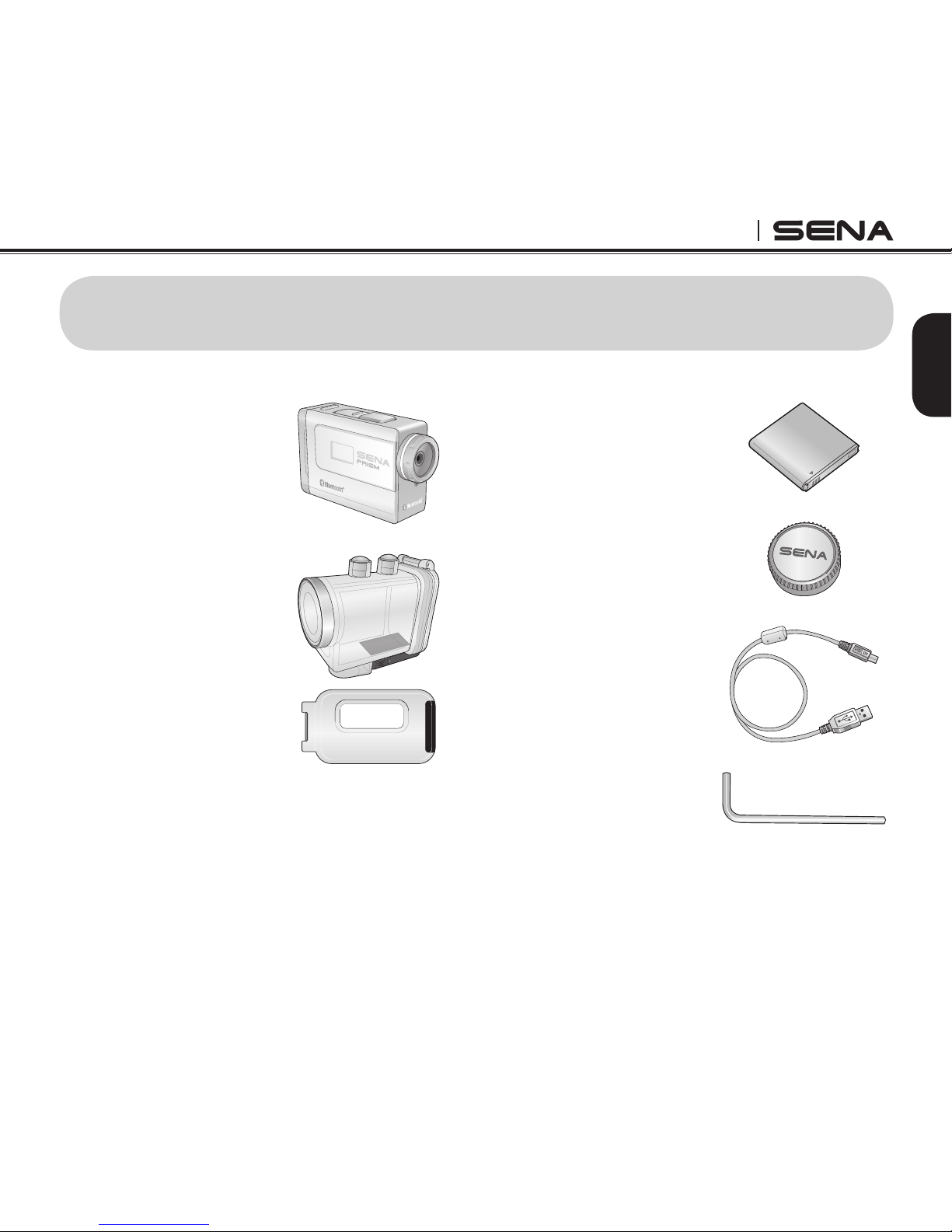
1. PACKAGE CONTENTS
• PRISM Camera
• Waterproof Housing
(Skeleton Backdoor)
• Li-Ion Rechargeable
Battery
• Lens Cap*
• USB Power &
Data Cable
• Allen Wrench

PRISM
6
• Helmet Mounting Kit
• Motorcycles Mounting Kit,
QRM System
Note:
* When you are not using the camera, close the lens cap to protect your lens from any contamination.
** To prevent your camera from falling accidentally, tie the QRM system to your bike with this QRM wire.
1. SD card is not included in the package.
2. The camera is compatible with Micro SD, SDHC or SDXC cards up to 32 GB. We recommend Class
10 cards for recording HD video and system stability.

PRISM
7
English
2. GETTING STARTED
Status LED
Mode Button
Status LCD
Shot Button
Lens
Microphone
Battery
Charging LED
SD Card Slot
micro HDMI Port
S
M
Charging Port
Lock Switch
Charging Port

PRISM
8
1
3
5
2
4
6
Camera LCD Menu Screen
1
Battery life
4
Camera mode
2
Resolution / fps
5
Bluetooth
3
Counter
6
Memory
2.1 Assembling
Unlock and open the back door of the camera. Insert an SD card. Insert the battery. Then close and
lock the back door of the camera.
1
2
Opening the Back Door Closing the Back Door
Note:
1. You can use all the functions of the camera while charging the battery.
2. It is recommended to fully charge the camera before the initial use.
3. When you receive a low battery warning from the camera, charge it using the micro-USB cable.

PRISM
9
English
2.2 Powering On and Off
To power on the camera, press and hold the Mode Button Mand the Shot Button Sat the same
time for about one second. To power off the camera, just press the Mode Button Mand the Shot
Button Sat the same time.
2.3 Voice Prompt
If the camera is paired with a Bluetooth headset, the voice prompts will help you audibly understand
which mode you are in and the operation you have performed. For more details on how to pair the
camera with a Bluetooth headset, please refer to the section 9.4, “Device Settings”.

PRISM
10
3. CAMERA MODES AND MENU SYSTEM
3.1 Button Operations
Press the Mode Button Mto change camera mode or move to the next menu item. Press and hold
the Mode Button Mto enter or exit Quick Settings*. Press the Shot Button Sto record video, take
photos or select a menu item. Press and hold the Shot Button Sduring video recording to take a
still shot.
Note:
* Quick Settings is a quick and easy way to enter the settings menu for each mode that you are currently in.
3.2 Camera Modes
The camera has several modes. To cycle through the modes, press the Mode Button M.
Icon Mode Application LED Color
VIDEO
Video Record video Red
SINGLE
Single Shot Capture a single photo Blue
BURST
Burst Shot Capture up to 10 photos in one second Green
TIME LAPSE
Timelapse Capture series of photos or videos at timed
intervals Pink
Autres manuels pour PRISM
4
Table des matières
Autres manuels Sena Caméra d'action


