Sedna SE-NAS-05 Manuel utilisateur

1
SE-NAS-05

2
Important Notes
Keep this user’s manual for future reference. It contains important information on product setup and
configuration.
Visit the following website for software update and last-minute changes to this document:
Default Factory Setting
Administrator user name = admin
Administrator password = admin
Host name = storage-XXXX, where XXXX is the last four digits of MAC address (physical address) of
SE-NAS-05, printed on the back panel.
IP address: 169.254.0.1
Restore Default Factory Setting
1. Power off the SE-NAS-05
2. Press and hold the reset button
3. Power on the SE-NAS-05 and then wait for at least 10 seconds
4. Release the reset button.
Disclaimer
1. All contents and specification mentioned in this manual are subject to change without prior notice.
2. All brand names and trademarks referenced and mentioned in this manual are property of their respective
owners.
3. Make sure you use the power supply came with the SE-NAS-05. Using third-party’s power supply with different
output voltage and power rating than that came with this product may result in permanent damage to the
SE-NAS-05 and hard drive.
4. In case of a high electrostatic discharge and fast transient disturbance from the power source, you may need to
power off the device manually, wait for a few seconds before powering it on again.
http://www.sednacomputer.com/products/se-nas-05.html

3
Table of Contents
1. Glossary
2. Introduction
3. Getting to know the SE-NAS-05
4. Hardware Installation
5. Connecting the SE-NAS-05
6. Configuring the SE-NAS-05
7. Operation
8. Installing Backup Tool for Windows
9. Specification
10.Troubleshooting
1. GLOSSARY
DHCP Dynamic Host Configuration Protocol, a protocol for assigning IP address automatically to
network devices.
Ethernet IEEE standard network protocol that specifies how data is placed on and retrieved from a
common transmission medium.
FTP File Transfer Protocol, a protocol used for file transfer between two network devices.
IP address Internet Protocol address, the address used to identify a computer on a network
LAN Local Area Network.
MAC address Media Access Control address, the physical address of a network device.
NAS Network Attached Storage.
SMB Server Message Block, a protocol for sharing files among network clients.
SOHO Small Office Home Office.
TCP/IP Transmission Control Protocol/Internet Protocol, a set of instructions computer use to
communicate over a network

4
2. INTRODUCTION
SE-NAS-05 is a Network Attached Storage (NAS) server for home and SOHO user. It has one USB 2.0 and one
10/100Mbps Ethernet interface, which provides greatest flexibility for SOHO and frequently traveler. SE-NAS-05
functions as a file / FTP server and provides an easy way for LAN users to backup data or share files through
intranet/internet.
Key Features:
•LAN and USB combo interface – Greatest flexibility for SOHO users and frequent travelers.
•FTP and SMB 2-in-1 server – Simplified file sharing at your home or SOHO network.
•Energy saving – Automatic hard drive spin-down.
•Active cooling system – Big cooling fan and aluminum case prevent hard drive from overheat.
•Free backup tool for Windows, works with SE-NAS-05 USB 2.0 interface.
Package Contents:
Before hardware installation, make sure the package contains the following items. If any item is missing or damaged,
please contact your retailer as soon as possible.
•One SE-NAS-05 (Hard disk not included)
•One Power adapter (12VDC, 2A)
•One RJ45 network cable
•One USB 2.0 cable
•One user’s manual
•One reset button plastic cover
•Screws for hard disk and back panel fastening x 6
•One CDROM containing application software

5
3. GETTING TO KNOW THE SE-NAS-05
3.1 The Front Panel
•COPY: File backup hot-key. This button works when SE-NAS-05 is connected to a host PC
through the USB interface.
•Power: This LED will appear solid Red when the SE-NAS-05 is turned on.
•LAN: This Blue LED serves two purposes. If the LED is continuously lit, the SE-NAS-05 is
successfully connected to a device through the Ethernet port. A blinking LED indicates network
activity.
•HDD: This Green LED will blink when the hard drive is performing read/write operation.
•USB: This LED will appear solid Yellow when the SE-NAS-05 is connected to a host computer
through the USB port.
•Cooling fan opening.
3.2 The Back Panel
•Power Button: Press to turn on/off the SE-NAS-05.
•DC 12V Jack: Connect to external power adapter.
•USB 2.0 port: When this port is connected to host PC, SE-NAS-05 will function as a USB
external hard drive enclosure.
•LAN port: This port connects to Ethernet network device, such as a switch, router, or host PC.
•Vent: Openings for internal cooling system.
•Reset button: To restore factory default. If the administrator user name, password, or IP address
is lost, power off the SE-NAS-05, press and hold this button, power on SE-NAS-05 and wait for at
least 10 seconds, release the reset button. The administratorlogin name and password will be set
to the default value of “admin” and the IP address will be set to the default value of 169.254.0.1.

6
4. HARDWARE INSTALLATION
4.1 Before Installation
•Prepare a cross screwdriver for hard drive installation.
•Keep the SE-NAS-05 and hard drive away from moisture and extreme temperature.
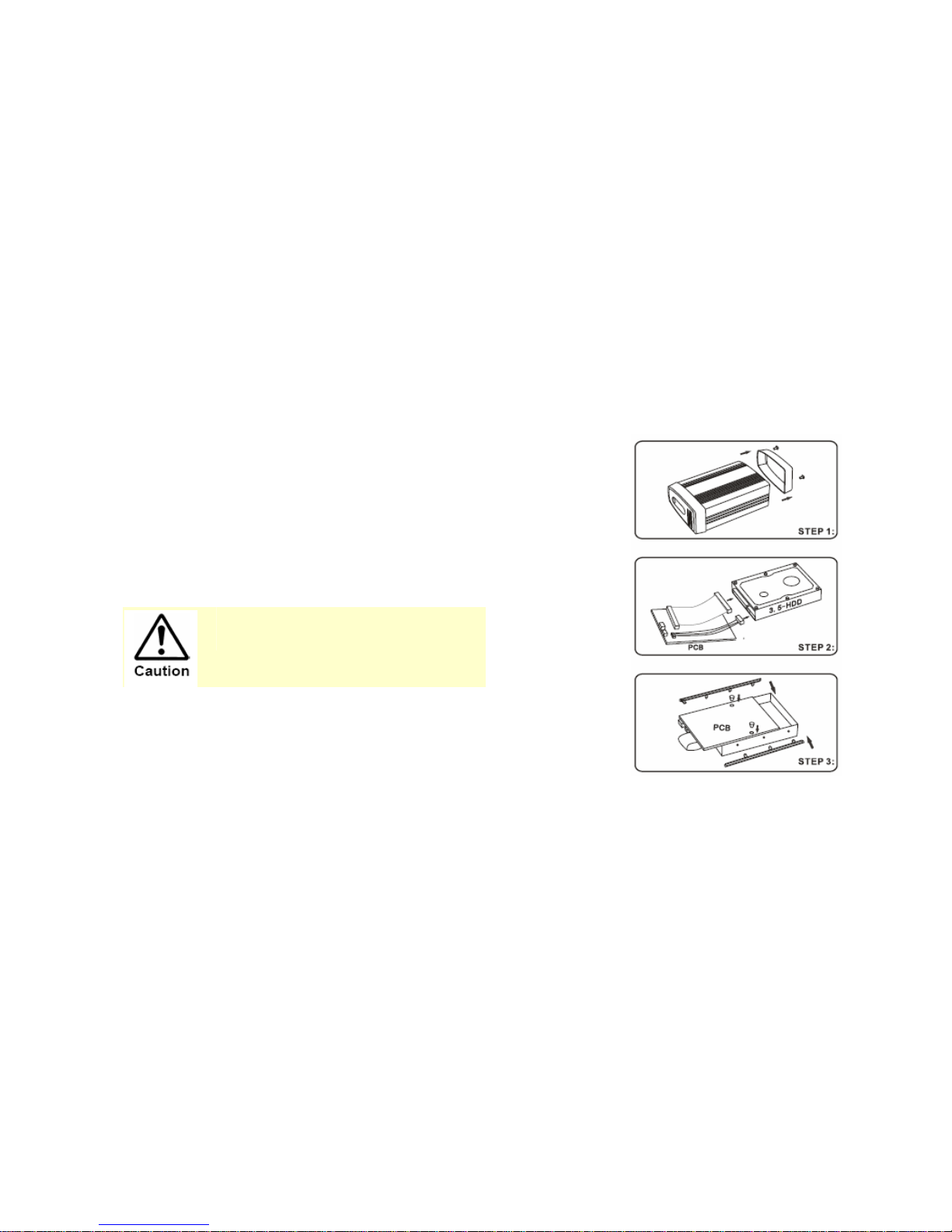
4.2 Installation Procedure
STEP 1:
Remove the two screws on the back panel with a screwdriver.
Then pull the back panel out of the case.
STEP 2:
Connect the IDE flat cable and power plug to the hard drive.
Make sure the hard drive is configured to
operate in “Master” mode. See your hard drive
manual for detail instruction.
STEP 3:
Secure the hard disk with the provided screws onto the main
board. Fasten the two plastic side bars to the hard disk.

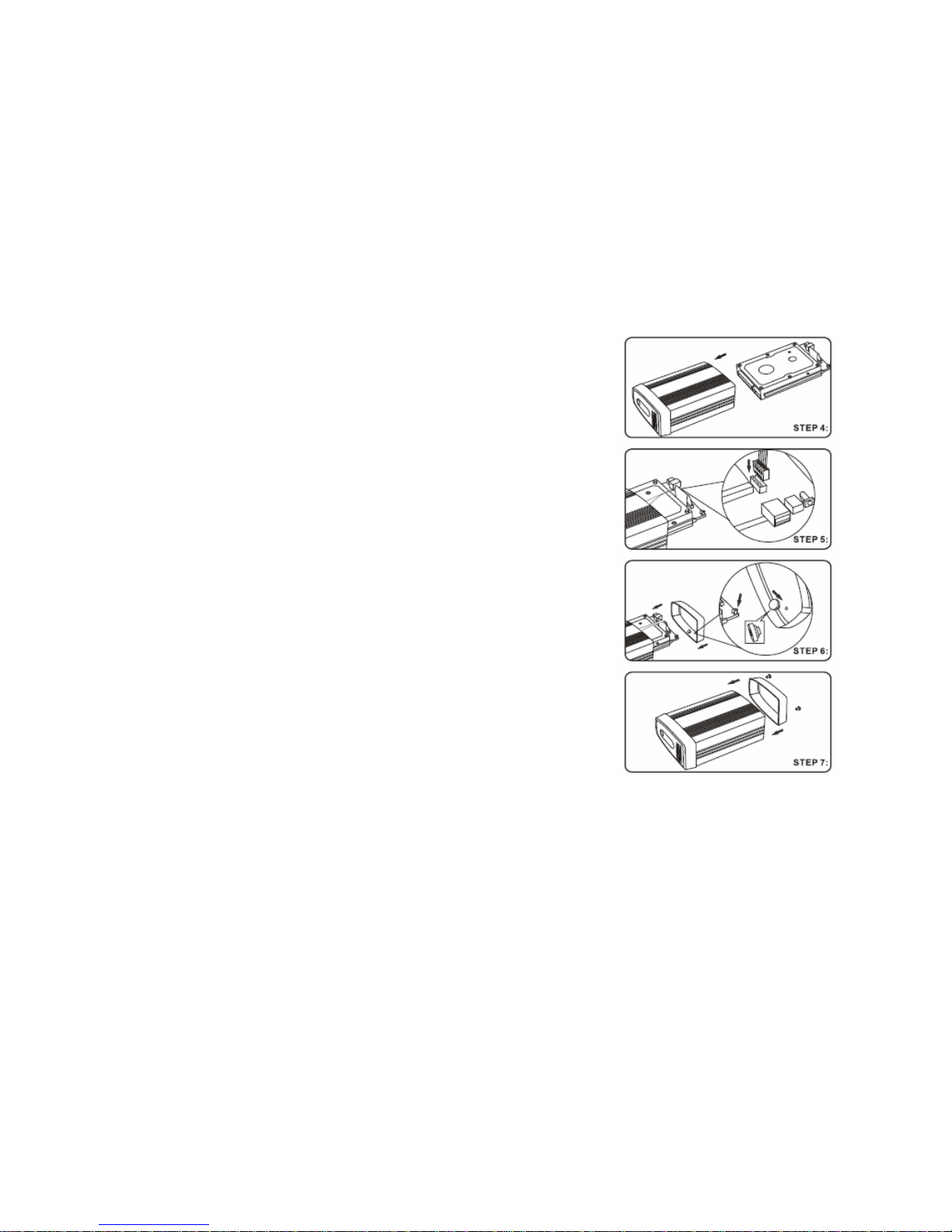
7
STEP 4:
Slide the main board and hard disk into the case.
STEP 5:
Connect the front panel cable to the main board.
STEP 6:
If you want to prevent the reset button from being accessed
after the SE-NAS-05 is assembled, install the reset button
cover into the back panel
STEP 7:
Put the back panel back to the case and fasten it with the
screws.

8
5. CONNECTING THE SE-NAS-05
SE-NAS-05 is a LAN + USB combo drive enclosure. In addition to being a network storage device, you can use it as a
standalone USB external hard drive. There are three kinds of connection for different applications as described in Section 5.1
~ 5.3. Only one kind of connection can be used at any one time.
Do NOT use any third-party’s power supply with output voltage and power rating different from that
came with the product, otherwise your SE-NAS-05 and hard drive may be damaged.
5.1 Connect to your computer through USB interface
•Max OS X user:
Software driver installation is not required for systems using Mac OS 10.1.2 or above. Simply connect SE-NAS-05 using the included
USB cable and access the data by clicking the “Untitled” HDD icon located on your Desktop.
•Windows XP/2000/Me user:
Software driver installation is not required for Windows XP/2000/Me. Simply connect the SE-NAS-05 using the included USB cable and
access the data via “My Computer”.
•Windows 98se user:
To utilize the USB connectivity, please visit the following URL to download the driver:
Make sure that you install the device driver on your computer before connecting the SE-NAS-05. When you complete the driver
installation, reboot your computer then connect the USB port of SE-NAS-05 to your computer.
http://www.sednacomputer.com/products/se-nas-05.html

9
5.2 Connect to your computer through LAN interface
SE-NAS-05 canbe directlyconnected to your PC by LAN cable.So you can transfer files across SE-NAS-05 and your computer through
the Ethernet interface. See Chapter 6, CONFIGURING SE-NAS-05, and Chapter 7, OPERATION for details.
SE-NAS-05 connected to a computer directly through
USB or LAN interface:
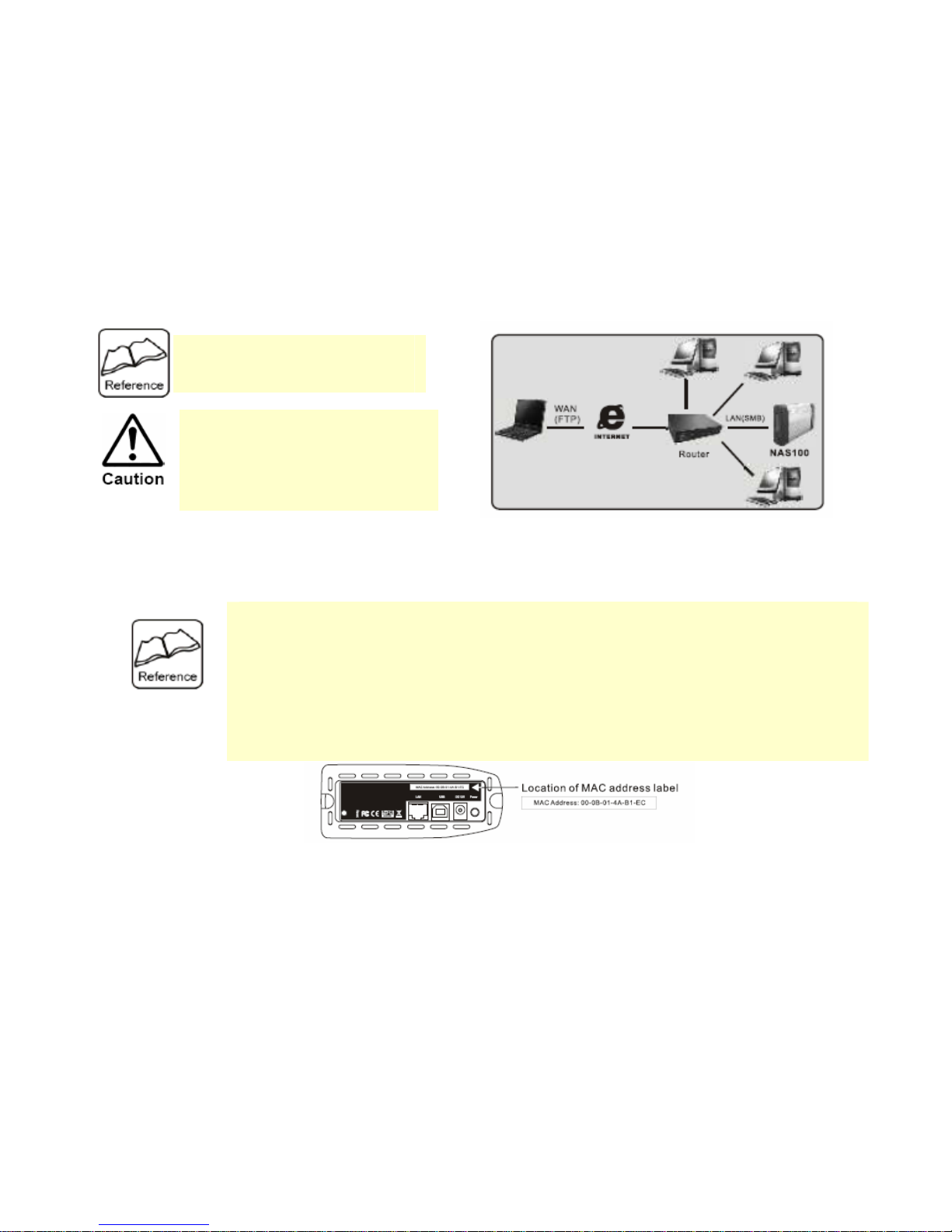
5.3 Connect to your network through LAN interface
Connect the network cable to the LAN port on the back panel of SE-NAS-05 and the other end of the network cable to a port on your
network hub, switch or router.

10
Typical file sharing application in a home/SOHO network
6. CONFIGURING THE SE-NAS-05
SE-NAS-05 features a web-based control interface to manage your settings. To configure the SE-NAS-05, connect it to the network
router/switch in your network, or connect to a client PC through the LAN port. Section 6.1 ~ 6.2 describe the procedure of remote
configuration from different kinds of client PC.
The LAN port on SE-NAS-05 is
Auto-MDI/MDIX, which means you can
connect it using either a crossover or a
direct network cable.
Either the USB port or the LAN port of
SE-NAS-05 can be used at any one
time. If you changed the connection
from USB to LAN, or vice versa, please
power off and then power on the
SE-NAS-05, otherwise abnormal
operation may occur.
When you reset the SE-NAS-05 either by the reset button or through the web control, all user settings will be
erased and replaced with factory default values. The most important default values useful for first-time
configuration are shown below:
zDefault administrator user name = admin
zDefault administrator password = admin
zDefault IP address: 169.254.0.1
Default host name = storage-XXXX (where XXXX is the last four digits of the MAC address of SE-NAS-05,
printed on the back panel).
How to restore factory setting: Power off the SE-NAS-05 Æpress and hold the reset button ÆPower on the
SE-NAS-05 and then wait for at least 10 seconds ÆRelease the reset button.
Table des matières
Manuels Stockage populaires d'autres marques

Spectra Logic
Spectra Logic T-Series Spectra T50e Manuel utilisateur

Panasonic
Panasonic LKM-F931-1 Manuel utilisateur

Tabernus
Tabernus Enterprise Erase E2400 Manuel utilisateur

Rocstor
Rocstor COMMANDER 3F series Manuel utilisateur

HP
HP P9000 Manuel utilisateur

Western Digital
Western Digital Ultrastar Data60 Manuel utilisateur