Samsung SM-R220 Manuel utilisateur

2
Getting Started
3 Read me first
8 Device layout
10 Battery
13 Wearing the Galaxy Fit2
15 Turning on the Galaxy Fit2
16 Connecting the Galaxy Fit2to a mobile
device
18 Controlling the screen
20 Screen composition
Widgets and features
28 Messages
28 Answering calls
29 Health management widget
31 Health summary
31 Exercise
35 Steps
36 Stress
38 Heart rate
40 Sleep
41 Hand Wash
42 Water
43 Weather
44 Calendar
45 Stopwatch and timer
46 Music
46 Find My Phone
Table of Contents
Galaxy Wearable app
47 Introduction
48 Home
56 Watch faces
Appendix
57 Troubleshooting
60 Removing the battery

3
Getting Started
Read me first
Please read this manual before using this device to ensure safe and proper use.
•
Descriptions are based on the device’s default settings.
•
Some content may differ from your device depending on the region, model
specifications, or device’s software.
•
Samsung is not liable for performance issues or incompatibilities caused by edited
registry settings or modified operating system software. Attempting to customise the
operating system may cause the Galaxy Fit2or apps to work improperly.
•
Software, sound sources, wallpapers, images, and other media provided with this
Galaxy Fit2are licensed for limited use. Extracting and using these materials for
commercial or other purposes is an infringement of copyright laws. Users are entirely
responsible for illegal use of media.
•
Default apps that come with the Galaxy Fit2are subject to updates and may no longer
be supported without prior notice. If you have questions about an app provided with the
Galaxy Fit2, contact a Samsung Service Centre.
•
Modifying the Galaxy Fit2’s operating system or installing softwares from unofficial
sources may result in Galaxy Fit2malfunctions and data corruption or loss. These actions
are violations of your Samsung licence agreement and will void your warranty.
•
Some functions may not work as described in this manual depending on the maker and
model of the mobile device you connect to the Galaxy Fit2.
•
This product includes certain free/open source software. To see the instructions for
viewing the open source licence, go to the Samsung website (opensource.samsung.com).

Getting Started
4
•
Some functions may not be available depending on the region or service provider.
•
Depending on the region or service provider, a screen protector is attached for protection
during production and distribution. Damage to the attached screen protector is not
covered by the warranty.
•
Due to the nature of the product, displaying fixed graphics for extended periods may
result in afterimages (screen burn-in) or ghosting.
–
It is recommended not to use fixed graphics on part or all of the touchscreen for
extended periods and turn off the touchscreen when not using the device.
–
You can set the touchscreen to turn off automatically when you are not using it.
Launch the
Galaxy Wearable
app on your mobile device that is connected to your
Galaxy Fit2, tap
Home
→
Display
→
Screen timeout
, and then select the length of
time you want the device to wait before turning off the touchscreen.
•
Depending on the region or model, some devices are required to receive approval from
the Federal Communications Commission (FCC).
If your device is approved by the FCC, you can view the FCC ID on the connected mobile
device. To view the FCC ID, launch the
Galaxy Wearable
app on your mobile device that
is connected to your Galaxy Fit2, tap
Home
→
About band
→
Device information
, and
then check the FCC ID under
FCC certification
. If your device does not have an FCC ID,
it means that the device has not been authorised for sale in the U.S. or its territories and
may only be brought to the U.S. for the owner’s personal use.
Maintaining water and dust resistance
Your device supports water- and dust-resistance. Follow these tips carefully to maintain the
water- and dust-resistance of your device. Failure to do so may result in damage to your
device.
•
Do not expose the device to water moving with force.
•
Do not use your device when you dive into the water, snorkel or try any water sports in
fast-flowing water.
•
If the device or your hands are wet, dry them thoroughly before handling the device.
•
If the device is exposed to fresh water, dry it thoroughly with a clean, soft cloth. If the
device is exposed to other liquids, such as salt water, swimming pool water, soapy water,
oil, perfume, sunscreen, hand cleaner, or chemical products such as cosmetics, rinse it
with fresh water and dry it thoroughly with a clean, soft cloth. If you do not follow these
instructions, the device’s performance and appearance may be affected.


Getting Started
5
•
If the device is dropped or receives an impact, the water- and dust-resistant features of
the device may be damaged.
•
Do not disassemble your device. The water- and dust-resistant features of the device can
be damaged.
•
Do not expose your device to a dramatic change in air temperature or water temperature.
•
Do not dry your device with a heating machine like a hair drier.
•
The water-resistant feature of the device can be damaged in the sauna.
•
Some features such as the touchscreen may not work properly if the device is used in
water.
•
Your device has been tested in a controlled environment and certified to be water-
and dust-resistant in specific situations and conditions. (Meets the requirements of
the water-resistance in a 50 m deep water as described by the international standard
ISO 22810:2010 and your device can be used in shallow water. Meets the requirements
of the dust-resistance as described by classification IEC 60529 IP6X.)
Precautions for overheating
If you feel discomfort due to overheating while using the device, stop using it immediately
and remove it from your wrist.
To avoid problems, such as device malfunction, skin discomfort or damage, and battery
draining, a warning will appear on the device if it reaches a specific temperature. When the
initial warning appears, all device functions will be disabled until the device cools down to a
specific temperature.
If the device temperature continues to increase, a second warning will appear. At this time,
the device will shut down. Do not use the device until it cools down to a specific temperature.

Getting Started
6
Instructional icons
Warning: situations that could cause injury to yourself or others
Caution: situations that could cause damage to your device or other equipment
Notice: notes, usage tips, or additional information
Cleaning and managing the Galaxy Fit2
Follow the points below to ensure your Galaxy Fit2functions correctly and maintains its
appearance. Failure to do so may damage the Galaxy Fit2and cause the skin irritation.
•
Prevent the device from being exposed to dust, sweat, ink, oil, and chemical products
such as cosmetics, antibacterial spray, hand cleaner, detergent, and insecticides.
The Galaxy Fit2’s exterior and interior parts may be damaged or it could result in
poor performance. If your Galaxy Fit2is exposed to any of the previously mentioned
substances, use a lint-free, soft cloth to clean it.
•
Do not use soap, cleaning agents, abrasive materials and compressed air when cleaning
your Galaxy Fit2and do not clean it with the ultrasonic waves or the external heat
sources. Doing so may damage the Galaxy Fit2. Skin irritation may be caused by soap,
detergents hand sanitizers, or cleaning agents left on the Galaxy Fit2.
•
Clean your wrist and band after exercising or sweating. Clean the Galaxy Fit2with
freshwater, wipe it with a little rubbing alcohol and dry your Galaxy Fit2thoroughly.
•
When you remove sun block, lotion, or oil, use a soap-free detergent, then rinse and dry
your Galaxy Fit2thoroughly.
•
If the Galaxy Fit2’s band gets stained or contains any materials, wipe it with a moistened
soft bristle toothbrush.

Getting Started
7
Use caution if you are allergic to any materials on the Galaxy Fit2
•
Samsung has tested the noxious materials found on the Galaxy Fit2through the internal
and external certificate authorities, including the test for all materials which contact with
skin, skin toxicity test, and the Galaxy Fit2-wearing test.
•
The Galaxy Fit2includes nickel. Take the necessary precautions if your skin is
hypersensitive or you have an allergy to any materials found on the Galaxy Fit2.
–
Nickel: The Galaxy Fit2contains a small amount of nickel, which is below its reference
point limited by the Europe REACH regulation. You will not be exposed to the nickel
inside the Galaxy Fit2and the Galaxy Fit2has passed the international certificated test.
However, if you are sensitive to nickel, be careful to use the Galaxy Fit2.
•
Only the materials observed the standards of the U.S Consumer Product Safety
Commission (CPSC), the regulations of the European countries, and other international
standards are used to make a Galaxy Fit2.
•
For more information about how Samsung manages chemicals, refer to the Samsung
website (https://www.samsung.com/uk/aboutsamsung/sustainability/environment/).

Getting Started
8
Device layout
Package contents
Refer to the quick start guide for package contents.
•
The items supplied with the Galaxy Fit2and any available accessories may vary
depending on the region or service provider.
•
The supplied items are designed only for this Galaxy Fit2and may not be
compatible with other devices.
•
Appearances and specifications are subject to change without prior notice.
•
You can purchase additional accessories from your local Samsung retailer. Make
sure they are compatible with the Galaxy Fit2before purchase.
•
Except the Galaxy Fit2and some accessories may not have the same water- and
dust-resistance certification.
•
Use only Samsung-approved accessories. Using unapproved accessories may cause
the performance problems and malfunctions that are not covered by the warranty.
•
Availability of all accessories is subject to change depending entirely on
manufacturing companies. For more information about available accessories, refer
to the Samsung website.

Getting Started
9
Galaxy Fit2
Touchscreen
Touch button
Heart rate sensor
Band
Charging contacts
•
Ensure that the band is kept clean. Contact with contaminants, such as dust and
dye, can cause stains on the band that may not be fully removed.
•
If you use the device with its glass or acrylic body broken, there may be a risk of
injury. Use the device only after it has been repaired at a Samsung Service Centre.
Buttons
Button Function
Touch
•
Tap to turn on the screen.
•
Tap to open the Watch screen when you are on any other
screen.

Getting Started
10
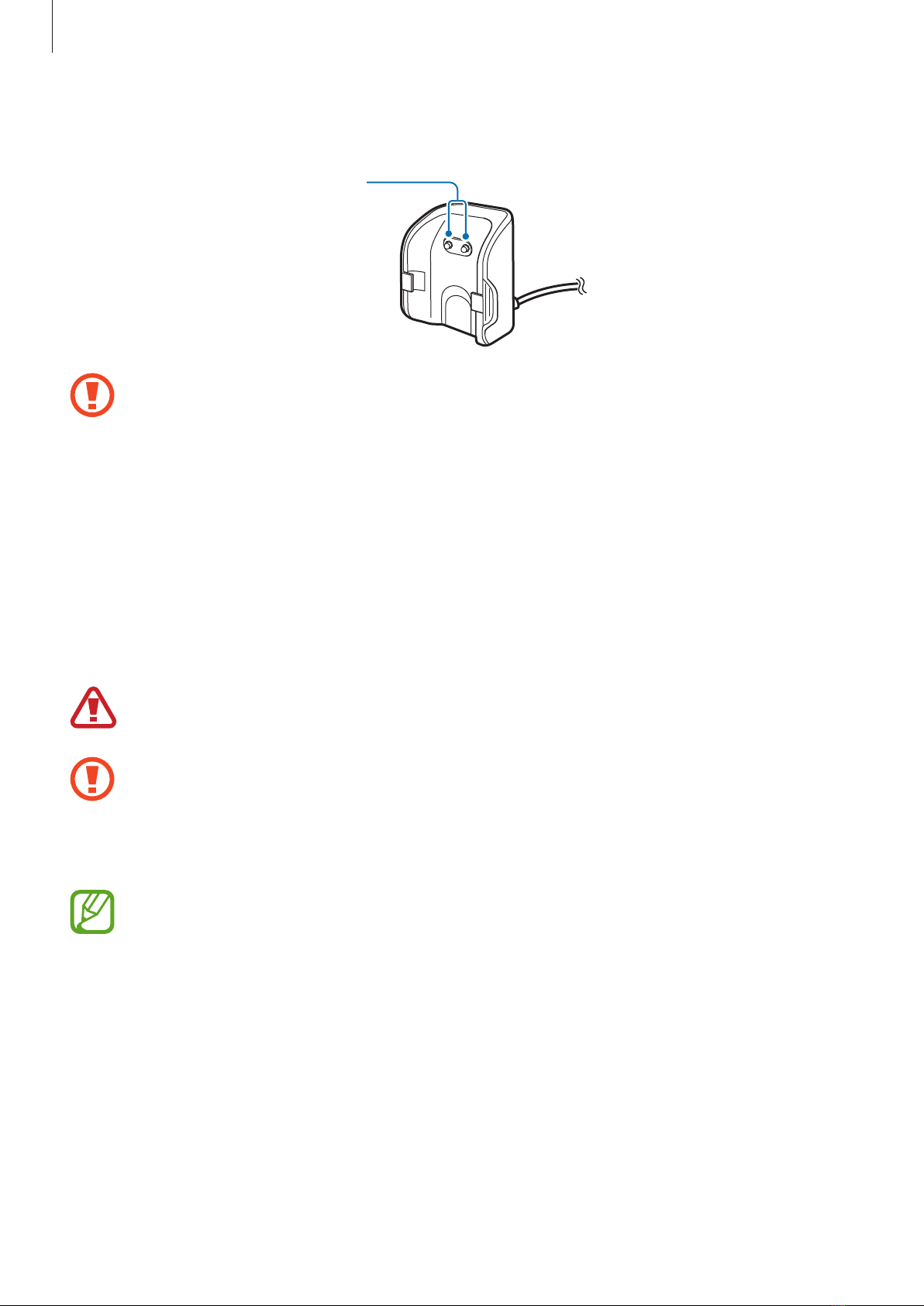
Charger
Charging contacts
Do not expose the charger to water because the charger does not have same water-
resistance certification as your Galaxy Fit2.
Battery
Charging the battery
Charge the battery before using it for the first time or when it has been unused for extended
periods.
Use only Samsung-approved chargers, batteries, and cables. Unapproved chargers or
cables can cause the battery to explode or damage the Galaxy Fit2.
•
Use the supplied charger. The Galaxy Fit2cannot be charged properly with a third-
party charger.
•
Connecting the charger improperly may cause serious damage to the device. Any
damage caused by misuse is not covered by the warranty.
To save energy, unplug the charger when not in use. The charger does not have a
power switch, so you must unplug the charger from the electric socket when not in
use to avoid wasting power. The charger should remain close to the electric socket
and easily accessible while charging.
1 Connect the charging cable to the USB power adapter.
Table des matières
Autres manuels Samsung Pédomètre