
RV Wifi 5G Instructions de montage

Installation Guide
and User Manual
2022V1
5G
RV WI-FI

Congratulations on your
purchase of an RV Wi-Fi
Router.
What makes up your RV Wi-Fi 5G
This purchase will give you greater freedom to enjoy your
travelling without sacrificing the lifestyle that the internet
provides.
4G/5G Stick Antenna’s
12 volt Power Cable
Testra Starter SIM SIM adapter
RV WIFI 5G Router
Wi-Fi Stick Antenna’s
Mounting Bracket

External 4 in 1 Antenna
External 4 in 1 Antenna Bracket

The Telstra satchel contains your Sim Card. You need to activate this and add credit to it to
nish the set up stage of your RV Wi-Fi unit.
We strongly advise to do this instore to make sure the activation has been conrmed.
You MUST use a Full Sized SIM card in the router OR in conjunction with the SIM adapter provided.
How to Activate the Telstra Pre Paid SIM
Activate your Telstra Sim Card
1Have your driver’s licence handy
2Use the Service Number located on the rear bottom space of the Telstra Satchel.
3Open your browser and go to www.telstra.com/activate
4Follow the Telstra prompts for activation.
5Once complete, turn o your router and then turn it on again to reboot the
system.
For providers other than Telstra please look on their packaging for instructions to activate.
Below are links to Optus, Vodafone and Virgin.
Optus can be activated by going to www.optus.com.au/customercentre/activateprepaid
Vodafone can be activated by going to www.vodafone.com.au/activate
Virgin can be activated by going to www.virginmobile.com.au/activate
For other providers, please see your Sim card documentation.
Warranty Registration
Please complete your Warranty Registration by going to:
www.rvwi.com.au/warranty-registration.
Your serial number for your RV Wi-Fi unit is located on the outside of the box, and on the rear of your
RV Wi-Fi unit.

Inserting your SIM card into the RV WIFI 5G
1
In your pack you will have received a SIM card adapter.
Use if required to make your SIM full sized.
2
There are three in the pack. Choose the one required
to make your sim a FULL SIZED SIM CARD
3
Insert the activated and data credited SIM into the required
adapter.
4
Insert the SIM/Adapter into the SIM card tray with the router
turned : OFF
5Turn the router on and wait 5 minutes for it to boot up
6You are now ready to connect your RV WiFi to your devices.
Scan to watch:
How to insert a SIM
card into the
RVWiFi 5G
Scan to watch:
How to use the SIM
card adapter if you
do not have a full
sized SIM card
1
In your pack you will have received a SIM card. You can use this
one or your own.
It must be a full sized SIM card - or use the adapter provided (
see below).
2Using a SIM pin, depress the SIM open button in the control
panel.
3Remove the SIM tray and place a full sized SIM in the tray,
aligning the cut outs together.
4Press the SIM in till rm and at.
5Insert the SIM tray into the SIM card slot with the SIM facing
towards the rear of the router.
6Turn on the power and wait 3 mintues for the router to boot up.
Using the SIM adapter if you do not have a full sized SIM card.

Installing your RV Wi-Fi 5G
In most cases, your manufacturer will install your
RV Wi-Fi for you. But if you are looking at installing yourself,
please follow the steps below.
There are two methods available:
•With an external antenna fitted to the outside of the RV.
• No external antenna.
Set up for use with external antenna
1
Choose a position for RV WiFi Router adjacent to a single
12v power point, with the control panel facing towards
you.;
2
Mount external antenna onto roof using bracket provided,
keep away from overhanging items and waterproof as
required;
3Screw into place on router: 2 x 4G/5G antenna cable into
‘4G/5G External’ ports on the top of the router;
4Screw into place on router: 2 x Wi-Fi antenna cables into
‘Wi-Fi/External’ ports in the side control panel;
5Attach 2 x WiFi stick antenna’s to WiFi 5.8 on the side
control panel;
6Attach 2 x 4G/5G stick antenna’s into the 4G/5G ports on
the base of the router;
7
Using a SIM pin, push the SIM open slot in the control
panel to open up the SIM card slot. Place your full sized,
activated SIM in the recess and insert it in the router.
8Plug the power adaper into the power jack of the RV Wi-Fi
Router;
9
Place the power cord into the single 12v power point and
turn on. SIM must be inserted prior to turning on or a
reboot will be required;
10 Ensure the ‘Power’ light is on.
Installing your RV Wi-Fi 5G using the
external antenna

Wi-Fi external antenna
4G/5G external antenna
Wi-Fi Internal antenna
4G/5G external antenna
4G/5G internal antenna

Installing your RV Wi-Fi 5G without the external antenna
Set up for use with NO external antenna
1Choose a position for RV Wi-Fi 5G router adjacent to
a single 12v power point;
2
Screw the 4 Wi-Fi antenna’s into the Wi-Fi ports on
the control Panel.
Screw the 4 4G/5G antenna’s into the 4G/5G ports
(top and bottom)
3Plug the power adapter into the power jack of the
RV Wi-Fi 5G Router;
4
Using a SIM card tool, depress the ‘open SIM’recess
in the control panel to pop open the SIM card
holder.
5Place the full sized/activated SIM card into the SIM
card holder and insert into the SIM card slot.
6
Place the power cord into the single 12v power
point and turn on. The SIM must be inserted prior
to power turning on.
7Ensure the Power Lights are on
1Place the end of the power adapter into
the ‘Power’ slot.
Turning on your RV Wi-Fi 5G Router
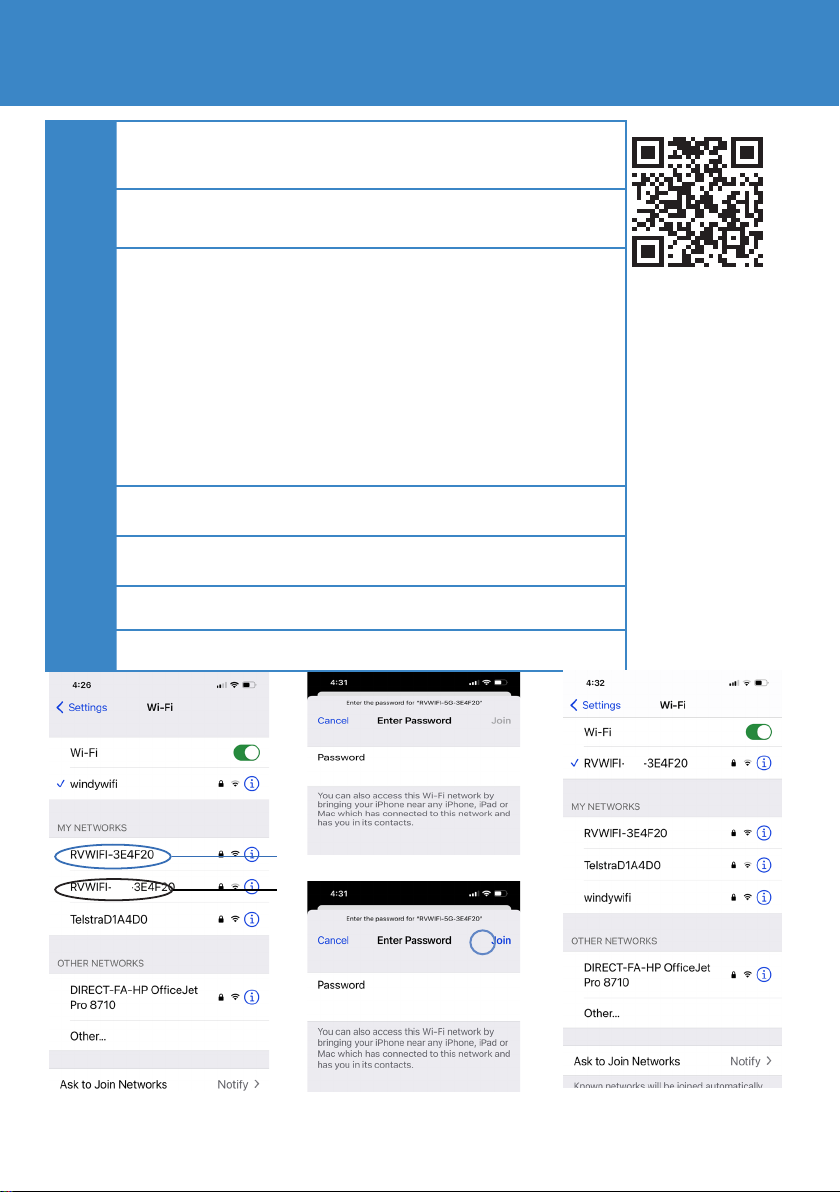
1Turn on the device/s (phone/laptop etc.), that you wish to
connect to the internet.
2Click on: ‘Settings’or equivalent page on your device
3
Click on : ‘Wi-Fi’ and choose the RV Wi-Fi network: On some de-
vices you will notice that RV Wi-Fi comes up twice with the same
series of letters and numbers, but 5.8 included.
This is because newer devices recognise the faster 5.8 Wi-Fi as well
as the standard 2.4.
Click on the 5.8 option if available.
You will need to set passwords for both versions if available. This
is simply completing the process for one, then repeating it again
for the other.
4You will be asked for the Wi-Fi password or Security Key.
5Type in: rvwi1234 (all lower case, no gaps)
6Click the: ‘Connect Automatically’ Box
7Click: ‘Connect’,
Connection to the RV Wi-Fi+ Router
Connecting your device via Wi-Fi to your RV Wi-Fi 5G
5.8 SSID
2.4 SSID
********
Scan to watch:
How to connect your
smart device to
RV Wi-Fi
5.8
5.8

1. Open the web/internet browser on your device and enter the
address http://10.0.1.1 into the‘search’bar.
http://10.0.1.1
Username is prepopulated with‘root’ Type ‘admin’for password
Setting your Wi-Fi 5G Password.
3. You are about to enter the username and password.
You MUST enter the username ‘root’ and the password ‘admin’.
Failure to do so will result in the router requiring resetting. The
‘root’ password CANNOT be changed and is prepopulated.
One of the great features of RV Wi-Fi is the security it provides
whilst using the internet. This next section provides step by step
instructions on setting your Wi-Fi password.
2. The RV Wi-Fi home page will appear.
Table des matières
Autres manuels RV Wifi Routeur réseau

Manuels Routeur réseau populaires d'autres marques


NETGEAR
NETGEAR FS526T - Switch Manuel utilisateur

Korenix
Korenix JetNet 5710G Series Manuel utilisateur

Automated Logic
Automated Logic ZN551 Manuel du propriétaire

Cisco
Cisco ASR 1000 Series Manuel de l'opérateur

EnGenius
EnGenius ESR-9710 Manuel utilisateur

Cisco
Cisco 805 Series Instructions d'utilisation et de sécurité