ROUTE 66 Chicago 8000 Manuel utilisateur


User Manual
2
Version 1.3
November 2006
Copyright © 1993-2006 ROUT 66. All rights reserved.
ROUT 66 and the ROUT 66 logo are registered trademarks.
Data copyright © NAVT Q B.V. IMPORTANT R MARK: No part of
this publication may be multiplied, be stored in a databank and
electronically, mechanically, through photocopying, on sound
carriers or in any other way be copied, without the explicit
written approval of ROUT 66. All other marks are the property
of their respective owners. The information contained in this
document is subject to change without prior notice.
ROUTE 66: Best by a Mile!

User Manual
3
Table of contents
CONVENTIONS AND ABBREVIATIONS 5
INTRODUCTION 6
WELCOME 6
YOUR FIRST TRIP:NAVIGATE TO A DESTINATION 7
FIRST STEPS 8
PREPARE YOUR DEVICE 8
UNDERSTANDING THE NAVIGATION SCREEN 8
MOVING AROUND THE MENUS 10
MOVING AROUND THE MAP 10
USING THE KEYBOARD 11
USING THE FILTER 11
USING THE TOUCH SCREEN AND STYLUS 11
MAIN MENU 12
NAVIGATE TO A LOCATION 13
WORKING WITH LOCATIONS 14
NAVIGATE TO YOUR HOME ADDRESS 15
NAVIGATE TO YOUR OFFICE ADDRESS 15
FIND AN ADDRESS AND NAVIGATE TO IT 16
NAVIGATE TO A FAVOURITE LOCATION 17
NAVIGATE TO A RECENTLY VISITED LOCATION (HISTORY)18
NAVIGATE TO A POI AROUND YOUR GPS POSITION 19
NAVIGATE TO A POI AROUND YOUR DESTINATION 20
FIND A POINT ON THE MAP AND NAVIGATE TO IT 21
NAVIGATE TO A DESTINATION VIA INTERMEDIATE POINTS (NAVIGATE VIA)22
PLAN A ROUTE 24
TMC INFORMATION 27
CUSTOMIZE YOUR NAVIGATION 28
SOUND ON /SOUND OFF 28
MAP OPTIONS 29
DAY COLOURS /NIGHT COLOURS 29
2D PERSPECTIVE /3D PERSPECTIVE 30
SET 3D ANGLE 31
SHOW FAVOURITES /HIDE FAVOURITES 32
SHOW SCALE /HIDE SCALE 33
SELECT MAP 34
LEGEND 35
POINTS-OF-INTEREST (POI) 36
ZOOM TO 37
CHANGE SETTINGS 38
BACKLIGHT 38
LANGUAGE 39
UNITS 40
VOLUME 41

User Manual
4
ROUTE TYPE 42
AVOID MOTORWAYS 43
AVOID TOLL ROADS 43
AVOID FERRIES 43
AUTOMATIC ZOOMING 44
CONFIGURE ALARM 45
SPEED 46
SET DATE/TIME 47
VERTICAL TURN ARROWS /HORIZONTAL TURN ARROWS 48
CALIBRATE SCREEN 49
CONFIGURE TMC 50
DEFINE YOUR NAVIGATION EXPERIENCE 51
POINTS-OF-INTEREST (POI) 51
MAINTAIN POI 51
ADD AS POI 51
RENAME POI 52
REMOVE POI 53
MAINTAIN POI CATEGORY 54
ADD POI CATEGORY 54
RENAME POI CATEGORY 55
REMOVE POI CATEGORY 56
POI ALARM 57
FAVOURITES 59
SET HOME ADDRESS 59
SET OFFICE ADDRESS 60
ADD FAVOURITE 61
RENAME FAVOURITES 62
REMOVE FAVOURITES 63
APPENDIX 64
INSTALLING OTHER GEOGRAPHIC MAP(S)AND VOICE INSTRUCTIONS ON THE MEMORY
CARD 64
FORMATTING YOUR MEMORY CARD 65
HOW DOES GPS WORK?66
QUICK REFERENCE CARD –NAVIGATE TO A LOCATION 67
CUSTOMER SUPPORT 69
LICENSE AGREEMENT 69
DISCLAIMER 70

User Manual
5
Conventions and abbreviations
These are the conventions used in this user manual:
, , Step-by-step instructions.
Lo ations,
Change settings Menus and submenus in your ROUT 66 product.
, ,
,
Icons in your ROUT 66 product.
Amsterdam restaurant xamples.
Warnings or important information.
These are the abbreviations used in this user manual:
2D Bi-dimensional
3D Three-dimensional
GPRS General Packet Radio Services (technology)
GPS Global Positioning System
IT Information Technology
POI Point-of-interest
RDS Radio Data System (technology)
TMC Traffic Message Channel (technology)
USB Universal Serial Bus

User Manual
6
Introdu tion
Welcome
Congratulations! You have just purchased your ROUT 66 product. You are the owner of an all-in-one, GPS-
enabled navigation solution that contains easy-to-use on-board software, the most comprehensive map
coverage currently available on the market, and state-of-the-art technology.
Easy-to-use software:
You don’t have to be an experienced driver or an IT specialist to use this product. Our professional
solution is simple and user-friendly.
Let the product do all the calculations for you. Meanwhile, concentrate on the road ahead of you and
enjoy your trip.
Behind the wheel. On your bike. Or simply walking. Our solution adapts to your needs and lifestyle.
Customize! Customize! Customize! It has never been easier to define your navigation the way you like
it! Switch from day view to night view. Browse your route in the classical 2D view, or fly like a bird
over the map in the more challenging 3D perspective. Change map colours. Set speed limits and speed
alerts. Pick the language of the voice instructions and the user interface. Take advantage of the
extensive collection of points-of-interest. Keep your expenses under control...
Do you want to navigate from A to B? Would you rather prefer a detour from the initial route? What
about longer trips, with many stopovers? Your ROUT 66 product can do this!
Comprehensive map overage:
The geographic data is provided by NAVT Q, a world leader in premium-quality digital map data.
Street-level or major roads. National or Pan- uropean coverage. It’s up to you!
Choose from an impressive collection of points-of-interest, including restaurants, hotels and petrol
stations.
Start navigating now! It’s that simple!

User Manual
7
Your first trip: Navigate to a destination
With your ROUT 66 product, you can travel more easily and much faster.
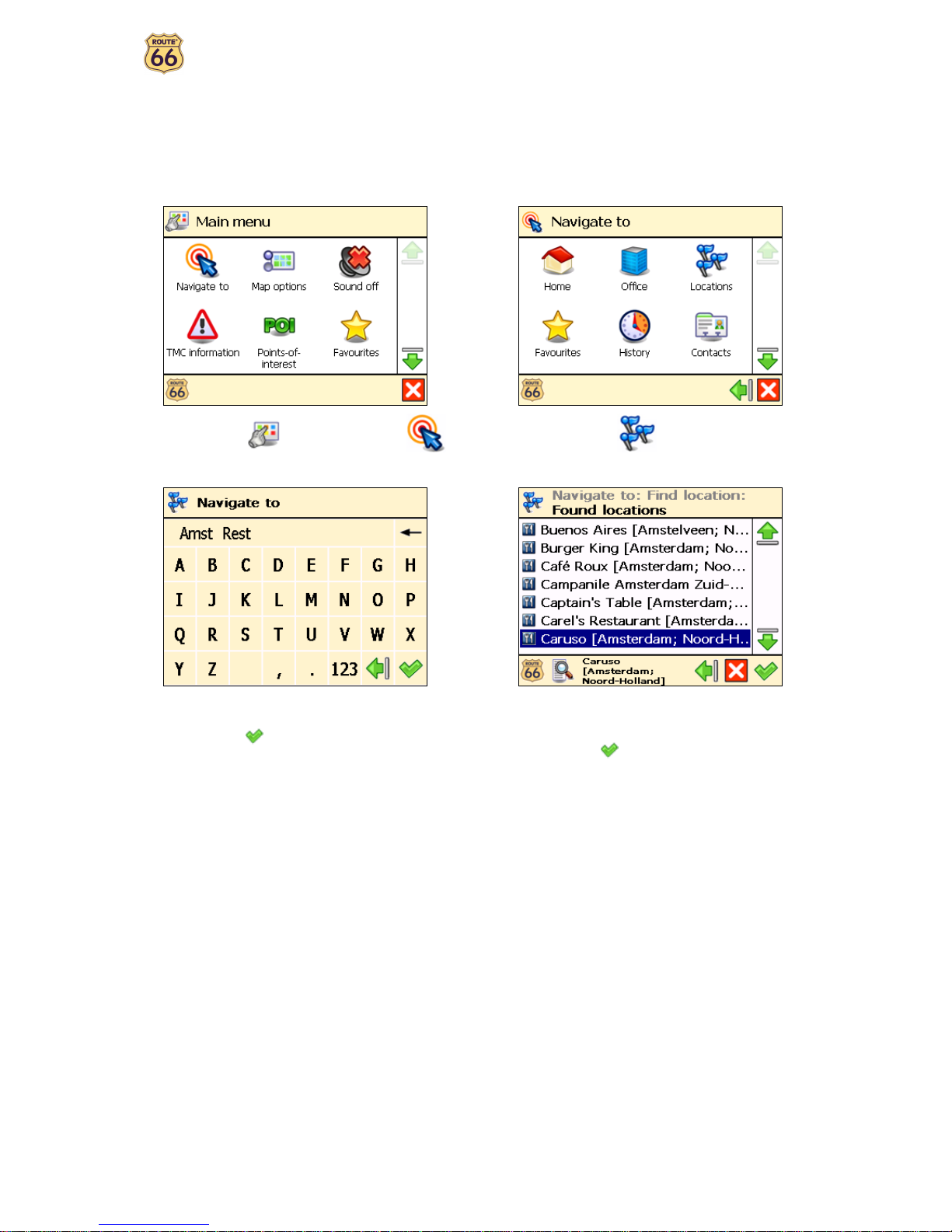
Let’s say that you wish to travel to a restaurant in Amsterdam:
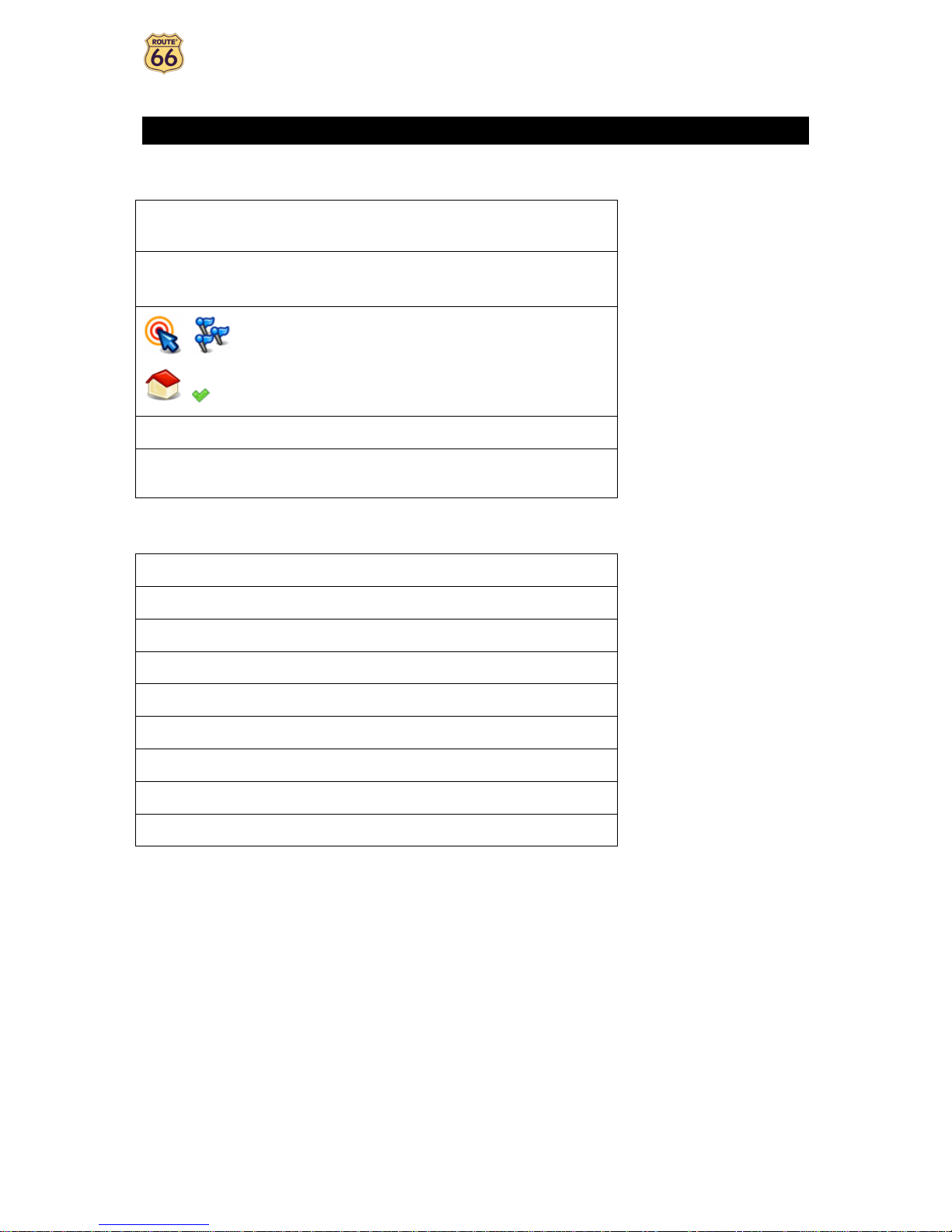
In Main Menu , select Navigate to .
Select Lo ations .
Type Amsterdam restaurant, or just amst rest and
confirm your choice .
From the list of results, select the location that best
suits your needs, for example Caruso Amsterdam and
confirm your choice .
That’s all! Now you can start navigating to your destination.
User Manual
8
First steps
Prepare your device
To start using your ROUT 66 product, you have to carry out the following 4 steps:
Charge the battery of the device.
Insert the memory card into your device.
Switch on your device and wait for a fixed GPS position.
Launch your ROUT 66 product.
Understanding the navigation screen
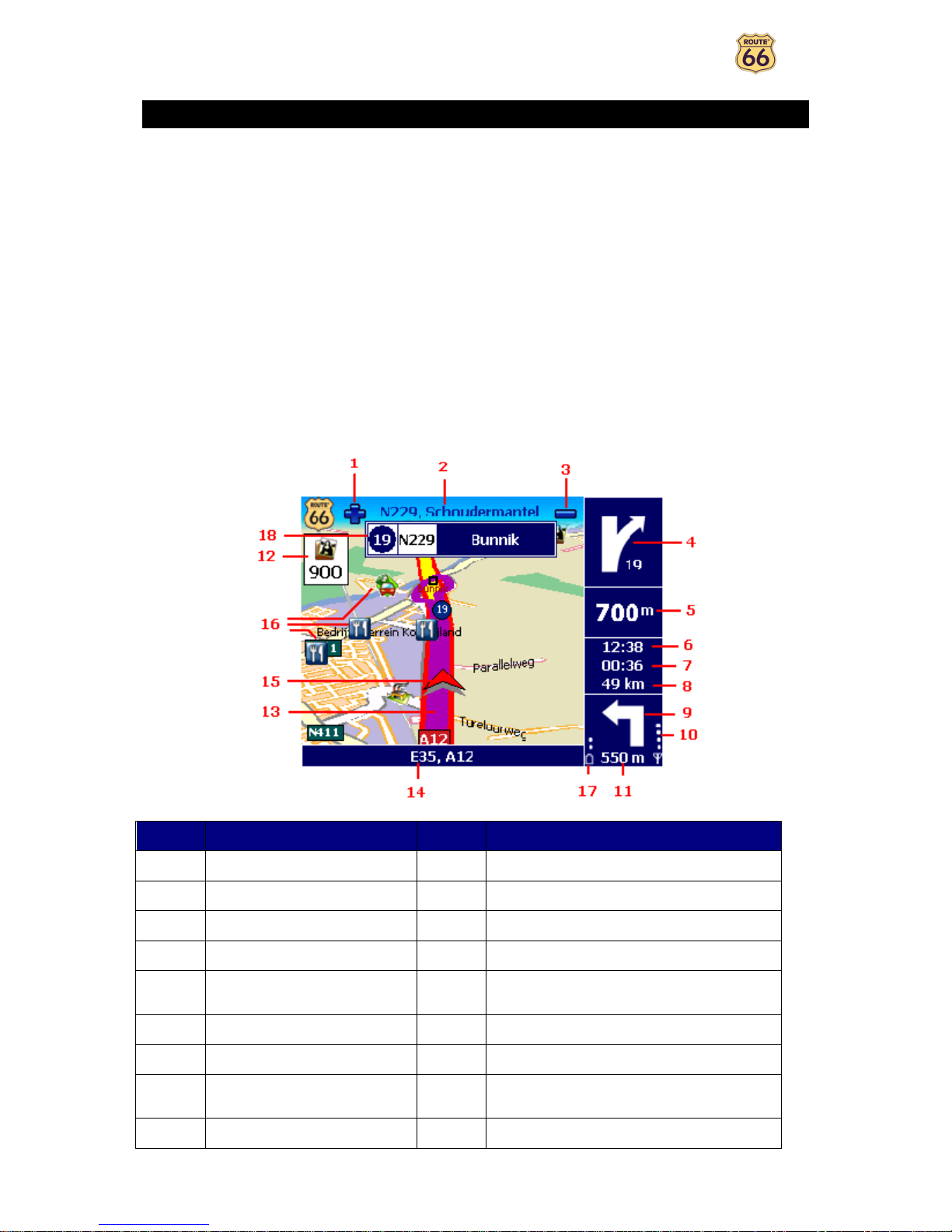
The main elements of the navigation screen are presented below.
Element
Des ription Element
Des ription
1 Zoom in 10 Strength of GPS signal
2 Next street 11 Remaining distance to the next turn
3 Zoom out 12 POI alarm
4 Current turn 13 Current route
5 Remaining distance to the
current turn
14 Current street
6 stimated time of arrival 15 GPS arrow (current position)
7 Remaining time to destination 16 Point-of-interest
8 Remaining distance to
destination
17 Battery level
9 Next turn 18 xit information

User Manual
9
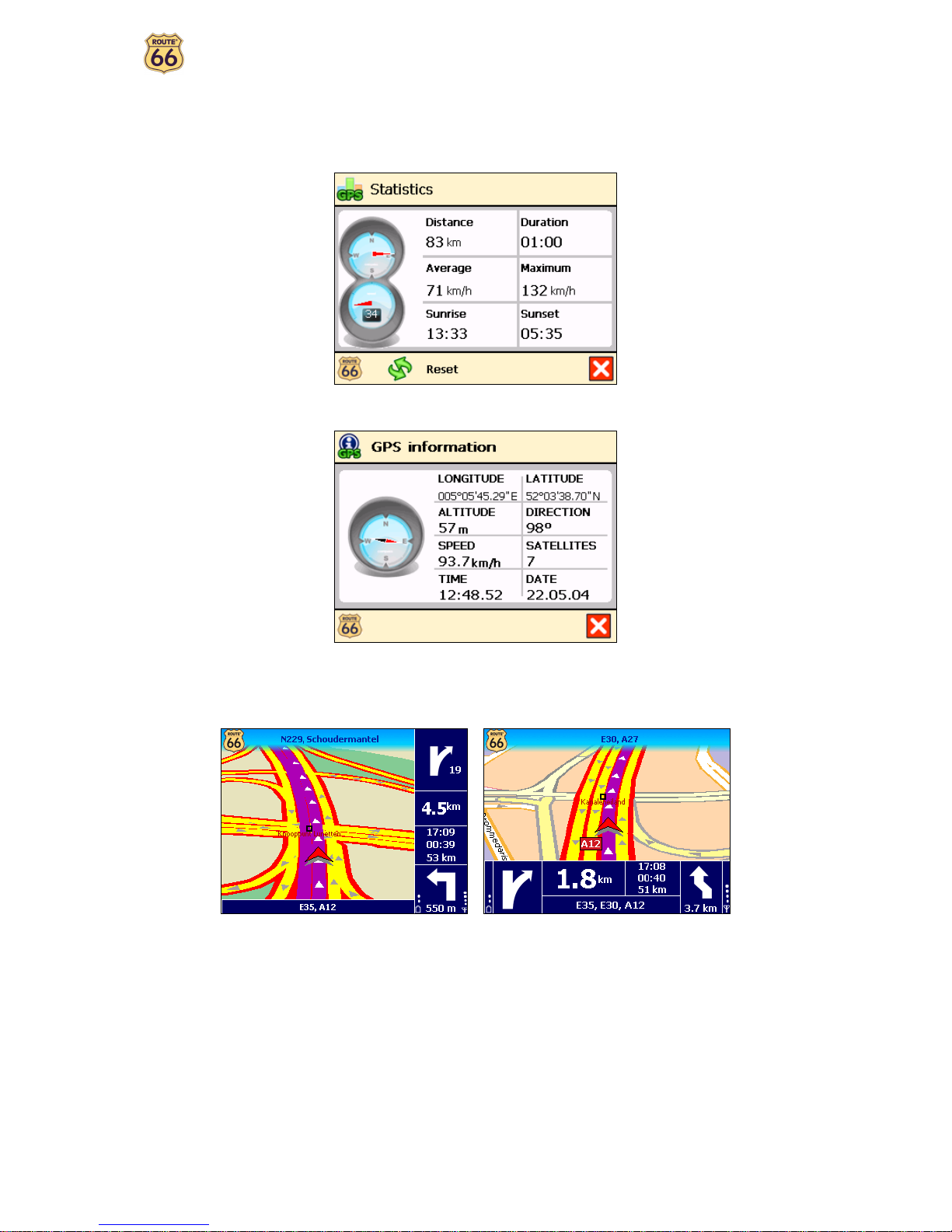
You can tap several areas of the navigation screen and display additional information:
•Tap the map area to open the Main Menu screen.
•Tap the top-right area (4) to repeat the last voice instruction.
•Tap the middle-right area (including 5, 6, 7 and 8) to display the Statisti s screen.
•Tap the bottom-right area (including 9, 10, 11 and 17) to display the GPS information screen.
Depending on your preferences and the specifications of your device, the navigation screen will be displayed as
follows:
Verti al turn arrows
Horizontal turn arrows

User Manual
10
Moving around the menus
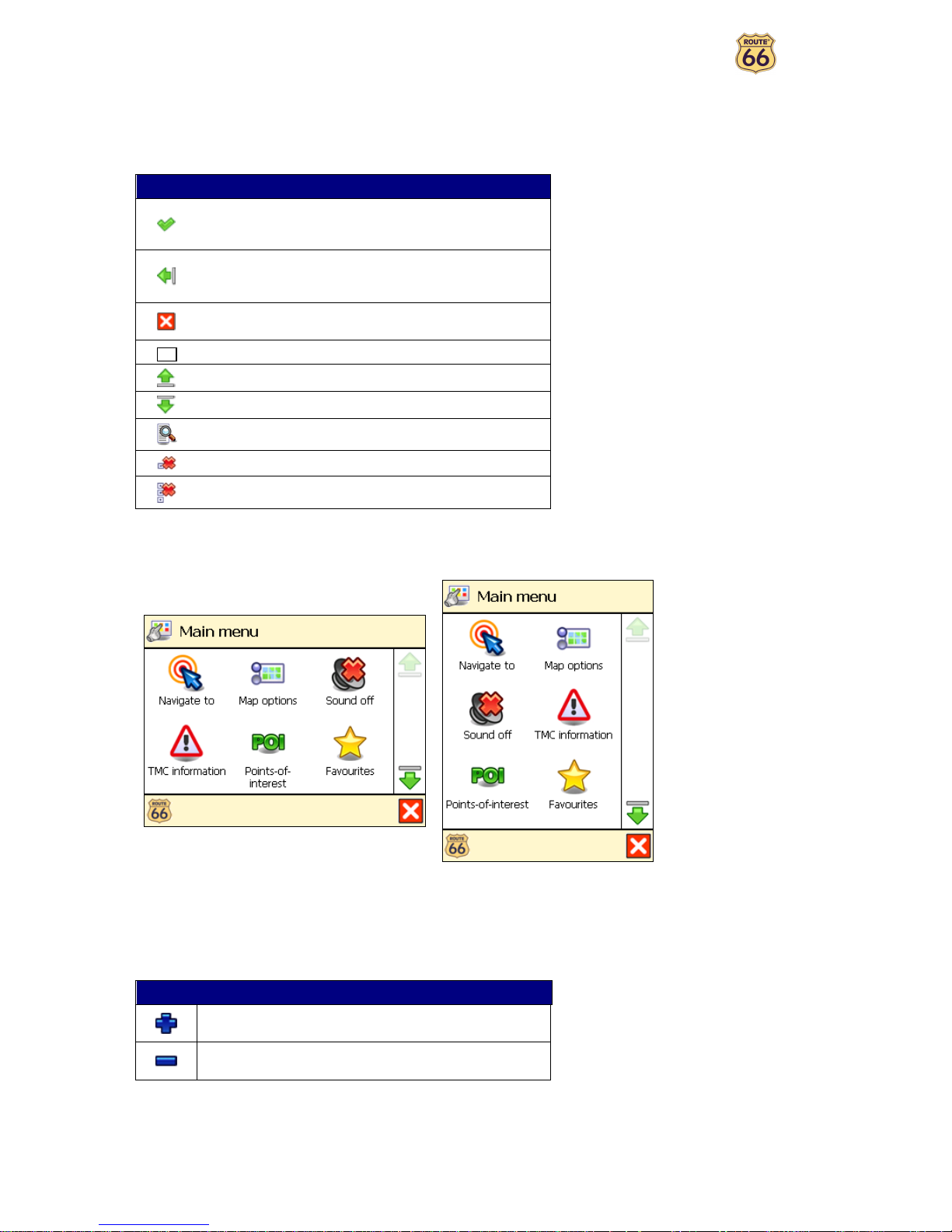
Use the following buttons to move through the product:
Button A tion
Go to the next screen or confirm choices made on the
current screen. For example, confirm language selection
or start navigating.
Return to the previous screen or abort the current
action. For example, return to the route type selection or
cancel a search action.
Jump to the main navigation screen, regardless of the
current screen.
(De)Select an item or option.
Move one screen up.
Move one screen down.
Filter long lists of search results.
Delete the selected item in a list.
Delete all items in a list.
Depending on the specifications of your device, the menus will be displayed as follows:
Lands ape orientation
Portrait orientation
You can also use the joystick, if available.
Moving around the map
To view the map in a more convenient way, use the following buttons:
Button A tion
nlarge the map view (zoom in). As you zoom in, more
details will de displayed on the map.
Decrease the map view (zoom out). As you zoom out,
less details will de displayed on the map.
You can scroll the map by selecting & holding the map and dragging it in the desired direction.
You can also use the joystick, if available.
Ce manuel convient aux modèles suivants
2
Table des matières
Autres manuels ROUTE 66 GPS

ROUTE 66
ROUTE 66 Navigate 7 Manuel utilisateur

ROUTE 66
ROUTE 66 Mobile 8 Manuel utilisateur

ROUTE 66
ROUTE 66 Mobile 2005 Manuel utilisateur

ROUTE 66
ROUTE 66 Navigate 7 Manuel utilisateur

ROUTE 66
ROUTE 66 Mini & Maxi Manuel utilisateur

ROUTE 66
ROUTE 66 Mini & Maxi Manuel utilisateur

ROUTE 66
ROUTE 66 GPD359 Manuel utilisateur

ROUTE 66
ROUTE 66 BT-GPS Manuel utilisateur

ROUTE 66
ROUTE 66 Mobile 7 WMS Manuel utilisateur

ROUTE 66
ROUTE 66 Navigate 7 Manuel utilisateur