Prolon NC2000 Manuel utilisateur

QUICK START GUIDE
BLUETOOTH, NETWORK CONTROLLER,
DIGITAL THERMOSTAT AND TREECOM
REV 6.0
PL-QCK-MIX-EN
www.proloncontrols.com |info@proloncontrols.com
17 510 rue Charles, Suite 100, Mirabel, QC, J7J 1X9

Table of Contents
Bluetooth (PL-485-BT) .................................................................................................4
System Requirements .......................................................................................4
Minimum operating system for Bluetooth................................................4
Package Contents...............................................................................................4
Installing Prolon Focus Application .............................................................4
Connecting Using Bluetooth 4.0 LE.............................................................4
Connecting Over USB (Windows Only) ......................................................5
Power & Charging...............................................................................................5
Connecting the RS485 Side.............................................................................5
Battery Precautions............................................................................................6
Regulatory and Safety Notices.......................................................................7
Network Controller (PL-NC2000) .......................................................................... 10
How to Connect a Computer to Prolon Controllers............................ 12
IP Connection.................................................................................................... 12
USB Connection ............................................................................................... 13
PL-485-BT Connection ................................................................................... 14
Digital Thermostat (PL-T1100)............................................................................... 16
Installation.......................................................................................................... 16
Inputs / Outputs............................................................................................... 18
Operation ........................................................................................................... 18
Changing the setpoint................................................................................... 19
Schedule Override........................................................................................... 19
TREE-COM (PL-TREE-COM) ....................................................................................... 20
Product Overview............................................................................................ 20
REV 6.0 / PL-QCK-MIX-EN 3
© Copyright 2022 Prolon. All rights reserved.
No part of this document may be photocopied or reproduced by any means, or translated to
another language without prior written consent of Prolon. All specications are nominal and
may change as design improvements are introduced. Prolon shall not be liable for damages
resulting from misapplication or misuse of its products. All trademarks are the property of their
respective owners.
Connecting the power................................................................................... 20
Connecting the RS485 ................................................................................... 20
Setting the subnet........................................................................................... 21
Setting leaf and root....................................................................................... 21
Viewing signal quality.................................................................................... 21
LEDS...................................................................................................................... 22
Setting bias and terminating resistors..................................................... 23
Regulatory and Safety Notices.................................................................... 23
Technical Specications ................................................................................ 25
Compliance............................................................................................................... 26
Technical Specications....................................................................................... 26


REV 6.0 / PL-QCK-MIX-EN4
System Requirements
The PL-485-BT can be used from various platforms, but in all cases, the
following is required:
•Prolon Focus Application (free - see below for details)
•Bluetooth 4.0 LE capable device (integrated or via dongle)
Minimum operating system for Bluetooth
•iOS 12
•Android 5.0 (Lollipop)
Package Contents
•PL-485-BT Converter
•USB Cable
•CAT5 Cable
Installing Prolon Focus Application
Obtain the free Prolon Focus App from the appropriate source:
•Windows: Prolon’s website: www.proloncontrols.com
•iOS: Apple App Store (Search for Prolon Focus)
•Android: Google Play Store (Search for Prolon Focus)
Connecting Using Bluetooth 4.0 LE
To communicate to the PL-485-BT over Bluetooth, you must rst pair
it with your device. The pairing process varies with the device you are
using. Please view the Hardware Guide at www.proloncontrols.com
for more details. The default pairing code is “000000”.
Bluetooth (PL-485-BT)
REV 6.0 / PL-QCK-MIX-EN 5
Connecting Over USB (Windows Only)
The PL-485-BT requires drivers on the computer for it to function. The
drivers are included along with the Prolon Focus Application. If your
computer still cannot locate the drivers, please direct it to manually
search in the Prolon installation folder, in the ‘Drivers’ subfolder.
Power & Charging
The PL-485-BT is equipped with a rechargeable Lithium-Ion battery. It
charges via the USB port. It is also equipped with an ON/OFF button.
The switch must be in the ON position for the converter to operate as
a communications device (Bluetooth or USB). When the converter is
not being used, switch to the OFF position to conserve battery life. The
converter’s battery can still be charged even when the switch is in the
OFF position.
Upon Power-Up, the POWER LED will be ORANGE for a brief period
of time (approx. 45 sec) while the battery level is being calculated
internally. After this period, the POWER LED will be:
•Blinking RED when USB unplugged
•Solid RED when USB plugged and charging
•Solid GREEN when USB plugged and the battery has been fully
charged
Connecting the RS485 Side
Connect the A (+) and B (-) screw terminals to the wires of appropriate
polarity on the RS485 bus, using appropriate RS485 cabling. Connect
the GND screw terminal to RS485 GND reference as needed.
Alternatively, the PL-485-BT is equipped with an RJ45 jack that carries
the same RS485 A (+), B (-) and GND signals among the eight pins
within the jack (see Figure below for pinout). This port is very practi-

REV 6.0 / PL-QCK-MIX-EN6
Bluetooth (PL-485-BT)
cal since it can be used to quickly connect to Prolon controllers that
are equipped with a similar RJ45 jack using a standard CAT5 cable
(included). This approach saves time since there is no need to cut and
strip wires.
Note: The RJ45 jack is NOT an ETHERNET port. The PL-485-BT does
NOT SUPPORT ETHERNET.
The RS485 TXD and RXD LEDs blink briey as bytes are being transmit-
ted or received respectively over the RS485 line, but do not indicate the
validity or comprehension of these bytes by the equipment.
The RS485 circuitry in the PL-485-BT is electrically isolated from the USB
circuitry, thereby avoiding any potentially hazardous GND loops with
your PC.
Battery Precautions
•Do not attempt to replace the battery. It is built-in and not
changeable.
•Charge your converter using a certied computer, powered hub
or power supply.
•Charge the battery in accordance with the instructions supplied
with this guide.
•Use only the charger cable that shipped with your product to
charge the battery.
REV 6.0 / PL-QCK-MIX-EN 7
Regulatory and Safety Notices
Model Name: PL-485-BT
USA: Federal Communications Commission (FCC) Statement
This device complies with part 15 of the FCC Rules.
Operation is subject to the following two conditions:
1. This device may not cause harmful interference and
2. This device must accept any interference, including interference
that may cause undesired operation of the device.
FCC Warning:
Changes or modications not expressly approved by Prolon Inc. could
void the user’s authority to operate the equipment.
Note: This equipment has been tested and found to comply with the
limits for a Class B digital device, pursuant to part 15 of the FCC Rules.
These limits are designed to provide reasonable protection against
harmful interference in a residential installation. This equipment
generates uses and can radiate radio frequency energy and, if not
installed and used in accordance with the instructions, may cause
harmful interference to radio communications. However, there is no
guarantee that interference will not occur in a particular installation. If
this equipment does cause harmful interference to radio or television
reception, which can be determined by turning the equipment o and
on, the user is encouraged to try to correct the interference by one or
more of the following measures:
•Reorient or relocate the receiving antenna.
•Increase the separation between the equipment and receiver.
•Connect the equipment into an outlet on a circuit dierent from
that to which the receiver is connected.

REV 6.0 / PL-QCK-MIX-EN8
Bluetooth (PL-485-BT)
•Consult the dealer or an experienced radio/TV technician for help.
To comply with FCC/IC RF exposure limits for general population /
uncontrolled exposure, the antenna(s) used for this transmitter must
be installed to provide a separation distance of at least 20 cm from all
persons and must not be co-located or operating in conjunction with
any other antenna or transmitter.
FCC ID: 2AK9O-485BT20
Canada: Industry Canada (IC) Statement
IC Notice to Users English/French in accordance with RSS GEN Issue 3:
This device complies with Industry Canada license-exempt RSS
standard(s). Operation is subject to the following two conditions:
1. This device may not cause interference, and
2. This device must accept any interference, including interference
that may cause undesired operation of the device.
Le présent appareil est conforme aux CNR d’Industrie Canada applica-
bles aux appareils radio exempts de licence. L’exploitation est autorisée
aux deux conditions suivantes:
1. l’appareil ne doit pas produire de brouillage, et
2. l’utilisateur de l’appareil doit accepter tout brouillage radioélec-
trique subi, même si le brouillage est susceptible d’en compro-
mettre le fonctionnement.
IC Radiation Exposure Statement:
This equipment complies with IC RSS-102 radiation exposure limit
set forth for an uncontrolled environment. This equipment should be
installed and operated with minimum distance 20cm between the
radiator and your body.
REV 6.0 / PL-QCK-MIX-EN 9
Déclaration d’exposition à la radiation:
Cet équipement respecte les limites d’exposition aux rayonnements
IC dénies pour un environnement non contrôlé. Cet équipement doit
être installé et mis en marche à une distance minimale de 20 cm qui
sépare l’élément rayonnant de votre corps.
L’émetteur ne doit ni être utilisé avec une autre antenne ou un autre
émetteur ni se trouver à leur proximité.
CAN ICES-3 (B)/NMB-3(B)
IC : 22455-485BT20

REV 6.0 / PL-QCK-MIX-EN10
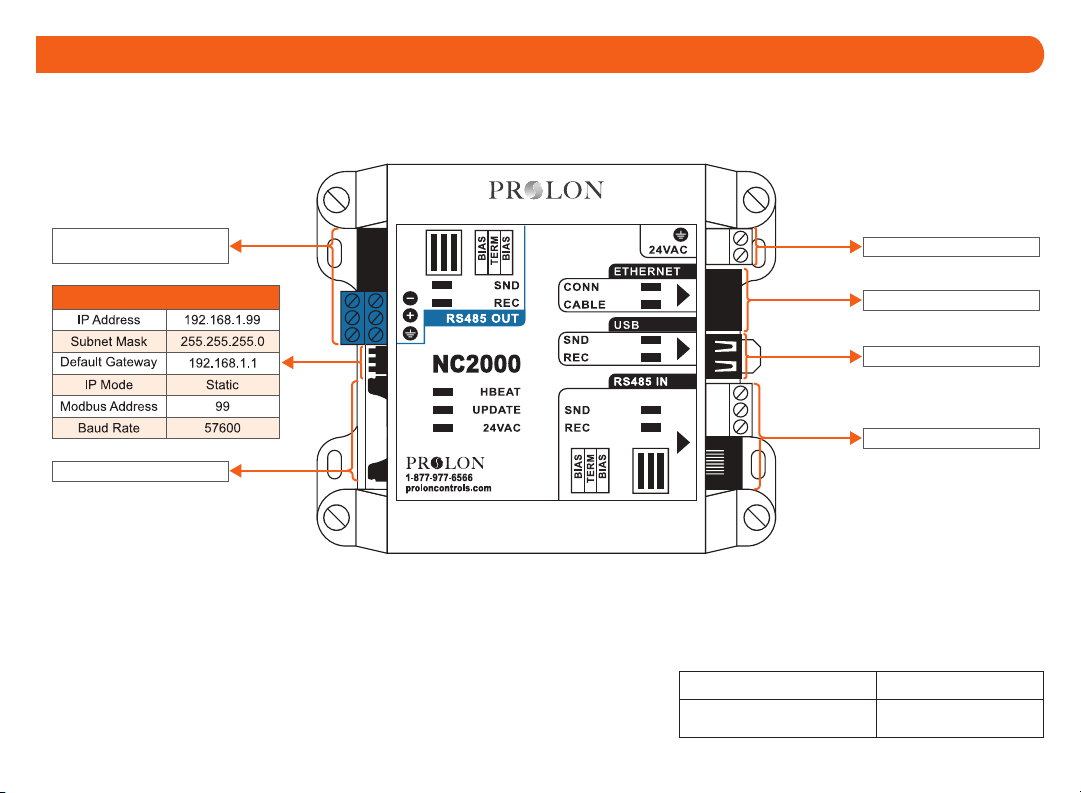
Network Controller (PL-NC2000)
Supply 24 VAC
RS-485 OUT
(to controllers)
SD card slot
Ethernet connection
USB connection to PC
RS-485 IN from PL-485-BT
Communication Settings Reset Button
REV 6.0 / PL-QCK-MIX-EN 11
Default Modbus address Default net settings
99 DHCP
Supply 24 VAC
RS-485 OUT
(to controllers)
SD card slot
Ethernet connection
USB connection to PC
RS-485 IN from PL-485-BT
Communication Settings Reset Button

REV 6.0 / PL-QCK-MIX-EN12
How to Connect a Computer to Prolon Controllers
ETHERNET
PORT
To Controllers
IP Connection
PL-NC2000 (Network Controller)
Use this method to connect to a PL-NC2000 over an IP Connection.
NOTE: The computer and the PL-NC2000 must be on the same subnet
to communicate. Use a CAT5e cable.
REV 6.0 / PL-QCK-MIX-EN 13
USB
Port
To Controllers
USB Connection
PL-NC2000 (Network Controller)
Use this method to connect to a PL-NC2000 with a USB cable. NOTE:
Use a Type-A to Type-A USB Cable. (Available only for Windows based
computers.)

REV 6.0 / PL-QCK-MIX-EN14
To Controllers
RS485
IN PORT
- OR -
PL-NC2000 (Network Controller)
Use this method to connect to a PL-NC2000 using the PL-485-BT
converter. NOTE: USB Cable (Type A to Type B) and CAT5e cable are
provided with PL-485-BT converter.
IMPORTANT: The PL-485-BT converter can be used to connect a PC/Mobile
device to ANY Prolon controller. This example only shows connections to
PL-M2000-XXX and PL-NC2000.
PL-485-BT Connection
How to Connect a Computer to Prolon Controllers
REV 6.0 / PL-QCK-MIX-EN 15
- OR -
PL-M2000-XXX (Unit Controller)
Use this method to connect to a PL-M2000-XXX using the PL-485-BT
converter. NOTE: USB Cable (Type A to Type B) and CAT5e cable are
provided with PL-485-BT converter.

REV 6.0 / PL-QCK-MIX-EN16
Digital Thermostat (PL-T1100)
Installation
1. Open casing to remove back cover by pushing on the tab located
underneath the thermostat. (See Figure 1)
2. Pull wire(s) throught central hole of back cover.
3. Screw in the back cover to the wall.
4. Connect wires:
• If using twisted pair wires:
- Pull out screw terminal block.
- Remove 1 cm insulation from each wire.
- Connect the wires to the terminal blocks and reconnect
the terminal blocks. (See Figure 2)
•If using CAT5 cable:
- Plug the cable into the RJ45 jack of the T1100 (if CAT5 cable
is opened at the controller, refer to Figure 3 for pinout of the
T1100’s RJ45 jack).
5. Reconnect top cover.
IMPORTANT! Do not install the thermostat under the following
conditions:
•Any location exposed to direct sunlight.
•On an outside wall.
•Near an air dischatge grill.
•In a location where vertical sir circulation is retricted.
•Near a dimmer switch.
REV 6.0 / PL-QCK-MIX-EN 17
Figure 1
Figure 2
Figure 3
NET A
NET B
24 VAC
COM
24V
RJ45 (Female)

REV 6.0 / PL-QCK-MIX-EN18
Digital Thermostat (PL-T1100)
Inputs / Outputs
Digital Output (triac dry contact)
Analog Output (0-10VDC) Analog Input
Operation
The T1100 is controlled using the circular touch pad on the bottom half
of the thermostat. The touch pad uses capacitive sensing technology
to detect nger proximity. There are no moving parts to push or rotate.
The T1100 is controlled using simple scrolling, tapping or holding
motions, performed around the circle of the touch pad. The center of
the circle is unused.
Scroll clockwise or
counterclockwise
to adjust or navigate
Tap here to
ENTER
Tap here to
go BACK
AO
COM
Controlled
load
0-10v
COM
External 24 VAC
External load
DO +
DO -N
Optional
thermistor
10K type3
REV 6.0 / PL-QCK-MIX-EN 19
Changing the setpoint
Schedule Override
The rst, go to the setpoint screen.
Scroll or tap
(any direction)
Heat SP
Cool SP
Adjust your setpoint
by scrolling clockwise
or counterckwise
View current zone
temperature
Home Screen Setpoint Screen
Tap anywhere
(or simply wait)
return to
Home Screen
The sun icon is
displayed when
overridden
OVERRIDE ACTIVE
(Occupied mode)
The moon icon
indicates
unoccupied mode
Scroll clockwise
to override
67.5
79.5
67.5
79.5
Autres manuels pour NC2000
1
Ce manuel convient aux modèles suivants
4
Table des matières
Autres manuels Prolon Système de contrôle