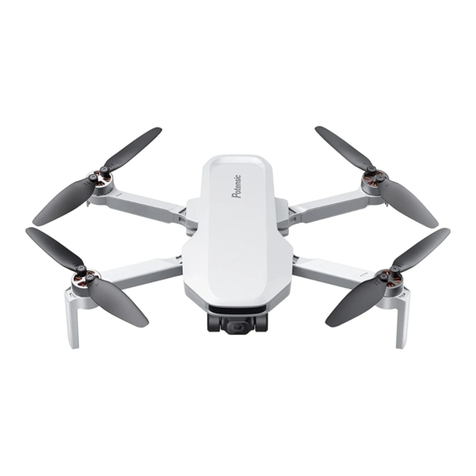
Potensic Dreamer Pro Manuel utilisateur

Tel: 858-222-1895
Web: www.potensic.com
FB: www.facebook.com/Potensic
Email: [email protected](USA)
Email: [email protected](CA)
Email: [email protected](UK)
Dreamer Pro
User Manual
DANGER
Only suitable
for age 14+

Reading Tips
Get Tutorials
Package List
Download PotensicPro App
Product Overview
Daily Maintenance
Drone Installation
Drone Diagram
Remote Control Diagram
About Aircraft
Aircraft Overview
Flight Mode
Intelligent Flight Modes
Return to home (RTH)
Drone Smart Battery
Charging Indicator Status
Remote Control
Remote Control Mode
Remote Control Charging
Remote Control Frequency Linking
Camera and Gimbal
Camera Overview
Support Micro SD Card
Gimbal Overview
PotensicPro APP
Operation Interface
Intelligent Flight Mode
Setting Interface
About Flight
Flight Environment Requirements
Flight Precautions
Connection Between the Remote Control and the Drone
Geomagnetic Calibration
Beginner Mode
Take-off and Landing
Emergency Stop
Appendix
Specification
Frequent Q&A
Safety Precautions
Warning and Tips
FCC Requirement
Contents
01
03
08
12
14
15
17
19

User manual x1
Drone with camera x1 Remote control x1
AC cable x1
Smart battery x1
Extra blades x 1 pair (CCW & CW) Drone charger x1
USB charging cable x1
(for remote control)
01
Reading Tips
Packing List
It is recommended that users watch the tutorial video first, and then read the "User Manual". Please
click the link or scean the QR code below to get tutorial videos.
Link: https://www.youtube.com/channel/UCKjU1_4HmL0XAXng0J9-NCg
Get Tutorials
Micro USB adapter x3
QR Code

Register
After downloading the drone APP, it is necessary to register a personal account before using.
Register and log in
Download PotensicPro App
02
Android users
iOS Users
For Android
For iOS
Please search and download the drone App "PotensicPro" in Google Play or scan the QR code below
to download. This App is compatible with Android 5.0 and above.
Please search and download the drone App "PotensicPro" in APP store or scan the QR code below
to download. This App is compatible with IOS 9.0 and above.
Fill in email - fill in password - view agreement - click register. Please log in after successful
registration. (Note: Please keep your mobile phone connected with network during registration)

03
1. Daily Maintenance
1. Use a soft clean cloth to clean the product.
2. Avoid exposure to the sun or heat.
3. Do not immerse this product in water, otherwise the electronic parts will be damaged.
4. Regularly check the plug and other accessories. If there is any damage, please stop using until it
is completely repaired.
This chapter mainly introduces the functional features of Dreamer Pro, guides on how to install the
aircraft, and introduces the names of various parts of the aircraft and remote control.
Thank you for purchasing Potensic Dreamer Pro drone. Please read the user manual carefully and
with your order number from Amazon or official website.
Potensic Dreamer Pro is equipped with an intelligent flight control system. The integrated gimbal is
located under the fuselage. Dreamer Pro can realize functions such as Waypoint flight, intelligent
following, and automatic return to home. 5.8G image transmission is integrated inside the remote
control for image transmission.
The drone camera adopts a 1/3-inch Sony CMOS image sensor and a gimbal stabilization system to
stably shoot a 4K high-definition video with 30 frames per second and 16MP photos.
Product Overview
2.1. Gimbal Lock
Hold the fixed camera with one hand, and remove the gimbal clamp with the other hand in the
direction of the arrow shown as Pic.
2. Drone Installation

04
Make sure the propellers are installed correctly and tightly.
Note: When hearing a "click" sound, the battery is successfully installed in place.
2.3. Installation and removal of battery
Picture 1 Picture 2
Insert the battery in the right direction as shown in Picture 1.
Press the left and right sides of the battery and pull out the battery as shown in Picture 2.
2.2 Propeller Installation
1.When installing blades, pay attention to the "CW" and "CCW" marks on the blades.
2.Press down the blade in alignment with the central axis, and rotate according to the lock marked
direction by the blade lock until it is fully screwed. After installation, the propeller will pop up and
lock. Removal of the blades are reverse of the above steps.
Unlock Direction
Lock Direction

05
Drone Diagram
5
6
4
2
3
7
8
Dreamer LED light
2
Motor
3
Camera
1
Blade
4
Front footlight
5
Rear footlight
6
Damping plate
7
Tripod
8
Pad
9
Gimbal
Gimbal clamp
10
11
2.4 App Real-time Image Connecting
1
9
10
11
Follow these steps to connect your mobile device:
1. Expand and adjust the antenna position.
2. Open the remote control pull-out board, and then put your mobile phone into it. The size range of
the clamping machine is 97-178mm
3. Use the corresponding connecting cable to connect the mobile device to the micro USB interface of
the remote control.

06
14
13 12
Smart battery
12
Power indicator
13
Power switch (after short pressing once, long press for 2 seconds to switch on/off the drone)
14
Remote Control Diagram
Know Your Remote Control
Antenna
1
Control stick
2
7
5
1
2
6
3
4
2
Dreamer Pro uses a 5.8G remote control with complete function buttons. It can support various
operations and settings of the drone and camera within a maximum communication distance of
2000m, and can display real-time HD pictures on the mobile device through PotensicPro app. The
remote control has a built-in rechargeable lithium battery, which can work continuously for up to
2.5hours.

07
9
8
12
10
11
8
9
10
Camera adjustment thumbwheel
Turn the thumbwheel to adjust shooting angle of the camera.
Photograph
Click to take one picture at a time.
Video-recording
Press once to record, click again to exit.
Camera brightness adjustment thumbwheel
Turn the thumbwheel to adjust the exposure of the camera.
11
12
7Micro USB charging port
3
One-click take-off/landing
Press 2s to take off or land.
4
5
6
Power switch
Press 2s to turn the remote control on/off.
Control sticks storage box
A box to place control sticks.
One-click return
By pressing the button for 1s, the drone will perform auto returning after you hearing one
beep sound from the remote control; press it again and also hear one beep sound, then the
drone will stop the returning.
Standard Mode/Sport Mode
Push the button to the right side position to start sport mode, The standard mode is 5m/s
and the sport mode is 8m/s.
Dreamer Pro uses a 5.8G remote control with complete function buttons. It can support various
operations and settings of the drone and camera within a maximum communication distance of
1000m, and can display real-time HD pictures on the mobile device through PotensicPro app. The
remote control has a built-in rechargeable lithium battery, which can work continuously for up to 3
hours.

08
Photograph
Click to take one picture at a time.
About Aicraft
1. Aircraft Overview
Dreamer Pro is mainly composed of flight control, communication system, positioning system, power
system and smart battery. In this chapter, the functions of various components on the aircraft are
described in detail.
2. Flight Modes
Dreamer Pro adopts a new generation of Potensic flight control, which supports the following two flight
modes:
GPS mode: Use GPS module to achieve precise hovering, waypoint flight and other intelligent flight
modes. In GPS mode, the GPS signal is good, the GPS can be used for accurate positioning; when
the GPS signal is not good, the aircraft cannot be accurately positioned, it only provides attitude
stabilization, and does not support the intelligent flight function.
Attitude mode: The GPS module is not used, only the stabilization of the altitude is provided, so that it
will drift in the horizontal direction. At this time, the operator needs to manually control the flight of the
aircraft. This mode is used by novices with caution. In this mode, the difficulty of controlling the aircraft
will be greatly increased. If you want to use this mode, you must be familiar with the behavior of the
aircraft in this mode and be able to skillfully control the aircraft. Do not fly the aircraft out of a long
distance during use, so as not to lose Judging the attitude of the aircraft poses risks.
Two Modes Switching: The default GPS mode is turned on, you can press the middle button of the left
joystick during flight or switch in the App function module.
Drone Indicator Status
Attitude Mode
GPS Mode
Four lights always on
Front lights always on
Rear lights blink slowly
Headless Mode
Front lights blink slowly
Rear lights always on
Warning and Abnormal
Drone Low Power
Drone Disconnected
Drone Binding
Emergency Stop or Rollover(Motor stopped)
Firmware Upgrade
Sensor Abnormal
Four lights blink slowly
Four lights blink quickly
Left and right side lights blink alternately
Horizontal calibration: left lights blink slowly, right lights keep on
Vertical calibration: left lights keep on, right lights blink slowly
Four lights keep long off, short on cycling
Four lights on in turn clockwise
Rear left and right lights blink alternately
Geomagnetic Calibration
Table des matières
Autres manuels Potensic Drone

Potensic
Potensic ATOM SE Manuel utilisateur

Potensic
Potensic D88 Manuel utilisateur

Potensic
Potensic F186 DH Manuel utilisateur

Potensic
Potensic Dreamer Mini Manuel utilisateur

Potensic
Potensic A20 Manuel utilisateur

Potensic
Potensic Wisp Manuel utilisateur

Potensic
Potensic P7 Manuel utilisateur

Potensic
Potensic ATOM SE Manuel utilisateur

Potensic
Potensic Dreamer 4K Manuel utilisateur

Potensic
Potensic D58 Manuel utilisateur