PORT CONNECT 901908 Manuel utilisateur

USER GUIDE
MANUEL UTILISATEUR
BENUTZERHANDBUCH
MANUAL DEL USUARIO
GEBRUIKSHANDLEIDING
РУКОВОДСТВО ПОЛЬЗОВАТЕЛЯ
MANUAL DO UTILIZADOR
ANVÄNDARMANUAL
MANUALE D’USO
PODRĘCZNIK UŻYTKOWNIKA
POUŽÍVATEĽSKÁ PRÍRUČKA
UŽIVATELSKÁ PŘÍRUČKA
مﺪﺨﺘﺴﻤﻟا ﻞﯿﻟد
cable
connectivity
1 USB
TYPE C
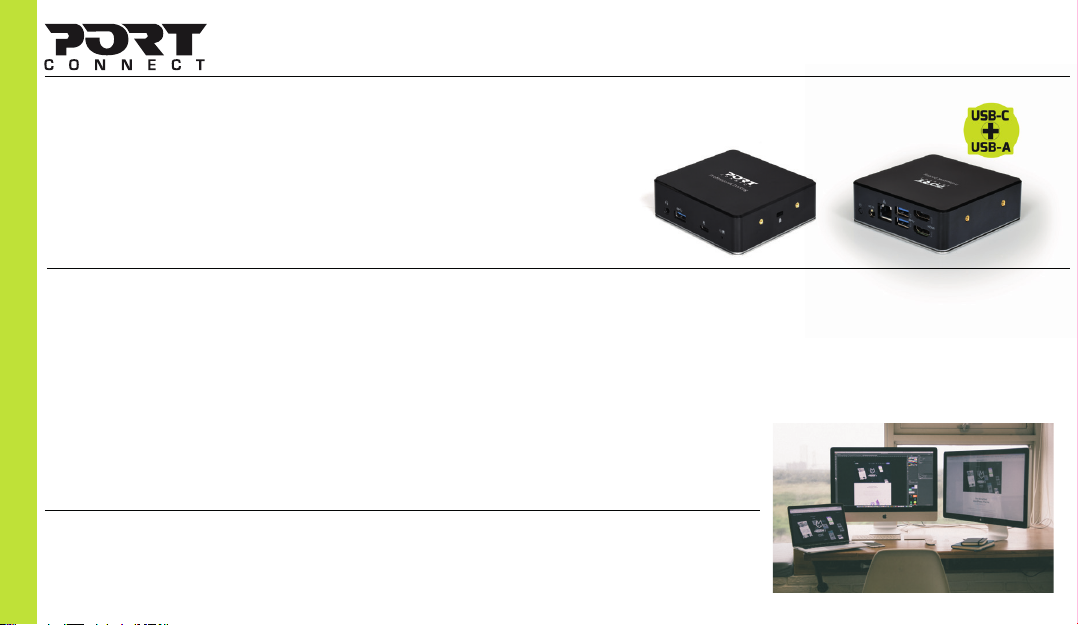
UNIVERSAL DOUBLE SCREEN DOCKING STATION
Office 2 X 2K - USB–C + USB-A
WITH 85W POWER DISTRIBUTION
MODEL: 901908
cable
connectivity
USB-C
2 x 2K
& USB-A
FOR USBC & USBA
PC & MAC
USB-C
power replicator
85W
SLOT FOR
SECURITY CABLE

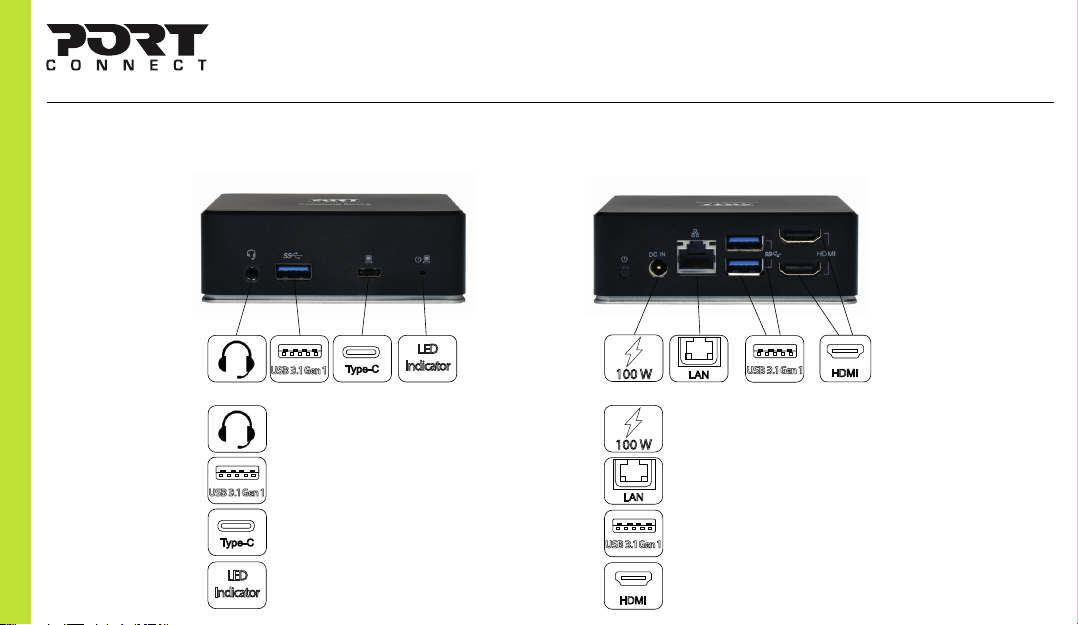
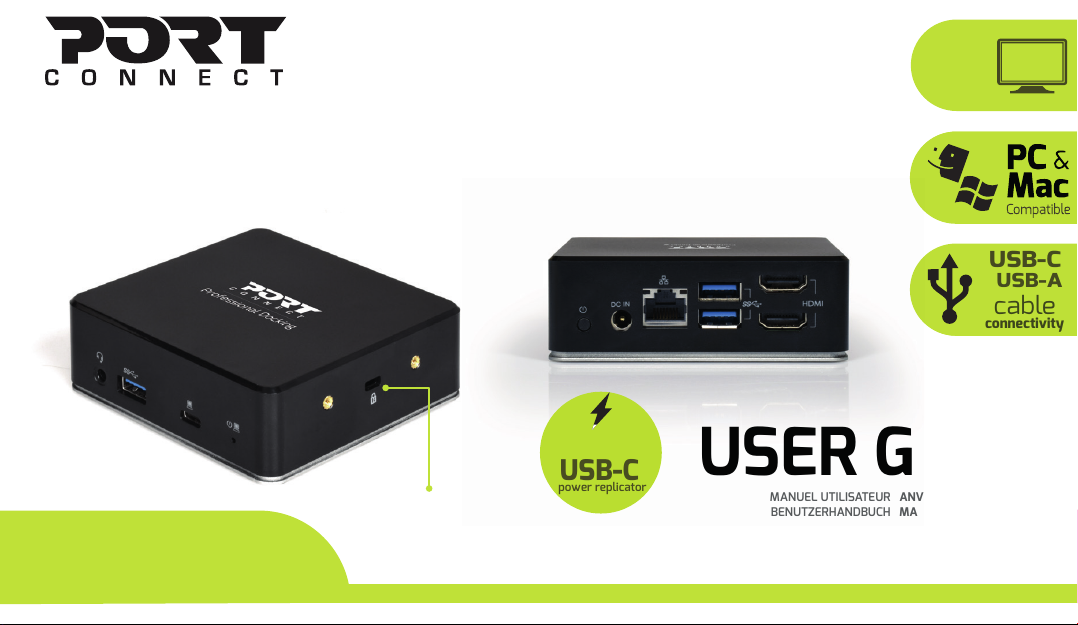
CONNECTORS COMPATIBILITY SCHEMA
UNIVERSAL DOUBLE SCREEN DOCKING STATION OFFICE 2 X 2K - USB–C + USB-A WITH 85W POWER DISTRIBUTION
Follow the illustrations below to connect
the corresponding connectors.
100 W
Power supply
Connect to HDMI monitor:
Screen, projector
Type C to Notebook with combo cable
(type C + type A) 85W PD
LED shows blue when power on,
green when active
Connect to USB 3.1 Gen 1 devices:
Mouse, flash drive, camera, phone
RJ45 port
Connect to Ethernet 10/100/1000 MBPs
Jack Audio – connect to a headset 100 W
100 W
1
Connect to USB 3.1 Gen 1 devices:
Mouse, flash drive, camera, phone

CONGRATULATIONS AND THANK YOU FOR PURCHASING OUR PRODUCT
SPECIFICATIONS
° CASE DIMENSIONS: 9,5 X 9,5 X 3,3 CM
° NET WEIGHT: 180 GR
°INPUT: AC 100240V
°OUTPUT: 20V DC/5A
° OUTPUT POWER: 85 W
WARNING !
° KEEP AWAY FROM WATER, LIQUID, FIRE AND OUT OF THE REACH OF CHILDREN.
° AVOID EXPOSING THE DOCKING STATION TO PROLONGED PERIODS OF EXTREME HEAT OR COLD.
° WHEN THE DOCKING STATION IS IN USE, PLACE IT ON A SOLID SURFACE TABLE, FLOOR, ETC. WITH ADEQUATE AIRFLOW.
° WHEN DISCONNECTING THE DOCKING STATION FROM THE COMPUTER, ENSURE YOU GRASP THE CONNECTOR AND PULL FIRMLY AWAY FROM THE DOCKING STATION. THIS WILL AVOID DAMAGE TO THE CONNECTOR AND/OR TO
THE CABLE.
° IF THE DOCKING STATION OR ITS ELEMENTS BECOME DAMAGED THEY MUST BE REPLACED BY QUALIFIED PERSONNEL WITH ELEMENTS OF THE SAME TYPE AND RATING. DO NOT DISMANTLE OR ATTEMPT TO REPAIR THIS
PRODUCT YOURSELF.
° IF ANY OF THE FOLLOWING SITUATION ARISES, GET THE EQUIPMENT CHECKED BY A SERVICE TECHNICIAN:
THE EQUIPMENT HAS BEEN EXPOSED TO MOISTURE.
THE EQUIPMENT HAS BEEN DROPPED AND DAMAGED.
THE EQUIPMENT HAS OBVIOUS SIGN OF BREAKAGE.
THE EQUIPMENT HAS NOT BEEN WORKING WELL OR CANNOT GET IT TO WORK ACCORDING TO THE USER’S MANUAL
TROUBLESHOOTING
IF THE UNIT APPEARS TO HAVE FAILED IN FUNCTIONING PLEASE CHECK THE FOLLOWING:
° THE DOCKING STATION IS PLUGGED INTO A WORKING OUTLET SOCKET.
° THE CORRECT CONNEECTOR IS SELECTED AND CONNECTED FIRMLY TO BOTH THE DOCKING STATION AND THE LAPTOP DEVICE.
IF ALL OF THESE SPECIFICATIONS ARE VERIFIED AND THE DOCKING STATION STILL DON’T FUNCTION, PLEASE REFER TO YOUR PURCHASE POINT.
MODEL: 901908
CONTENTS
• 1 USB-A & USB-C Dual Video Docking Station
• 1 Powered 100W power adapter
• 1 included dual USB-C & USB-A cable
• 1 User manual
UNIVERSAL DOUBLE SCREEN DOCKING STATION OFFICE 2 X 2K - USB–C + USB-A WITH 85W POWER DISTRIBUTION
2

WINDOWS OS DISPLAY CONFIGURATION
®
1. EXTEND MODE
UNIVERSAL DOUBLE SCREEN DOCKING STATION OFFICE 2 X 2K - USB–C + USB-A WITH 85W POWER DISTRIBUTION
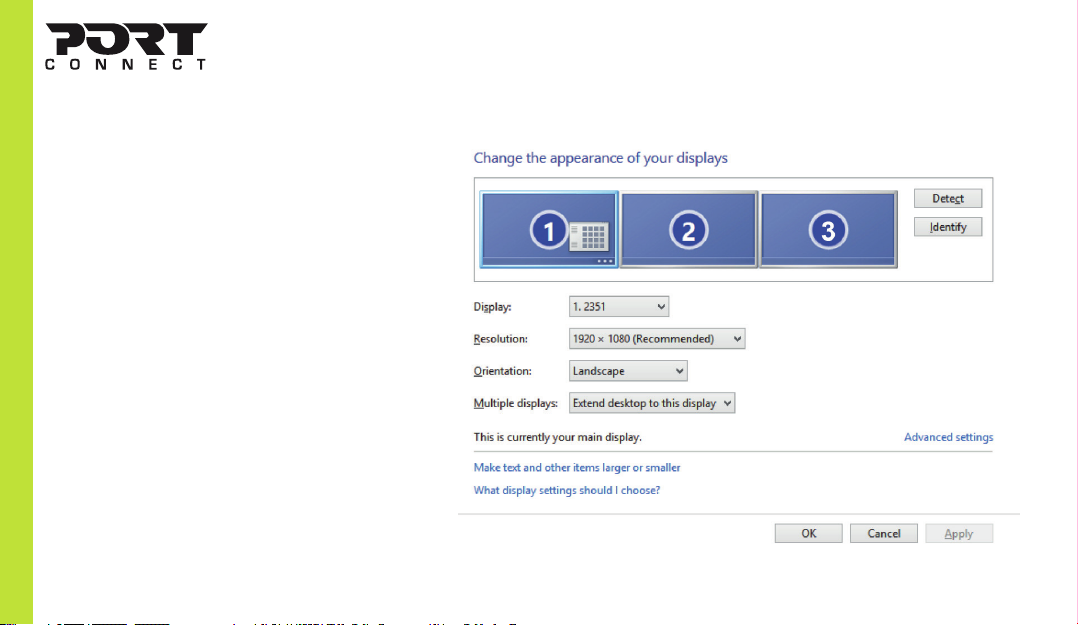
MULTI-MONITOR CONFIGURATION
To be able to configure your devices, please
download the Display Link software, available on
http://www.displaylink.com.
Once the extra monitors are connected, they can
be configured to either Mirror mode, Extend mode
or set the primary display.
Position the mouse anywhere on the Windows
Desktop, Right‐click and select Screen Resolution.
1. Refer to the Multi‐monitor configuration section
to bring up the configuration window.
2. In the Display drop‐down menu, select the main
monitor.
3. Select Multiple Displays > Extend these
displays.
4. Click OK to confirm and exit.
EN - ENGLISH
3

®
2. MIRROR MODE
1. Refer to the Multi‐monitor configuration section to bring up the
configuration window.
2. In the Display drop‐down menu, select the main monitor.
3. Select Multiple Displays > Duplicate these displays.
4. Click OK to confirm and exit.
3. SET THE PRIMARY MONITOR
1. Refer to the Multi‐monitor configuration section to bring up the
configuration window.
2. In the Display drop‐down menu, select the preferred monitor.
3. Check the box of Make this my main display.
NOTE: FOR SOME COMPUTERS, YOU MAY NEED TO DISABLE THE MAIN
DISPLAY BY UNCHECKING THE BOX OF EXTEND THE DESKTOP ONTO
THIS MONITOR OR EXTEND MY WINDOWS DESKTOP ONTO THIS
MONITOR.
4. Click OK to confirm and exit.
4. SST MODE
If the system only supports SST mode, the external monitors connected
will be considered to be the same output.
5. MST MODE
When using MST mode to connect external monitors, you can use Mirror
mode, Extend mode or set the primary display.
UNIVERSAL DOUBLE SCREEN DOCKING STATION OFFICE 2 X 2K - USB–C + USB-A WITH 85W POWER DISTRIBUTION
5. Once the setting is completed, simply drag and drop the application
icons or the opened windows to the add‐on monitor. However, some
applications may not support to display on the extended desktop.
NOTE: IF THE SYSTEM ONLY SUPPORTS SST MODE, THE EXTERNAL
MONITORS CONNECTED WILL BE CONSIDERED TO BE THE SAME
OUTPUT.
6. Software Troubleshooting
a. Cursor disappeared
If the status remains in the extended mode but the docking station is
disconnected, the desktop will still be panned to the add‐on monitor.
The cursor may not be found on the primary monitor in such a case.
If it happens, connect the add‐on monitor through the docking station
again or keep moving the mouse.
b. Video playback in extended mode
If the video or DVD playback quality is poor or low performance in
extended mode, please playback it on the primary monitor instead of
the add‐on monitor.
EN - ENGLISH
4
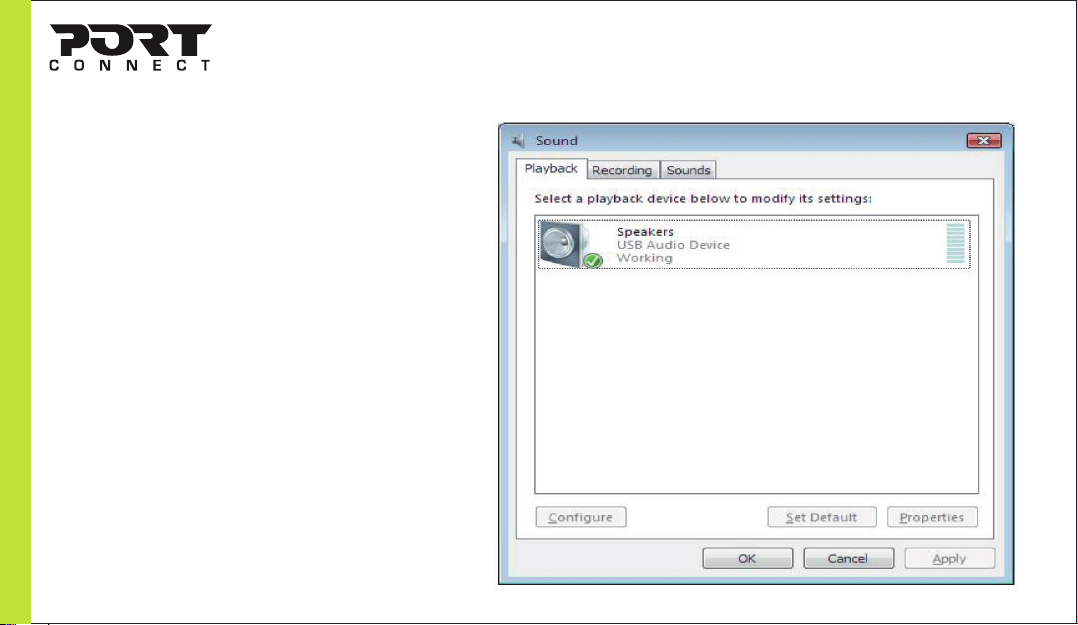
WINDOWS OS DISPLAY CONFIGURATION

By default, when the docking station is connected to a
computer, the audio configuration may be changed to
USB (Multimedia) Audio Device automatically (this
setting depends on models). If it does not work,
follow the steps below to setup.
1. Open Control Panel and then select the hardware
and sound icon.
2. Click Sound > Manage audio devices and then select
USB Audio Device.
UNIVERSAL DOUBLE SCREEN DOCKING STATION OFFICE 2 X 2K - USB–C + USB-A WITH 85W POWER DISTRIBUTION
EN - ENGLISH
5
®
WINDOWS OS AUDIO CONFIGURATION

MAC OS DISPLAY LINK CONFIGURATION
®
UNIVERSAL DOUBLE SCREEN DOCKING STATION OFFICE 2 X 2K - USB–C + USB-A WITH 85W POWER DISTRIBUTION
EN - ENGLISH
6
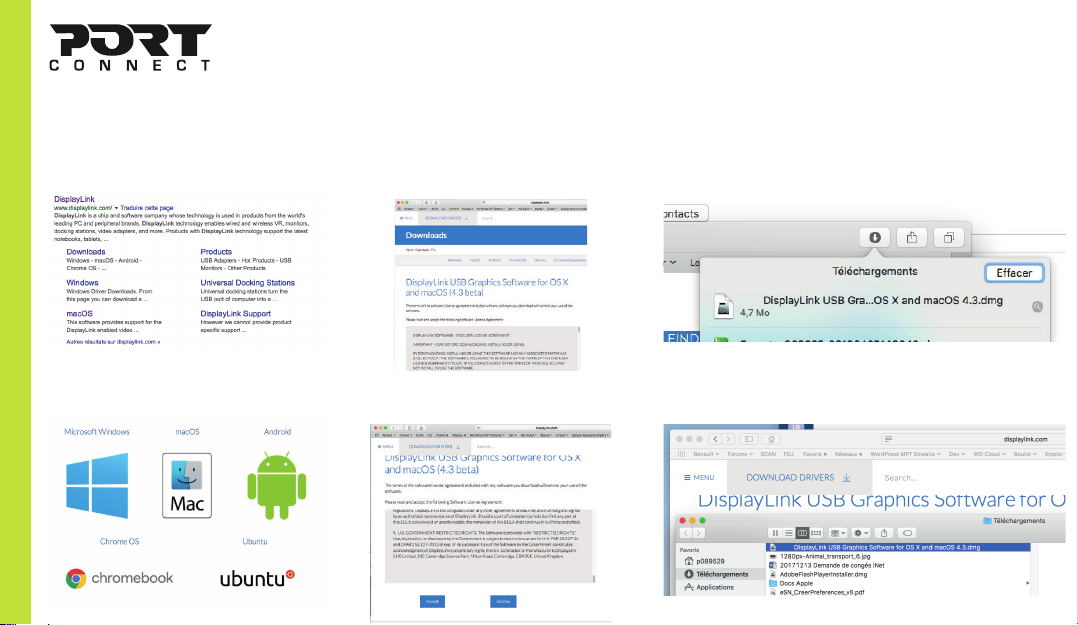
1. Look for displaylink over Internet and
choose Downloads.
2. Choose macOS.
3. Scroll down this page.
4. Hit Accept to begin download.
5. Hit over the downloads icon and hit the
magnifying glass when download is ended.
6. Hit two times over the displayed file.

MAC OS DISPLAY LINK CONFIGURATION
®
UNIVERSAL DOUBLE SCREEN DOCKING STATION OFFICE 2 X 2K - USB–C + USB-A WITH 85W POWER DISTRIBUTION
EN - ENGLISH
7
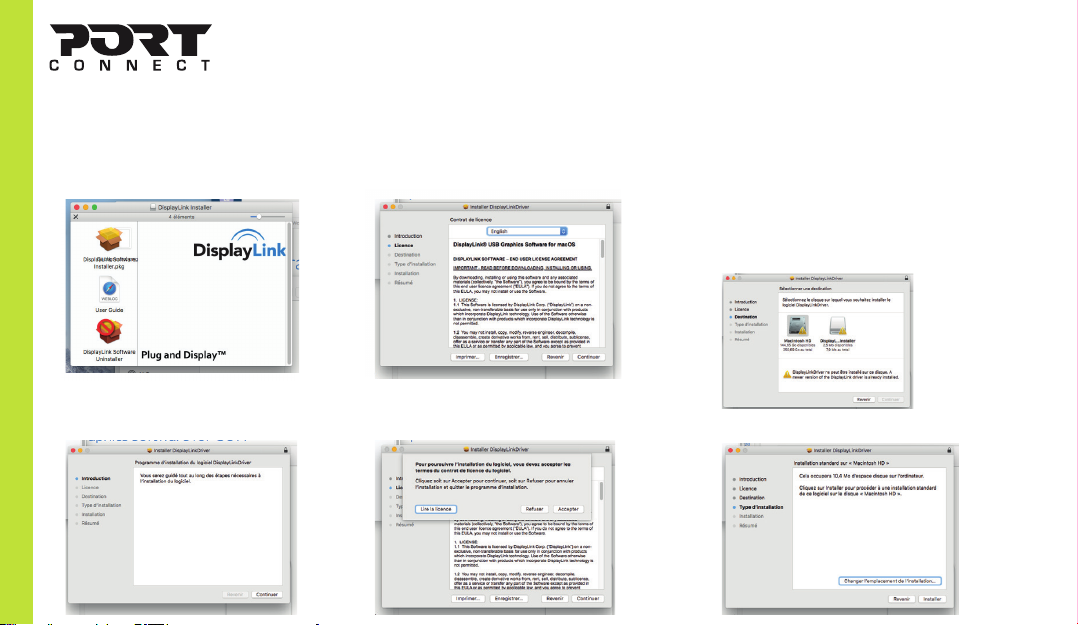
7. Hit two times over the file
Display Software Installer.pkg.
8. On this screen hit Continue.
9. You can read licence sheet and
hit Continue.
10. Hit Accept. 12. On this screen hit Install.
11. Choose Macintosh HD, if the software has
already been installed, the message
“DisplayLinkDriver can not be installed on this
disk", it will first uninstall the software using
the program Display Link Uninstaller and
resume installation. Otherwise, click Continue.

MAC OS DISPLAY LINK CONFIGURATION
®
UNIVERSAL DOUBLE SCREEN DOCKING STATION OFFICE 2 X 2K - USB–C + USB-A WITH 85W POWER DISTRIBUTION
EN - ENGLISH
8
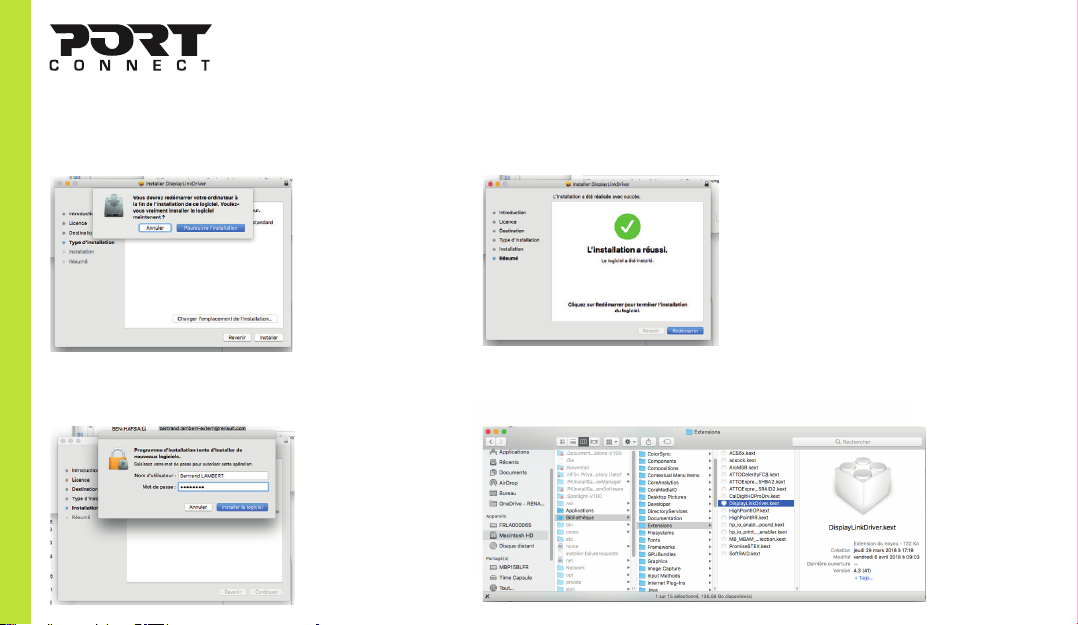
13. On this screen hit Continue installation.
14. Enter a user name and password for an
administrator account and click Install Software.
15. On this screen hit Restart.
16. After restart, you can check the installation
in folder : ./Library/Extensions/

MAC OS DISPLAY CONFIGURATION
®
UNIVERSAL DOUBLE SCREEN DOCKING STATION OFFICE 2 X 2K - USB–C + USB-A WITH 85W POWER DISTRIBUTION
EN - ENGLISH
9
1. EXTEND MODE
MULTI-MONITOR CONFIGURATION
To be able to configure your devices, please
download the Display Link software for OS-X,
available on http://www.displaylink.com.
Once the extra monitors are connected, they can
be configured to either Mirror mode, Extend mode
or set the primary display.
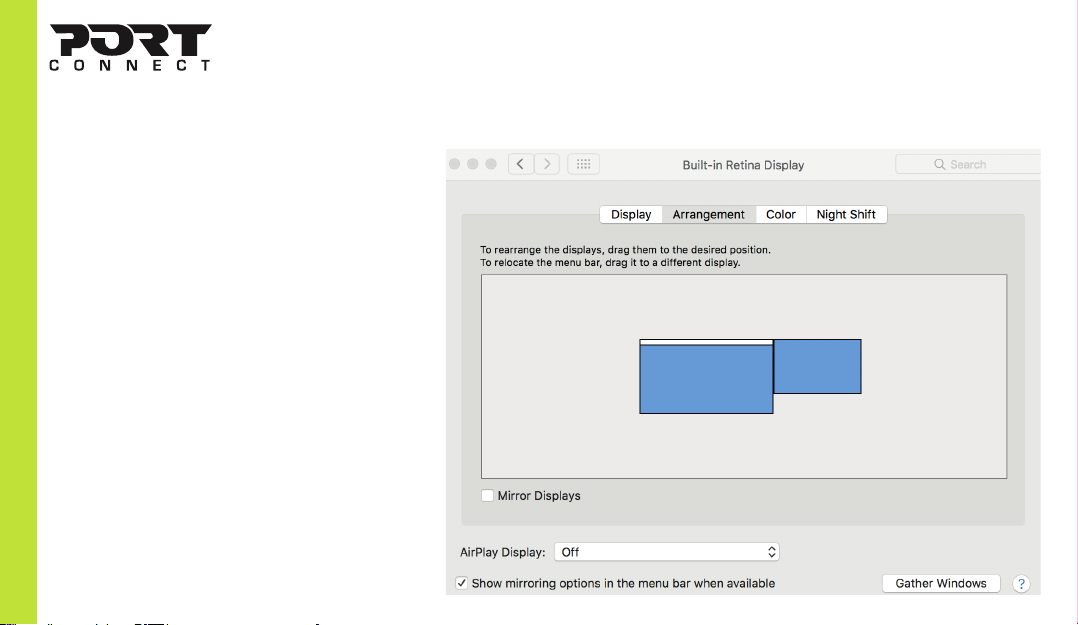
Click on the apple menu on the top right of your
Mac Desktop and select System Preferences.
1. Refer to the display section to bring up the
configuration window.
2. Select the Arrangement section
3. Simply drag and drop the screens, to choose the
screens locations.
Table des matières
Autres manuels PORT CONNECT Station d'accueil