
PICO 4 Series Manuel utilisateur

User Guide
For PICO 4 Series

EN
FR
02
29
User Guide*
Guide de l’utilisateur
DE
IT
JP
11
38
56
Benutzerhandbuch
Manuale utente
ユーザーガイド
ES
PT
KR
20
47
65
Guía del usuario
Guia de utilização
In The Box
Important Health & Safety Notes
Quick Guide
Product Details
Operating Instructions
02
02
03
05
07
*
1

EN
2
inappropriate IPD may increase the risk of discomfort.
• This product has an “Eye Protection Mode”, certied by TÜV Rheinland (Germany), which can protect
your eyes by reducing blue light in the three color channels using software algorithms. The screen
appears yellowish in this mode and you can turn this feature on/off in "Settings"►"Display"►"Color"►
“Eye Protection”.
• Protect optical lenses during use and storage to prevent damage, such as scratches or exposure to
strong light or direct sunlight.
In The Box:
VR Headset / 2 Controllers / 4 1.5V AA Alkaline Batteries / Glasses Spacer / Nose Pad / 2 Controller
Lanyards / USB-C Power Adapter / USB-C to C 2.0 Data Cable / Quick Guide / User Guide / Safety and
Warranty Guide
Important Health & Safety Notes
• This product is designed and intended to be used in an open and safe indoor area, free of any
tripping or slipping hazards. To avoid accidents, remain conscious to the potential connes of
your physical area and respect the boundary of your virtual area whenever you see it. Be sure to
wear the lanyards when using the Controllers. Make sure that there is enough space around your
head and body (at least 2 meters by 2 meters) to stretch your arms to avoid damage or injury to
yourself, others, and your surroundings.
• This product is not recommended for children aged 12 and under. It is recommended to keep headsets,
controllers and accessories out of the reach of children. Teenagers aged 13 and over must use it under
adult supervision to avoid accidents.
• This product is designed to accommodate most prescription glasses. Make sure to wear the VR Headset
in a manner in which the VR Headset lenses do not rub or impair your prescription lenses.
• Prolonged use may cause dizziness or eye fatigue. It is recommended to take a break every 30 minutes.
Try relieving your eyestrain by looking at distant objects. If you feel any discomfort, stop using the
product immediately. If the discomfort persists, seek medical advice.
• Do not expose the optical lenses to direct sunlight or other strong light sources. Exposure to direct
sunlight may cause permanent yellow spot damage on the screen. Screen damage caused by sunlight
exposure or other strong sources of light is not covered by the warranty.
• This product supports manual interpupillary distance (IPD) adjustment. When adjusting, please be
aware that with the minimum IPD, it may touch the bridge of the nose. You can adjust the IPD according
to your actual interpupillary distance manually in "Settings"►"Display". Please note that using
* Product and packaging are updated regularly, and the functions and contents of the standalone headset may be upgraded in the future.
Therefore, the content, appearance and functionality listed in this manual and product packaging are subject to change and may not
reect the nal product. These instructions are for reference only.
* Carefully read this user guide before using the product and share this information with any other users, as it contains important safety
information. Keep the user guide as reference for the future.

3
EN
This product can not guarantee your safety with guardian system, you will need to always pay attention to the surrounding safety.
2m
2m
6 Degrees of Freedom VR
The device can track your translational and rotational movements in all directions (up/down, left/right, forward/
backward, pitch, roll, and yaw). Your movements in the real world will be captured and translated to what you
see in the virtual world when using the appropriate content.
Ensure a safe environment before you start your VR experience.
1. Clear a safe indoor area of at least 2 meters by 2 meters. Keep the room bright, avoid spaces with mainly
single-colored walls, glass, mirrors, moving pictures or other similar objects.
2. Remove the protective film that covers the headset front cameras. Wear the lanyards connected to the
Controllers.
3. Set up your environment by following instructions on the VR Headset screen.
❶ Install Batteries
Pull the tab to remove the insulating paper.
*Note: 1.5V AA alkaline batteries should be used.
Slide the toggle according to arrow direction to
open the battery case.
Quick Guide
EN
4
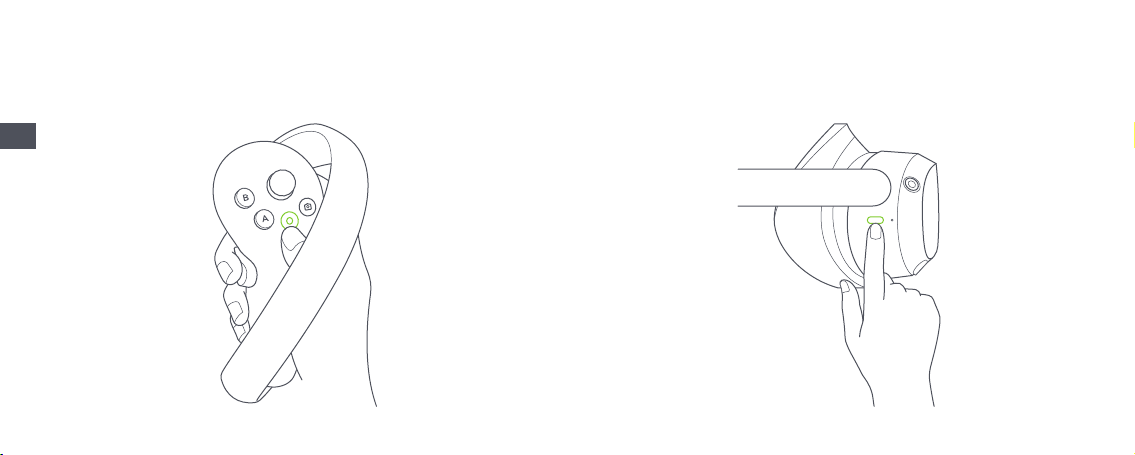
❷Power on the Controller
First Start: The Controller will start automatically after removing the insulating paper.
Others: Short press the Home button for 1 second until the status indicator ashes blue.
❸Power on the VR Headset
Long press the Power button for 2 seconds until the status indicator turns blue.

5
EN
❹Wear the VR Headset
Turn the strap dial counterclockwise to loosen the VR Headset.
Rotate the strap up to ensure enough space for your head.
❺Adjust the Headband
Rotate the strap down over your head. Turn the strap dial clockwise to tighten the VR Headset in a
comfortable position.
*Note: You can use this product with prescription glasses or lenses insert.
IPD Adjustment
This product supports manual interpupillary distance (IPD) adjustment. You can adjust the IPD according
to your actual interpupillary distance manually in "Settings"►"Display". Please note that using
inappropriate IPD may increase the risk of discomfort.
Do not forcibly move the lens barrel to avoid damage to the VR Headset!

EN
6
VR Headset Status Indicator Legend
Blue: Powered on with battery over 20%
Yellow: Charging: Battery is less than 98%
Red: Charging: Battery is less than 20%
Green: Charging: Battery is more than 98% or charge complete
Blue ashing: Shutting down
Red ashing: Battery is less than 20%
Off: Sleeping or Powered off
USB-C Interface
Left/Right Speaker
Proximity Sensor
The system wakes up
when the VR headset is
put on, sleeps when VR
headset is taken off.
⑨
⑩
⑪
RGB See Through Camera
Do not block during use.
Top Strap
Removable
Strap Dial
Tracking Cameras
Do not block during use.
⑤
⑥
⑦
⑧
Power
Power on: Long press for 2 seconds
Power off: Long press for 5 seconds
Hardware reset: Long press for 10 seconds
Short press to enter sleep or wake up
Status Indicator
Face Cushion
Volume
①
②
③
④
Product Details
Eye Tracking Cameras
Pro version only.
Do not block during use.
Face Tracking Camera
Pro version only.
Do not block during use.
⑫
⑬

7
EN
Controller Status Indicator Legend
Off: Connected or Powered off
Blue: Firmware updating in progress
Blue ashing: Searching for connection
Red and blue ashing alternately: Pairing in progress
*Note: Pass the Controller Lanyard
through the string as shown and
lock at the end of the Controller
Status Indicator
Grip
Capture
Trigger
④
⑤
⑥
⑦
Joystick
Menu
①
②
Home
Power on: Short press
Power off: Long press for 6 seconds
Return home screen: Short press
Screen recentering: Press for 1 second
③Battery Case
Open: Slide down the toggle and
pop up the battery case.
Lock: Push the battery case to lock.
Tracking Ring
Do not block during use.
⑧
⑨

EN
8
Operating Instructions
Headset Control Mode
If the Controller is not connected, you can interact with the home screen by moving your head to direct
the crosshairs over your intended selection and clicking the Volume Up/Down button on the VR Headset.
Switch the pointer of the master Controller
In the home screen, short press the Trigger of the corresponding Controller to switch the pointer of the
master Controller.
Screen re-centering
Wear the VR Headset and look straight ahead, press and hold the Home button of the Controller or VR
Headset ( or the Volume Down button of the VR Headset in head control mode) for more than 1 second to
re-center the screen.
Disconnect the Controller
Press and hold the Home button until the status indicator turns red and the Controller vibrates.
Controllers will automatically shut down to save power in the following cases:
When the VR Headset enters deep sleep (a while after the VR Headset is taken off)
When the Controller is unpaired
When the VR Headset is powered off
Add a new Controller
If you need to add a new Controller (the VR Headset can only connect one left Controller and one right
Controller) or reconnect with an unpaired Controller. Go to “Settings” ► “Controller”, click on “Pair”.
Press and hold the Home button and the Trigger of the Controller at the same time until the red and blue
lights of the Controller ashing alternately, and then follow the instructions on the VR Headset screen.
Sleep / Wake up
Option 1 (Proximity Sensor) Take off VR Headset for automatic sleeping: wear the VR Headset for
automatic waking up.
Option 2 (POWER Button) Press the Power button of the VR Headset for manual sleeping or waking up.
Hardware reset
VR Headset reset
If the visual in the VR Headset freezes, or the VR Headset does not respond after short press the Power
button, you can press the Power button of the VR Headset for more than 10 seconds to reboot the VR
Headset.
Controller reset
If the virtual Controller, the Home button or any buttons of the Controller doesn't respond, remove and
reinstall the battery case to restart the Controller.
The VR Headset Adjustment
This device has no myopia adjustment function. The VR Headset allows wearing most standard glasses
with a frame width of less than 150mm.
to install Glasses Spacer to increase the space. You can install or not according to your situation.

9
EN
Install Nose Pad
If you feel light leaking from your nose, please follow the picture to install Nose Pad to block the light.
You can consider having it installed at your own discretion.
Install Glasses Spacer
If you have glasses collision with headset lens or pressure on the bridge of nose, please follow the picture
to install Glasses Spacer to increase the space. You can install or not according to your situation.
Disassemble the Face Cushion.
Install the Nose Pad on the Face Cushion.
Install the Face Cushion on the Headset.
❶
❷
❸
Disassemble the Face Cushion.
Install the Glasses Spacer on the Headset.
Install the Face Cushion on the Glasses Spacer.
❶
❷
❸
*Note: Disassemble the Glasses Spacer
Autres manuels pour 4 Series
3
Table des matières
Langues :
Autres manuels PICO Casque de réalité virtuelle

PICO
PICO Neo 3 Pro Manuel utilisateur

PICO
PICO Neo 2 Manuel utilisateur

PICO
PICO Ultraleap Manuel utilisateur

PICO
PICO G2 4K Manuel utilisateur

PICO
PICO Neo 2 Manuel utilisateur

PICO
PICO 4 Series Manuel utilisateur

PICO
PICO NEO 3 Manuel utilisateur

PICO
PICO Neo DK Manuel utilisateur

PICO
PICO G3 Series Manuel utilisateur

PICO
PICO Neo 2 Manuel utilisateur


