
Paxar Freshmarx 9415 Manuel de service

FRESHMARX
9415™
AutoMarx
Labeling
System
™
TC9415OH Rev. AC 1/08 ©2007 Paxar Americas, Inc. a subsidiary of Avery Dennison Corp.
All rights reserved.
Operator's
Handbook
Operator's
Handbook

Each product and program carries a respective written warranty, the
only warranty on which the customer can rely. Paxar reserves the
right to make changes in the product, the programs, and their
availability at any time and without notice. Although Paxar has made
every effort to provide complete and accurate information in this
manual, Paxar shall not be liable for any omissions or inaccuracies.
Any update will be incorporated in a later edition of this manual.
©2007 Paxar Americas, Inc. a subsidiary of Avery Dennison Corp.
All rights reserved. No part of this publication may be reproduced,
transmitted, stored in a retrieval system, or translated into any
language in any form by any means, without the prior written
permission of Paxar.
WARNING
This equipment has been tested and found to comply with the
limits for a Class A digital device, pursuant to Part 15 of the
FCC Rules. These limits are designed to provide reasonable
protection against harmful interference when the equipment is
operated in a commercial environment. This equipment
generates, uses, and can radiate radio frequency energy and, if
not installed and used in accordance with the instruction
manual, may cause harmful interference to radio
communications. Operation of this equipment in a residential
area is likely to cause harmful interference in which case the
user will be required to correct the interference at his own
expense.
CANADIAN D.O.C. WARNING
This digital apparatus does not exceed the Class A limits for
radio noise emissions from digital apparatus set out in the Radio
Interference Regulations of the Canadian Department of
Communications. Le présent appareil numérique n’émet pas de
bruits radioélectriques dépassant les limites applicables aux
appareils numériques de la classe A prescrites dans le
Réglement sur le brouillage radioélectrique édicte par le
ministère des Communications du Canada.
Trademarks
FreshMarx and 9415 are trademarks of Paxar Americas, Inc.
Paxar® is a trademark of Paxar Corporation.
Avery Dennison® is a trademark of Avery Dennison Corp.
Avery Dennison Printer Systems Division
170 Monarch Lane
Miamisburg, OH 45342

i
TABLE OF CONTENTS
GETTING STARTED .......................................................... 1-1
Using This Manual ....................................................... 1-1
Audience .................................................................... 1-1
Unpacking the Printer................................................... 1-2
Installing the Printer..................................................... 1-3
Connecting the Printer’s Power Supply .......................... 1-4
Loading Labels ............................................................ 1-5
USING THE APPLICATION ................................................ 2-1
About the Printer ......................................................... 2-2
Calibrating the Touch Screen........................................ 2-3
Configuring the Printer ................................................. 2-4
Selecting a Format....................................................... 2-6
Printing Freshness Labels ............................................ 2-7
Printing Use First Labels .............................................. 2-9
Changing the Password........................................... 2-10
Sleep Mode............................................................... 2-10
Future Upgrades........................................................ 2-10
CARE & MAINTENANCE.................................................... 3-1
Clearing Label Jams .................................................... 3-2
Cleaning the Printhead................................................. 3-3
Cleaning the Touch Screen Display ............................... 3-4
Cleaning the Printer ..................................................... 3-4

ii
TROUBLESHOOTING ........................................................4-1
Technical Support ........................................................4-2
LABEL FORMATS ............................................................ A-1
Format 1 .................................................................... A-1
Format 2 .................................................................... A-2
Format 3 .................................................................... A-2
Format 4 .................................................................... A-3
Format 5 .................................................................... A-4
Format 6 .................................................................... A-5
SPECIFICATIONS ............................................................ B-1
Printer Specifications .................................................. B-1
Supply Specifications .................................................. B-1

Getting Started 1-1
GETTING STARTED
Use the FreshMarx™ 9415™ AutoMarx Labeling
System for product freshness and to label inventory.
Information in this document supercedes information
in previous versions. Check our Web site
(www.monarch.com) for the latest documentation and
release information.
Using This Manual
Following is a summary of the contents of this manual:
Chapter Contents
1 Getting Started Unpacking and installing the
printer and loading supplies.
2 Printing Labels Configuring the printer,
selecting formats, and printing
labels.
3 Care &
Maintenance
Clearing supply jams and
cleaning the printer.
4 Troubleshooting Common problems and their
solutions.
A Label Formats Format sizes and content fields.
B Specifications Printer and supply
specifications.
Audience
The Operator's Handbook is for the person who prints
and applies labels.

1-2Operator’s Handbook
Unpacking the Printer
After you unpack the printer, you should have the
following:
♦ 9415 printer
♦ power supply
♦ 4 wall anchors
♦ wall mount template
Keep all packaging material in case you need to move
or return the printer.
Caution: Do not touch the electrical connectors
while setting up the printer. Static
electricity can damage or destroy the
electronic components.
Getting Started 1-3
Installing the Printer
To install the printer on the wall:
1. Select a suitable location for the printer on a wall.
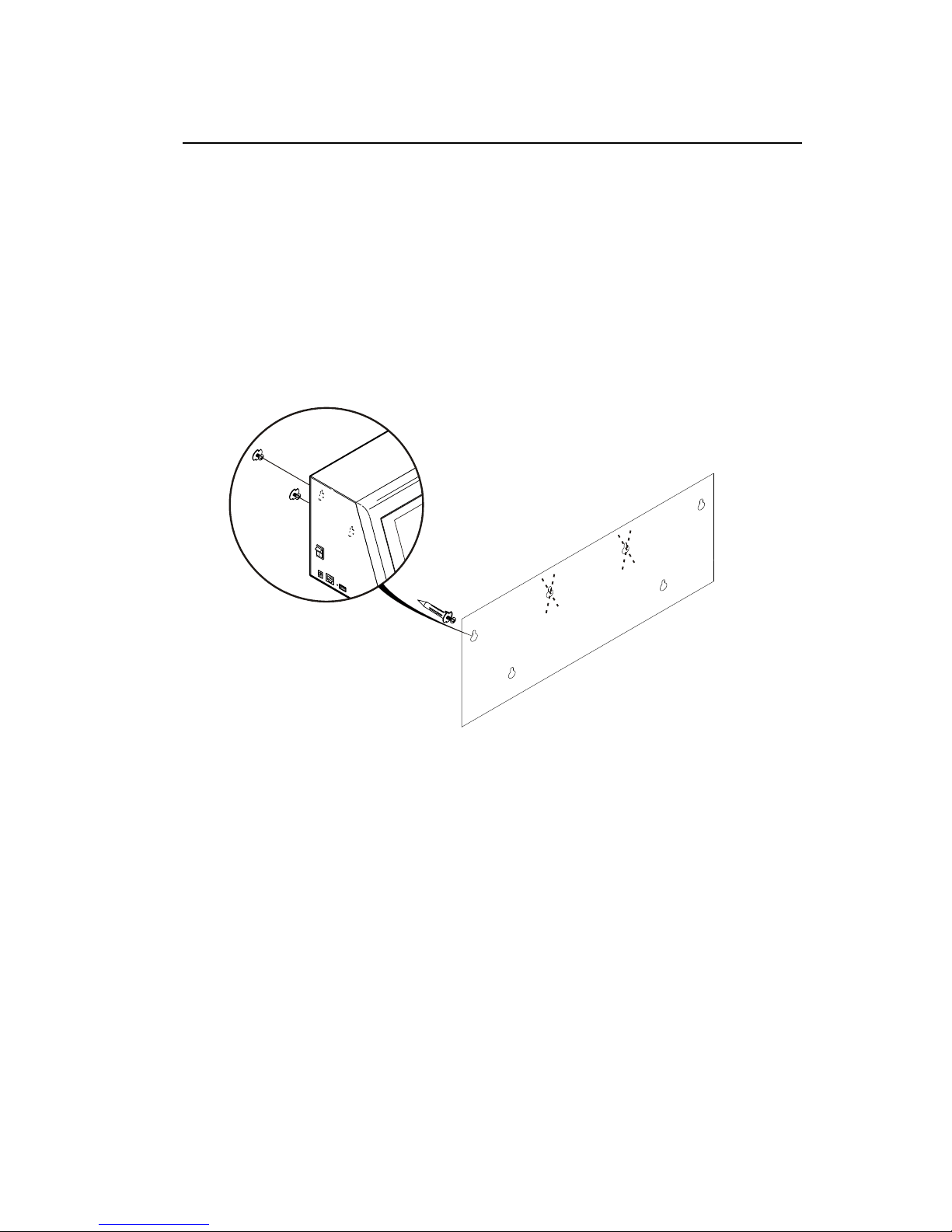
2. Tape the wall mount template to the wall in the
selected location.
Caution: The template must be level or the printer
will not install correctly.
3. Install the four wall anchors according to the four
outside holes indicated on the template.
4. Remove the template.
5. Lower the supply door on the printer so you can
see the mounting holes on the back of the printer.
6. Attach the printer to the wall anchors using the
corresponding holes on the back of the printer.
7. Press down firmly on the printer to lock it in place.
8. Close the supply door.
Mounting holes in back of printer

1-4Operator’s Handbook
Connecting the Printer’s Power Supply
To connect the power supply to the printer:
1. Turn off the printer. Press the power switch on
the side of the printer to the off (O) position.
2. Place the power supply in a suitable location,
preferably on a table, near an electrical outlet.
3. Plug the three-hole end of the AC adapter cable
into the three-pronged outlet in the printer’s power
supply.
4. Plug the L-shaped end of the power supply cable
into the socket on the side of the printer.
5. Plug the three-pronged end of the AC adapter
cord into a grounded electrical outlet.
Warning: The printer and power supply should
never be operated in a location where
either one can get wet. Personal injury
could result.
Power socket
L-Shaped
Connector

Getting Started 1-5
Loading Labels
Load wide labels on the left (printer 1) and narrow
labels on the right (printer 2) as shown below.
Printer 1 is the default printer.
1. Turn on the printer. Press the power switch on the
side of the printer to the on (I) position.
2. Remove and discard the tape from a new roll of
labels.
3. Lower the supply door.
4. Slide a roll of labels onto the supply holder.
If necessary, adjust the supply holder guide so it
touches the roll.
5. Feed the labels, printing side up, into the supply
slots in the supply door.
Note: Make sure no label adhesive is exposed when
loading labels. This causes jams.
6. Make sure the supply clip is in the correct position
to touch the edge of the supply. This clip guides
the labels through the supply slot so they do not
shift while printing.
Printer 2
Printer 1
Supply slot
Supply Holder
Guide
Supply clip

1-6Operator’s Handbook
7. Close the supply door.
8. The printer calibrates the labels automatically.
Table des matières
Autres manuels Paxar Étiqueteuse


