
Onn 100020904 Manuel utilisateur
1
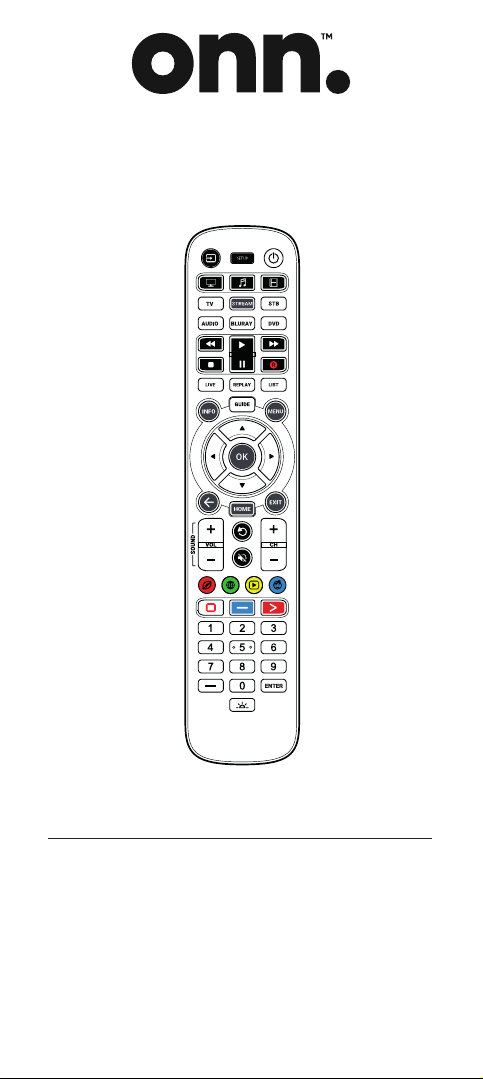
Model: 100020904
PRODUCT GUIDE
6-DEVICE
UNIVERSAL REMOTE
Need help?
We’re here for you every day
7 a.m. – 9 p.m. CST.
Give us a call at 1-888-516-2630
Please visit the website“www.onn-support.com”
to get more information.
ONN_6_Eng_Manual RDN1010321.indd 1ONN_6_Eng_Manual RDN1010321.indd 1 26-02-2021 14:2826-02-2021 14:28

2
TABLE OF CONTENTS
INTRODUCTION
Thank you for purchasing the ONN Device Universal Remote Control.
The remote can be used to control up to 6 Audio Video Devices such as
a TV, Set Top Box, Blu-ray Player or Sound Bar and boasts multiple extra
features to make the most of your living room experience.
The remote also features a backlight for easy control in a darkened room.
This manual will help you to set up the ONN 6 to control all of your
devices and take advantage of its features.
INTRODUCTION 2
GETTING STARTED (BATTERIES) 3
GETTING STARTED (BUTTONS) 4
SETUP 7
ONN DEVICE SETUP 7
SETUP - SIMPLESET 8
SETUP - SETUP BY CODE 10
SETUP - LEARNING 11
SETUP - VOLUME LOCK 12
CHANNEL SHORTCUT MACROS 13
APP SHORTCUT KEYS 14
ACTIVITIES 16
AV SHIFT 17
POWER MACRO 17
SETUP BY ACTIVITY 17
FCC INFORMATION 19
CODELIST
TV 20
STREAM 22
STB 22
AUDIO SOUNDBAR 38
BLURAY DVD 39
ONN_6_Eng_Manual RDN1010321.indd 2ONN_6_Eng_Manual RDN1010321.indd 2 26-02-2021 14:2826-02-2021 14:28
3
Battery Cover
Battery Cover
Two AA
alkaline
batteries
(not included)
Model: 100008755/PCL-4
Made in China 1938A
6 in 1 Universal Remote Control
Two AA
alkaline
batteries
(not included)
Model: 100020904
6 in 1
Universal
Remote Control
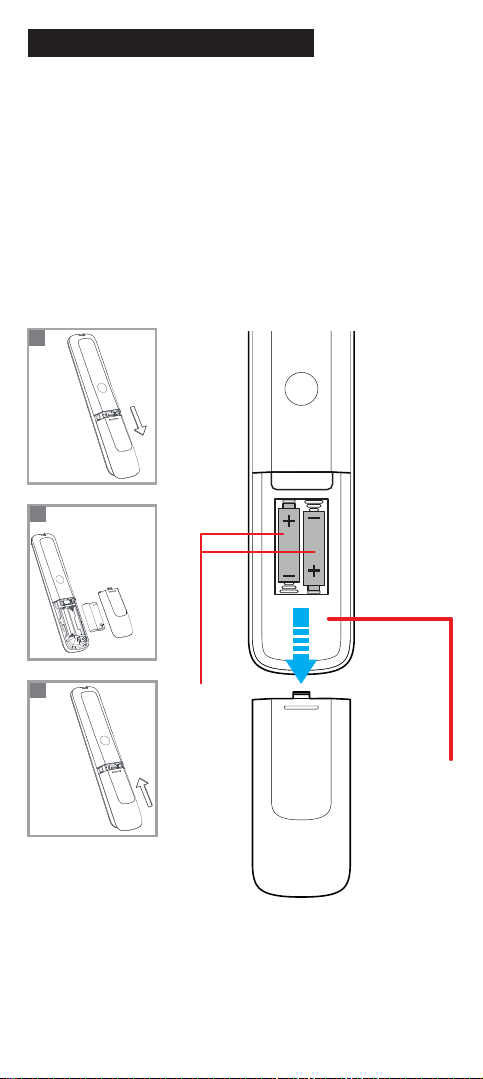
GETTING STARTED (BATTERIES)
Your remote requires 2 x AA / LR6 batteries. Please insert them as shown
below. Alkaline batteries are recommended.
Installing the Batteries
1. Remove the battery cover.
2. Insert the batteries as shown.
3. Snap the battery cover back into place.
Battery Precautions
• Do not mix old and new batteries.
• Do not mix alkaline, standard (carbon-zinc) or rechargeable
(nickel-cadmium) batteries.
• Always remove old, weak or worn-out batteries promptly and recycle
or dispose of them in accordance with local and national regulations.
2x AA
2
1
3
ONN_6_Eng_Manual RDN1010321.indd 3ONN_6_Eng_Manual RDN1010321.indd 3 26-02-2021 14:2826-02-2021 14:28
4
INPUT
VOL
+
CH
VOL CH
+
1 2 3
4 5 6
7 8 9
ENTER
0
APPS
DVR
FAV PREVMUTE
BACK EXITMENU
PROGRAM INFOGUIDE
SAT/CBL AUDIOTV
STREAM OTHERBRAY/DVD
GETTING STARTED BUTTONS
POWER INPUT
DEVICE
CATEGORIES
GUIDE
PROGRAM
MENU
APPS
NAVIGATION
OKBACK
EXIT
VOLUME CHANNEL
MUTE
INFO
PREVIOUS
CHANNEL
VIDEO
PLAYBACK
CONTROLS
NUMBER
KEYPAD
FAVORITE
CHANNELS
CUSTOM
BUTTONS
OK
03
GETTING STARTED (BUTTONS)
7
10
11
13
14
18
21
22
24
26
17
6
4
23
3 1
5
2
8
9
12
16
20
19
25
15
ONN_6_Eng_Manual RDN1010321.indd 4ONN_6_Eng_Manual RDN1010321.indd 4 26-02-2021 14:2826-02-2021 14:28

5
GETTING STARTED (BUTTONS)
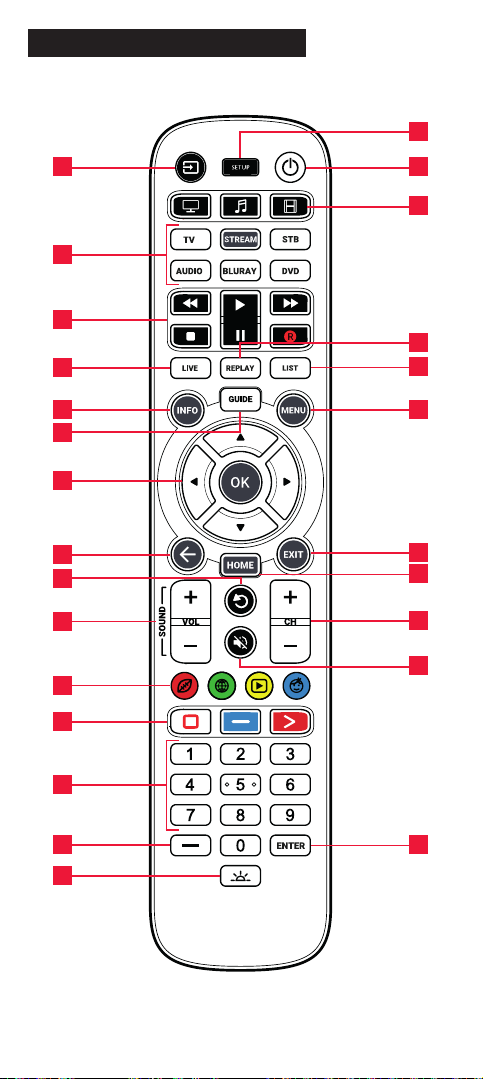
1Power Switches your devices on and o
2Setup This key is used to set up the ONN remote
3Input Used to select Input on devices
4Device keys
These keys are used to select which device the ONN 6
currently controls. After pressing the TV key, the remote
will control your TV. To switch to controlling another de-
vice, simply press the appropriate key. The devices that can
be programmed to each key are as follows:
TV: All televisions such as LED, LCD , Plasma, OLED etc.
STREAM: Streaming devices such as an Apple TV, Roku Box
etc. Also works Xbox 360 and Xbox One.
STB: Set Top Boxes, including Satellite, Cable and DTV.
AUDIO: Audio devices including Sound Bars, AV Receivers
and Hi-Fi
BLURAY: Blu-ray Players and DVD Players / Recorders
DVD: DVD Players / Recorders and Blu-ray Players
5
Activities
Control up to 3 of your devices in one mode Watch TV,
Listen To Music and Watch Movie – See “Activities” for how
to set up and use
6Playback Keys
Control the playback of movies, music and TV
7Live Return to live TV from Timeshift or recording
8Replay Replay last 30 seconds
9List Show list of recordings
10 Info Displays information about the current shows or channel
11 Guide TV Guide
12 Menu Access the installation menu of the current device
13 Menu Directions and OK
Control the menu of the current device
14 Back Back one step in the Menu
15 Home Displays the Home Menu
ONN_6_Eng_Manual RDN1010321.indd 5ONN_6_Eng_Manual RDN1010321.indd 5 26-02-2021 14:2826-02-2021 14:28

6
GETTING STARTED (BUTTONS)
16 Exit Exits the menu
17 Volume Up and Down
Control the volume of the current device. You can
also set up these keys to always control one device.
For details see the Volume Lock feature.
18 Last Channel
Changes to the last channel viewed.
19 Mute Mutes the volume of the current device. You can also set
up this key to always control one device. For details see the
Volume Lock feature.
20 Channel Up & Down
Change channels on the current device.
21 RGYB keys
Quick access buttons for the menu of the current device.
They can also be programmed to select your favorite chan-
nels. See the Favorite Channel Macros feature for details
22 App Shortcut Keys
Keys for starting streaming apps. See the App Shortcut
Keys section for details.
23 Digits Select channels on the current device. On Audio devices,
these keys will select individual inputs.
24 Delimiter “Dash” key
Selects sub channels such as local news and extra functi-
ons in the Menu mode of your Set Top Box
25 Channel Enter
On some devices press this key after using the digit keys to
enter your channel number
26 Backlight On / O
Turns the backlight on or o. When on, any key press will
activate the backlight for 10 seconds. Press this key to turn
the backlight o and again to turn back on.
ONN_6_Eng_Manual RDN1010321.indd 6ONN_6_Eng_Manual RDN1010321.indd 6 26-02-2021 14:2826-02-2021 14:28
7
SETUP
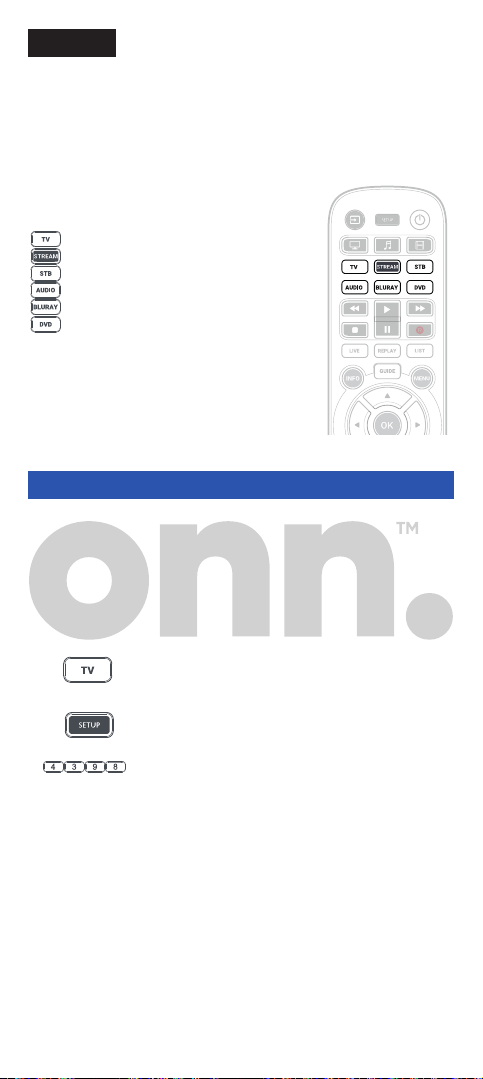
The ONN 6 remote is pre-programmed to control some of the most po-
pular devices out of the box. If you have one of the following devices try
putting the batteries in and pressing the device key, and then press a
few keys to see if the remote works your device:
Device Key To Press Device controlled
TV Samsung TV
STREAM Roku Streaming Box
STB Comcast Set top box
AUDIO Yamaha Receiver
BLURAY Samsung Blu-ray Player
DVD Sony DVD Player
If your device is not one of those listed above,
or you have extra devices to set up, there are
3 ways to do this. The easiest is SimpleSet
which is used for the common brands
and devices.
ONN DEVICE SETUP
If you have a TV, DVD Player, Blu-ray Player or Sound Bar from Onn,
the procedure to set them up is as follows:
1. Hold down the Device Key for the device you want to
set up (e.g. TV for TV).
2. Hold down the Setup key until the LED under the LED
blinks twice.
3. Enter the rst 4 digit code listed for your device
below, for example 4398 for TV.
4. The LED should blink twice. Now try pressing a few keys to see if
the remote works your device. If so, your remote is ready to use.
If not, repeat from step 1 with the next code in the list.
The codes for Onn are:
TV 4398, 1709, 3024, 3078, 5118, 1756,
5438
AUDIO including Sound Bar 5042, 5041, 5412, 5414, 5415, 5416,
5043
BLURAY + DVD 4016, 4371, 4377
ONN_6_Eng_Manual RDN1010321.indd 7ONN_6_Eng_Manual RDN1010321.indd 7 26-02-2021 14:2826-02-2021 14:28
8
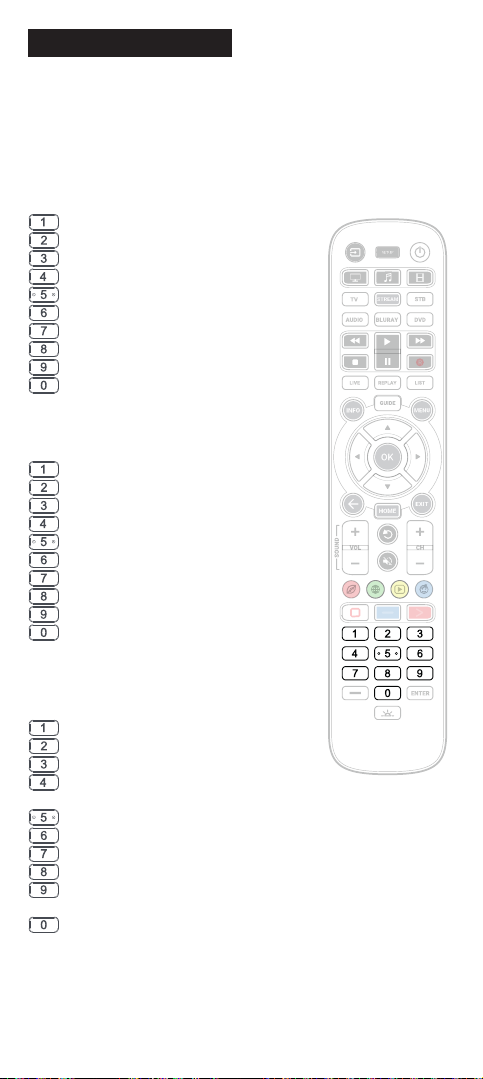
SETUP - SIMPLESET
If the brand of your device is shown in the SimpleSet list next to a digit
key, you can use the SimpleSet system described in this section, please
locate the brand of your device and note the key associated with it.
TV
Element
Insignia
LG
Philips, Magnavox
Samsung, Panasonic, Sceptre
Sharp, Hisense
Sony, Sanyo
TCL, RCA
Toshiba, Westinghouse
VIZIO
STREAM
AirTV, Sling TV
Apple
Microsoft
Netgear
NVIDIA
Popcorn Hour
Roku
Sony
Western Digital
Xiaomi
STB
Bell
Comcast/Xnity
Cox Communications
DIRECTV, AT&T, Sky Mexico
DISH Network, Dish Mexico,
Izzi Telecom
Optimum, Suddenlink, Altice
Rogers
Shaw
Spectrum, Charter,
Time Warner Cable
Verizon, Frontier
Communications
ONN_6_Eng_Manual RDN1010321.indd 8ONN_6_Eng_Manual RDN1010321.indd 8 26-02-2021 14:2826-02-2021 14:28
9
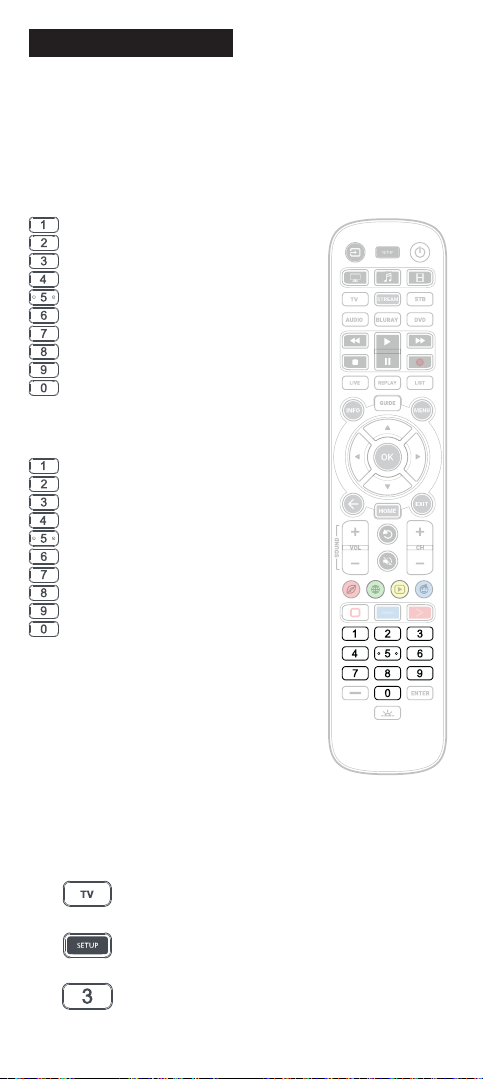
AUDIO
Bose
Denon
Harman/Kardon
JBL, Polk Audio
LG
Onkyo
Samsung
Sonos, VIZIO
Sony
Yamaha
DVD and BLURAY
Insignia
LG, Sharp
Panasonic
Philips, Magnavox
Pioneer
Samsung
Sony
Toshiba
VIZIO, RCA
Yamaha
To set up your device:
1. Turn on your device (not on standby) and point the ONN remote
towards it. If you are setting up a Streaming device, make sure a
movie or TV show is playing.
2. Press the Device key you wish to set up
(for example TV).
3. Hold down the Setup key until the LED under
the Device key blinks twice
4. Hold down the digit key for your brand and device
as listed in the tables above - e.g. 3 for an LG TV.
SETUP - SIMPLESET
ONN_6_Eng_Manual RDN1010321.indd 9ONN_6_Eng_Manual RDN1010321.indd 9 26-02-2021 14:2826-02-2021 14:28
10
SETUP - SETUP BY CODE
5. The remote will send a Power command every 3 seconds, but
if your device does not have a Power function (for example a
streaming box like Apple TV) the remote will send the Play/Pause
function. You may have to hold down the digit key for up to a
minute.
6. As soon as your device reacts by turning o or pausing (Streaming
box only) release the digit.
7.
The LED will blink twice and the remote should now operate your
device.
• If you nd one or more keys do not work as you expect, start again at
step 2 – the remote will start with the next code in the memory.
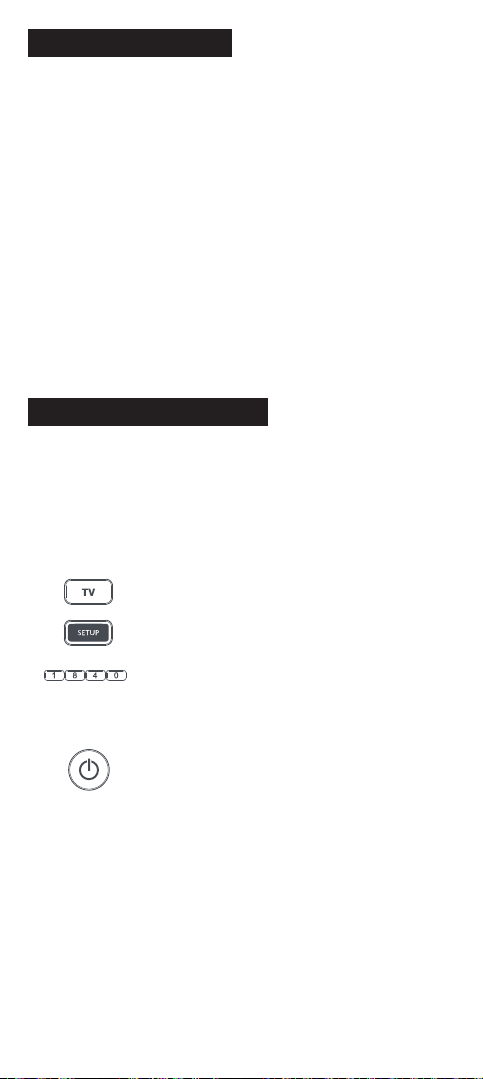
If the brand of your device is not listed in the SimpleSet feature, you can set
up by trying codes individually. To do this, rstly locate your brand in the
Code List. Codes are listed by brand and device, and in order of popularity.
1. Turn on your device (not on standby) and point the ONN
remote towards it.
2.
Press the Device key you wish to set up (for example TV)
3. Hold down the Setup key until the LED under
the Device key blinks twice
4. Enter the rst 4 digit code listed for your brand
(e.g. 1840 for LG).
5. The LED will blink twice on the last digit of the code.
6. Now aim the remote towards your device and press
the Power key.*
7. If the device turns o your remote is ready to use. If not, repeat
steps 2-6 with the next code in the list.
* Note: If your original remote did not have a Power key, try testing
with a dierent key at step 6. For example try pressing Play or Pause
when setting up a streaming box and see if the box responds.
SETUP - SIMPLESET
ONN_6_Eng_Manual RDN1010321.indd 10ONN_6_Eng_Manual RDN1010321.indd 10 26-02-2021 14:2826-02-2021 14:28
Autres manuels pour 100020904
1
Table des matières
Autres manuels Onn Télécommande universelle


