AC POWER SUPPLY
As shown in the figure, plug the AC input power cord into the wall socket, then connect your device
into the AC Output socket of the UPS and turn on the AC output switch. The Eishbox 426 is ready to
use. The unit will automatically switch over to power your equipment during a power outage or
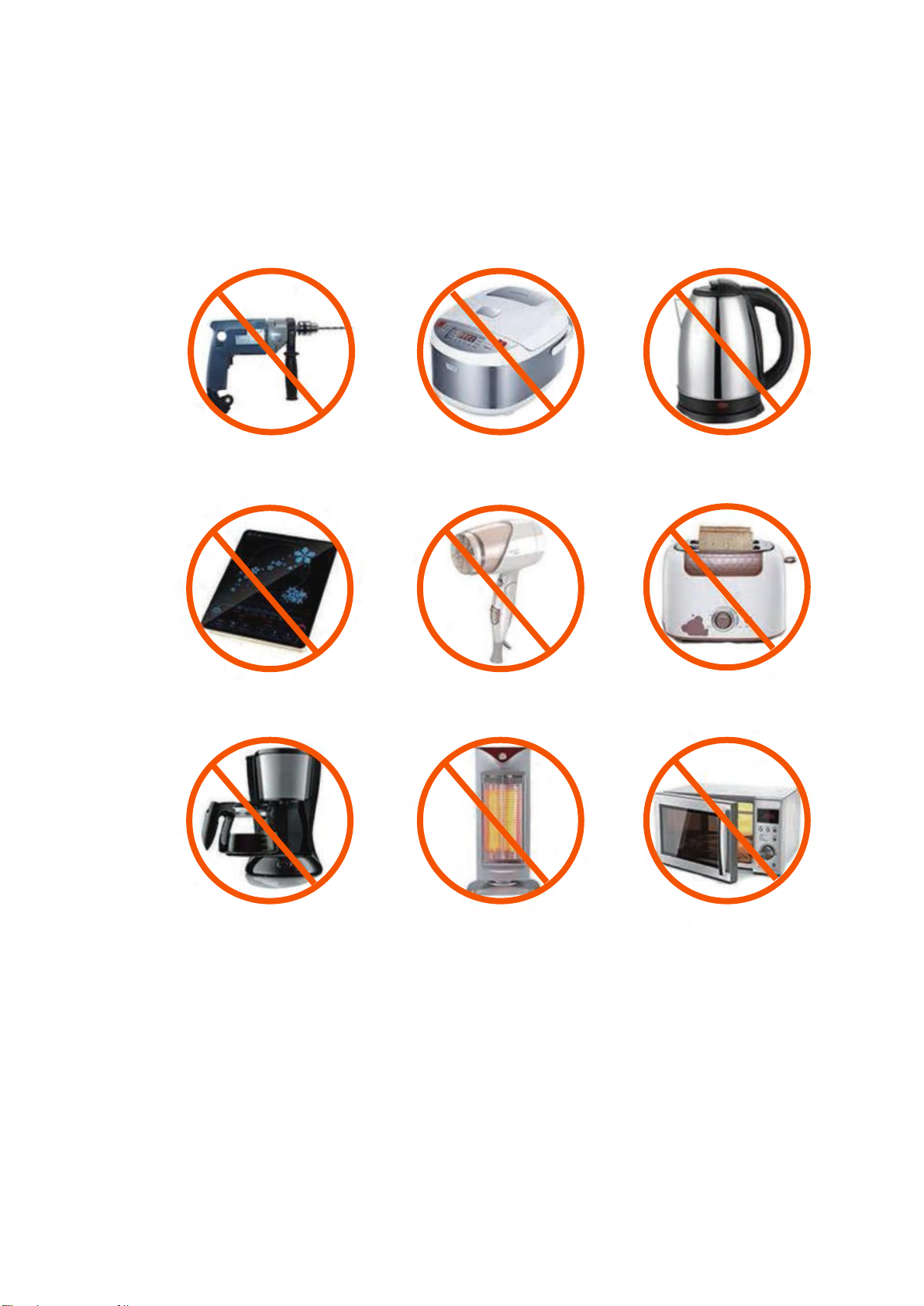
loadshedding. Do not connect any device over 400 watts. The unit will shut down and stop working
to protect the batteries. If this happens reduce the load and restart the Eishbox 426.
Indicator
•
Power/Fault Indicator: indicates AC power supply status (Normal: Green, Unusual: Red)
•
Low Battery indicator display: Red light will flash and the buzzer will ring.
•
Overload Indicator: The red light will flash and the buzzer will ring. The unit will no longer provide
power.
•
AC Charge Indicator: Indicates AC input charging status (During charging: Red, Fully charged: Green)
•
Solar Charge: Indicate solar input charging status (Charging: Red)
•
Battery indicator: The display panel will show the battery capacity. When the percentage shown
is low, please charge the unit accordingly.
The
Eishbox 426
will automatically switch over to power your computer in the event of a power
outage. This will provide your computer uninterrupted power during the failover.
•
Note:
Do not connect the Eishbox 426 to equipment with a load that is over 400 watts or overload
will occur and the device will shut down. You will need to reduce your total equipment load
and try again. In rare cases, when the unit encounters an external short circuit or unusual
power usage, to protect the Ups and your equipment, the external fuse will blow. You will
need to replace this with an 8A Fuse.