
ODG R-6 Manuel utilisateur

1
USER GUIDE
R-6 GLASSES

2
Osterhout Design Group (ODG) reserves exclusive rights
to the product and grants not other licenses, rights, or
data of any kind. ODG prohibits the reverse engineering
or deconstruction of the item for any other purpose.
SDK documentation, guides, user forums, and software
downloads can be accessed through the ReticleOS
Developer Center:
To request a Developer account, please send an email to
developer.osterhoutgroup.com
DEVELOPER SUPPORT
R-6 GLASSES

3
Your ODG R-6 device has been designed and manufactured to
stringent quality and safety standards. You should, however,
be aware of the following important precautions for safe use
of the glasses and accessories.
Warning: This device contains powerful magnets and should
be kept a distance from persons with any metallic, electronic,
or magnetic device implants in the body.
This device contains lithium ion batteries, which can explode
or cause burns if disassembled or exposed to re or high heat.
Batteries must be disposed and recycled safely and properly.
Safety & Care
Read all of these instructions carefully.
Keep these instructions for future reference.
Heed all warnings.
Clean only with dry cloth.
Only use attachments/accessories specied by ODG.
Do not store glasses near any heat sources such as radiators,
registers, stoves, ampliers or other items that produce heat.

4
Quick Start....................................................................................5
Included in the Kit ..................................................................6-7
Main Components ..................................................................8-9
Using the Track Pad................................................................. 10
Charging...................................................................................... 11
Earbuds ....................................................................................... 12
Head Strap ................................................................................. 12
Wireless Finger Controller................................................... 13
Launching Applications ......................................................... 14
Control Panel ............................................................................ 15
System Menu............................................................................. 15
Nose Bridge ............................................................................... 16
Storing the Glasses.................................................................. 17
Parts & Accessories................................................................. 18
Table of Contents

5
Unpack Glasses
Attach Accessories
Adjust Fit
Power Up
Launch Applications
• Remove the glasses from the compact storage case.
• Unfold the ear horn. See Page 18
• If audio is desired, attach Ear Buds. See Page 12
• Attach Head Strap if needed. See Page 12
• Adjust Nose Bridge height and/or swap nose pads if needed
for optimum comfort and display viewing angle. See Page 17
• Press and release the Power button to turn on the glasses.
Within 30 seconds a startup screen should appear and then
the Home Screen. If there is insufcient power to boot the
device, see Charging , Page 11.
• Power up the Wireless Finger Controller by inserting it’s
battery and then pressing the two small round buttons at
the same time. See Page 13
• Power up the Wireless Keyboard by turning the power
switch on. See Page 14
• When the system powers on, the Home Screen will appear
with a row of icons mid-screen. Swipe left or right on the
Track Pad to highlight an application, and then press the
Track Pad to launch it. See Page 15
Quick Start
1
2
3
4
5

6
Included in the Kit
R-6 GLASSES
WIRELESS
FINGER
CONTROLLER
WIRELESS
FINGER
CONTROLLER
BATTERY
WIRELESS
FINGER
CONTROLLER
USB CHARGER
(2) EAR BUDS
PROTECTIVE CASE
USB
POWER
ADAPTOR
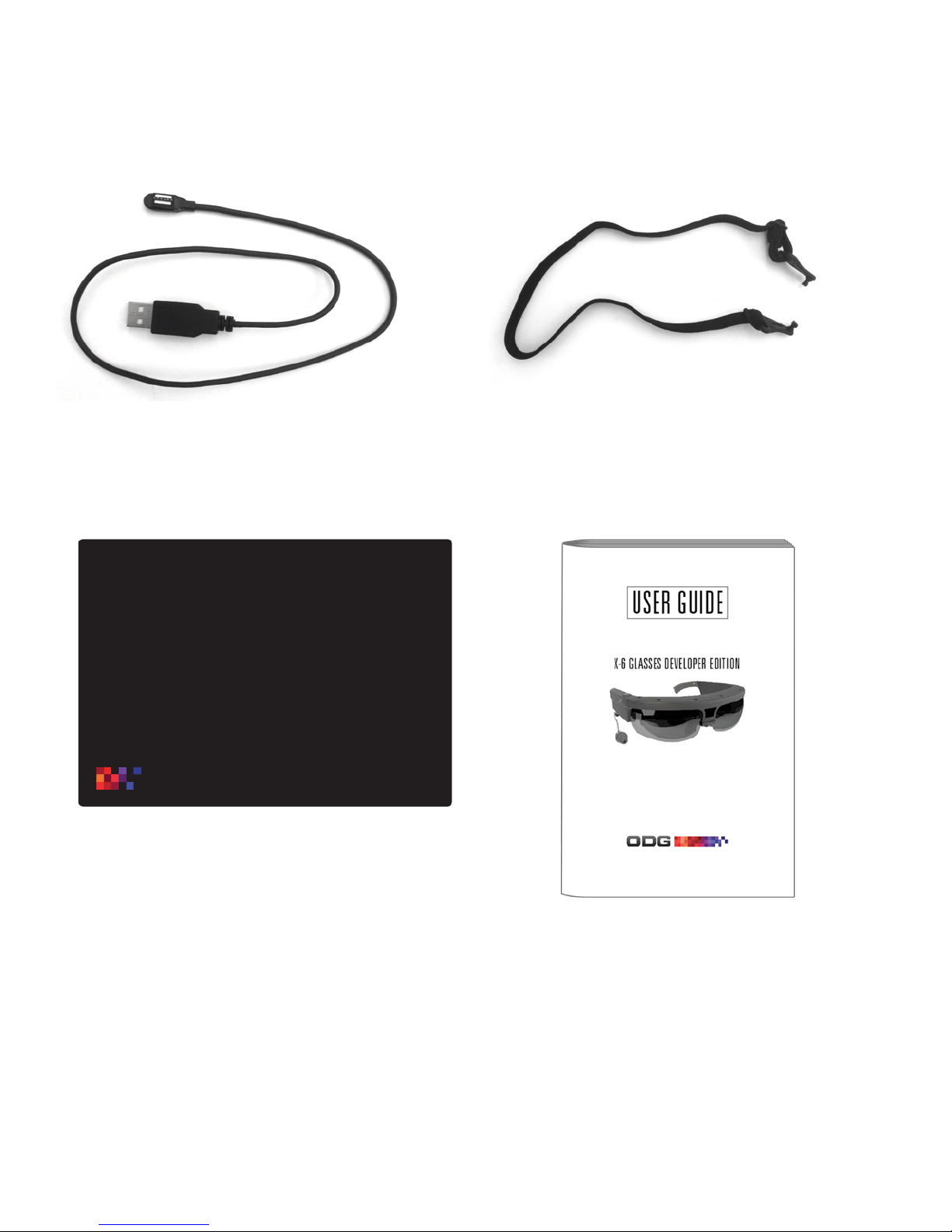
7
USER GUIDE
MICROFIBER LENS CLEANING CLOTH
HEAD STRAP
MAGNETIC USB
DATA & POWER CABLE

8
Track Pad
Finger Swipe........................................................ Controls cursor/selector
Press down........................................................... Click/select
Power Button
Short Press, Device Off................................... Powers up device
Short Press, Device On ................................... Puts displays to sleep
2-3 Second Press ............................................... Displays Shutdown menu
10 Second press ................................................. Forces shutdown of system
Back Button
Short Press........................................................... Navigates to previous screen
Long Press ............................................................ Navigates to Home Screen
Short Press, Home Screen ............................. Displays or Hides Home Screen
Menu Button
Short Press........................................................... Navigates to previous screen
Long Press ............................................................ Navigates to Home Screen
Short Press, Home Screen ............................. Displays or Hides Home Screen
RIGHT SIDE VIEW
POWER BUTTON
BACK BUTTON
TRACK PAD/CLICK
VIBRATORY FEEDBACK
MENU BUTTON
MAGNETIC EARBUD PORT
Main Controls

9
FRONT VIEW
TOP VIEW
MAGNETIC DATA & POWER PORT
CAMERA
TRACK PAD/CLICK
NOSE BRIDGE
SHIELDS
EAR HORNS
TEMPLES

10
RIGHT TEMPLE, TOP
PRESS DOWN
TO SELECT
SWIPE TO
MOVE CURSOR
Using the Track Pad
The track pads located on top of the right temple of the glasses as
well as the Wireless Finger Controller are optical devices. They
function equally with gloveless and gloved ngers.
Track Pad:
Finger Swipe..............................................Controls cursor/selector
Press down.................................................Click/select
TRACK PAD/CLICK
Table des matières
Autres manuels ODG Lunettes intelligentes


