Novitec i-Nova3 Series Manuel utilisateur

Copyright ©2022_Ver.1 NOVITEC Co., Ltd.
[i-Nova3 + GigE]
[Installation guide]

[i-Nova3 + Installation guide]
2
Copyright ©2022_Ver.1 NOVITEC Co., Ltd.
CONTENTS
1. RECOMMENDED SYSTEM CONFIGURATION................................................................................ 4
2. PREPARATION FOR CAMERA CONFIGURATION.......................................................................... 4
3. HANDLING PRECAUTIONS............................................................................................................... 4
3.1. INSTRUMENT SAFETY INSTRUCTIONS ............................................................................................................................................4
3.2. IMPORTANT SAFETY PRECAUTIONS ................................................................................................................................................4
3.3. HANDLING AND CLEANING ............................................................................................................................................................5
3.4. INSTALLATION ...................................................................................................................................................................................5
3.5. PERFORMANCE AND LONGEVITY.................................................................................................................................................... 6
3.6. CONNECTOR......................................................................................................................................................................................6
4. HOW TO INSTALL THE SOFTWARE ................................................................................................ 6
4.1. DOWNLOAD THE INSTALLATION FILE............................................................................................................................................6
4.2. INSTALL THE NOVITEC SOFTWARE.................................................................................................................................................8
4.2.1. Windows...........................................................................................................................................................................8
4.2.2. Linux.................................................................................................................................................................................11
5. INSTALLING THE CAMERA............................................................................................................. 12
5.1. ATTACH A LENS ..............................................................................................................................................................................12
5.2. CONNECT THE INTERFACE CARD AND CABLE TO THE CAMERA .............................................................................................12
5.3. CONFIGURE IP SETTINGS..............................................................................................................................................................15
5.4. LAUNCH VIEWER............................................................................................................................................................................15
5.4.1. Windows.........................................................................................................................................................................15
5.4.2. Linux.................................................................................................................................................................................16
5.5. CONNECT THE CAMERA................................................................................................................................................................17
5.5.1. Windows.........................................................................................................................................................................17
5.5.2. Linux.................................................................................................................................................................................18
5.5.3. Set up IP temporarily...............................................................................................................................................19
5.6. GET THE IMAGE ..............................................................................................................................................................................20
5.6.1. Windows.........................................................................................................................................................................20
5.6.2. Linux.................................................................................................................................................................................22
5.6.3. Initial Account Settings ...........................................................................................................................................23

[i-Nova3 + Installation guide]
3
Copyright ©2022_Ver.1 NOVITEC Co., Ltd.
6. PHYSICAL INTERFACE ..................................................................................................................... 25
6.1. POWER/VOLTAGE ...........................................................................................................................................................................25
6.2. ETHERNET CONNECTOR ................................................................................................................................................................26
6.3. GPIO CONNECTOR .......................................................................................................................................................................26
6.4. RS232 CONNECTOR .....................................................................................................................................................................27
7. TROUBLESHOOTING........................................................................................................................ 27
7.1. UPGRADING CAMERA FIRMWARE ...............................................................................................................................................27
7.2. CAMERA &INTERFACE CARD (NIC) STATIC IP SETTING........................................................................................................32
7.2.1. Camera Static IP (Persistent IP) Settings.........................................................................................................32
7.2.2. Interface Card (NIC) static IP settings ..............................................................................................................34
7.3. FAILED TO GET IMAGE....................................................................................................................................................................38
7.4. SETTINGS INITIALIZED ON REBOOT..............................................................................................................................................39
7.5. BROKEN RTSP IMAGE...................................................................................................................................................................40
8. IMAGE TABLE OF CONTENTS ........................................................................................................ 44
9. TABLE OF CONTENTS...................................................................................................................... 45
10. REVISION HISTORY ....................................................................................................................... 46
11. CONTACTING US............................................................................................................................ 46

[i-Nova3 + Installation guide]
4
Copyright ©2022_Ver.1 NOVITEC Co., Ltd.
1. Recommended System Configuration
The following system configuration is recommended when using the camera. The specifications below are
written as internally verified specifications.
•OS –Microsoft Windows 10 (64-bit), Linux (32bit/64bit/ARM64)
•CPU –i7-5th generation More than
•RAM –8GB
•NIC –Intel Gigabit Network
•Video –graphics card that supports H265 4K hardware encoding
•Software –Microsoft Visual Studio 2013 (to compile and run example code)
2. Preparation for Camera Configuration
The following components are required to install the camera.
•Ethernet cable (Refer to 6.2. Ethernet Connector)
•GPIO cable (Refer to 6.3. GPIO Connector)
•Lens (Refer to 5.1. Attach a Lens)
•Interface card
3. Handling Precautions
3.1. Instrument safety instructions
•We are not responsible for any damage caused by user negligence or other equipment connection.
•Handle i-Nova3 with care. For example, be careful of strong impact or storage in an unsuitable
environment.
•Do not use accessories that are not recommended as they may be dangerous.
3.2. Important safety precautions
•Please check the specifications for each product and use a power supply with the appropriate
specifications.
•Keep the product away from radiators, heaters, stoves, or other products (amplifiers, etc.) and heat

[i-Nova3 + Installation guide]
5
Copyright ©2022_Ver.1 NOVITEC Co., Ltd.
sources.
•Be careful not to let flammable substances, water, or metal get inside the camera.
•Do not modify the camera or use the camera with the outer cover removed.
•Avoid using the camera in thunder or lightning storms.
•When using the camera outdoors, protect it from moisture. (rain/snow, etc.)
•Board level notes
- Be careful to avoid electric shocks such as static electricity (ESD).
- Use a ground (GND), etc. to cope with ESD, etc.
- Be careful not to get plastic, vinyl, or Styrofoam into the circuit board.
- Do not touch the parts of the circuit board with your hands or conductive devices.
3.3. Handling and cleaning
•Do not attempt to disassemble the camera.
•When replacing or removing the lens or filter, be careful not to allow water or dust to enter.
•Use a blower or lens brush to remove dust from the lens or optical filter.
•Do not disassemble the front flange.
•Clean the case with a soft, dry cloth.
•Do not use benzene, thinner, alcohol, liquid or spray-type cleaners.
3.4. Installation
Avoid installing or storing the camera in the following locations.
•Environments exposed to direct sunlight, rain or snow
•Environments with flammable or corrosive gases
•Excessive temperature or low temperature environment (recommended ambient temperature: 0 ~ 45°
C)
•Wet or dusty places
•Places subject to excessive vibration or shock

[i-Nova3 + Installation guide]
6
Copyright ©2022_Ver.1 NOVITEC Co., Ltd.
•Environments exposed to strong electric or magnetic fields
•Do not point the camera at the sun or other strong light sources.
•In case of unfavorable conditions, be sure to inquire about the installation environment.
3.5. Performance and longevity
•Please configure the environment that meets the camera operation specifications. If the ambient
temperature is high, the service life may be shortened due to deterioration of the parts. In that case,
you also need to consider the cooling system.
3.6. Connector
•When manufacturing the I/O connector, be careful with the connection so that the wires fit well.
•Make sure the power is off before connecting or disconnecting I/O connectors.
•To avoid damaging the connector, do not pull by the electric wire, etc.
4. How to install the software
4.1. Download the Installation File
We recommend that you download and install the latest version of the SDK from the Novitec website.
a. Go to the Novitec website (https://www.novitec.co.kr/en/).
<Image> 1. Enter the website address image
b. Click [ITS & Security] of [Products] in the top tab.
<Image> 2. Click ITS & Security image

[i-Nova3 + Installation guide]
7
Copyright ©2022_Ver.1 NOVITEC Co., Ltd.
c. Click [i-Nova3] or [i-Nova3-Zoom] in ITS & Security.
<Image> 3. Click i-Nova3 image
d. Click one of the iN3-89EC, iN3Z-89EC-10Z300, iN3Z-50EC-6Z210 in the camera list
to Access the page.
<Image> 4. Click i-Nova3-Zoom image
e. Click [Download] of SDK, in the download field at the bottom of the product page.

[i-Nova3 + Installation guide]
8
Copyright ©2022_Ver.1 NOVITEC Co., Ltd.
<Image> 5. Download section on product page image
f. Click [Download] of ITS_i-Nova3 series SDK to download the installation file.
<Image> 6. SDK download window image
4.2. Install the Novitec Software
4.2.1. Windows
Refer to 4.1. Download Installation File to prepare the installation file for Windows.
a. Execute the u-Nova SDK installation file (NovitecCameraSDK-vX.X.Xexe) and Click [Next >].

[i-Nova3 + Installation guide]
9
Copyright ©2022_Ver.1 NOVITEC Co., Ltd.
<Image> 7. Installation Startup image
b. Check “Examples” and click [Next >].
<Image> 8. Install item selection image

[i-Nova3 + Installation guide]
10
Copyright ©2022_Ver.1 NOVITEC Co., Ltd.
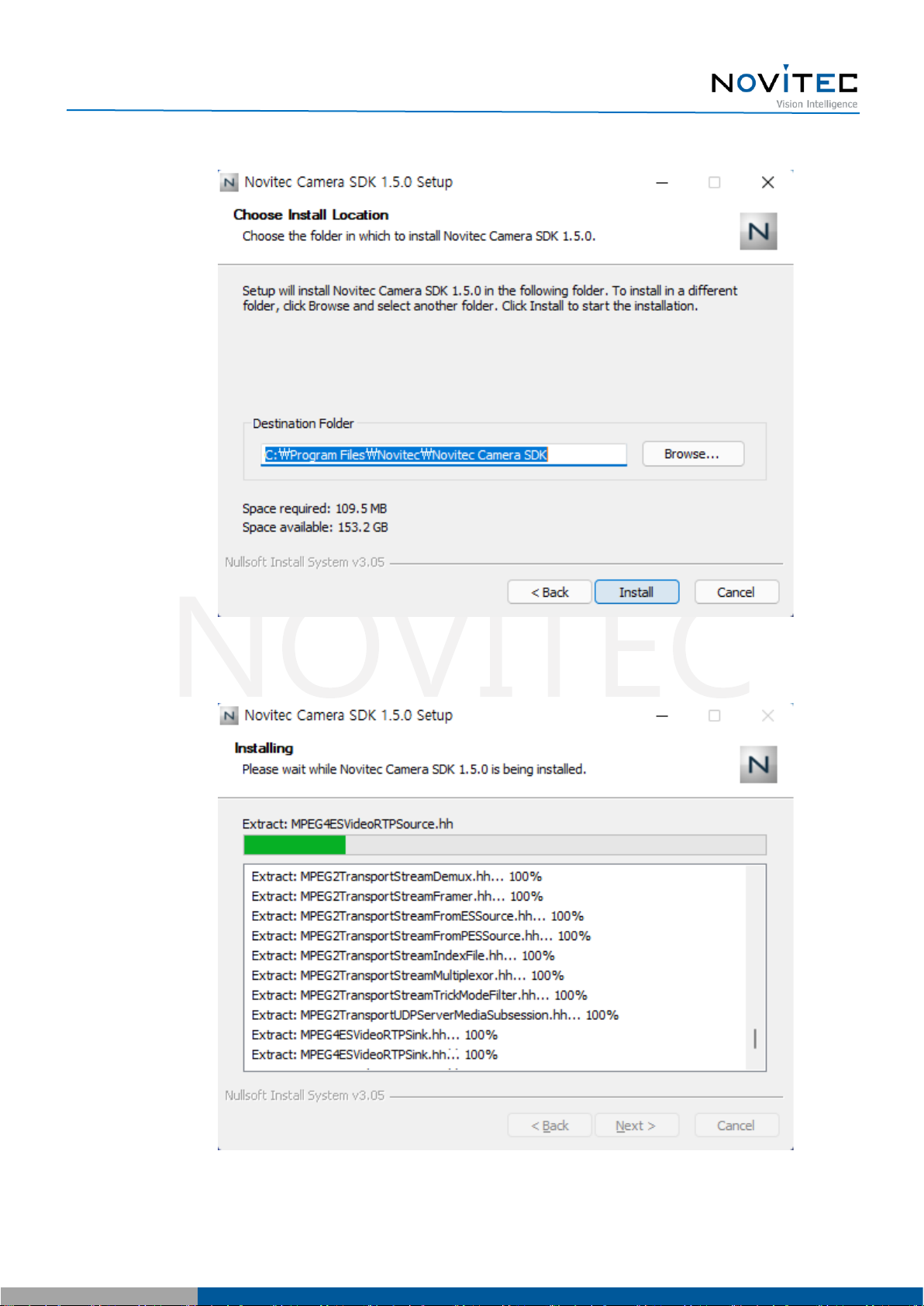
c. After selecting the folder to install, click [Install].
<Image> 9. Choose Install location image
<Image> 10. Installing image
Autres manuels pour i-Nova3 Series
1
Ce manuel convient aux modèles suivants
1
Table des matières
Autres manuels Novitec Appareil photo numérique