
Notilo Plus iBubble Manuel utilisateur


Congratulation on the purchase or your
iBubble !
Before using your drone, please read this
document carefully.
The following contains all necessary
information regarding your drone and its
use.
Items presentation
3

Your iBubble
Your iBubble remote
4


FIRST TIME SETUP
Upon starting your iBubble for the first time, it is
necessary to register and update it. To do so, follow
the instructions below.
1. Preparation
Put the battery and the drone’s remote in charge until
they are fully charged before starting the updating
process.
Before turning on your iBubble, please make sure that
your drone is in a clear area and that the propellers are
not blocked in any way.
2. Plug in the battery
Please watch the following video to understand how the
battery compartment of the iBubble works and how to
plug in the battery: :
https://www.youtube.com/watch?v=gagrXSrIDfs
Instructions:
● Turn the iBubble upside down on a plane surface and
open the battery compartment turning counter
clockwise.
● Connect the battery aligning its connector with its
counterpart located at the bottom of the battery
compartment.
(A slight beep confirms the correct connection of the
battery).
6

FIRST TIME SETUP
● Check for grease on the o-ring joint located on the
removable bell. If necessary, apply a new layer of
grease on the joint. Be sure to always handle the seal
carefully and never use sharp objects.
If the seal is damaged, change it (available in our
online store). It is recommended to change the seal at
least every 50 dives.
● Screw the battery bell as far as possible, checking first
that there is no sand, salt or other material that would
impede the seal at the joint, the bell thread and other
friction parts.
The seal must be placed in the groove farthest from the
thread of the battery bell.
Make sure that the bell is aligned vertically with the
thread to prevent blockage.
3. Downloading and starting
the iBubble app
In order to register and update your iBubble, you need to
install the iBubble Camera application on your
smartphone or tablet. You can download it on the
Android PlayStore as well as on Apple’s AppStore.
Once the app is downloaded, start it and follow the
instructions to register your drone. Once your iBubble is
registered, the latest update will be downloaded on your
phone. Once finished, the application will ask you to start
your iBubble. Read the following section to turn it on.
7

FIRST TIME SETUP
4. Preparing the remote
Turn on your remote by pressing the "Select" button.
When the Notilo Plus logo appears, press both Mode and
Scen buttons at the same time. The BOOTLOADER screen
will then appear.
Important information
: If the screen of the remote displays
the DEBUG screen instead of the BOOTLOADER screen,
turn it off by pressing the three buttons Mode, Scen and
Select at the same time. This will turn off the remote. The
DEBUG menu appears when all three buttons are pressed
when the IBUBBLE logo appears.
5. Starting the drone
Once the remote is in BOOTLOADER mode, put it on the
designed location on the drone and leave it there until the first
time setup is over.
As soon as the remote is placed on the drone, it will turn on
and beep. When turned on for the first time, iBubble does
not turn on its status LEDs and emits a WiFi signal named
ibubble-B827EBXXXXX (the X's represent a sequence of
random digits.).
6. Registration and update
To register and update your drone, launch the iBubble app on
your smartphone and follow the given instructions.
Important: Once the update is downloaded to your
Smartphone, be sure to turn off mobile data on your phone to
ensure an optimal connection to your iBubble.
Follow the update process in the app. Once the update is
complete, the drone will restart, update and synchronize with
the remote.
You can then connect to iBubble through the app and set it
up.
8
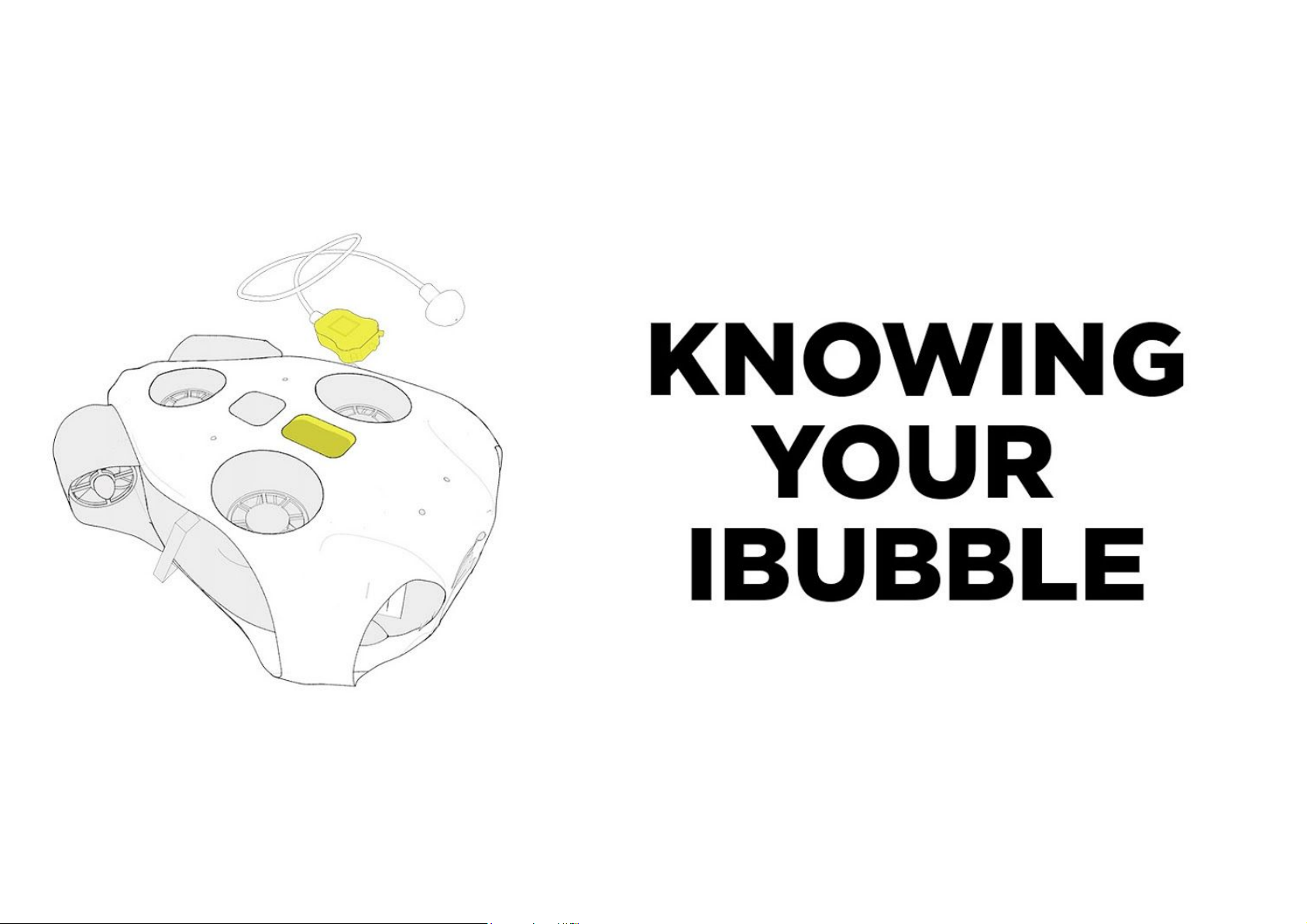

KNOWING YOUR IBUBBLE
Turning the iBubble on and off
To turn on your iBubble, simply turn the remote on and place it on
its dedicated cradle on the drone. iBubble will turn on and run its
startup tests.
To turn off your iBubble, turn off the remote and place it on the
drone for 10 seconds, then remove it. The drone will turn off.
Caution: Turning off iBubble by removing the battery may damage
its components. We strongly advise not to turn off iBubble this way.
Synchronization
● Turn on the remote by pressing the Select button for 2
seconds.
● Place the remote on its dedicated base on the drone,
checking for obstructions on the portholes of the
remote and drone.
● iBubble turns on and starts its booting sequence. After
one minute, the remote synchronizes with the drone.
● Once synchronized, the remote displays the "Disarm"
scenario and the iBubble LED turns solid green.
10
Table des matières


