
Not Only TV iScanner Manuel utilisateur

Docking Scanner
User Guide
Work with
The "Made for iPad" logo means
that an electronic accessory
has been designed to connect
specifically to iPad and has been
certified by the developer to meet
Apple performance standards.
Apple is not responsible for
the operation of this device or
its compliance with safety and
regulatory standards. Please note
that the use of this accessory
with iPad may affect wireless
performance.
Works with
-
Scanner App
All trademarks are the property
of their respective owners and all
rights are acknowledged.
v1.1

2
Important Safety Instructions
• Keep away from water or moisture and dusty areas.
• Never store in hot and very cold areas.
• Ambient temperature ranges from 0°C to +35°C (32°F~+95°F).
• Only use attachments/accessories specified by the manufacturer.
• Avoid dust contamination when the scanner is not in use.
• When left unused for a long period of time, the unit should be disconnected from the power supply.
• Avoid environments where the scanner would be exposed to direct sunlight (or any other source of excessive heat)
for long periods of time.
• Protect the scanner from potential liquid spills such as soda, coffee, tea, etc.
• Be carefully to keep it without dropping it or strong impact.
• Operate the scanner on a level, well-grounded work surface, free of excessive vibration.
• Don’t open the scanner case alone without technical support because there is danger of electrical shock.
FCC notice:
This device complies with Part 15 of the FCC Rules. Operation is subject to the following two
conditions: (1) this device will not cause harmful interference, and (2) this device must accept any
interference received, including interference that may cause undesired operation.
Discarded electrical and electronic appliance are recyclable and should separate from the household waste.
Please actively support in conserving resources and protecting the environment by returning this appliance
to the collection centers (if available).

3
Table of Contents
Important Safety Instructions ............................................................................................................... 2
Table of Contents ................................................................................................................................. 3
Quick Getting Started ........................................................................................................................... 4
Unpack ................................................................................................................................................. 5
Overview .............................................................................................................................................. 6
Power Source ...................................................................................................................................... 7
Power On / Off ..................................................................................................................................... 8
Connect to iPad ................................................................................................................................... 8
Download & Install Scanner App (i-Scan App) ..................................................................................... 9
Scan ................................................................................................................................................... 10
Save ................................................................................................................................................... 10
App Launch Message on iPad iOS 5 .................................................................................................. 11
Tips & Hints ........................................................................................................................................ 12
Specifications ..................................................................................................................................... 14
Appendix 1: Calibrate ......................................................................................................................... 15
Appendix 2: Use the Photo Protective Sleeve ....................................................................................16
Appendix 3: Clean............................................................................................................................... 17
Appendix 4: Charging your iPad ......................................................................................................... 19

4
Quick Getting Started
1. Attach USB Cable
iPad supplied USB
Power Adapter
2. Turn on Power 3. Dock iPad
4. Install i-Scan App
from App store
5. Insert Photo and Scan 6. Preview and Save

5
Unpack
The following items should include in your packaging:
Scanner USB Cable Calibration Sheet Roller Cleaner
5"x7"
Quick
Start
Guide
Lens Cleaner Photo Protective Sleeve Quick Start Guide

6
Overview
iPad Dock Connector
Feed Slot
Exit
Slot
Stand
Mini USB
port
(for power
input only)
Paper
Guide
Power
Button
Front Rear
Paper
Guide
Power
LED

7
Power Source
• The scanner incorporates a mini USB port
which is designed for power input only.
• The scanner requires 10.5 watts (5V 2.1A) of
power via iPad USB Power Adapter that came
with your iPad packaging.
1. Connect the small end of the USB cable to the
mini USB port of the scanner.
2. Connect the other end of the USB cable to the
iPad supplied USB Power Adapter.
3. Connect the iPad supplied USB Power Adapter
to a power outlet.
• Do not connect the iPad scanner to the USB port of a PC or any other device for power input.
The USB Power
Adapter is the
accessory of
iPad.

8
Connect to iPad
• Turn on your iPad and
connect it carefully to the
iPad dock connector of the
scanner. Make sure it sits
firmly in place.
Power On / Off
• Press the Power
button to turn on
the scanner. To turn
off, long press for a
few seconds then
release the button.
Description Power LED Status
Power On Blinking, then steady blue
Power Off Off
• Do not dock/un-dock iPad to the scanner when
the power LED is blinking. Wait until the blinking
stops.
• Check the battery level in the upper-right corner
of your iPad Home screen. Make sure it is above
20% at least when docked. If not, please charge
the battery prior to docking.
• To avoid the possible interruption during
scanning, please turn off the Notification function.
In iPad Settings, tap Notifications, then turn
Notifications off. Refer to your iPad User Guide
for more details.
• The scanner will turn off automatically after
iPad locks and sleeps for about 1.5 minutes.
To turn on the scanner, press the Power
button. Then wake iPad.

9
Power on the iPad, the message on the right will
prompt on the iPad screen guiding you to the
App store for i-Scan App download.
Follow the on-screen instructions to complete the
installation.
Upon completion, the i-Scan App icon will
then appear on the iPad Home screen.
•
Make sure that your iPad is connected to a Wi-Fi network before you download and install
applications. Refer to iPad user guide to activate the WiFi connection on your iPad.
•
Download one App at a time and do not do anything else while you download an App.
Download & Install Scanner App (i-Scan App)
* The message appears only if the
i-Scan App is not installed on your
iPad Scanner
10
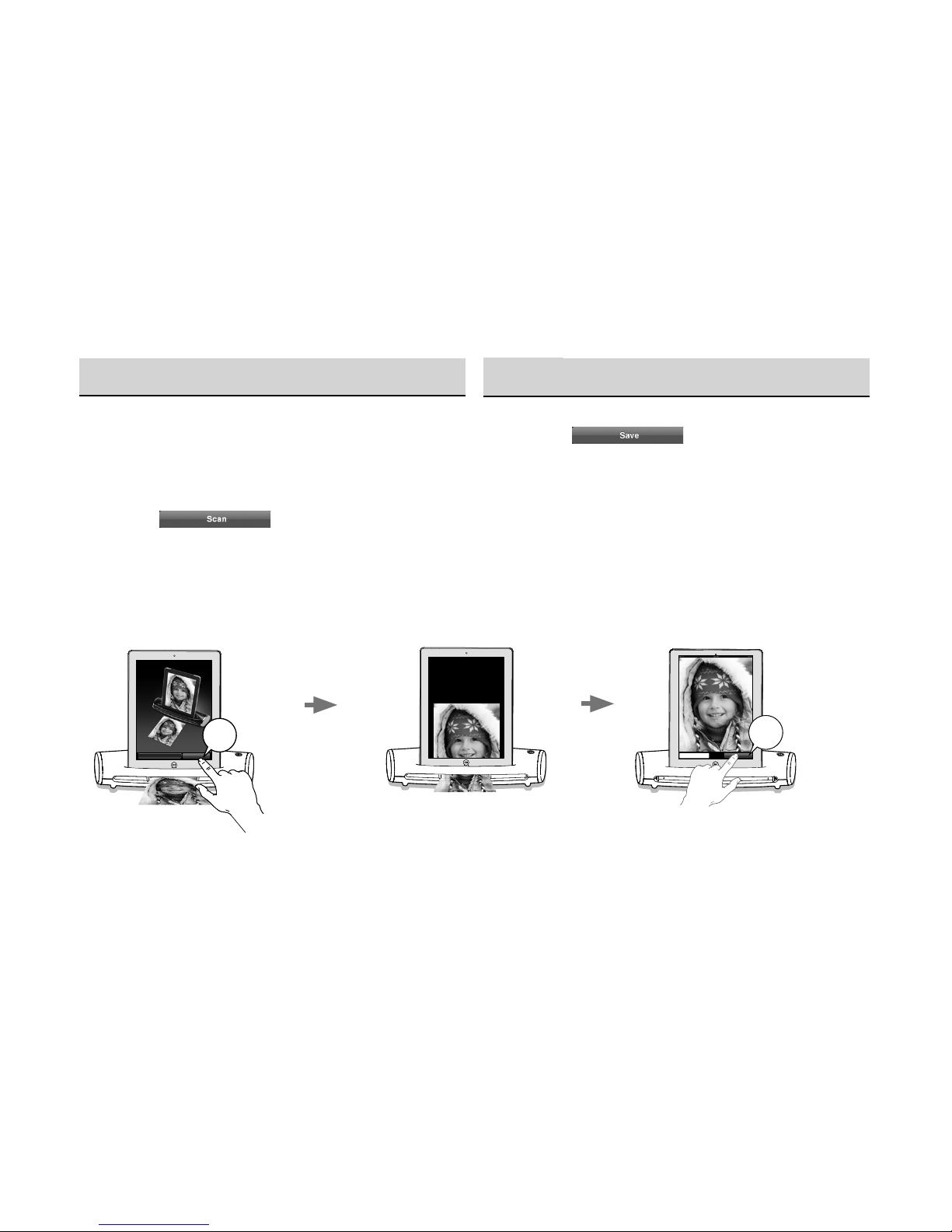
Scan
Press “Scan” button to scan
Scan
Scan
1. Insert a photo/document facing UP into the feed
slot until it is gripped by the roller.
2. Adjust the paper guide against the edges of the
photo/document.
3. Tap the button. The scan starts
with the real-time preview on the iPad's screen.
4. When the photo/document is displayed fully on
the iPad's screen, the scan is completed.
Save
Tap the button. The image will
be saved to your iPad accordingly.
• To start a new scan, follow the steps 1-3 in the
Scan section.
• To view your scanned photos/documents, tap
Photos application icon on iPad Home screen.
Tap Scan button Start scanning Tap Save button
Save
Cancel
Save
Table des matières


