NI PXIe-5624R Manuel utilisateur
GETTING STARTED GUIDE
NI PXIe-5624R
2 GS/s, 12-Bit IF Digitizer
Note Before you begin, install and configure your chassis and controller.
This document explains how to install, configure, and test the NI PXIe-5624R (NI 5624R).
The NI 5624R is an IF digitizer with a user-programmable FPGA. The NI 5624R ships with
NI LabVIEW Instrument Design Libraries for IF Digitizers, which you can use to program the
device.
Programming the NI 5624R requires NI LabVIEW. Customizing the FPGA requires the
NI LabVIEW FPGA Module.
To access NI 5624R documentation, navigate to Start»All Programs»National Instruments»
IF Digitizers»IF Digitizers Documentation
Note The NI 5624R can be used on its own or as a component of certain NI vector
signal analyzers. Refer to the documentation for your vector signal analyzer for
information about using the NI 5624R in an NI vector signal analyzer.
Contents
Electromagnetic Compatibility Guidelines...............................................................................2
Verifying the System Requirements......................................................................................... 2
Unpacking the Kit.....................................................................................................................2
NI 5624R Kit Contents..................................................................................................... 3
Preparing the Environment....................................................................................................... 4
Programming the NI 5624R......................................................................................................4
Installing the Software.............................................................................................................. 4
Installing the NI 5624R.............................................................................................................5
NI 5624R Front Panel....................................................................................................... 8
Configuring the NI 5624R in MAX........................................................................................10
Self-Calibration.......................................................................................................................11
Making a Measurement with a Sample Project...................................................................... 11
Troubleshooting...................................................................................................................... 12
What Should I Do if the NI 5624R Doesn't Appear in MAX?....................................... 12
What Should I Do if the Module Fails the Self-Test or Self-Calibration?......................12
Where to Go Next................................................................................................................... 13
Worldwide Support and Services............................................................................................13

Electromagnetic Compatibility Guidelines
This product was tested and complies with the regulatory requirements and limits for
electromagnetic compatibility (EMC) stated in the product specifications. These requirements
and limits are designed to provide reasonable protection against harmful interference when the
product is operated in the intended operational electromagnetic environment.
This product is intended for use in industrial locations. However, harmful interference may
occur in some installations, when the product is connected to a peripheral device or test object,
or if the product is used in residential or commercial areas. To minimize interference with
radio and television reception and prevent unacceptable performance degradation, install and
use this product in strict accordance with the instructions in the product documentation.
Furthermore, any modifications to the product not expressly approved by National Instruments
could void your authority to operate it under your local regulatory rules.
Caution To ensure the specified EMC performance, operate this product only with
shielded cables and accessories.
Caution To ensure the specified EMC performance, the length of all I/O cables
must be no longer than 3 m (10 ft).
Verifying the System Requirements
To use the NI 5624R, your system must meet certain requirements.
For information about minimum system requirements, recommended system requirements,
and supported ADEs, refer to the readme for the NI LabVIEW Instrument Design Libraries for
IF Digitizers. When using the NI 5624R as a component of an NI vector signal analyzer, refer
to the NI-RFSA Readme. Readmes are available on the driver software DVD and online at
ni.com/updates.
Unpacking the Kit
Caution To prevent electrostatic discharge (ESD) from damaging the device,
ground yourself using a grounding strap or by holding a grounded object, such as
your computer chassis.
1. Touch the antistatic package to a metal part of the computer chassis.
2. Remove the device from the package and inspect the device for loose components or any
other sign of damage.
Caution Never touch the exposed pins of connectors.
Notify NI if the device appears damaged in any way. Do not install a damaged device.
3. Unpack any other items and documentation from the kit.
Store the device in the antistatic package when the device is not in use.
2| ni.com | NI PXIe-5624R Getting Started Guide

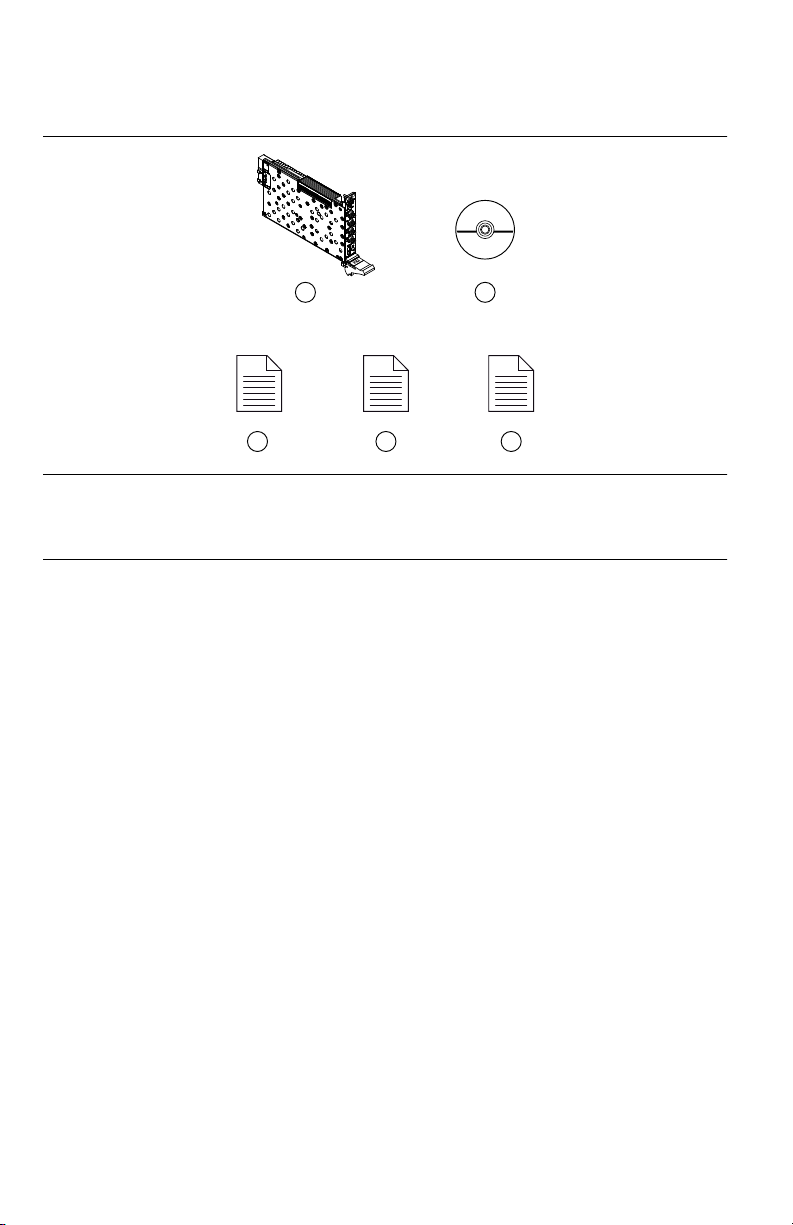
NI 5624R Kit Contents
Figure 1. NI 5624R Kit Contents
1 2
3 4 5
1. NI PXIe-5624R IF Digitizer Module
2. Driver Software DVD
3. Read Me First: Safety and Electromagnetic
Compatibility
4. Maintain Forced-Air Cooling Note to Users
5. NI 5624R Getting Started Guide (This Document)
Other Equipment
There are several required items not included in your device kit that you need to operate the
NI 5624R. Your application may require additional items not included in your kit to install or
operate your device.
Required Items
• A PXI Express chassis and chassis documentation. The NI PXIe-1085 chassis is one
available option for your PXI Express device. For more information about compatible
chassis options, visit ni.com/info and enter the Info Code pxiechassis.
• A PXI Express embedded controller or PC with MXI controller system that meets the
system requirements specified in this guide and chassis documentation.
Optional Items
• PXI Chassis Slot Blocker kit (NI part number 199198-01)
• SMA (m)-to-SMA (m) cables
• NI SHH19-H19-AUX DIGITAL I/O cable (NI part number 152629-01 or 152629-02)
• NI SCB-19 DIGITAL I/O accessory for connecting to external signals (NI part number
782444-01)
NI PXIe-5624R Getting Started Guide | © National Instruments | 3

Preparing the Environment
Ensure that the environment you are using the NI 5624R in meets the following specifications.
............................................................................Operating ambient temperature
(IEC-60068-2-1, IEC-60068-2-2)
0 °C to 55 °C
............................................................................Operating relative humidity
(IEC-60068-2-56)
10% to 90%, noncondensing
............................................................................Maximum altitude 2,000 m (800 mbar) (at 25 °C ambient
temperature)
............................................................................Pollution Degree 2
Indoor use only.
Caution Clean the hardware with a soft, nonmetallic brush. Make sure that the
hardware is completely dry and free from contaminants before returning it to
service.
Note Refer to the NI PXIe-5624R Specifications at ni.com/manuals for complete
specifications.
Programming the NI 5624R
You can use the NI LabVIEW Instrument Design Libraries for IF Digitizers and the LabVIEW
FPGA Module to customize the behavior of your NI 5624R.
You can use the instrument design libraries to control or customize your NI 5624R device to
suit the needs of your application. This software offers many LabVIEW libraries to assist you
in controlling your device.
Use the NI LabVIEW Instrument Design Libraries for IF Digitizers with the LabVIEW FPGA
Module to customize the behavior of the device FPGA to create application-specific
instrument designs. The NI LabVIEW Instrument Design Libraries for IF Digitizers
installation includes sample projects. You can use sample projects as a starting point for
customizing the device FPGA or to operate the device as a standard IF digitizer.
Installing the Software
Close all programs before installing the software. NI recommends installing your software
before installing the NI 5624R hardware.
Install your software in the following order:
1. Install the latest service packs for your operating system.
2. Install NI LabVIEW.
4| ni.com | NI PXIe-5624R Getting Started Guide

Refer to the LabVIEW Installation Guide for installation instructions for LabVIEW and
system requirements for LabVIEW software. Refer to the LabVIEW Upgrade Notes for
additional information about upgrading to the most recent version of LabVIEW for
Windows.
3. (Recommended) Install NI LabVIEW FPGA Module.
Refer to the LabVIEW FPGA Module Release and Upgrade Notes for installation
instructions and information about getting started with the LabVIEW FPGA Module.
Note Installation of the LabVIEW FPGA Module is required to customize the
device FPGA using the instrument design libraries.
4. (Recommended) Install the latest service pack for LabVIEW and any LabVIEW modules
you are using.
5. Insert the driver software DVD into the DVD drive.
The driver software installer should open automatically. If the installation window does
not appear, navigate to the DVD drive, double-click the drive, and double-click
autorun.exe.
Note You can also download the software from ni.com/downloads.
6. Follow the instructions in the installation prompts to install the default installation.
Windows users may see access and security messages during installation. Accept the
prompts to complete the installation.
Note The default installation installs NI LabVIEW Instrument Design
Libraries for IF Digitizers, documentation, and device specifications.
Note For troubleshooting information, contact NI technical support or visit
ni.com/support.
7. When the installer completes, restart your system.
Installing the NI 5624R
Caution To prevent damage to the device caused by ESD or contamination, handle
the device using the edges or the metal bracket.
NI recommends installing the software before installing the hardware.
Before you install the hardware, refer to the guidelines in the Maintain Forced-Air Cooling
Note to Users included with the module to ensure that the device can cool itself effectively.
This document is also available at ni.com/manuals.
1. Ensure the AC power source is connected to the chassis before installing the NI 5624R.
The AC power cord grounds the chassis and protects it from electrical damage while you
install the NI 5624R.
2. Power off the chassis.
NI PXIe-5624R Getting Started Guide | © National Instruments | 5

3. Inspect the slot pins on the chassis backplane for any bends or damage prior to
installation. Do not install the module if the backplane is damaged.
4. If the chassis has multiple fan speed settings, ensure the fans are set to the highest setting.
Note Inadequate air circulation could cause the temperature inside the chassis
to rise above the optimal operating temperature for the device, potentially
causing thermal shutdown, shorter lifespans, or improper performance.
5. Position the chassis so that inlet and outlet vents are not obstructed.
For more information about optimal chassis positioning, refer to the chassis
documentation.
6. Remove the black plastic connectors from all the captive screws on the module front
panel.
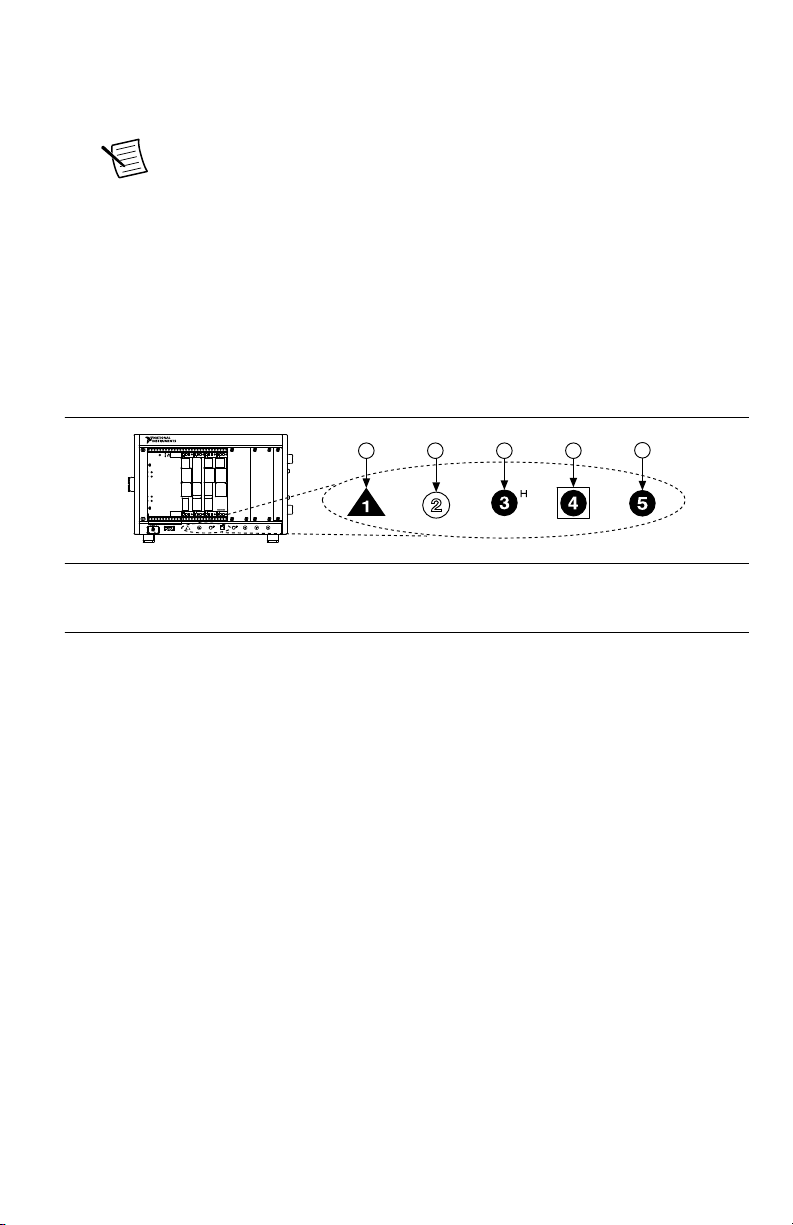
7. Identify a supported slot in the chassis. The following figure shows the symbols that
indicate the slot types.
Figure 2. Chassis Compatibility Symbols
NI PXIe-1062Q
12 3 45
1. PXI Express System Controller Slot
2. PXI Peripheral Slot
3. PXI Express Hybrid Peripheral Slot
4. PXI Express System Timing Slot
5. PXI Express Peripheral Slot
The NI 5624R module can be placed in PXI Express peripheral slots or PXI Express
Hybrid peripheral slots.
8. Touch any metal part of the chassis to discharge static electricity.
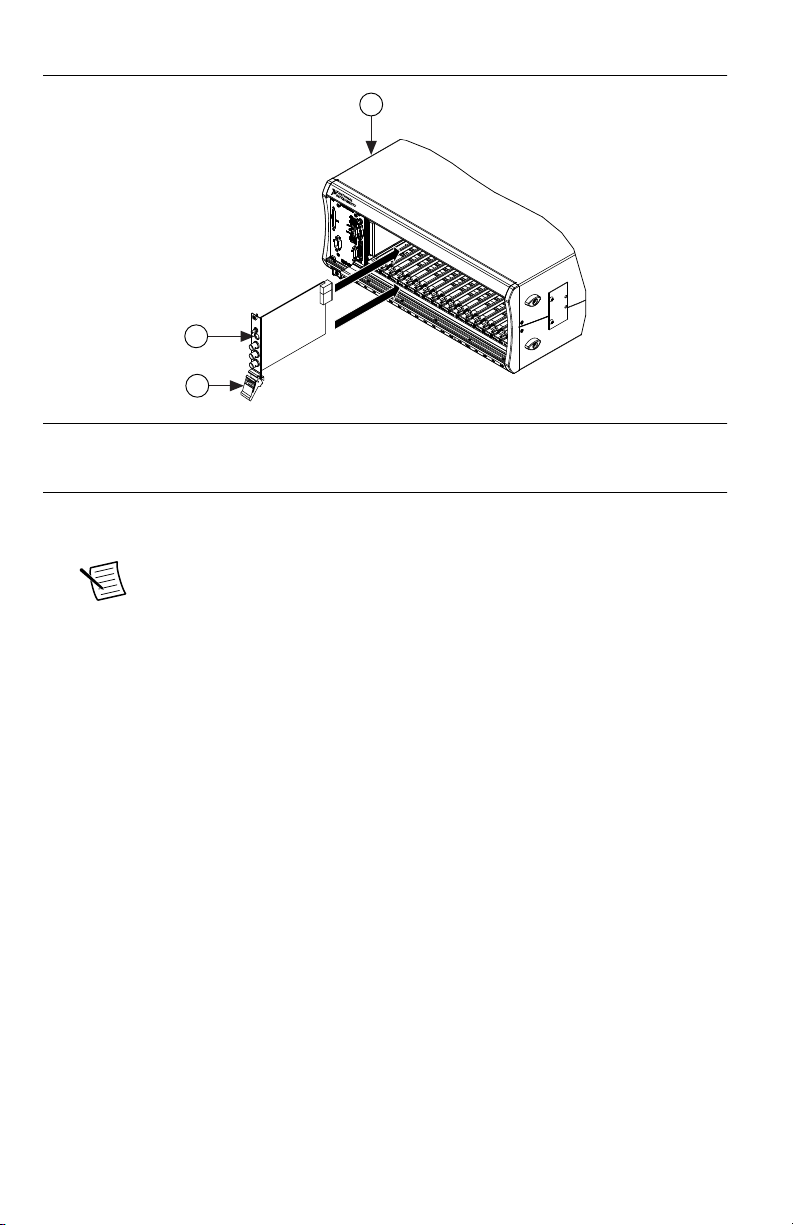
9. Ensure that the ejector handle is in the unlatched (downward) position.
10. Place the module edges into the module guides at the top and bottom of the chassis. Slide
the device into the slot until it is fully inserted.
6| ni.com | NI PXIe-5624R Getting Started Guide

Figure 3. Module Installation
2
3
NI PXIe-1075
1
1. Chassis
2. Hardware Module
3. Ejector Handle in Down (Unlatched Position)
11. Latch the module in place by pulling up on the ejector handle.
12. Secure the device front panel to the chassis using the front-panel mounting screws.
Note Tightening the top and bottom mounting screws increases mechanical
stability and also electrically connects the front panel to the chassis, which can
improve the signal quality and electromagnetic performance.
13. Cover all empty slots using filler panels or slot blockers to maximize cooling air flow.
14. Power on the chassis.
NI PXIe-5624R Getting Started Guide | © National Instruments | 7

NI 5624R Front Panel
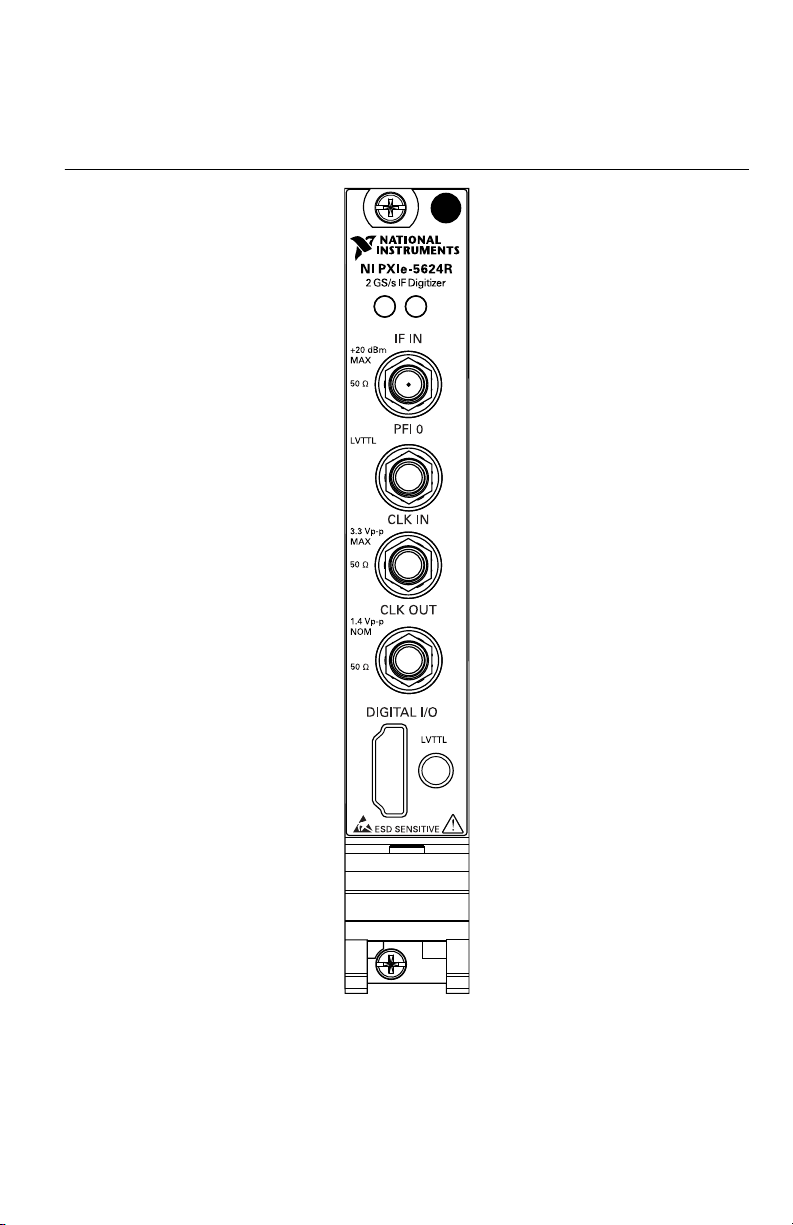
The NI 5624R front panel contains five connectors and two LEDs.
Figure 4. NI 5624R IF Digitizer Module Front Panel
ACCESS
ACTIVE
8| ni.com | NI PXIe-5624R Getting Started Guide

Table 1. Device Front Panel Icon Definitions
Refer to the user documentation for required maintenance measures to ensure user
safety and/or preserve the specified EMC performance.
The signal pins of this product's input/output ports can be damaged if subjected to
Electrostatic Discharge (ESD). To prevent damage, turn off power to the product
before connecting cables and employ industry-standard ESD prevention measures
during installation, maintenance, and operation.
Table 2. NI 5624R IF Digitizer Front Panel Connectors
Label Connector Type Function
IF IN SMA connector Analog input terminal for intermediate frequency (IF)
signals.
PFI 0 SMA connector Programmable function digital I/O (DIO) connector for
triggers or events.
CLK IN SMA connector Input for an external ADC Clock (Sample Clock) or
Reference Clock to the digitizer.
CLK OUT SMA connector Output for an ADC Clock (Sample Clock) or PLL
Reference Clock from the digitizer.
DIGITAL I/O HDMI™ connector DIO terminal that contains 12 general-purpose DIO
signals. DIO lines are direction configurable as input or
output.
Caution The DIGITAL I/O connector accepts a standard, third-party HDMI cable,
but the DIGITAL I/O port is not an HDMI interface. Do not connect the DIGITAL
I/O port on the NI 5624R to the HDMI port of another device. NI is not liable for
any damage resulting from such signal connections.
The following table provides information about the module front panel LEDs and the device
states they indicate.
NI PXIe-5624R Getting Started Guide | © National Instruments | 9
Autres manuels pour PXIe-5624R
1
Table des matières
Autres manuels NI Instrument de mesure

NI
NI PXIe-4190 Manuel utilisateur

NI
NI PXIe-4135 Manuel utilisateur

NI
NI SCXI-MS100 Manuel utilisateur

NI
NI PXIe-4136 Manuel utilisateur

NI
NI PXIe-4138 Manuel utilisateur

NI
NI PXIe-4137 Manuel

NI
NI PXIe-4136 Manuel d'utilisation et d'entretien

NI
NI cDAQ-9178 Manuel utilisateur

NI
NI PXIe-5624R Manuel

NI
NI PXIe-5665 3.6 GHz Manuel du propriétaire
Manuels Instrument de mesure populaires d'autres marques

Endress+Hauser
Endress+Hauser Proline Promag 50 Caractéristiques techniques

Siemens
Siemens SITRANS F Coriolis FCT030 Manuel de la liste des pièces

KLINGER
KLINGER CMF V Series Manuel utilisateur

EXFO
EXFO FTB-2 Manuel d'exploitation et d'entretien

Keysight
Keysight M8290A Manuel utilisateur

ADTEK
ADTEK MW-5 Manuel utilisateur