Next POE2429L2-370 Manuel de l'opérateur

i
NEXT-POE2429L2-370
Web Smart+ GbE PoE+ Switch
Quick Installation and
Initial Configuration

ii
Contents
Chapter 1 Introduction.................................................... 1
Overview...........................................................................................1
Front View of the Switch............................................................1
Rear View of the Switch..............................................................1
LED Descriptions ...........................................................................2
Mode/Reset Button......................................................................4
Chapter 2 Installing the Switch .................................... 5
Package Contents.........................................................................5
Mounting the Switch in a 19-inch Rack...............................5
Mounting the Switch on Desk or Shelf................................6
Connecting the AC Power Cord..............................................7
Installing SFP Modules ...............................................................7
Chapter 3 Initial Configuration of Switch................. 9
Initial Switch Configuration Using Web Browsers...........9
Initial Switch Configuration Procedure ................................9
Chapter 4 Troubleshooting..........................................12

1
Chapter 1 Introduction
Overview
This user guide describes how to install, configure, and troubleshoot the
NEXT-POE2429L2-370, 28 Ports Web Smart+ GbE PoE+ Switch.
By reading this user guide, users can perform the following tasks:
To check the switch status by reading the LED behavior
To reset the switch or to restore the switch to factory defaults
To install the switch
To use a Web browser to initially configure the switch
To troubleshoot the switch
Front View of the Switch
Figure 1:Front panel of the switch
Rear View of the Switch
Figure2:Rear panel of the switch

2
LED Descriptions
The LEDs on the front panel provide users with switch status checking and
monitoring. There are three types of LEDs as follows:
System LED
indicatesif the switch is powered up correctly or not, or, indicates if
there is a system alarm triggered for troubleshooting.
Mode LEDs
indicates the mode of all ports on the switch. Users can press the
Mode button sequentially to switch amongthe two different modes
(Link/Activity/Speed mode and PoE mode).
Port Status LEDs
indicates the current status of each port. Users can check these LEDs
to understand the port status in different modes, after changing the
mode by pressing Mode button.
The following table details the functions and descriptions of variousLED
indicators.
Table1:SystemLED
LED
Color
State
Description
System
Green
On
The switch is powered ON correctly.
Off
The switch is not receiving power.
Red
On
An abnormal state, such as exceeding
operating temperature range, has been
detected in the switch.
Table 2:ModeLEDs
LED
Color
State
Description
Link/Act/Speed
Green
On
The Port Status LEDs are displaying link
status, network activity and speed of each
port.
PoE
Green
On
The RJ45 Port Status LEDs are displaying
PoE powering status of each port.

3
By pressing the MODE button in less than 2 seconds to change LED
modes (Link/Act/Speed Mode or PoE Mode), users can check the port
status by reading the LED behaviors per the table below.
Table 3:Port Status LEDs
When Link/Act/Speed Mode LED Lit
LED
Color
State
Description
RJ45
Ports
Green
On
The port is enabled and established a link to connected
device, and the connection speed is 1000Mbps.
Green
Blinking
The port is transmitting/receiving packets, and the
connection speed is 1000Mbps.
Amber
On
The port is enabled and established a link to connected
device, and the connection speed is 10/100Mbps.
Amber
Blinking
The port is transmitting/receiving packets, and the
connection speed is 10/100Mbps.
--
Off
The port has no active network cable connected, or it is
not established a link to connected device. Otherwise, the
port may have been disabled through the switch user
interface.
SFP
Ports
Green
On
The port is enabled and established a link to connected
device, and the connection speed is 1000Mbps.
Green
Blinking
The port is transmitting/receiving packets, and the
connection speed is 1000Mbps.
Amber
On
The port is enabled and established a link to connected
device, and the connection speed is 100Mbps.
Amber
Blinking
The port is transmitting/receiving packets, and the
connection speed is 100Mbps.
--
Off
The port has no active network cable connected, or it is
not established a link to connected device. Otherwise, the
port may have been disabled through the switch user
interface.
When PoE Mode LED Lit
LED
Color
State
Description
RJ45
Ports
Green
On
The port is enabled and supplying power to connected
device.
Amber
On
An abnormal state, such as overload status, has been
detected in the switch.
--
Off
The port has no active network cable connected, or it is
not connected a PoE PD device. Otherwise, the port may
have been disabled through the switch user interface.

4
Mode/Reset Button
By pressing the Mode/Reset Button for certain period of time, users can
perform the following tasks.
Change Port Status LED Mode
to read the port status correctly in the twodifferent modes
(Link/Act/Speed mode or PoE mode).
Reset the Switch
toreboot and get the switch back to the previous configuration
settings saved.
Restore the Switch to Factory Defaults
to restore the original factory default settings back to the switch.
Note:
According to the table below, users can easily judge which taskisbeing
performed by reading the LED behaviors while pressing the Mode/Reset
button.Once the LED behaviors are correctly displayed, users may
just release the button.
Table 4:Mode/Reset Button Descriptions
Task to
bePerformed
Time Period of
Pressing Button
SYS LED
Behavior
Port Status LED
Behavior
Change LED Mode
0 ~ 2 seconds
ON
Green
LED status will be
changed according the
mode selected.
Reset the Switch
2 ~ 7 seconds
Blinking
Green
ALL LEDs Light OFF
Restore to Defaults
7 ~ 12 seconds
Blinking
Green
ALL LEDsStay ON

5
Chapter 2 Installing the Switch
Package Contents
The Switch
AC Power cord (Option)
Four adhesive rubber feet
Installation Guide
Mounting kit(Option)
Note:
The switch is an indoor device. If it is to be used with outdoor devices
such as outdoor IP cameras or outdoor WiFi APs, then users are strongly
suggested to install a surge protector or surge suppressor in order to
protect the switch.
Mounting the Switch in a 19-inch Rack
Step1: Attach the mounting brackets to both sides of the chassis.
Insert screws and tighten then with a screwdriver to secure the
brackets.
Figure 3: Attaching Brackets to the Switch

6
Step2:Place the switch on a rack shelf in the rack. Push it in until the
oval holes in the brackets align with the mounting holes in the
rack posts.
Step 3: Attach the brackets to the posts. Insert screws and tighten them.
Figure 4:Attaching Brackets to the Rack Post
Mounting the Switch on Desk or Shelf
Step1:Verify that the workbench is sturdy and reliably grounded.
Step2:Attach the four adhesive rubber feet to the bottom of the switch.
Figure 5:Attaching the Rubber Feet

7
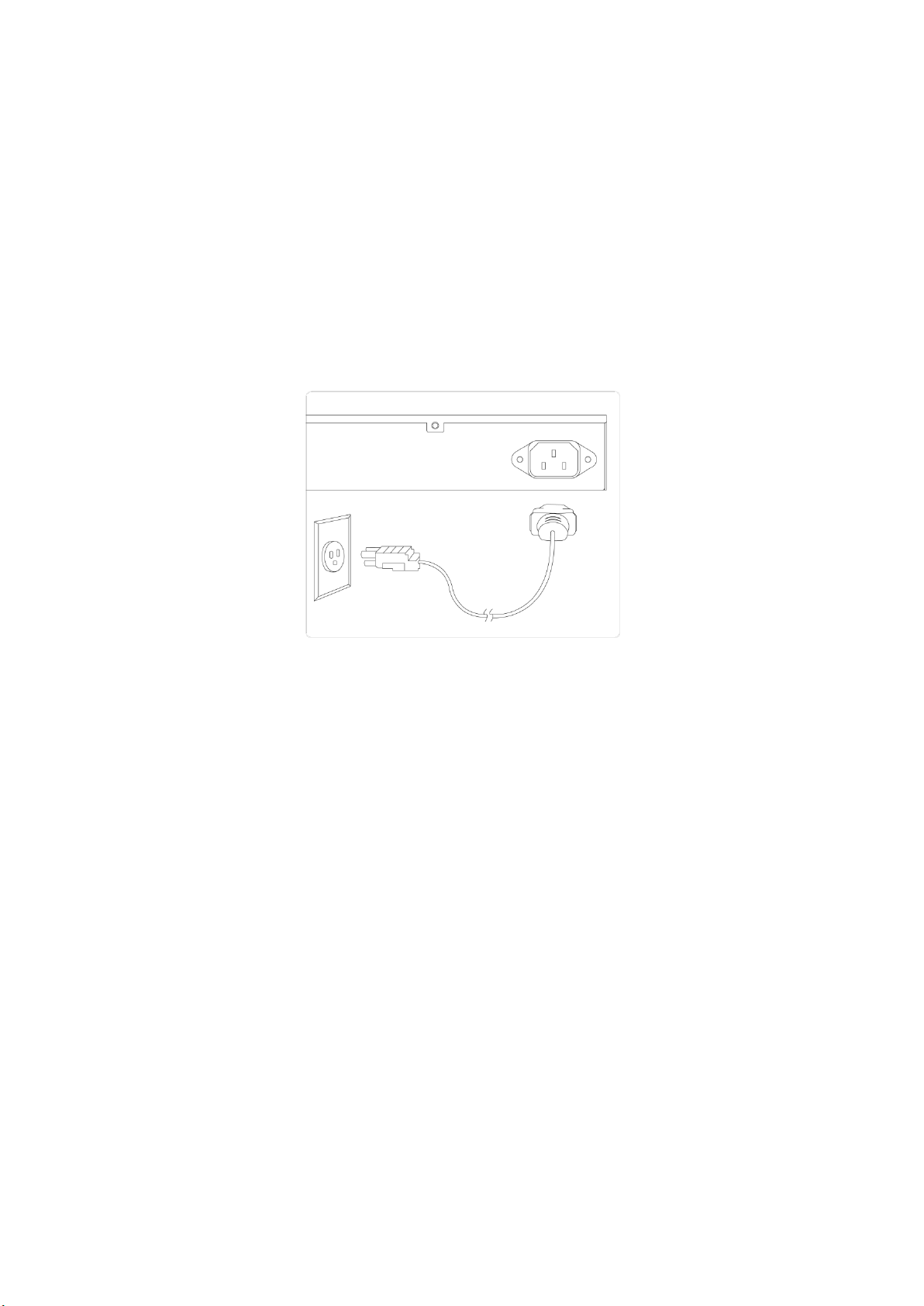
Connecting the AC Power Cord
Step 1:Connect the AC power cord to the AC power receptacle of
switch.
Step 2:Connect the other end of the AC power cord to the AC power
outlet.
Step 3:Check the SYS LED. If it is ON, the power connection is correct.
Figure 6:Connecting AC power cord
Installing SFP Modules
You can install or remove a mini-GBIC SFP module from a SFP port
without having to power off the switch.
Step1:Insert the module into the SFP port.
Step2:Press firmly to ensure that the module seats into the connector.

8
Figure 7:Installing a SFP Module into a SFP Port
Note:
The SFP ports should use UL Listed Optional Transceiver product, Rated
3.3Vdc, Laser Class 1.
Table des matières
Autres manuels Next Changer