
Motorola solutions NITRO EVOLVE Manuel utilisateur

EVOLVE Portable Radio
User Guide
NITRO Portable
PROFESSIONAL DIGITAL TWO-WAY RADIO
*MN007267A01*
MN007267A01-AA
OCTOBER 2020
© 2020 Motorola Solutions, Inc. All rights reserved

Contents
Chapter 1: Read Me First............................................................................................6
1.1 Software Version..................................................................................................................... 7
Chapter 2: Radio Care................................................................................................ 8
Chapter 3: Radio Overview........................................................................................ 9
3.1 Configuring Programmable Buttons.......................................................................................10
Chapter 4: Getting Started........................................................................................11
4.1 Inserting SD Card.................................................................................................................. 11
4.2 Inserting SIM Cards............................................................................................................... 12
4.3 Attaching or Removing the Battery........................................................................................ 14
Attaching the Battery.........................................................................................................14
Removing the Battery....................................................................................................... 14
4.4 Charging the Radio................................................................................................................14
4.5 Turning the Radio On or Off.................................................................................................. 15
Turning the Radio On........................................................................................................15
Turning the Radio Off........................................................................................................15
4.6 Adjusting the Volume.............................................................................................................15
4.7 Removing Camera Lens Protective Cover............................................................................ 15
4.8 Touchscreen Navigation........................................................................................................ 15
4.9 Attaching Belt Clip to Holster................................................................................................. 16
4.10 Inserting Radio to the Holster.............................................................................................. 16
Chapter 5: Home Screen Overview......................................................................... 17
5.1 Status Indicators.................................................................................................................... 18
5.1.1 Status Icons............................................................................................................. 18
5.1.2 LED Indications........................................................................................................18
Chapter 6: Basic Functions......................................................................................20
6.1 Accessing Files From a Computer.........................................................................................20
6.2 Accessing Radio Settings...................................................................................................... 20
6.2.1 Creating Radio Settings as Shortcut in Home Screen............................................. 20
Chapter 7: Connectivity............................................................................................21
7.1 Bluetooth................................................................................................................................21
7.1.1 Turning Bluetooth Mode On or Off...........................................................................21
Turning Bluetooth Mode On................................................................................... 21
Turning Bluetooth Mode Off................................................................................... 21
7.1.2 Viewing Device Details............................................................................................ 22
7.1.3 Editing Device Name............................................................................................... 22
MN007267A01-AA
Contents
2

7.1.4 Deleting Device Name............................................................................................. 22
7.2 Wi-Fi Operation......................................................................................................................22
7.2.1 Turning Wi-Fi On or Off............................................................................................23
Turning Wi-Fi On....................................................................................................23
Turning Wi-Fi Off....................................................................................................23
7.2.2 Configuring Wi-Fi Hotspots...................................................................................... 23
7.3 Location................................................................................................................................. 24
7.3.1 Turning Location On or Off...................................................................................... 24
Turning Location On...............................................................................................24
Turning Location Off...............................................................................................24
7.4 Airplane Mode........................................................................................................................24
7.4.1 Entering Airplane Mode........................................................................................... 24
Chapter 8: WAVE™ Application................................................................................26
8.1 Logging in WAVE Application................................................................................................ 27
8.2 Logging Out from WAVE Application.....................................................................................27
8.3 WAVE Application Overview..................................................................................................28
8.4 Push-to-Talk Button............................................................................................................... 29
Chapter 9: Talkgroup................................................................................................ 31
9.1 Viewing Talkgroups............................................................................................................... 31
9.2 Channels and Zones..............................................................................................................31
9.2.1 Viewing Channels and Zones.................................................................................. 32
9.3 Area-Based Talkgroup...........................................................................................................32
9.4 Viewing Group Details........................................................................................................... 32
Chapter 10: Contacts................................................................................................ 33
10.1 Adding New Contacts.......................................................................................................... 33
Chapter 11: Types of Calls....................................................................................... 35
11.1 Making Calls........................................................................................................................ 35
11.2 Receiving Calls.................................................................................................................... 36
Chapter 12: Emergency Operation.......................................................................... 37
12.1 Declaring Emergency.......................................................................................................... 37
12.2 Receiving Emergency Alerts................................................................................................37
12.3 Canceling Emergency..........................................................................................................37
Chapter 13: User Check............................................................................................38
13.1 Enabling User Check........................................................................................................... 38
Chapter 14: Talkgroup Scan.................................................................................... 39
14.1 Turning Talkgroup Scan On or Off.......................................................................................39
Turning Talkgroup Scan On..............................................................................................39
Turning Talkgroup Scan Off..............................................................................................39
MN007267A01-AA
Contents
3

Chapter 15: Supervisory Override...........................................................................40
Chapter 16: Instant Personal Alert.......................................................................... 41
16.1 Sending Instant Personal Alert............................................................................................ 41
16.2 Receiving and Responding to Instant Personal Alert.......................................................... 41
Chapter 17: Missed Call Alerts................................................................................ 42
17.1 Receiving and Responding to Missed Call Alert..................................................................42
Chapter 18: Map........................................................................................................ 43
18.1 Sharing Location..................................................................................................................43
18.2 Sharing Location with Location Capability Enabled.............................................................44
18.3 Viewing Members Location..................................................................................................44
18.4 Boundary............................................................................................................................. 44
18.4.1 Creating Boundary................................................................................................. 45
18.4.2 Creating Boundary with Quick Group.................................................................... 45
18.4.3 Changing Boundary Settings................................................................................. 46
Chapter 19: Messaging.............................................................................................47
19.1 Sending Text Messages...................................................................................................... 47
19.2 Adding Quick Text............................................................................................................... 47
19.3 Deleting Quick Text............................................................................................................. 47
19.4 Sending Multimedia Content................................................................................................48
19.5 Receiving Messages............................................................................................................49
19.6 Saving Messages................................................................................................................ 49
19.7 Forwarding Messages......................................................................................................... 49
19.8 Replying Messages............................................................................................................. 50
19.9 Deleting Messages.............................................................................................................. 50
Chapter 20: User Disabled or Suspended.............................................................. 52
Chapter 21: Applications..........................................................................................53
21.1 Camera................................................................................................................................ 54
21.1.1 Taking Photos........................................................................................................ 54
21.1.2 Recording Videos...................................................................................................54
21.2 Gallery................................................................................................................................. 55
21.2.1 Viewing and Browsing in Gallery........................................................................... 55
21.2.2 Sharing Items from Photos.................................................................................... 55
21.2.3 Deleting Items from Gallery................................................................................... 55
21.2.4 Cropping Photos.................................................................................................... 56
21.2.5 Rotating Photos..................................................................................................... 56
21.2.6 Watching Videos.................................................................................................... 56
21.3 Scanning Barcode or QR Code........................................................................................... 57
21.4 Turning On the Flash Light.................................................................................................. 57
MN007267A01-AA
Contents
4

21.5 Taking Screen Capture........................................................................................................57
21.6 Dark Theme......................................................................................................................... 57
21.6.1 Setting Dark Theme............................................................................................... 57
21.7 Smart Reply......................................................................................................................... 58
21.7.1 Setting Smart Reply............................................................................................... 58
21.8 Exploring Files..................................................................................................................... 58
Chapter 22: Settings................................................................................................. 60
22.1 Accessing WAVE Application Settings................................................................................ 60
22.2 Device Settings....................................................................................................................63
22.2.1 Screen Lock........................................................................................................... 63
22.2.1.1 Unlocking Screen..................................................................................... 63
22.2.2 Setting Date and Time........................................................................................... 64
22.3 Accessing Display Settings..................................................................................................64
22.4 Accessing Sound Settings................................................................................................... 65
22.4.1 Muting Your Radio................................................................................................. 66
22.4.2 Setting Automatic Rules.........................................................................................67
22.5 Accessing Regulatory Label................................................................................................ 67
Chapter 23: Authorized Accessories List............................................................... 68
Legal and Compliance Statements..........................................................................70
Supplier's Declaration of Conformity............................................................................................70
Notice to Users (FCC)................................................................................................................. 71
Disclaimer.................................................................................................................................... 71
Computer Software Copyrights....................................................................................................71
Copyrights....................................................................................................................................71
Important Safety Information....................................................................................................... 72
Limited Warranty.......................................................................................................74
MOTOROLA SOLUTIONS COMMUNICATION PRODUCTS..................................................... 74
I. WHAT THIS WARRANTY COVERS AND FOR HOW LONG:................................................. 74
II. GENERAL PROVISIONS........................................................................................................ 74
III. STATE LAW RIGHTS:............................................................................................................74
IV. HOW TO GET WARRANTY SERVICE..................................................................................75
V. WHAT THIS WARRANTY DOES NOT COVER..................................................................... 75
VI. PATENT AND SOFTWARE PROVISIONS............................................................................75
VII. GOVERNING LAW................................................................................................................76
MN007267A01-AA
Contents
5
Chapter 1
Read Me First
This user guide covers the basic operations of your radios.
Notations Used in This Manual
Throughout the text in this publication, you notice the use of Warning, Caution, and Notice. These
notations are used to emphasize that safety hazards exist, and the care that must be taken or
observed.
WARNING: An operational procedure, practice, or condition, and so on, which may result in
injury or death if not carefully observed.
CAUTION: An operational procedure, practice, or condition, and so on, which may result in
damage to the equipment if not carefully observed.
NOTICE: An operational procedure, practice, or condition, and so on, which is essential to
emphasize.
Special Notations
The following special notations are used throughout the text to highlight certain information or items:
Table 1: Special Notations
Example Description
Menu key or PTT button Bold words indicate a name of a key, button, or
soft menu item.
Your radio shows Bluetooth On. Typewriter words indicate the MMI strings or
messages displayed on your radio.
<required ID> The courier, bold, italic, and angle brackets indi-
cate user input.
Setup → Tone → All Tones Bold words with the arrow in between indicate
the navigation structure in the menu items.
Feature and Service Availability
Your dealer or administrator may have customized your radio for your specific needs.
NOTICE: Not all features in the manual are available in your radio. Contact your dealer or
administrator for more information.
You can consult your dealer or system administrator about the following:
• What are the functions of each button?
• Which optional accessories may suit your needs?
• What are the best radio usage practices for effective communication?
• What maintenance procedures promote longer radio life?
MN007267A01-AA
Chapter 1: Read Me First
6

1.1
Software Version
All the features described in the following sections are supported by the software version R01.00.00 or
later.
Contact your dealer or administrator for more information.
MN007267A01-AA
Chapter 1: Read Me First
7

Chapter 2
Radio Care
This section describes the basic handling precaution of the radio.
Table 2: IP Specification
IP Specification Description
IP68 Allows your radio to withstand two meters of
water for two hours, and adverse field condi-
tions such as water drops, snow, dirt, grease,
or other surface contaminants.
• Keep your radio clean and exposure to water should be avoided to help ensure proper functionality
and performance.
• To clean the exterior surfaces of the radio, use a diluted solution of mild dishwashing detergent and
fresh water (for example, one teaspoon of detergent to one gallon of water).
• These surfaces should be cleaned whenever a periodic visual inspection reveals the presence of
smudges, grease, and/or grime.
CAUTION: The effects of certain chemicals and their vapors can have harmful results on
certain plastics. Avoid using aerosol sprays, tuner cleaners, and other chemicals.
MN007267A01-AA
Chapter 2: Radio Care
8
Chapter 3
Radio Overview
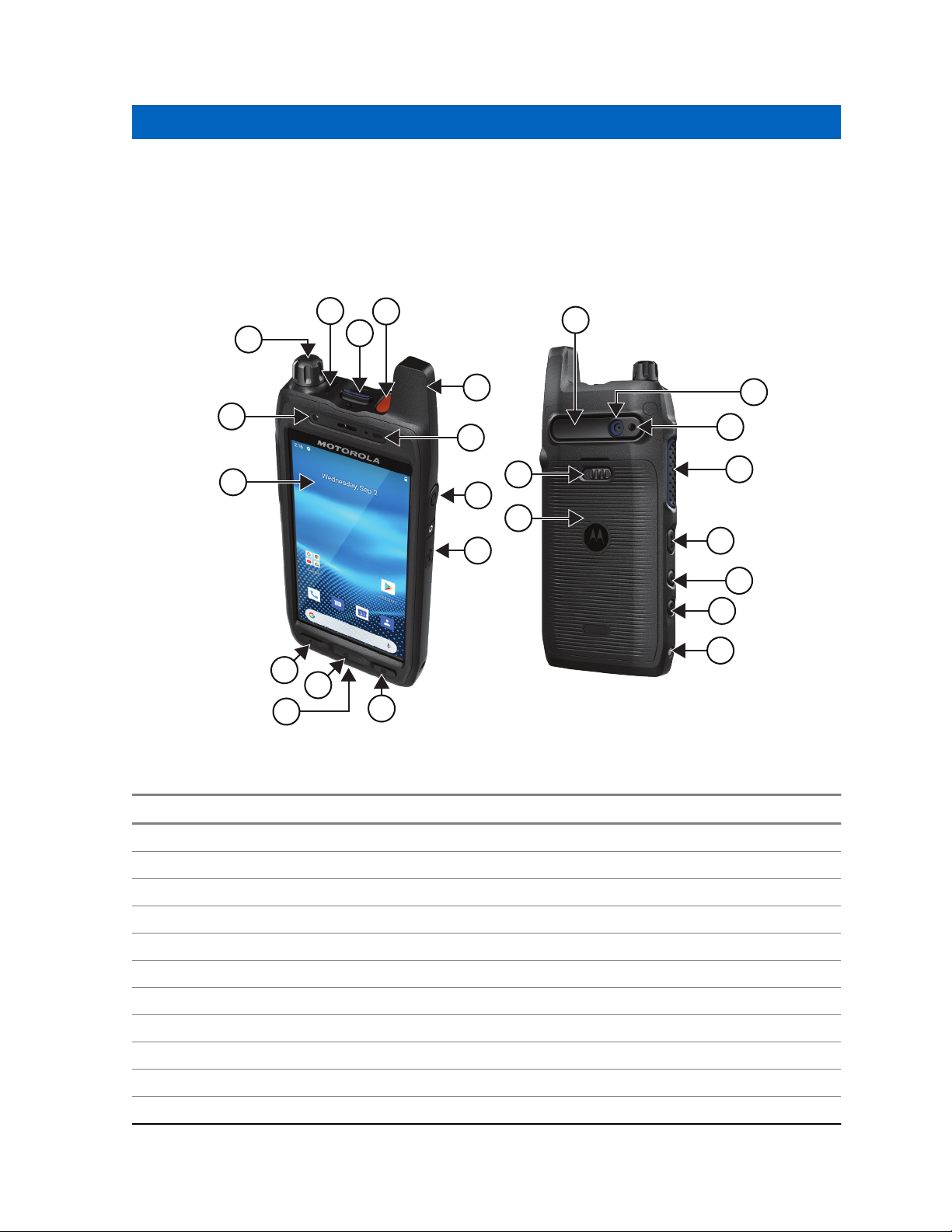
Figure 1: Front and Back View
1
6
8
12
11
13
14
2
3
4
5
15
20
18
16
19
21
22
23
24
17
7
9
10
Table 3: Radio Overview
No. Desciption
1 On/Off/Volume knob
2 Digital Microphone
3 Channel Rocker
4 Emergency button
5 Fixed Antenna
6 Front Camera
7 Digital Microphone
8 Touch Screen
9 Accessory Connector
10 USB Charging port
11 Back button
MN007267A01-AA
Radio Overview
9

No. Desciption
12 Home button
13 Overview button
14 Digital Microphone
15 Speaker
16 Rear Camera
17 LED Flash
18 Battery Latch
19 Push-to-Talk (PTT) button
20 Battery Door
21 3-Dot Programmable Feature button
22 1-Dot Programmable Feature button
23 Wake button
24 Charging Contact
3.1
Configuring Programmable Buttons
You can set the programmable buttons as press or press and hold to perform various actions.
NOTICE: The programmable buttons are assigned to default actions as follows:
• Press to answer or end call.
• Press and hold to return to home screen.
Procedure:
1Swipe up, tap Settings → Programmable buttons.
2Select one of the following options:
•Programmable button -1- short press
•Programmable button -1- long press
•Programmable button -2- long press
3From the list that appears, tap your desired action.
•No Function
•Home
•Screen Brightness Up
•Screen Brightness Down
•Camera
•Answer call or End call
•Ringer-Media Mute or Unmute
•OK Google
MN007267A01-AA
Chapter 3: Radio Overview
10
Table des matières
Autres manuels Motorola solutions Radio portable

Motorola solutions
Motorola solutions VX-P Series Guide de référence

Motorola solutions
Motorola solutions ASTRO APX 8000HXE 1.5 Manuel utilisateur

Motorola solutions
Motorola solutions ATS 2500p Guide de référence

Motorola solutions
Motorola solutions ASTRO APX 8000H Guide de référence

Motorola solutions
Motorola solutions Curve Series Manuel utilisateur

Motorola solutions
Motorola solutions ASTRO APX 2000 Series Guide de référence

Motorola solutions
Motorola solutions APX Instructions d'utilisation


