
Mercury KOB BR100 Manuel utilisateur

User’s Manual For
KOB BR100
4 Ports 10/100Mbps Ethernet broadband Router

FCC Warning
This equipment has been tested and found to comply with the regula-
tions for a Class A digital device, pursuant to Part 15 of the FCC Rules.
These limits are designed to provide reasonable protection against
harmful interference when the equipment is operated in a commercial
environment. This equipment generates, uses, and can radiate radio
frequency energy and, if not installed and used in accordance with this
user’s guide, may cause harmful interference to radio communications.
Operation of this equipment in a residential area is likely to cause
harmful interference, in which case the user will be required to correct
the interference at his own expense.
CE Mark Warning
This is a Class A product. In a domestic environment, this product may
cause radio interference, in which case the user may be required to
take adequate measures.
VCCI Mark Warning
Table Of Contents
About This Guide
Purpose
Overview Of this User’s Guide
Introduction
Applications
Features
Unpacking And Setup
Unpacking
Setup
Hardware installation
Front Panel
Rear Panel
Hardware connections
PC Network TCP/IP Setting
1
1
3
3
4
4
5
6
6
7
7
8
10
11
12
Windows 95/98/ME
Windows 2000
Windows NT4.0
Windows XP
Connect the Internet Broadband Router
Check the installation
Internet Broadband Router Configuration
13
14
18
Login to the Internet Broadband Router
Quick Setup
Advance Setup
Technical Specifications 31

About This Guide
Congratulations on your purchase of this 4-port Broadband Router.
This device integrates 100Mbps Fast Ethernet and 10Mbps
Ethernet network capabilities in a highly flexible desktop package.
It provides a complete solution for Internet surfing and office
resources sharing, and it is easy to configure and operate for even
non-technical users.
Purpose
This manual discusses how to install the 4-port Broadband
Router.
Overview Of This User’s Guide
Introduction.
Describes the Broadband Router and its features.
Unpacking and Setup.
Helps you get started with the basic installation of the Router.
Identifying External Components.
Describes the front panel, rear panel and LED indicators of the
Router.
Connecting the Router.
Tells how you can connect the Router to your xDSL/Cable Modem.
Technical Specifications.
Lists the technical (general, physical and environmental, perfor-
mance and Routers settings) specifications of the Broadband
Router.
1

Introduction
With the explosive growth of the Internet, accessing information and
services at any time, day or night has become a standard require-
ment for most people. The era of the standalone PC is waning.
Networking technology is moving out of the exclusive domain of
corporations and into homes with at least two computers.
Broadband network access is also gaining ground. However,
allowing more than two computers to access the Internet at the
same time means less affordable, higher costs. Thus, there is a
need to share one legal IP address over a single Internet connec-
tion to link the home with the Internet.
The scarcity of IP addresses and using a shared Internet connec-
tion through an Internet sharing device can solve high network
access costs. All linked computers can make full use of broadband
capabilities over such a device.
This device not only comes equipped with a wide range of features,
but also can be installed and configured right out of the box. This
device supports a simple local area network and Internet access
share, offering great cost savings.
The local area network connects up home computers while also
allowing any of the computers to access the Internet, share
resources, or play online games the basis of the family comput-
ing lifestyle.
Applications
- Broadband Internet access:
Several computers can share one high-speed broadband connec
tion (LAN and WAN-Internet).
- Resource sharing:
Share resources such as printers, scanners and other peripherals.
- File sharing:
Exchange data, messages, and distribute files thus making good
use of hard disk space.
2

- Online gaming:
Through the local area network, online gaming and e-commerce
services can be easily setup.
- Firewall:
A built-in firewall function for security and anti-hack system.
Features
• High speed data transfer rate, FTP up to 40Mbps
• Supports NAT for share 1 IP address to all LAN user.
• Supports PPPoE and PPTP protocol for Dial-Up ADSL.
• Supports DHCP Server / Client.
• Supports UPnP (Universal Plug and Play).
• Supports virtual server mapping.
• Supports packet filtering.
• Simple Firewall protection.
• Upgradeable firmware for future function.
• Simple setting using Quick Setup.
• Easy configuration via WEB Browser.
3

Unpacking and Setup
This chapter provides unpacking and setup information for the
Broadband Router.
Unpacking
Open the box of the Broadband Router and carefully unpack it. The
box should contain the following items:
- One 4-port Broadband Router
- One external power adapter
- This Userís Guide
If any item is found missing or damaged, please contact your local
reseller for replacement.
Setup
The setup of the Broadband Router can be performed using the
following steps:
- The power outlet should be within 1.82 meters (6 feet) of the
Broadband Router.
- Visually inspect the DC power jack and make sure that it is fully
secured to the power adapter.
- Make sure that there is proper heat dissipation from and adequate
ventilation around the Broadband Router. Do not place heavy
objects on the Broadband Router.
4
Hardware Installation
Front Panel
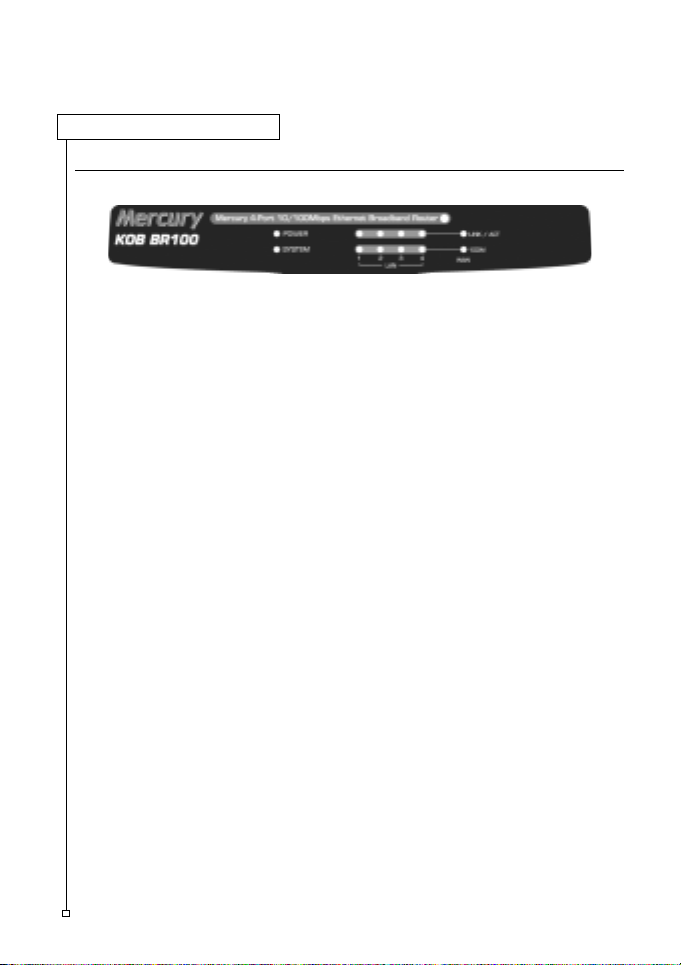
The figure below shows the front panel of the Broadband Router.
POWER
This indicator lights green when the hub is receives power. Otherwise,
it is off.
SYSTEM
This indicator blinks green means the Internet Broadband Router is
working successful. Otherwise, this indicator always on or off means
the function of the Internet Broadband Router is fail.
WAN (Link/ACT)
This indicator lights green when the WAN port is connected to an
xDSL/Cable modem successfully.
This indicator blinks green while the WAN port is transmitting or
receiving data on the xDSL/Cable modem.
LAN (Link/ACT)
From port 1 to port 4 indicator lights green when the LAN port is
connected to a 100Mbps Fast Ethernet station, if the indicator blinks
green while transmitting or receiving data on the 100Mbps Fast
Ethernet or 10Mbps Ethernet network.
4 Ports 10/100Mbps Ethernet Broadband Router
5
Rear Panel
4 Ports 10/100Mbps Ethernet Broadband Router
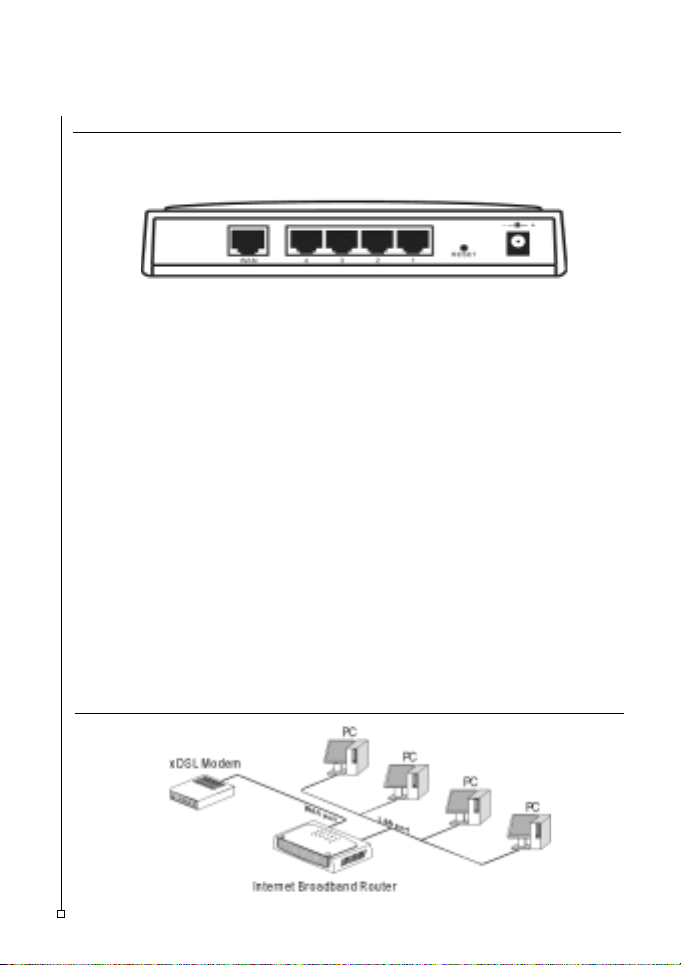
The figure below shows the front panel of the Broadband Router.
WAN
In the four port broadband router, there is an RJ-45 10/100Mbps Auto-
MDIX port for the WAN that will fit the xDSL/Cable modemís specifica-
tion need.
LAN (1-4)
Four RJ-45 10/100Mbps Auto-MDIX ports for connecting to either
10Mbps or 100Mbps Ethernet connections.
RESET
Use a pin-shape item to push to reset this device to factory default
settings. It will be useful too when the manager forgot the password to
login, but the setting will be back to default setting.
Hardware Connections
6
Table des matières
Autres manuels Mercury Routeur sans fil


