Magellan Cyclo 500 Series Manuel utilisateur


2
Welcome
Thank you for purchasing this Magellan Cyclo 500/505 product. Please read this
manual carefully before using your Magellan for the first time. Keep this manual
in a safe place and use as your first point of reference.
Important information for using the manual
It is important to understand the terms and typographical conventions used in
this manual.
Bold — Components or items displayed on screen, including buttons, headings,
field names and options.
Italics — Indicates the name of a screen.
Disclaimer
Not all models are available in all regions.
Depending on the specific model purchased, the colour and look of your device
and accessories may not exactly match the graphics shown in this document.
Magellan operates a policy of ongoing development. Magellan reserves the
right to make changes and improvements to any of the products described
in this document without prior notice. Magellan does not warrant that this
document is error-free. The screenshots and other presentations shown in
this manual may differ from the actual screens and presentations generated
by the actual product. All such differences are minor and the actual product
will deliver the described functionality as presented in this User Manual in all
material respects.
Copyright
© 2014 MiTAC International Corporation. Magellan is either a registered
trademark or trademark of MiTAC International Corporation and is used under
licence by Magellan Technology Limited. All rights reserved.
All other trademarks and registrations are the property of their respective owners.
ANT+™ is a trademark of Dynastream Innovations Inc. or its subsidiaries.
Revision: R00
(1/2014)
Contents
Welcome 2
Important information for using the manual .................................................2
Disclaimer ..............................................................................................................2
Copyright ...............................................................................................................2
Contents 2
Knowing your device 4
Main unit................................................................................................................4
Accessories ............................................................................................................4
Getting started 5
Charging the battery ...........................................................................................5
Performing the initial start-up ...........................................................................5
Installing the device 6
Mounting the device on your bike ....................................................................6
Installing the sensors on your bike ...................................................................7
Putting on the heart rate monitor ....................................................................8
Operating basics 9
Using the POWER button ...................................................................................9
Using the touch screen .......................................................................................9
Main menu ..........................................................................................................10
Keyboard screen ................................................................................................. 11
Viewing Dashboard screens 11
Starting navigation 12
Using the Navigate wizard ...............................................................................12
Navigating to Home ..........................................................................................13
Finding the location by Address ......................................................................13
Searching for a POI ............................................................................................13
Searching for a location from the map screen ..............................................14
Searching for a location using GPS coordinates ...........................................14
Navigating to your Favorite .............................................................................14
Tracks ...................................................................................................................14
Other navigating options .................................................................................15

3
Surprise Me™ 16
Loop ......................................................................................................................16
A to B (Address, POI, Favorite, or Point on map) .........................................16
Workout mode 17
Workout by Distance .........................................................................................17
Workout by Time ................................................................................................18
Workout by Calories ..........................................................................................18
Workout by HR Zone .........................................................................................18
Workout by Power Zone ...................................................................................18
Indoor training mode ........................................................................................19
Viewing the History 19
Viewing the summary of recorded data ........................................................19
Managing data on the device 20
Connecting your device to the computer ..................................................... 20
Sharing your route with friends in the trip ................................................... 20
Using WIFI (wireless local area network) ..................................................... 20
Customising your device 22
Profiles .................................................................................................................22
Routing .................................................................................................................22
Transfer ............................................................................................................... 23
Manage ............................................................................................................... 23
Dashboard .......................................................................................................... 23
WIFI Sync ............................................................................................................ 24
Define Zones ...................................................................................................... 24
Sensors ................................................................................................................ 24
Alerts ....................................................................................................................25
GPS .......................................................................................................................25
Compass ..............................................................................................................25
Maps .....................................................................................................................25
Date & Time ........................................................................................................25
Units .................................................................................................................... 26
Screen .................................................................................................................. 26
Language ............................................................................................................. 26
Keyboard ............................................................................................................. 26
Product Info ....................................................................................................... 26
For more information 27
Online support ...................................................................................................27
Caring for your device .......................................................................................27
Troubleshooting .................................................................................................27
What is GPS? ..................................................................................................... 28
IPX7 ...................................................................................................................... 28
Safety precautions ............................................................................................ 28
Regulatory information ................................................................................... 29
Bluetooth............................................................................................................ 29
WEEE ................................................................................................................... 29
End User License Agreement........................................................................... 29

4
Knowing your device
Main unit
1. Charge Indicator
Indicates the level of internal battery charge:
Green - battery full; Orange - battery charging.
2. POWER button
Turns your device on/off.
3. Touch screen
• Displays the output of your device.
• Tap the screen with your fingertip to select menu commands or enter
information.
4. Mini-USB connector
Connects to the charger or USB cable.
5. Bike mount socket
For the device mount.
Accessories
Your device comes with the following accessories. To use your device on a bike,
ensure you use the specific bike mount kit that came with your device. Magellan
may provide optional accessories for specific models. Please visit Magellan
Cyclo (http://www.magellangps.com.au/Products/Fitness) for information.
Note: Depending on the specific model purchased, the colour and look of your device and
accessories may not exactly match the graphics shown in this document.
Bike mount kit
Power adapter USB cable
x 5
Speed and cadence sensor kit*
(ANT+™ sensor)
Heart rate belt*
(ANT+™ sensor)
x
2
* May be sold separately and used for selected models only.
Information:
This device is ANT+ certified. Visit www.thisisant.com/directory for a list of compatible
products and apps.

5
Getting started
Charging the battery
Your device has an internal battery that may not be fully charged when you
purchase it. You should charge the battery for at least 8 hours before you start
using it for the very first time.
To charge the battery:
• Using a mains power socket
Plug the home charger cable into the USB connector on the back of your
device and the mains power charger into the power socket.
• Via the computer
Connect your device to the computer by using the provided USB cable. For more
information, see "Connecting your device to the computer" in this section.
CAUTION:
For optimal performance of the lithium battery, note the following:
• Do not charge the battery where the temperature is high (e.g. in direct sunlight).
The battery will stop charging when the ambient temperature is less than -10ºC (14ºF)
or more than 60ºC (140ºF).
• Recharge the battery when it is nearly discharged. When recharging, make sure that
the battery is fully charged. Doing so can extend the battery life.
• If you will not use the product for a long period of time (over one month) or find the
discharge/recharge time has been shortened, be sure to fully discharge the battery
first before recharging it. You are also advised to fully discharge and recharge the
battery once every 1~2 months.
• Failure to follow the battery usage instructions could cause damage to your device,
battery and even bodily injury or property damage and will void the warranty.
Performing the initial start-up
1. Mount the device and accessories on to your bike. For more information, see
the “Installing the device” section.
2. Press and hold the POWER button for 3 seconds to turn your device on.
3. Follow the prompts to personalise your device, including:
• Select your preferred language.
• Set the date and time.
• Set the units format.
• Create your user profile.
• Calibrate the compass.
Tip: You can change these settings while using the device by tapping Main menu >
Settings.

6
4. Once your device is turned on, it will search for satellite signals
automatically. This may take several seconds depending on the location.
When GPS is fixed, the GPS signal icon ( ) on the screen indicates the
GPS status.
Tip: Depending on your device model, it will also automatically scan and pair the
accessories (heart rate monitor, cadence/speed sensor and power meter) with the
device. You can also scan the accessories manually while using the device by tapping
Main menu > Settings > Sensors.
Installing the device
Follow the instructions in this section to mount the device and the cadence/
speed sensor kit (for selected models only) on your bike. In addition, you will
need to put on the heart rate monitor during your workouts.
Mounting the device on your bike
The bike mount kit includes two types of rubber pads, allowing you to attach
the bike mount to your bike securely.
1. Select the rubber pad that best fits the handle bars on your bike and then
attach it using the two plastic straps.
2. Align the latch on the back of the device with the slot on the bike mount,
and then rotate the device clockwise to lock the device to the bike mount.
You can choose to mount the device on the handlebar (a) or on the stem (b).
See the following figure for the examples of mounting the device.

7
3. To remove the device from the bike mount, rotate it anticlockwise.
Installing the sensors on your bike
The cadence/speed sensor kit is used for selected models only.
1. Follow the instruction below to install the cadence/speed sensor kit on your
bike.
a
c
b
d
2. Ensure that the magnets are aligned with the sensing area on the sensors.

8
3. When done, you can manually pair the sensor with your device by tapping
Main menu > Settings > Sensors > Cadence detection.
Information:
The cadence sensor contains a replaceable CR2032 battery. Follow the instructions
below to replace the battery:
1. Locate the battery cover on the back of the sensor, and then twist the cover
anticlockwise (e.g. by using a coin) to remove the cover and battery.
2. Insert the new battery into the battery chamber and replace the cover.
3. Twist the cover clockwise (e.g. by using a coin) to close the cover.
Putting on the heart rate monitor
The heart rate monitor is used for selected models only.
1. Before using the heart rate monitor, wet the contacts on the back of the
chest strap.
Tip: If possible, you can also use an electrolyte gel (usually available in local sports
stores) to ensure good contact.
2. Adjust the elastic strap so it’s snug while you are putting it on. Ensure that
you can take a good deep breath after putting on the strap.
3. Follow the instructions below to wrap the strap around your back, and then
secure it on the other side with the buckle.
Tip: Putting on the heart rate monitor is like wearing a belt around your lower chest.
4. When done, you can manually pair the monitor with your device by tapping
Main menu > Settings > Sensors > HR detection.
Information:
The heart rate monitor contains a replaceable CR2032 battery. Follow the instructions
below to replace the battery:
1. Locate the battery cover on the back of the monitor, and then twist the cover
anticlockwise (e.g. by using a coin) to remove the cover and battery.
2. Insert the new battery into the battery chamber and replace the cover.
3. Twist the cover clockwise (e.g. by using a coin) to close the cover.

9
Operating basics
Using the POWER button
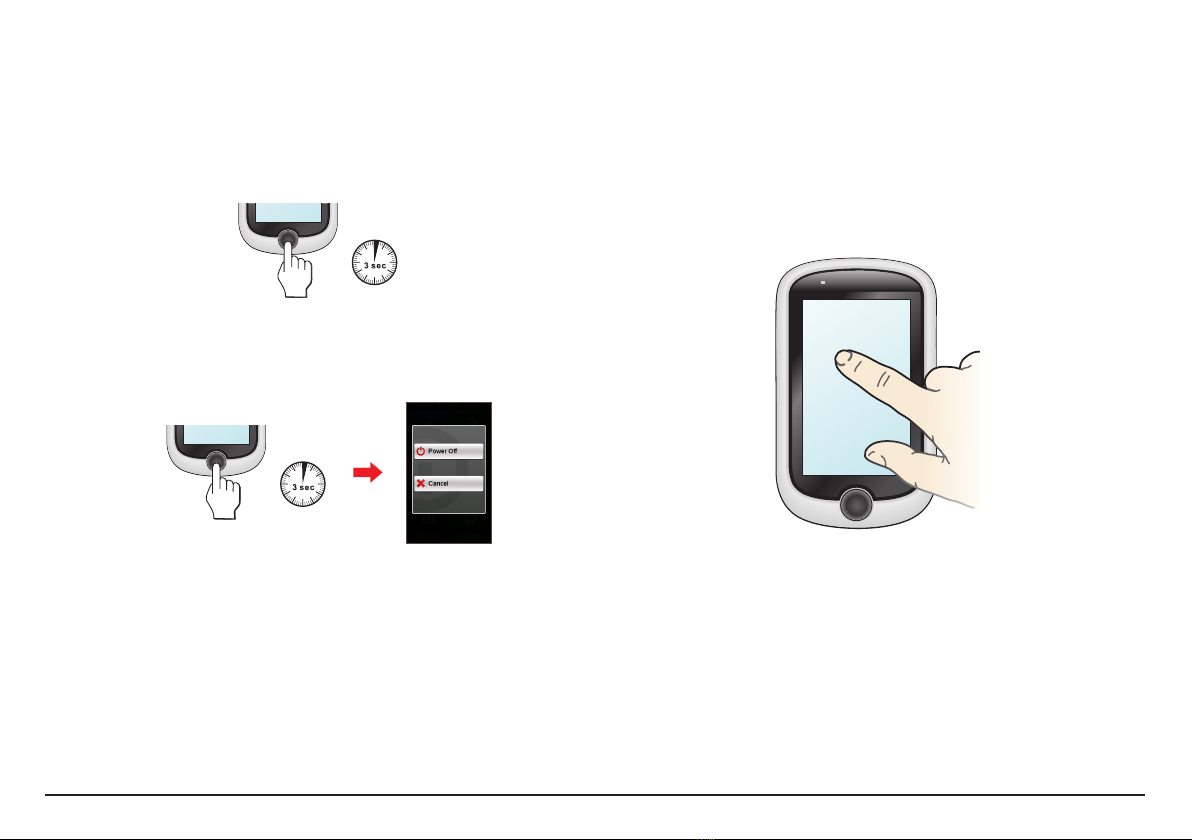
• Turning on the device
Press and hold the POWER button for 3 seconds to turn on your device.
• Turning off the device
Press and hold the POWER button for 3 seconds to pop up the Power Off/
Cancel screen. Choose Power Off to turn off the device or Cancel to
continue operating the device.
Tip: Press and hold the POWER button for 5 seconds to force power off if application
doesn’t have response.
Your device will automatically turn off after 10 minutes (by default*) of
inactivity.
The Power Off/Cancel screen
will pop up and the device will be
turned off if you do not make a selection.
* You can change the auto power off setting by tapping Main menu > Settings >
Screen > Auto Power Off Timer.
• Navigating through the screens
While the device is turned on and you are navigating through the menu
screens, press the POWER button briefly to return to the previous screen.
Using the touch screen
To operate your device, touch the screen with your fingertip. You can perform
the following actions:
• Tap
Quick touch the screen once to open menus or select onscreen button/option.
• Drag
While navigating on the map, tap and hold on the screen without releasing
your fingertip to move the map to the desired position.
Unlocking the screen
Your device will automatically lock the screen after 5 minutes (by default*) of
inactivity. When the screen is locked, an Unlock button will pop up when you tap
on the screen. Tap the button to unlock the screen.
* You can change the screen lock setting by tapping Main menu > Settings > Screen >
Screen Lock Timer.

10
Main menu
The Main menu is your starting place for various tasks, providing quick access to
applications and settings. Tap a button to start a task or open another menu.
Icon Description
The Dashboard displays the view of functions, including the compass/navigation
screen and the workout screen (when a workout has been selected).
Start to plan your route by selecting the locations, such as home, address,
tracks, POI, coordinate, favourite, etc.
Your trip/training can be saved in the history records. When your ride is finished,
you can check the history data such as date/time, distance, speed, altitude, etc.
Based on distance or time, the device will plan 3 routes for you to choose from.
You can set workouts by entering your goals, such as by distance, by time, or by
calories.
There are various customisation options available to enhance your cycling
experience. You can customise the system settings, user profiles and more.
The System icons
Various System icons on the title bar at the top of the screen provide the status
information of your device. Depending on your settings, the icons may be
different to provide various information of your device. Please note that these
icons will not be always displayed during your trip/training.
1 2 3 4 5 6 7 8
NO. Icon Description
1User profile / / : Bike (city bike/mountain bike/race bike)
navigation mode enabled.
: Running navigation mode enabled.
: Indoor training mode enabled (navigating function of the
device will be disabled).
: Car navigation mode enabled.
2Heart rate The Heart rate icon will appear when the heart rate monitor is
paired with the device.
3Cadence/Speed The Cadence/speed icon will appear when the cadence/speed
sensor is paired with the device.
4Power sensor* The Power icon will appear when the power meter (not
provided) is paired with the device.
5Time display Displays the current time.
The device will automatically set the correct time based on the
current GPS fixes.
6Recording
status : The device is recording your trip/training.
: Recording has been paused.
7GPS signal The GPS signal icon indicates the GPS status.
A bar shows the strength of the GPS signal being received; the
more bars the stronger the signal.
8Battery status The Battery icon indicates the remaining battery power.
* Power meters can currently be paired via ANT+ only. Paring via Bluetooth will be made
available via software updates when Bluetooth power meters are available in the market.
Autres manuels pour Cyclo 500 Series
2
Ce manuel convient aux modèles suivants
1
Table des matières