
Lumens CS501 Manuel utilisateur

English - 1
CS501 Control Switcher
Installation Manual
[Important]
To download quick start guide, multilingual
manuals, software, and drivers, please visit
Lumens web site at
http://www.lumens.com.tw/goto.htm

English - 2
Contents
1. Safety Precautions ......................................................................................... 3
2. Package Content ............................................................................................ 4
3. Product Introduction...................................................................................... 5
3.1. CS501 Product Overview ....................................................................... 5
3.2. CS501 Connecting Peripherals .............................................................. 5
4. System Diagram ............................................................................................. 6
4.1. CS501 Diagram ...................................................................................... 6
4.2. CS501C Diagram.................................................................................... 6
4.3. CS501M Diagram ................................................................................... 7
5. CS501 locking method................................................................................... 8
5.1. Locking of CS501M ................................................................................ 8
5.2. Locking of CS501C................................................................................. 8
6. Installation and Usage of the Software ........................................................ 9
6.1. System requirements.............................................................................. 9
6.2. Installation Steps..................................................................................... 9
6.3. Step 1 Select automatic setting or manual setting ............................... 10
6.4. Step 2 Set up the control modes of the devices ................................... 11
6.5. Step 3 Set up the Video/Audio of the devices ...................................... 17
6.6. Step 4 Set up the password.................................................................. 18
6.7. Step 5 Set up the devices that should be turned on/off when power
on/off ..................................................................................................... 18
6.8. Step 6 Load the set parameters ........................................................... 19
6.9. Step 7 Control devices with the control panel ...................................... 20
7. LED Light Indications .................................................................................. 21
8. Troubleshooting ........................................................................................... 23

English - 3
1. Safety Precautions
1. Do not place the product where the cord can be stepped on as this may
result in fraying or damage to the lead or the plug.
2. Use the type of power source indicated. If you are not sure of the type of
power available, consult your dealer or local electricity company for advice.
3. Always take the following precautions when handling the plug. Failure to do
so may result in sparks or fire:
Ensure the plug is free of dust before inserting it into a socket.
Ensure that the plug is inserted into the socket securely.
4. Do not overload wall sockets, extensions leads or multi-way plug boards as
this may cause fire or electric shock.
5. Do not block the slots and openings in the case. They provide ventilation and
prevent the machine from overheating.
FCC Warning
This equipment has been tested and found to comply with the limits for a Class A
or B digital device, pursuant to Part 15 of FCC Rules. These limits are designed to
provide reasonable protection against harmful interference in a residential
installation.
EN55022 (CE Radiation) Warning
This product is intended for use in a commercial, industrial, or educational
environment. It is not intended for residential use.
This is a Class A product. In a domestic environment it may cause radio
interference, in which case the user may be required to take adequate measures.
The typical use is in a conference room, meeting room or auditorium.

English - 4
2. Package Content
CS501C x1 CS501M x1 CS501P x1
Quick Start Guide x 1 User Manual x 1 Power Cord x 1
(For download of other
language versions, please
visit Lumens website)
Appearance may vary with
country/region
4-PIN European
terminal x3
3- PIN European
terminal x2
2- PIN European
terminal x 2
VGA Cable x 1 Ethernet cable x 1 IR wire x 2
Bracket x 2 Bracket x2 M3 screw x 6

English - 5
3. Product Introduction
3.1. CS501 Product Overview
¾CS501P: Control Panel
¾CS501M: Main box
¾CS501C: Converter
3.2. CS501 Connecting Peripherals
CS501CCS501MCS501P
Monitor Pro
j
ecto
r
Projection
screen
Light
DVD
Visual Presenter
Notebook
PC
CATV
Speaker
Microphone

English - 6
4. System Diagram
4.1. CS501 Diagram
4.2. CS501C Diagram
<Note> If the cable length is longer than 25m, it is recommended to use
CS501C.
CS501M
CS501C
CS501P
P2 P1
P3
P1
P3 P2

English - 7
4.3. CS501M Diagram
<Remark> The “+” connector of [IR OUT] shall be connected to “+” of
the IR wire
PC Notebook
Visual
Presenter
Microphone
DVD or
DVD or
CATVCATV
Monitor Projector
Speaker
Screen
Up Light
Screen
Down
Remote
Control
Notebook
Visual
Presenter

English - 8
5. CS501 locking method
5.1. Locking of CS501M
zUse accessories such as the stand and M3 screws to install the stand, as
shown on the left in the figure below.
zLock CS501M to the table surface using M4 screws (tooth=0.7 P, length>
4 mm), as shown on the right in the figure below.
5.2. Locking of CS501P
zUse accessories such as the stand and M3 screws to install the stand, as
shown on the left in the figure below.
zLock CS501M to the table surface using M4 screws (tooth=0.7 P, length>
4 mm), as shown on the right in the figure below.
5.3. Locking of CS501C
zMount CS501C on a flat surface using cable tie, as shown in the figure
below
English - 9
6. Installation and Usage of the Software
After installing the USB driver and Control Manager application, you can use
the following functions via the software:
¾Remote learning: Control the projector, visual presenter, DVD player,
CATV
¾RS232 setting: Control the projector, visual presenter
¾Video and sound effect setting:Adjust DVD and CATV
¾Setting the password
¾Setting of integrated ON/OFF commands
¾Setting parameters archive
6.1. System requirements
¾Operating System: Windows XP SP2 32 bits, Windows Vista 32/64 bits
¾CPU: Intel and AMD CPU 1 GHz above
¾RAM: 512MB
¾Free disk space: 50 MB
¾Resolution: XGA (1024 x 768)
6.2. Installation Steps
6.2.1. Please download the driver and the software at the following URL:
(http://www.lumens.com.tw/goto.htm)
6.2.2. Execute the setup file of the drive program with USB unconnected
6.2.3. Refer to Chapter 4 Installation and Connections for USB connection
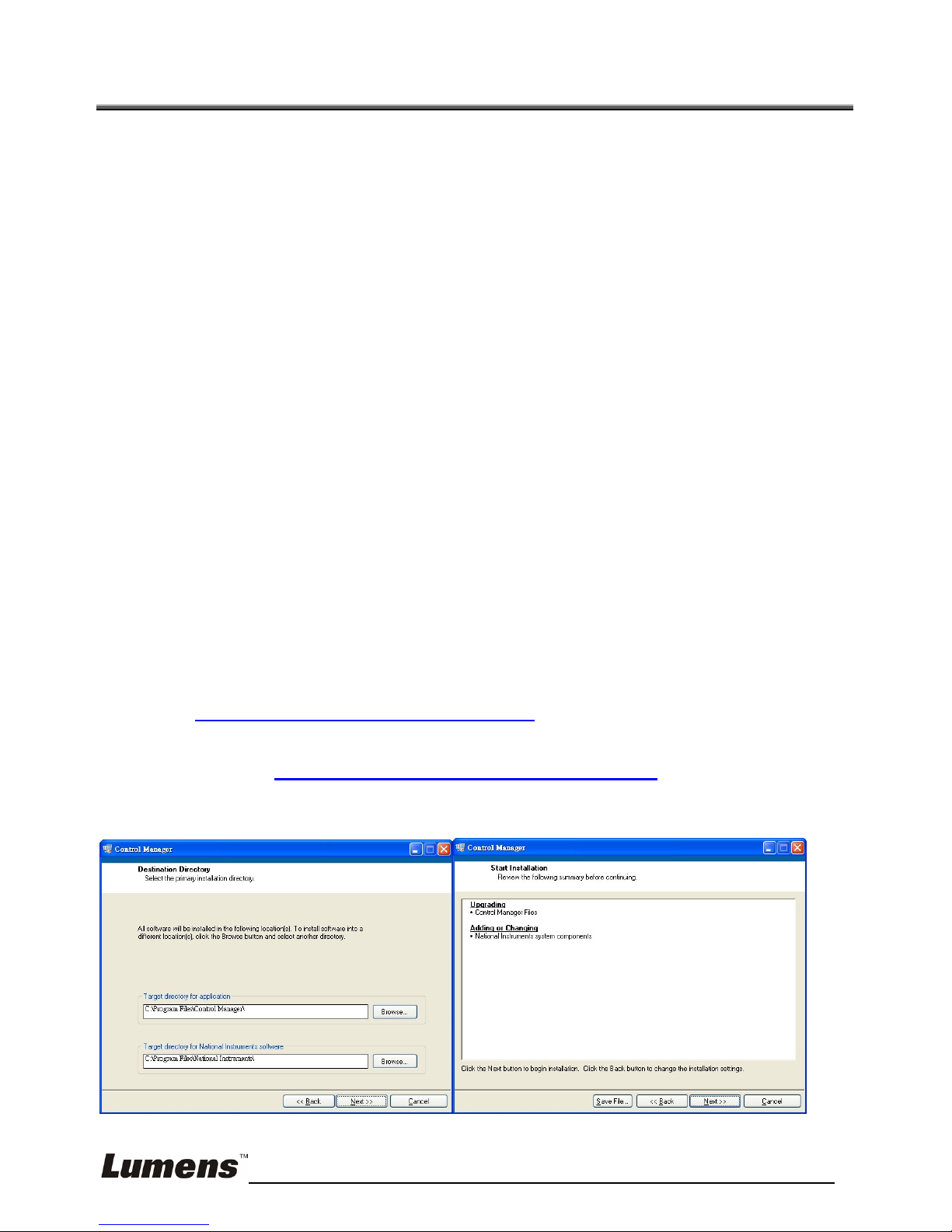
6.2.4. Click [setup.exe] to install the software and follow the instructions on
screen

English - 10
6.2.5. Verifying the installation is completed
¾Right-click on My Computer and select [Content] / [Hardware] /
[Device Administrator]
¾Find Control Manager on the desktop of the computer
6.3. Step 1 Select automatic setting or manual setting
[Custom] is for manual setting and [Auto Run] is for automatic setting; [Auto
Run] is recommended for first-time operation
Table des matières
Autres manuels Lumens Changer


