
Lexmark Optra Compute 500 Manuel utilisateur


Contents
Safety information........................................................................................ 3
Overview........................................................................................................ 4
Overview................................................................................................................................................................ 4
Learn about the device................................................................................ 5
Optra Compute 500/550...................................................................................................................................5
Optra Compute CX1000.................................................................................................................................... 6
Optra VZ1000/VZ5000...................................................................................................................................... 7
Understanding the status of the power button and setup button indicator lights............................. 8
Set up, install, and configure.......................................................................9
Optra Compute 500/550/CX1000..................................................................................................................9
Optra VZ1000/VZ5000.....................................................................................................................................15
Outbound network requirements.................................................................................................................. 21
Using Optra Portal......................................................................................22
Enrolling the device in Optra Portal............................................................................................................. 22
Adding workflows and deploying skills.......................................................................................................25
Troubleshooting..........................................................................................27
Cannot connect to the portal......................................................................................................................... 27
Cannot enroll the device................................................................................................................................. 27
Cannot deploy a skill........................................................................................................................................28
Additional setup..........................................................................................30
Mounting the device on a wall.......................................................................................................................30
Notices......................................................................................................... 33
Product information.......................................................................................................................................... 33
Edition notice......................................................................................................................................................33
Index............................................................................................................. 37
Lexmark Confidential until announced
Contents 2

Safety information
CAUTION—POTENTIAL INJURY: To avoid the risk of fire or electrical shock, connect the power adapter
and/or power cord to an appropriately rated and properly grounded electrical outlet that is near the
product and easily accessible.
CAUTION—POTENTIAL INJURY: To avoid the risk of fire or electrical shock, use only the power adapter
and/or power cord provided with this product or the manufacturer's authorized replacement.
CAUTION—POTENTIAL INJURY: To avoid the risk of fire or electrical shock, make sure that the power
cord is completely seated in the appliance inlet of the power adapter or in the device itself.
CAUTION—SHOCK HAZARD: To avoid the risk of electrical shock, do not place or use this product near
water or wet locations.
CAUTION—SHOCK HAZARD: To avoid the risk of electrical shock, do not make any electrical
connections during a lightning storm.
CAUTION—POTENTIAL INJURY: Do not cut, twist, bind, crush, or place heavy objects on the power
cord. Do not subject the power cord to abrasion or stress. Do not pinch the power cord between objects
such as furniture and walls. If any of these things happen, a risk of fire or electrical shock results. Inspect
the power cord regularly for signs of such problems. Remove the power cord from the electrical outlet
before inspecting it.
CAUTION—SHOCK HAZARD: To avoid the risk of electrical shock when cleaning the exterior of the
device, unplug the power cord from the electrical outlet and disconnect all cables before proceeding.
CAUTION—POTENTIAL INJURY: The lithium battery in this product is not intended to be replaced.
There is a danger of explosion if a lithium battery is incorrectly replaced. Do not recharge, disassemble,
or incinerate a lithium battery. Discard used lithium batteries according to the manufacturer's instructions
and local regulations.
If Power over Ethernet (PoE) is used to power this device, then the circuit must not exit the building. This product
is not certified for use on a PoE circuit that goes outside of the building.
This product is designed, tested, and approved to meet strict global safety standards with the use of specific
manufacturer's components. The safety features of some parts may not always be obvious. The manufacturer
is not responsible for the use of other replacement parts.
Refer service or repairs, other than those described in the user documentation, to a service representative.
SAVE THESE INSTRUCTIONS.
Lexmark Confidential until announced
Safety information 3

Overview
Overview
The LexmarkTM OptraTM product portfolio is a suite of enterprise-class IoT edge devices and management
software. Each device comes pre-provisioned with the Microsoft Azure IoT Edge runtime environment and IoT
credentials, and maintains a connection to Lexmark’s device management portal, Optra Portal. The portal hosts
a set of interfaces where you can install a “skill” to groups of devices to perform certain functions.
For developers, these skills are packaged as containers in the Docker containerization platform. These
containers are given access to a set of underlying hardware on the devices.
This document provides instructions on how to set up and use the device and how to use the portal.
Lexmark Confidential until announced
Overview 4

Learn about the device
Optra Compute 500/550
Warning—Potential Damage: To avoid loss of data or device malfunction, do not touch the USB cable or the
device in the areas shown while actively operating.
Part Function
1Power button Turn the device on or o.
2Setup button •Enroll the device in Optra Portal—Press the button briefly.
•Reset the device to its factory default settings—Press and hold the button as the
device is being turned on until the power button blinks rapidly.
3Headphones jack Insert headphones or a speaker.
4USB port Attach a supported USB device, such as a flash drive or the MarkNetTM network
adapter, which is purchased separately.
5Ethernet port Connect the device to a network.
Lexmark Confidential until announced
Learn about the device 5
Part Function
6USB device port Connect the device to a computer to access the Embedded Web Server (EWS) and
manage on-device settings.
If the only available connection is a Wi‑Fi network, then use the EWS to configure
Wi‑Fi connection. You can also use the EWS to configure the Ethernet network
settings.
7Ethernet port indicator
lights
Check the network connection status.
Notes:
•The light on the left indicates connection.
•The light on the right indicates activity.
8Power cord socket Connect the device to a properly grounded electrical outlet.
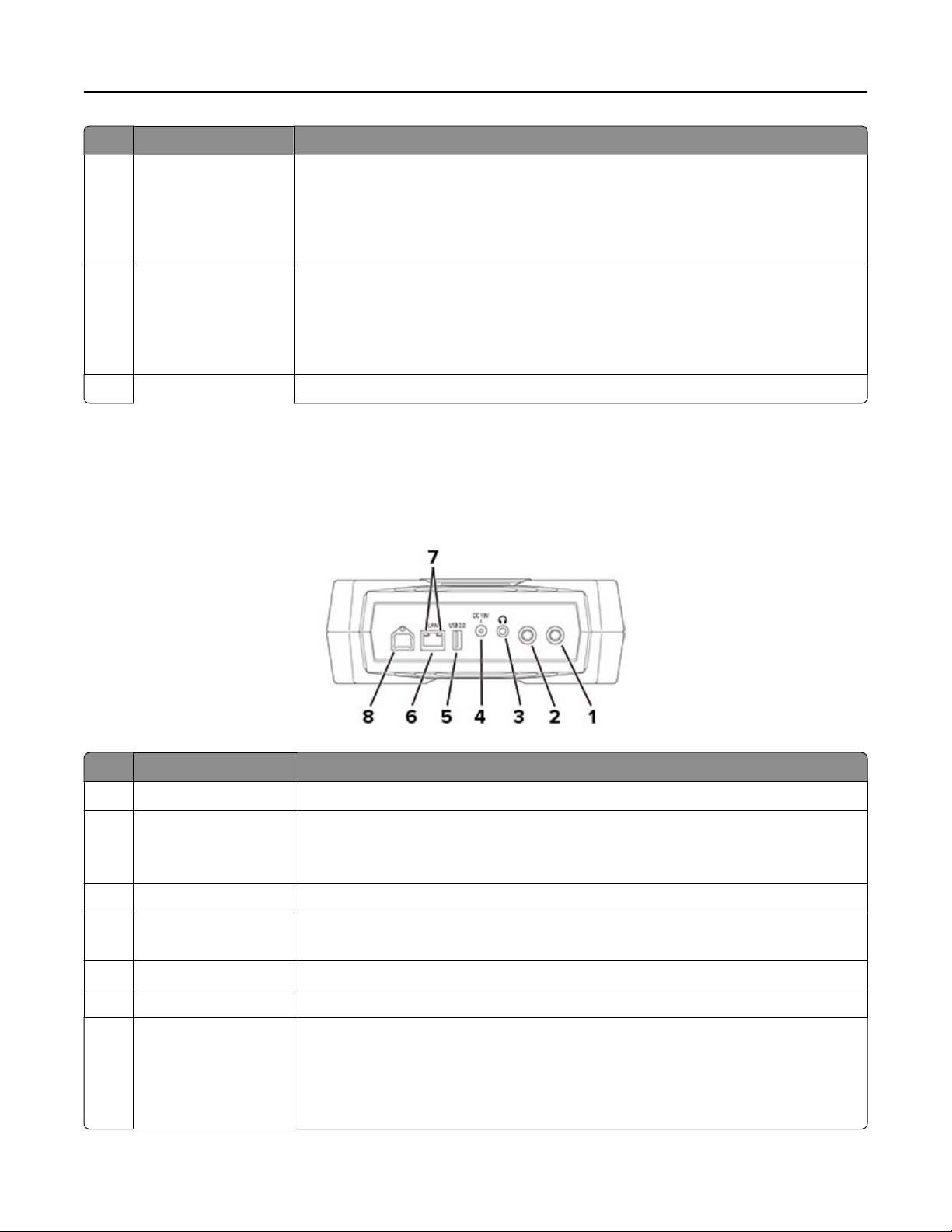
Optra Compute CX1000
Warning—Potential Damage: To avoid loss of data or device malfunction, do not touch the USB cable or the
device in the areas shown while actively operating.
Part Function
1Power button Turn the device on or o.
2Setup button •Enroll the device in Optra Portal—Press the button briefly.
•Reset the device to its factory default settings—Press and hold the button as the
device is being turned on until the power button blinks rapidly.
3Headphones jack Insert headphones or a speaker.
4Power adapter port Connect the device to the included power adapter and to a properly grounded
electrical outlet.
5USB 2.0 port Attach a supported USB device, such as a flash drive.
6Ethernet port Connect the device to a network.
7Ethernet port indicator
lights
Check the network connection status.
Notes:
•The light on the left indicates connection.
•The light on the right indicates activity.
Lexmark Confidential until announced
Learn about the device 6

Part Function
8USB device port Connect the device to a computer to access the Embedded Web Server (EWS) and
manage on-device settings.
If the only available connection is a Wi‑Fi network, then use the EWS to configure
Wi‑Fi connection. You can also use the EWS to configure the Ethernet network
settings.
Optra VZ1000/VZ5000
Warning—Potential Damage: To avoid loss of data or device malfunction, do not touch the USB cable or the
device in the areas shown while actively operating.
Part Function
1Microphones Detect or record sound.
2Power button Turn the device on or o.
Lexmark Confidential until announced
Learn about the device 7

Part Function
3Setup button •Enroll the device in Optra Portal—Press the button briefly.
•Reset the device to its factory default settings—Press and hold the button as
the device is being turned on until the power button blinks rapidly.
4Power adapter port Connect the device to the included power adapter and to a properly grounded
electrical outlet.
5Ethernet port Connect the device to a network.
6Ethernet port indicator
lights
Check the network connection status.
Notes:
•The light on the left indicates connection.
•The light on the right indicates activity.
7USB 2.0 HS port Attach a supported USB device, such as a flash drive.
8USB 3.0 SS port •Connect the device to a computer to access the Embedded Web Server and
manage on-device settings.
•Attach a supported USB device, such as a flash drive.
9HDMI port Transmit video and audio signals to an HDMI monitor.
10 GPIO port A general purpose interface that is used for input, output, or both.
11 Headphones jack Insert headphones or a speaker.
12 Antenna connectors Connect the antennas to the device.
Understanding the status of the power button and setup
button indicator lights
Setup button light Power button light Device status
O Blinking Starting or shutting down
Flickering (irregular blinking) No network connection to the hub
Blinking Not enrolled
Blinking On Enrolling
On Enrolled
O Flickering (irregular blinking) Resetting to factory default settings
On Blinking Updating firmware
Lexmark Confidential until announced
Learn about the device 8

Set up, install, and configure
Optra Compute 500/550/CX1000
Notes:
•Optra Compute CX1000 supports wall mounting. For more information, see “Mounting the device on a
wall” on page 30 before proceeding with setting up the device.
•If the device is mounted with the ports facedown, then hold the device in place when making cable
connections to keep it from being dislodged.
1Connect the power cord to the device, and then to the electrical outlet.
CAUTION—POTENTIAL INJURY: To avoid the risk of fire or electrical shock, connect the power
adapter and/or power cord to an appropriately rated and properly grounded electrical outlet that is
near the product and easily accessible.
CAUTION—POTENTIAL INJURY: To avoid the risk of fire or electrical shock, make sure that the
power cord is completely seated in the appliance inlet of the power adapter or in the device itself.
Lexmark Confidential until announced
Set up, install, and configure 9

2If necessary, insert headphones or a speaker into the headphone jack.
3Connect the device to the local network.
Notes:
•For Optra Compute 500/550, if the only available connection is a Wi-Fi network, then purchase a
MarkNet network adapter and insert it into the USB port.
•Optra Compute CX1000 has built‑in Wi‑Fi.
Lexmark Confidential until announced
Set up, install, and configure 10
Ce manuel convient aux modèles suivants
4
Table des matières
Manuels Matériel réseau populaires d'autres marques

Matrix Switch Corporation
Matrix Switch Corporation MSC-HD161DEL Manuel utilisateur

B&B Electronics
B&B Electronics ZXT9-IO-222R2 Manuel utilisateur

Yudor
Yudor YDS-16 Manuel utilisateur

D-Link
D-Link ShareCenter DNS-320L Manuel utilisateur

Samsung
Samsung ES1642dc Instructions d'utilisation

Honeywell Home
Honeywell Home LTEM-PV Instructions de montage


