LevelOne NVR-0104 Manuel utilisateur

Quick Installation Guide
English Nederlands
Dansk Svenska
Deutsch Slovenščina
Español Ελληνικά
Français Русский
Italiano Trad.Chinese
Simp.Chinese
NVR-0104
4-CH Network Video Recorder
Ver. 1.0

Page 2
Table of Contents
English............................................................3
Dansk.............................................................8
Deutsch........................................................13
Español ........................................................18
Français........................................................23
Italiano..........................................................28
Nederlands...................................................33
Svenska........................................................38
Slovenščina..................................................43
Ελληνικά.......................................................48
Русский ........................................................53
Trad.Chinese................................................58
Simp.Chinese...............................................63
Package contents
• NVR-0104 [Network Video Recorder]
• Power Adapter: Input 100-240V, Output: 12V/4A
• Ethernet cable
• Quick Installation Guide
• CD with Adobe Acrobat Reader/Quick InstallationGuide/ User’s Manual/
LevelOne Device Search Utility
Default Settings
IP Address DHCP address
Username root
Password root
If the NVR detect no DHCP server on the LAN environment, then the
NVR’s IP will be static IP [
192.168.101.50
]
This guide covers only the most common situations. All detail
information is described in the user manual

Page 3
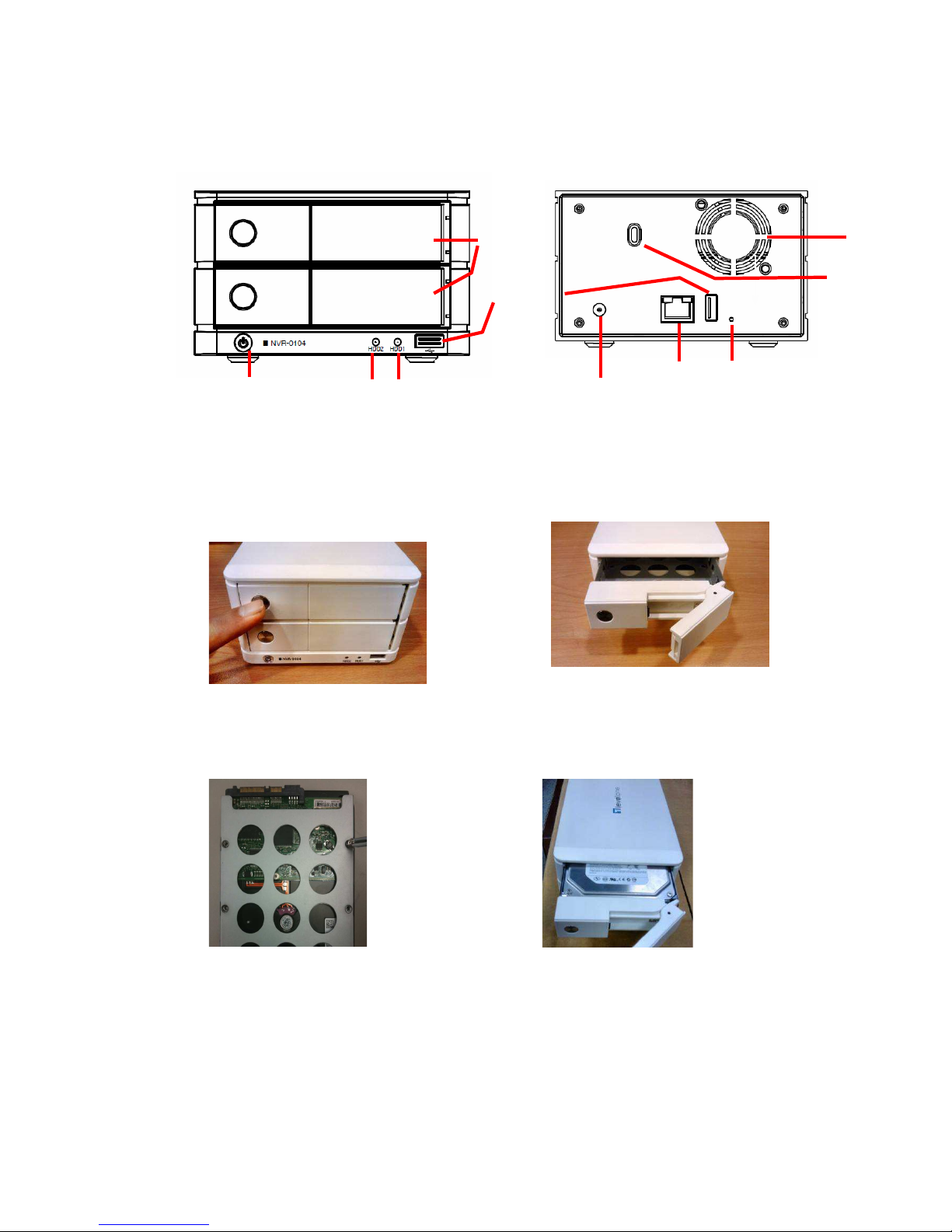
1. Push the silver button
to release the HDD tray
2. Pull out the HDD tray
3. Place the HDD on the tray and
secure the HDD with the
screws at the
bottom (as illustrated)
4. Push the tray back in the
unit
and press down the black bar
to secure the tray
System Overview
(Front) (Rear)
Hard Drive Installations
HDD Tray
Power button HDD LEDs
USB slot
Power Jack Gigabit
Ethernet
Smart Fan
Micro
security slot
Reset /Restart
Quick Installation Guide
English

Page 4
Connect to the NVR
There are various ways you can connect to the NVR and below are the
suggested methods for different network setup:
Use LevelOne Device Search Utility
If the NVR is placed in a corporate network or a local area network where a DHCP
server is already presented, run the “LevelOne Device Search” utility from a
computer that is on the same network and locate the NVR with its IP address
that is assigned by the top-level DHCP server.
To begin, launch the “LevelOne Device Search” utility from the CD and proceed with
the installation:
Once the installation is complete, check the “Launch the Search AP” option and
click “Finish”:
The search should start automatically and its status should be displayed:
The NVR should be located and its IP address should be displayed:
English
Quick Installation Guide

Page 5
English
Quick Installation Guide
Eng
lish
Double-click on an NVR and the search program should automatically access the
NVR’s web administration page from your default browser
Double-click
You should be prompted for the NVR’s username and password. Enter its default
username “root” and password “root” and then click ”OK” to enter the system
Access the NVR with its default IP address
The NVR comes with a pre-configured static IP “192.168.101.50”. However, it is only
used when there is no DHCP server presented in the network. The NVR will turn on
its DHCP server function and act as the DHCP server in the network.
To connect to the NVR, connect the PC directly to the NVR using a crossover CAT5
Ethernet cable. Simply access the NVR from your web browser with its IP address
Again, you should be prompted for the
username and password. Enter its default
username “root” and password “root” and
then click”OK” to enter the system
English
Quick Installation Guide

Page 6
Add a Camera
Automatic Search:
1. Click the “Search” button to perform the camera search. You should be
prompted to install Active Control component in order for the search to function
properly. Go ahead and click “Install”
2. After that, the search should begin and its status should be displayed:
3. Found cameras should be listed and simply select a camera from the list and
press “Configure”
4. Its corresponding information should be displayed in the “Camera Information”
section. Enter its username and password and select the channel ID and name the
camera.
English
Quick Installation Guide

Page 7
5. Click on “Detect” to establish connection between the recorder and the camera. If
connection establishes successfully, camera’s detailed information should be polled
and displayed as below
6. Adjust its video format, frame rate, resolution or bitrate…etc if you wish and then
click “Add” to finish adding the camera
Add a camera manually
Simply follow the instruction described above but instead of using the
“Search” function, enter the camera’s IP address and credential in the “Camera
Information” manually, then follow step 5 ~ 6
described above.
2.
1.
Enter manually
English
Quick Installation Guide

Page 8
1. Tryk på den sølvfarvede knap
for at udløse HDD bakke
2. Træk HDD bakke ud
3. Placer HDD på bakken og sikker
HDD med skruer i bunden ( se
illustration)
4. Skub bakken tilbage i
enheden og skud den sorte
barre ned for at sikre bakken.
System oversigt
( Forside) (Bagside)
Hard disk installation
HDD
bakke
Tænd/sluk
knap HDD LED´s
USB slot
Strøm stik Gigabit
ethernet
Smart
blæser
Micro
sikkerheds
slot
Reset/genstart
Dansk
Quick Installations
-
vejledning

Page 9
Forbind til NVR
Der kan tilsluttes til NVR på forskellige måder. Nedenfor er nogle forslag til
forskellige netværksopsætninger:
Brug LevelOne Device søgeprogram
Hvis NVR befinder sig i et virksomhedsnetværk eller et lokalområde netværk, hvor
der allerede findes en DHCP server, skal du køre “LevelOne Device Search”
(LevelOne Device søgning) programmet fra en computer i det samme
netværk og lokalisere NVR med IP adressen tildelt af top-niveau DHCP
serveren.
Begynd med starte “LevelOne Device Search” (LevelOne Device søgning)
programmet på cd’en og fortsæt med installationen:
Når installationen er fuldført, afmærk “Launch the Search AP” (Start søgning AP) og
klik på “Finish” (Afslut):
Søgningen begynder automatisk, og dens status vises:
NVR lokaliseres, og dens IP adresse vises:
Dansk
Quick Installations
-
vejledning

Page 10
Dansk
Dobbeltklik på en NVR, hvorefter søgeprogrammet automatisk tilgår NVR’s
web-administrationsside fra standardbrowseren
Dobbeltklik
Du anmodes om NVR’s brugernavn og password. Indtast
standardbrugernavnet “root” og password’et “root” og klik derefter på “OK” for
at åbne systemet.
Tilgå NVR med dens standard IP adresse
NVR leveres med en forkonfigureret, statisk IP “192.168.101.50”. Den bruges
imidlertid kun, når der ikke er nogen DHCP server i netværket. NVR aktiverer sin DHCP
serverfunktion og fungerer som DHCP serveren i netværket.
Forbind til NVR ved at forbinde pc’en direkte til NVR med et crossover CAT5 Ethernet
kabel. Tilgå således ganske enkelt NVR fra din webbrowser med dens IP adresse.
Du anmodes igen om brugernavn og password.
Indtast standarbrugernavnet “root” og password’et
“root” og klik derefter på “OK” for at åbne
systemet.
5
12
Quick Installations
-
vejledning
Autres manuels pour NVR-0104
3
Table des matières
Langues :
Autres manuels LevelOne DVR

LevelOne
LevelOne NVR-1204 Manuel d'utilisation et d'entretien

LevelOne
LevelOne NVR-0204 Manuel utilisateur

LevelOne
LevelOne NVR-0104 Manuel utilisateur

LevelOne
LevelOne NVR-0204 Manuel utilisateur

LevelOne
LevelOne NVR-0204 Manuel utilisateur

LevelOne
LevelOne NVR-0316 Manuel utilisateur

LevelOne
LevelOne HUBBLE Series Guide de l'utilisateur