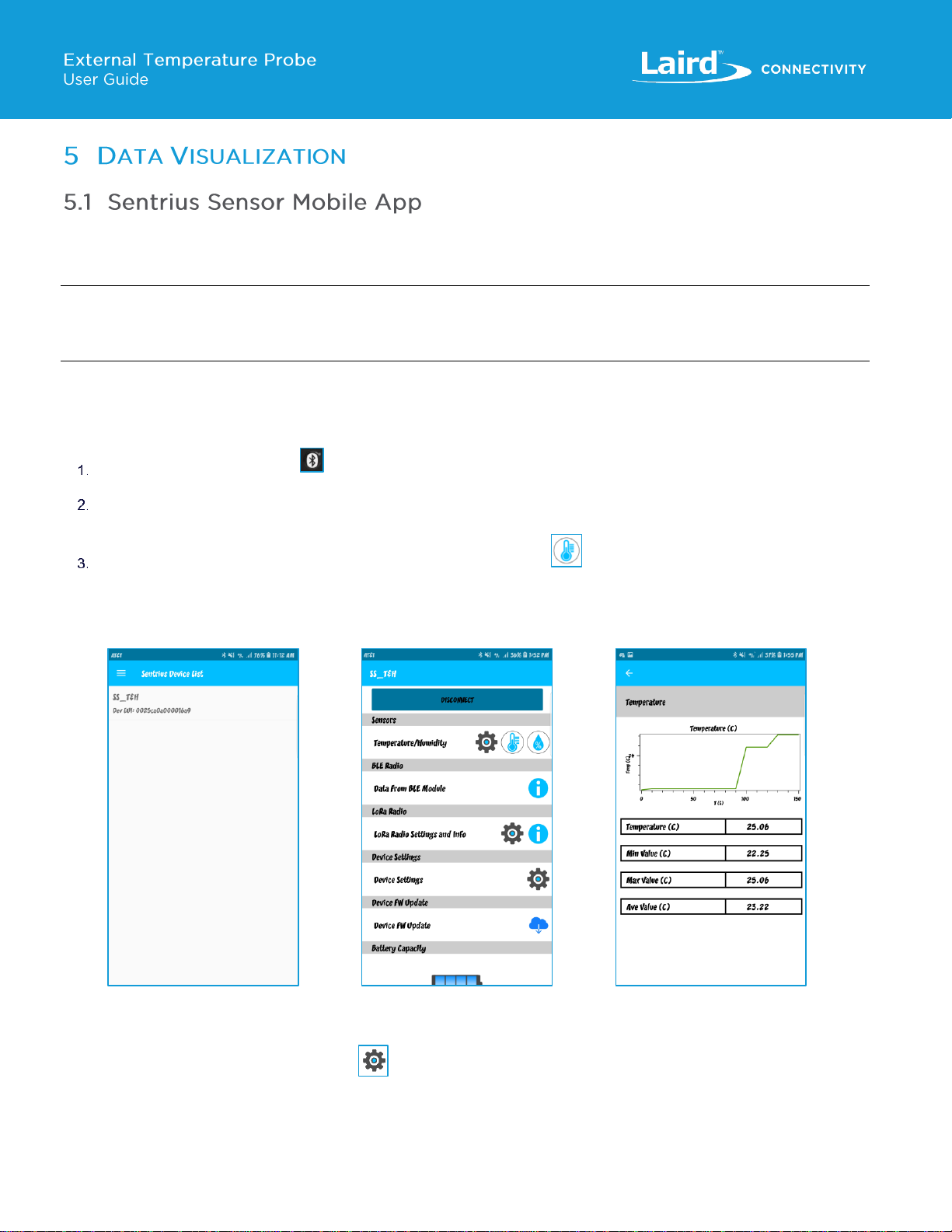
The Sentrius mobile application allows a user to configure a device, troubleshoot a device, see real-time sensor data, and update
firmware. Search the appropriate app store (Google Play Store, Apple Store, or the Microsoft Store) for the Sentrius Sensor App
and install it on your device.
Note: This guide only contains a brief walkthrough. Refer to the RS1xx Guide for further details on sensor functionality and the
mobile app capabilities. To access the RS1xx Guide, navigate to the RS1xx product page, click Documentation, and select
the Sentrius RS1xx User Guide.
The Sentrius sensor mobile app displays real-time sensor data from the external temperature probe and sensor once a good cable
connection is established.
To view real-time sensor data, follow these steps:
Press and hold the BLE button on the front panel of the sensor to start BLE advertising on the device.
Select the corresponding DEV EUI on the connection screen of the mobile app. The DEV EUI of the sensor can be found
on the back label of the sensor.
Once connected to the mobile app, click the Temperature Reading icon under the Temperature/Humidity section to
see real-time sensor data from the temperature probe.
From this screen, the temperature probe can be validated by confirming the temperature measurements are accurate. Place
your hand on the probe to fluctuate the temperature.