KTI KS-2300 Manuel utilisateur

KS-2300/KS-2600
Intelligent Switch
User's Guide

We make no warranties with respect to this documentation and disclaim any implied warranties of
merchantability, quality, or fitness for any particular purpose. The information in this document is subject to
change without notice. We reserve the right to make revisions to this publication without obligation to notify any
person or entity of any such changes.
Trademarks or brand names mentioned herein are trademarks or registered trademarks of their respective
companies.
P/N: 17000095

About this manual . . .
This manual is a general manual for different models of our Intelligent Switch.
They are similar in operation but have different hardware configuration.
These models are
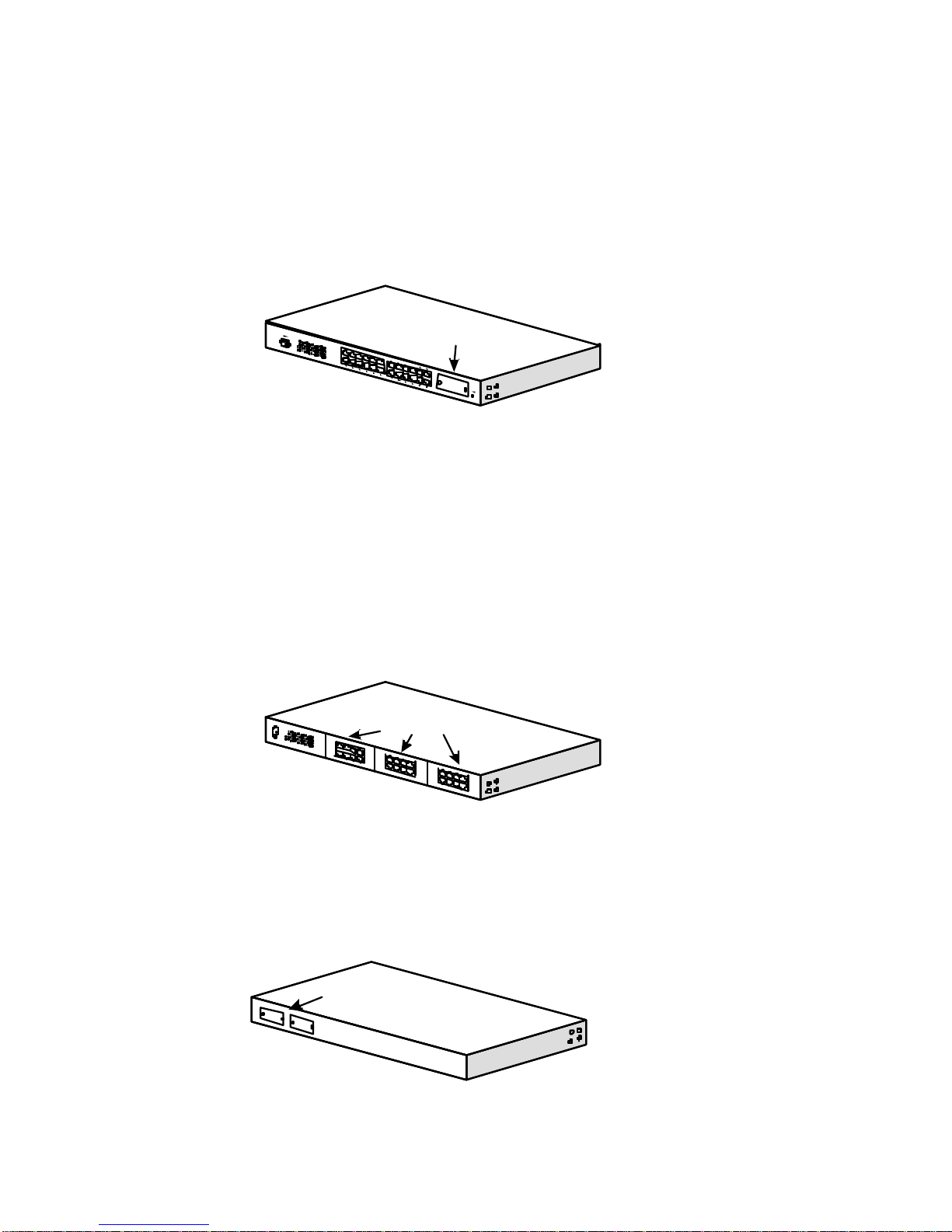
1. Non-fully-modularized model (24-only or 24+2G models)
It has 24 10/100Mbps RJ45 MDIX ports and one module slot on front panel for
100BaseFX extension. Because the 100BaseFX extension ports will share
Port 23/24 of TX ports, it is 24 ports totally on front panel.
2. Fully- modularized model
It has three 8-port module slots at front panel. These 8-port modules could
be 8* 10/100M TX ports or 8* 100M FX ports or some other 8-port module. It
has flexible design for hardware configuration.
If 24+2G, there are two gigabit module slots at rear panel for gigabit
extension for both models.
Front Side
Module Slot
Front Side
Modules (8-port)
Rear Side
Module Slot

Content
CHAPTER 1 INTRODUCTION...............................................................1
1.1 PACKAGE CONTENTS.......................................................................1
1.2 INSTALLATION PROCEDURE...........................................................1
CHAPTER 2 WHERE TO PLACE THE SWITCH................................2
2.1 PLACING THE INTELLIGENT SWITCH ON A DESK OR SHELF...2
2.2 MOUNTING THE INTELLIGENT SWITCH ONTO A RACK...........2
CHAPTER 3 CONFIGURE THE SWITCH.............................................4
3.1 INTRODUCTION..................................................................................4
[ 1 ] Overview......................................................................................4
[ 2 ] Manage the switch....................................................................4
3.2 CONFIGURE THE SWITCH BY CONSOLE.........................................7
3.2.1 Logging on to the Intelligent Switch...................................7
3.2.2 Performing Basic Management Activities........................10
General :...............................................................10
LAN Port :............................................................11
Console Port :......................................................12
3.2.3 Performing Advanced Management Activities................14
L2 Switching DataBase.....................................16
VLAN & PVID Perspective :....................16
IP Multicast Group Perspective :............19
MAC Address Perspective :...................20
Port Perspective :......................................20
IP Networking .....................................................24
IP & RIP Setting :......................................24
ARP Table :................................................25
Routing Table :..........................................26
DHCP Gateway Setting :..........................28
Ping :...........................................................30
Bridging ...............................................................31

2
Static Filtering....................................................32
Spanning Tree.....................................................33
Spanning Tree Configurations................33
Spanning Tree Port States.......................34
Spanning Tree Path Cost.........................34
Spanning Tree Port Priorities ..................35
SNMP....................................................................37
Other Protocols...................................................38
Port Trunking.....................................................40
Port Mirroring....................................................41
QoS Setup.............................................................42
Global Setting..............................................43
Logical Port..................................................45
VLAN............................................................46
ToS..............................................................46
Profile..........................................................46
Port Configuration....................................49
Rate Control.................................................50
File Transfer........................................................51
3.2.3 Other Functions in the Main Menu....................................53
Logout :.................................................................53
Save Setting .........................................................53
Restore Default Settings...................................53
Reboot....................................................................53
3.3 CONFIGURE THE INTELLIGENT SWITCH BY WEB BROWSER..54
3.3.1 Logging on to the Intelligent Switch.................................54
3.3.2 Performing Basic Management Activities.........................54
3.3.3 Performing Advanced Management Activities.................55
3.3.4 File Transfer, Reboot, Logout and Save Setting..............55
CHAPTER 4 SNMP AND RMON MANAGEMENT..........................57
4.1 OVERVIEW.........................................................................................57
4.2 SNMP AGENT AND MIB-2 (RFC1213)..........................................57

3
4.3 RMON MIB (RFC 1757) AND BRIDGE MIB (RFC 1493).............58
4.3.1 RMON Group Supported......................................................58
4.3.2 Bridge Group Supported......................................................59
CHAPTER 5 CONFIGURE THE NETWORK CONNECTION........60
5.1 CONNECTING DEVICES TO INTELLIGENT SWITCH..................60
5.2 TRUNKING TO ANOTHER ETHERNET SWITCH..........................60
5.3 CONNECTING TO ANOTHER ETHERNET SWITCH/HUB (NON-
TRUNKING)..............................................................................................61
5.4 APPLICATION.................................................................................62
CHAPTER 6 LEDS CONDITIONS DEFINED....................................64
CHAPTER 7 ADD/REMOVE MODULE...............................................65
7.1 FOR NON-FULLY MODULARIZED MODELS..................................65
7.2 FOR FULLY MODULARIZED MODELS............................................68
CHAPTER 8 FAQ....................................................................................71
A. PRODUCT FEATURES/SPECIFICATION....................................75
B. COMPLIANCES .................................................................................78
C. WARRANTY........................................................................................79

1
Chapter 1 Introduction
The Intelligent Switch is a high performance Ethernet/ Fast Ethernet NWay
auto-negotiation switch with SNMP/RMON web-based management function.
From a departmental backbone managing lower-level switches, hubs and
workstations to high-speed switch-to-switch and switch-to-server links, this
Intelligent Switch delivers outstanding performance in every environment.
With IGMP and VLAN functions, this Intelligent Switch ensures maximum
bandwidth by reducing multicast transmissions and distributing data over the
most efficient media and pathway. With Quality of Service (QoS) supports,
this Intelligent Switch provides the capability to prioritize certain tasks on the
network and this is particularly useful for sending voice or video over the
switched network. This Intelligent Switch is a powerful management
Ethernet switch for network administrator.
1.1 Package Contents
lOne Intelligent Switch
lOne AC power cord
lTwo rack-mount kits and screws
lThis installation guide
lOne console cable
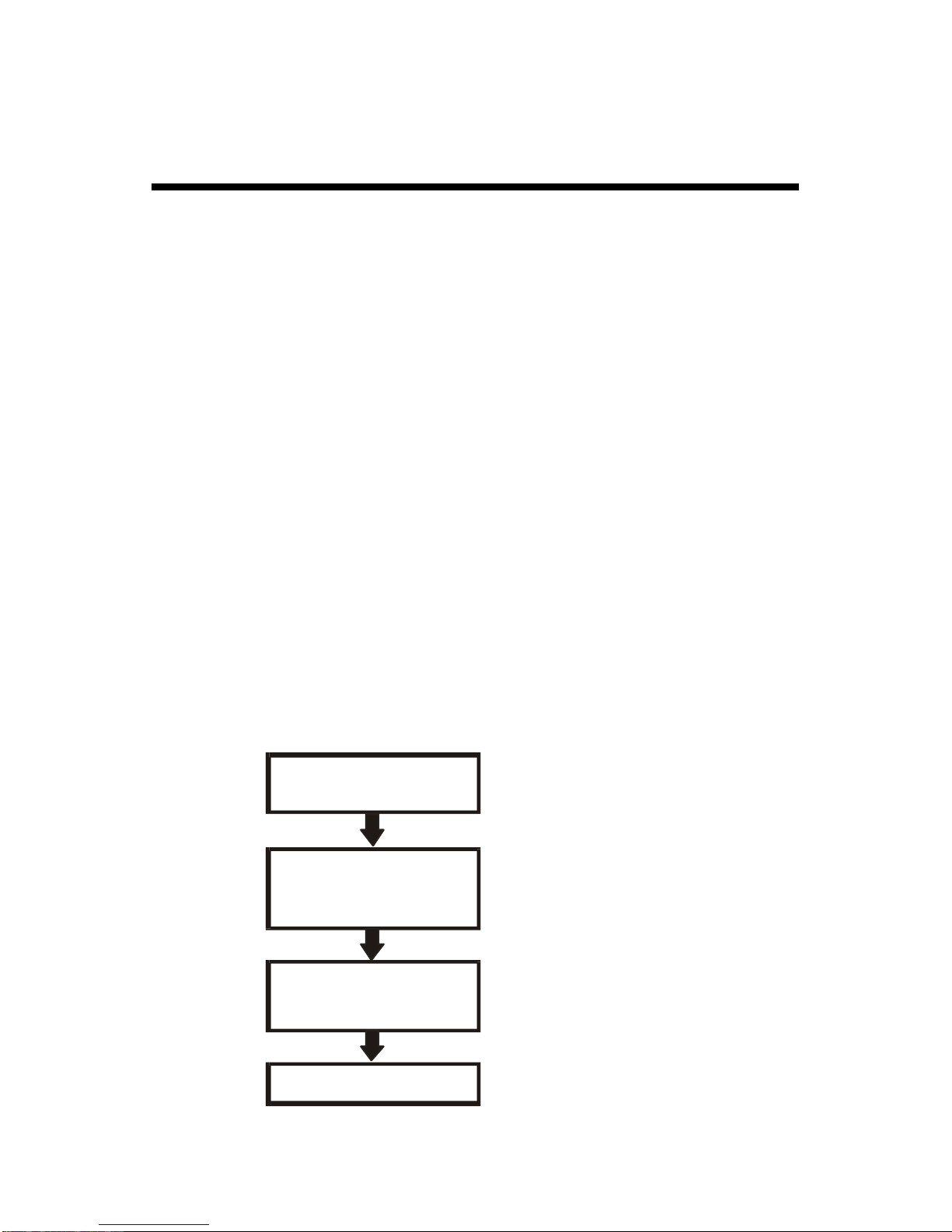
1.2 Installation Procedure
Select Switch
Location
ConfigureThe
Network Connection
ConfigureThe
Intelligent Switch
Troubleshooting
Chapter 2
Chapter 5
Chapter 3
Chapter 6, 8

2
Chapter 2 Where To Place the
Switch
The Intelligent Switch can be place on a flat surface (your desk, shelf or
table) or mounted onto a rack. Place the Intelligent Switch at a location with
these connection considerations in mind:
lThe switch configuration does not break the rules as specified in Chapter
5.
lThe switch is accessible and cables can be connected easily to it.
lThe cables connected to the switch are away from sources of electrical
interference such as radio, computer monitor, and light fixtures.
lThere is sufficient space surrounding the hub to allow for proper
ventilation (the switch may not function according to specifications beyond
the temperature range of 0 to 50 degrees C).
2.1 Placing the Intelligent Switch on a Desk or
Shelf
1.Place the Intelligent Switch on a firm flat surface where you want to install
the switch.
2.If you want to configure the Intelligent Switch, please refer to Section 3.
3.Connect network cables to the Intelligent Switch. Please refer to Section 5
for network connection.
2.2 Mounting the Intelligent Switch Onto a Rack
1.Use the brackets and screws supplied in the rack mounting kit.
2.Use a cross-head screwdriver to attach the brackets to the side of the
intelligent Switch.
3.Position the Intelligent Switch in the
rack by lining up the holes in the
brackets with the appropriate holes on
the rack, and then use the supplied

3
screws to mount the hub onto the standard EIA 19-inch rack.

4
Chapter 3 Configure the Switch
3.1 Introduction
[ 1 ] Overview
The Intelligent Switch provides a user-friendly, menu driven console
interface. Using this interface, you can perform various switch configuration
and management activities, including:
-Configuring system and port parameters.
-Assigning an IP address.
-Configuring ARP.
-Configuring DHCP relay.
-Setting up VLAN policy.
-Setting up packet filters.
-Configuring STP and SNMP parameters.
-Upgrading software.
[ 2 ] Manage the switch
There are three ways to manage the Intelligent Switch:
-Local Console Management via the Intelligent Switch serial port.
-Remote Console Management via a network connection.
-Using an SNMP Network Management Station.
1. Local Console Management :
You can manage the Intelligent Switch locally by connecting a VT100
terminal, or a personal computer or workstation with terminal emulation
software, to the Intelligent Switch serial port. The terminal or workstation
connects to the Intelligent Switch serial port using a console cable that has
the appropriate connectors on each end. This management method is ideal
when:
-The network is unreliable.
-The switch has not been assigned an IP address.
-The Network Manager does not have direct network connection.
The default setting of the Intelligent Switch's serial port is [Baud Rate :
115200, Data Bits : 8, Parity Bits : None, Stop Bit : 1, Flow Control :
None]. Therefore, configure the terminal or workstation to use these
Ce manuel convient aux modèles suivants
1
Table des matières
Autres manuels KTI Changer

KTI
KTI KGS-2404-B Manuel utilisateur

KTI
KTI KGS-510F Manuel utilisateur

KTI
KTI KGS-810F Manuel utilisateur

KTI
KTI KS-180 Manuel utilisateur

KTI
KTI KGS-3120 Manuel utilisateur

KTI
KTI KGS-2422 Manuel utilisateur

KTI
KTI KS-115FM-V Manuel utilisateur

KTI
KTI KS-2260 Manuel utilisateur

KTI
KTI KGS-0820 Manuel utilisateur

KTI
KTI KS-1080 Manuel utilisateur

KTI
KTI KGS-612F Manuel utilisateur

KTI
KTI KGS-800 Manuel utilisateur

KTI
KTI KS-316F Manuel utilisateur

KTI
KTI KGS-510F Manuel utilisateur

KTI
KTI KGS-800L Manuel utilisateur

KTI
KTI KCF-121 Manuel utilisateur

KTI
KTI KS-516 Manuel utilisateur

KTI
KTI KFS-2621 Manuel utilisateur

KTI
KTI KGS-1620 Manuel utilisateur