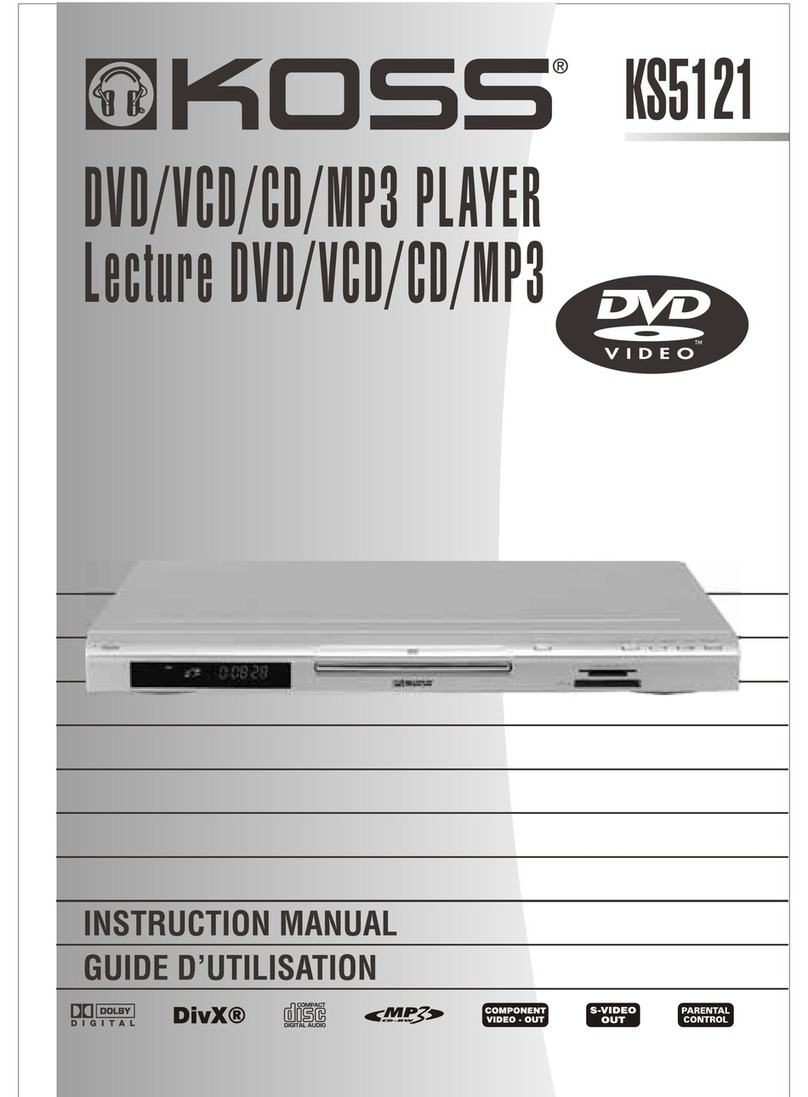
Koss KS3112 Manuel utilisateur


Page 1
To ensure proper use of this product, please read this owner manual carefully
and retain for future reference. Should the unit require maintenance, contact
an authorized service location.
INVISIBLE LASER RADIATION WHEN OPEN OR INTERLOCK
FAILED OR DEFEATED.
WARNINGS:
DO NOT STARE INTO BEAM. Avoid direct exposure to laser beam.
To prevent direct exposure to laser beam, do not try to open the
enclosure.
LASER:
Type: Dual semiconductor laser GaAIAs
Wavelength: 650nm and 780nm
Output Power: 7mW
Beam Divergence: 60 degree
CLASS 1
LASER PRODUCT
SAFETY

Page 2
• Read these instructions.
• Keep these instructions.
• Heed all warnings.
• Follow all instructions.
• Do not use this apparatus near
water.
• Clean only with dry cloth.
• Do not block any ventilation
openings. Install in accordance
with the manufacturer’s
instructions.
• Do not install near any heat
sources such as radiators, heat
registers, stoves, or other
apparatus (including amplifiers)
that produce heat.
• Do not defeat the safety purpose
ofthepolarizedorgrounding-type
plug. A polarized plug has two
blades, one wider than the other.
A grounding type plug has two
blades and a third grounding
prong. Thewidebladeorthethird
prong is provided for your safety.
Iftheprovidedplugdoes notfitinto
your outlet, consult an electrician
for replacement of the obsolete
outlet.
• Protectthepowercordfrombeing
walked on or pinched particularly
atplugs,convenience receptacles
andthepointwhere they exit from
the apparatus.
• Only use attachments/
accessories specified by the
manufacturer.
• Unplug this apparatus during
lightning storms or when unused
for long periods of time.
• Useonlywitha cart, stand, tripod,
bracket or table specified by the
manufacturer, or sold with the
IMPORTANT SAFETY INSTRUCTIONS
CAUTION: RETAIN THIS BOOKLET FOR FUTURE REFERENCE.
This set has been designed and manufactured to assure personal safety. Improper use can result in electric shock
or fire hazard. The safeguards incorporated in this unit will protect you if you observe the following procedures for
installation, use and servicing. This unit does not contain any parts that can be repaired by the user.
apparatus. When a cart is used,
usecautionwhenmoving the cart/
apparatus combination to avoid
injury from tip-over.
• Refer all servicing to qualified
service personnel. Servicing is
required when the apparatus has
been damaged in any way, such
as when the power supply cord or
plug is damaged, liquid has been
spilled or objects have fallen into
the apparatus, the apparatus has
been exposed to rain or moisture,
does not operate normally, or has
been dropped.
• Apparatusshall not be exposed to
dripping or splashing and that no
objects filled with liquids, such as
vases, shall be placed on the
apparatus.
•Disc Tray
Keepyour fingers well clear of the
disc tray as it is closing. It may
cause serious personal injury.
•Burden
Donotplacea heavy object on, or
step on the product. The object
mayfall,causingseriouspersonal
injury and serious damage to the
product.
•Disc
Do not use a cracked, deformed,
or repaired disc. These discs are
easily broken and may cause
serious personal injury and
product malfunction.
•Damage Requiring Service
Unplug this product from the wall
outlet and refer servicing to
qualified service personnel under
the following conditions:
a) When the power-supply cord or plug
is damaged.
b) If liquid has been spilled, or objects
have fallen into the product.
c) If the product has been exposed to
rain or water.
d) If the product does not operate nor-
mally by following the operating in-
structions.Adjust only those controls
that are covered by the operating in-
structions. Improper adjustment of
other controls may result in damage
and will often require extensive work
by a qualified technician to restore
the product to its normal operation.
e) If the product has been dropped or
damaged in any way.
f) When the product exhibits a distinct
change in performance - this indi-
cates a need for service.
•Servicing
Do not attempt to service this
product yourself as opening or
removing covers may expose you
to dangerous voltage or other
hazards. Refer all servicing to
qualified service personnel.
•Replacement Parts
When replacement parts are
required, be sure the service
technician has used replacement
parts specified by the
manufacturer or have the same
characteristicsasthe original part.
Unauthorized substitutions may
result in fire, electric shock, or
other hazards.
•Safety Check
Uponcompletionofanyserviceor
repairs to this product, ask the
service technician to perform
safetychecks todeterminethat the
product is in proper operating
condition.
• USA & Canada versions comply
with UL & CUL requirements.

Page 3
Examine the contents of the box for your DVD player.
There should be the following:
• DVD Player with attached power cord
• Remote Control
• 2 batteries
• A/V Cable
• Instruction Book
• Warranty Card
NOTE:
This equipment has been tested and found to comply with the limits for a Class B digital device, pursuant to part 15 of the FCC Rules. These limits
are designed to provide reasonable protection against harmful interference in a residential installation. This equipment generates, uses and can
radiate radio frequency energy and, if not installed and used in accordance with the instructions, may cause harmful interference to radio
communications. However, there is no guarantee that interference will not occur in a particular installation. If this equipment does cause harmful
interference to radio or television reception, which can be determined by turning the equipment off and on, the user is encouraged to try to correct
the interference by one or more of the following measures:
- Reorient or relocate the receiving antenna.
- Increase the separation between the equipment and receiver.
- Connect the equipment to a supply outlet different from that to which the receiver is connected.
- Consult the dealer or an experienced radio/TV technician for help.
Manufactured under license from Dolby Laboratories. “Dolby” and the double-D
symbol are trademarks of Dolby Laboratories.
Apparatus Claims of U.S. Patent Nos. 4,631,603, 4,577,216, 4,819,098, and
4,907,093 licensed for limited viewing uses only.
This product incorporates copyright protection technology that is protected by
method claims of certain U.S. patents and other intellectual property rights owned
by Macrovision Corporation and other rights owners. Use of this copyright
protection technology must be authorized by Macrovision Corporation, and is
intended for home and other limited viewing uses only unless otherwise authorized
by Macrovision Corporation. Reverse engineering or disassembly is prohibited.
Software Licence and Copyright Notice
All software that is supplied as part of this equipment is protected by copyright laws
and international copyright treaties, as well as other intellectual property laws and trea-
ties. This software is licensed, not sold and is intended for use on this device only.
All title and copyrights in and to the software (including but not limited to any images,
photographs, animations, video, audio, music, text, instructions, code and "applets" in-
corporated into the software) are owned by Orient Power Video Manufacturing Ltd. or
its suppliers.
You may not reverse engineer, decompile, or disassemble this software for any purpose.
No part of this software may be copied, reproduced, loaned, rented, leased or trans-
mitted in any form or by any means electronic or mechanical, without the express
written permission of Orient Power Video Manufacturing Ltd.
COrient Power Video Manufacturing Ltd. All rights reserved.
CONTENT
PACKAGE
Safety ____________________________________________________________________ 1
Important Safety Instructions __________________________________________________ 2
Contents & Package ________________________________________________________ 3
Installation ________________________________________________________________ 4
Remote Control ____________________________________________________________ 5
Front Panel________________________________________________________________ 6
Rear Panel ________________________________________________________________ 6
Connections _______________________________________________________________ 7
Basic Operation ____________________________________________________________ 9
Playing DVD/CD Disc_______________________________________________________ 12
Example shows how to Create Program and Delete the last Selection for DVD__________ 15
Example shows how to Create Program and Delete the last Selection for CD ___________ 16
Playing MP3 / WMA / JPEG Disc______________________________________________ 18
Controls (MP3 / WMA / JPEG Disc)____________________________________________ 19
Play Modes (MP3 /WMA Disc)________________________________________________ 20
Disc You Can Play _________________________________________________________ 21
Problems ________________________________________________________________ 22

Page 4
DVD Discs
Forthe purpose ofdistribution of DVD Discs,the world hasbeen
separated into 6 zones. The zone your unit is intended for is
indicated on the Zone Label. This should be the same as the
labelondiscs available in yourregion. Ifyouhave any difficulties
in playing a disc, make sure that the disc is for the same zone
as your player.
Some DVD discs have anti-copying devices.
Withthesediscstheplayback on aTelevisionwill give the highest
quality picture, however you will not be able to record this signal
on a VCR.
• Install your unit on a stable flat surface. There must be suffi-
cient room in front of the unit for the drawer to be opened and
the unit should be positioned so that it can see the remote
control.
• Do not expose your unit to extremes of temperature or humidity.
• Avoid standing it on a hot surface such as on top of other hot
running equipment and ensure that there is adequate ventilation
to the unit.
Caution:
Do not install this equipment in confined space such as
a book case or similar unit!
There are several types of DVD Disc:
Single-sided discs plays for approximately 2 Hours
Single-sided disc with 2-layer plays forapproximately 4 Hours
Double-sided disc plays forapproximately 4 Hours
Double-sided disc with 2-layer on both sides plays for approximately 8 Hours
DVD discs have Titles and Chapters:
* There can be several Titles on one disc and each Title can
contain several Chapters. Titles and Chapters are numbered,
e.g. Title 1, Title 2, Chapter 1 and etc.
* Usually Title one will show the disc publisher and studio logos.
The next Title will be the film. Other Titles contain trailers for
other films, production notes, or alternative endings for the
film. There are many possibilities with Digital Versatile Disc.
* Chapters within the main Title allow you to search quickly for a
specific point on the disc. Many discs have a Chapter Menu
sometimes called Scene Index or Scene Menu that displays
the first shot from each Chapter, which allows you to select a
shot and play the disc from that point onwards.
DVD discs can be PAL or NTSC. This player can play both
types (if the player zone is correct).
DVDdiscs allow upto 8 Languagesand 32 subtitles ona single
disc. You can select and change the language and subtitle to
suit yourself and play the whole disc or just part of it and view
it from different angles.
Picture freezing & sound skipping or repeating can occur if the
disc inside the player is dirty.
• When a disc becomes dirty, clean it with a cleaning cloth. Wipe
the disc from the center out.
• Do not wipe in a circular motion. Circular scratches can cause
picture distortion or render the disc unplayable.
Caution:
Do not use solvents, commercially available cleaners,
or antistatic spray intended for analog discs.
USA Anti-Copy Disc Protection
Player Zones
Cleaning Disc
INSTALLATION

Page 5
REMOTE CONTROL
1. Power On / Standby
switches the player between Standby and On
2. “P SCAN” key
activates or deactivates Progressive Scan mode
3. “INFO” key
enters and exitsActive Navigation mode
4. “CLEAR” key
- exits menus andActive Navigation mode
- deletes the last selection in program mode
5. View Angle Selection & “ROTATE” key
- displays angle menu if present on discs
- rotates images on JPEG discs
6. “MENU” key
displays disc menu when playing
7. “TITLE” key
displays title menu if present on discs
8. Fast Search Forward & Backward
plays backward and forward quickly
9. Active Navigation keys
advance in the indicated directions for making
selections in menus and Active Navigation mode
10.Stop
stops playback
11.Play
starts playback
12.Open/Close
opens or closes disc loading tray
13.Mute
reduces volume to minimum level, press again to
restore volume level
14.Numeric Keys
0 - 9 are used for direct access of title, chapter,
track and time
15.“EXIT” key
exits menus and Active Navigation mode
16.“ZOOM” key
selects zoom ratio when playing disc
17.Skip a track
skips to previous or next chapter or track
18.“OK” key
confirms selections
19.Index
opens index menu of disc
20.Pause
pauses playing

Page 6
FRONT PANEL
REAR PANEL
1. Disc Rotation Speed Indicator
2. DVD Disc Indicator
3. PBC Status Indicator (only for
VCD compatible model)
4. Disc Formats (CD, VCD & SVCD)
Indicator (only for VCD/SVCD
compatible model)
5. Disc Play Status
Lights up during Playback
6. Pause Indicator
7. DTS Detect Indicator
8. Dolby Digital Detect Indicator
9. MP3 Playback Indicator
10.Alphanumeric Display
DISPLAY
PBC SVCD MP3
127 8 9
5
43 6
10
1. Power on/off
2. LED Indicator
Standby Mode - RED Light
OFF Mode - No Light
3. Disc loading tray
4. Opens/closes disc loading tray
5. Stops playing
6. Pauses Playing
7. Starts playing
8. Infra-Red receiver window
9. VFD Display
1. Power Cord
2. Audio Output - Left and Right
3. Component Video & Progressive
Scan Outputs
4. Video Output
5. Coaxial Output
6. S-Video Output

Page 7
For best picture quality, use COMPONENT
VIDEO CABLES
Video Connections
The way in which you connect your DVD player and the kinds of cabling you choose can make a noticeable
difference in picture and sound quality. Before you select one of the options, please make sure that your other
equipment (e.g. TV, receiver) has the required input/output channel.
Use either options of below:
CONNECTIONS
For better picture quality, use S-VIDEO
CABLE
For good picture quality, use COMPOSITE
VIDEO CABLE
Notes on Progressive Scan:
1. If your TV can accept Progressive Scan
feeds, your video connections should be
done as in the picture on the left to
obtain best possible picture quality from
the player.
2. Once connected, press the “P SCAN”
key on remote control or go to
“DISPLAY” of On-Screen Display to
activate the feature. A warning message
will pop up for confirmation.
3. Your TV may need adjustment to accept
Progressive Scan feeds.
4. Do not substitute a component Video
cable with an Audio/Video cable.
Although these types of cables do look
alike, the actual wires inside the cable in
which the signal passes along are very
different. Substituting cables will result in
poor picture and sound quality and could
damage your equipment.

Page 8
Audio Connections
Before you select one of the options, please make sure that your other equipment (e.g. TV, receiver) has the
required input/output channel.
Use either options of below:
For better sound quality, use RCA AUDIO CABLE
For best sound quality, use Coaxial Audio Cable
(not included)
Connecting 5.1 CH Receiver
Do not connect the L-R Audio sockets to the TV, in case the L-R connections are made, you need to set the TV
volume control to zero.
Connect the Digital Audio Out socket from the DVD to the Input socket of your 5.1 Ch. Receiver. Use Coaxial
Audio Cable.

Page 9
To access the setup menu the unit must be in STOP
mode.Use Active Navigation keys to make selections
and then press OK to confirm.
3. Lock
Use Active Navigation keys to select a sub-menu
3.1 Lock Player
Press OK and create your password with numeric keys
Note: You must know this password in order to
change it in future. Refer to “Problems” section if you
forgot the password.
3.2 Change Password
Change your existing password to a new one with
numeric keys. You must know your existing password
in order to do so.
3.3 Rated Titles
Pressing to set the player’s parental
control level
Parental levels are assigned to DVD disc. The range
of parental controls is from 1 to 8.
If the unit’s rating limit is set to 8, it will play all discs. If
the player’s rating limit is set below 8, only discs with a
higher or equal parental level will play.
Note: Some discs do not have parental control level
assigned and will play irrespective of the player
setting.
2. Play Mode
Press OK to select a play mode
(See “When Playback is stopped”, No menu available
without disc loaded. )
1. Play
Press OK to list the content of disc
(No menu available without disc loaded.)
BASIC OPERATION
Enter New Password
OK
Enter New Password
OK
Table des matières
Autres manuels Koss Lecteur DVD