
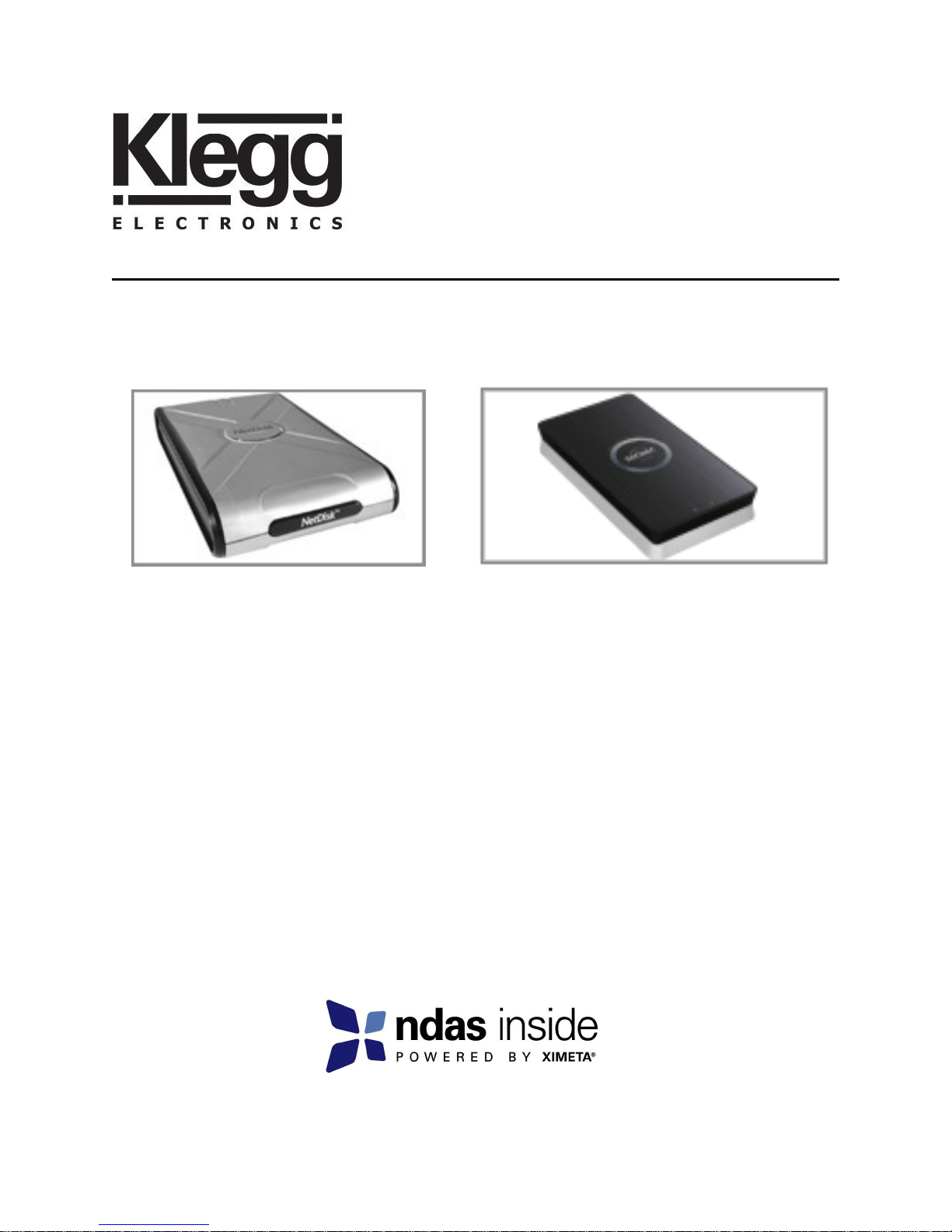
Klegg NetDisk Giga NGU10-250 Manuel utilisateur
www.klegg.com
User Manual 3.20 Software
For Windows 2000/XP/Vista/2003 Server
Klegg NetDisk Mega, Klegg NetDisk Giga

User Manual
Klegg Electronics Inc. 2 www.klegg.com
Klegg Electronics, Inc.
6320 McLeod Suite 3
Las Vegas, NV 89120
Software Release Statement
User Manual for Windows Vista, Windows XP, Windows 2000 and Windows 2003 Server. Soft-
ware Version 3.20, released 2007, made in the U.S.A.
Trademark Statement
NetDisk® and Klegg™ are trademarks of Klegg Electronics, Inc., registered in the U.S.A and
other countries. All other trademarks are the property of their respective owners.
Copyright Statement
Copyright © 2003 –2007 Klegg Electronics, Inc. All rights reserved world. Reproduction, trans-
lation, transformation or adaptation in any manner without prior written permission of Klegg
Electronics, Inc. is strictly prohibited.
License Statement
The software described in this document is furnished under a license agreement. The soft-
ware may be used only in accordance with the terms of the license agreement.
Warranty Statement
Klegg Electronics, Inc. reserves the right to revise this publication and to make changes to the
content hereof without the obligation of Klegg Electronics, Inc. to notify any person of such re-
vision or changes. Klegg Electronics, Inc. provides this publication “as is” without warranty of
any kind, either express or implied, including but not limited to the implied warranties of mer-
chantability or fitness for a particular purpose.
Product Warranty
Please see page 45 for complete product warranty coverage.

User Manual
Klegg Electronics Inc. 3 www.klegg.com
Table of Contents
1 Introduction ····················································································································· 4
1.1 User Manual ..................................................................................................................................4
1.2 NDAS Device Models Covered By This User Manual ...................................................................4
1.3 Package Contents .........................................................................................................................4
1.4 System Requirements ...................................................................................................................5
1.5 NDAS Device Setup Overview .....................................................................................................5
2 Cable Installation ·············································································································· 6
2.1 NDAS Mode ...................................................................................................................................6
2.2 USB Mode .....................................................................................................................................7
3 NDAS Software Installation ································································································ 8
3.1 For Windows XP, Windows 2000 and Vista ..................................................................................8
4 NDAS Device Registration ································································································ 11
4.1 Add / Register a New NDAS Device Using The Registration Wizard ..........................................11
4.2 Found New Hardware Wizard .......................................................................................................13
4.3 Using NDAS Device .....................................................................................................................14
4.4 Sharing NDAS Device ..................................................................................................................15
5 Introduction To NDAS Device Manager ·············································································· 16
5.1 NDAS Device Status Mode ..........................................................................................................16
5.2 NDAS Device Management ..........................................................................................................17
6 NDAS Device Functions ···································································································· 18
6.1 NDAS Device Management .........................................................................................................18
7 NDAS Bind Management ··································································································· 21
7.1 About NDAS Bind .........................................................................................................................21
7.2 NDAS Bind Management ..............................................................................................................22
7.3 Before Bind ...................................................................................................................................22
7.4 Creating Mirror without destroying data.........................................................................................23
7.5 Create New Bind ...........................................................................................................................24
7.6 Using bound devices ....................................................................................................................25
7.7 Migrate Bind From Previous Version of NDAS Software ...............................................................26
7.8 Unbind ........................................................................................................................................27
7.9 Managing Bind...............................................................................................................................28
7.10 NDAS Bind Terms .........................................................................................................................31
8 Formatting NDAS Device ································································································· 32
9.1 Initialize NDAS Device .................................................................................................................32
9.2 Partition NDAS Device ................................................................................................................33
9.2 Format NDAS Device Through My Computer .............................................................................35
9 Uninstall ························································································································ 36
10 NDAS Command Line Utility ······························································································ 37
11 FAQ ······························································································································ 38
12 Regulatory Statement ······································································································· 44
13 Product Warranty ············································································································ 45
14 Additional Information And Assistance ·············································································· 48
User Manual
Klegg Electronics Inc. 4 www.klegg.com
Chapter 1 Introduction
Congratulations on your purchase of the Klegg NetDisk Mega / Klegg NetDisk
Giga
- Network storage via Ethernet made possible through NDAS technology!
1.1 User Manual
- This User Manual is intended to help you install NDAS Device quickly and easily
onto your Personal Computer or Ethernet Network and begin using it immediately.
1.2 NDAS Device Models Covered By This User Manual
1.3 Package Contents
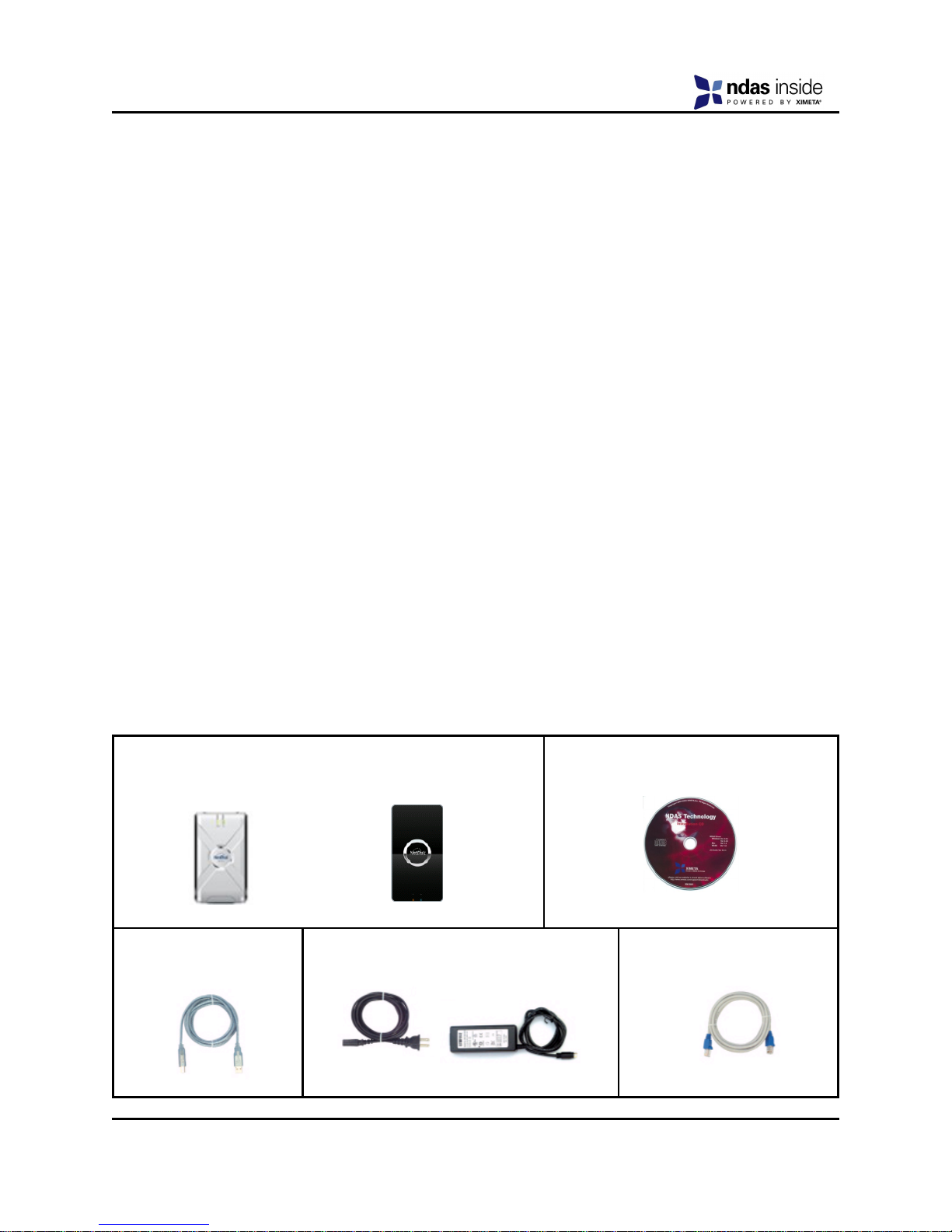
The following items are included in the NDAS device packages:
NetDisk NetDisk
Mega Giga
or
Software Installation CD
Ethernet Cable
Power Adapter and Power Cord
USB Cable
This User Manual contains information on the following models:
NetDisk
- NDU10-160
- NDU10-250
- NDU10-300
- NDU10-400
- NDU10-500
NetDisk Giga
- NGU10-250
- NGU10-300
- NGU10-400
- NGU10-500
- NGU10-750
User Manual
Klegg Electronics Inc. 5 www.klegg.com
1.4 System Requirements
Windows® 2000 / XP / Vista / 2003 Server
- 233 MHz Pentium® II or higher
- 64 MB RAM (128 MB recommended)
- USB 1.1 Port (USB 2.0 recommended)
- CD-ROM drive for installation
- 100Base-T full duplex switch for NDAS mode
- Gigabit Ethernet switch and gigabit Ethernet network card mode are recommended
for NetDisk Giga
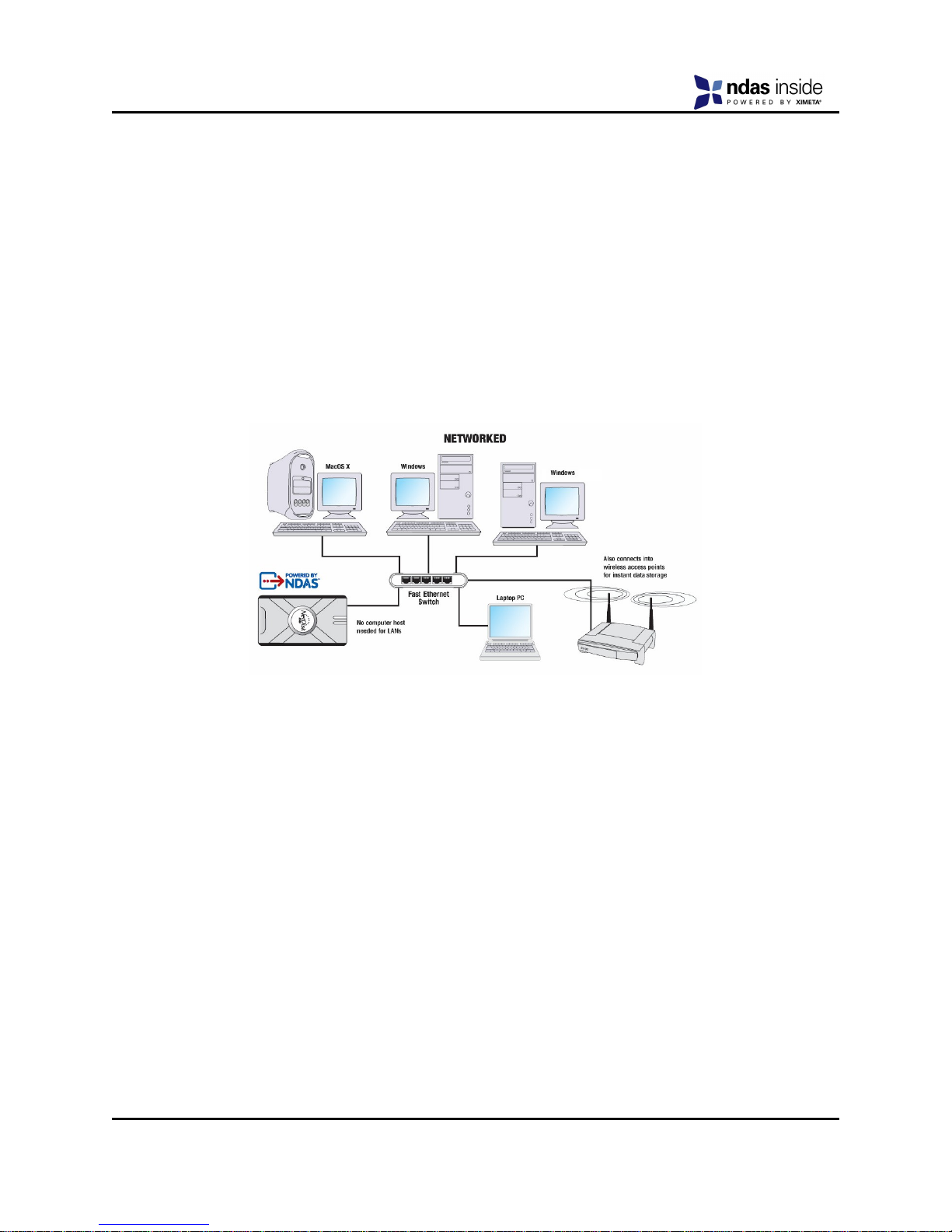
1.5 NDAS Device Setup Overview
NetDisk Mega/ NetDisk Giga
User Manual
Klegg Electronics Inc. 6 www.klegg.com
Chapter 2 Cable Installation
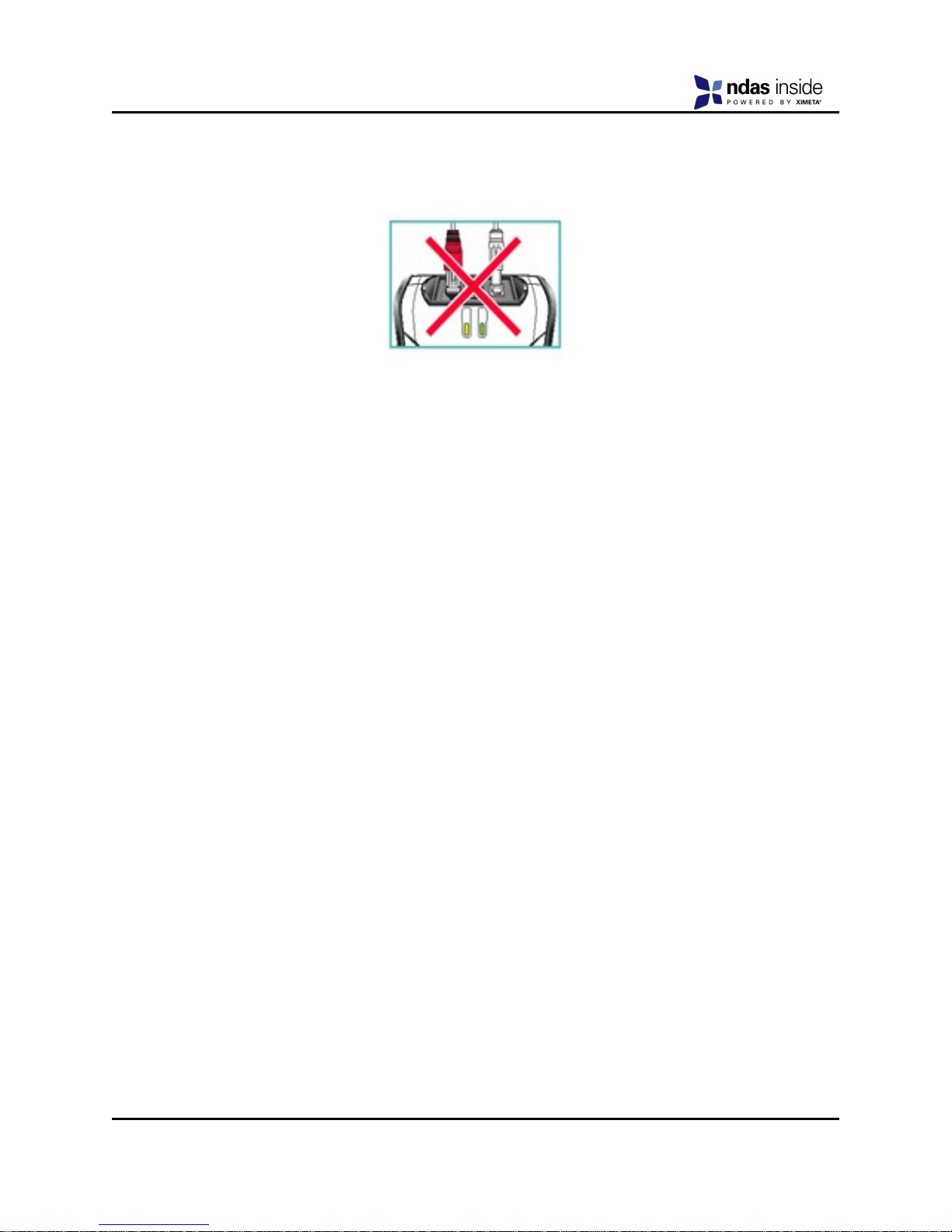
Warning
- Do not connect USB cable and Ethernet cable at the same time.
2.1 NDAS Mode
Note: NDAS Device software does need to be installed on each computer in order to use in
NDAS (Ethernet) mode.
NetDisk Mega, NetDisk Giga
1. If your NetDisk has dip switches on the rear panel, flip both dip switches down.
2. Connect the included Ethernet cable from the Ethernet port on NetDisk to a fast
Ethernet switch (gigabit Ethernet switch is recommended).
Wireless users: Connect NetDisk to your wireless router or access point
with included Ethernet cable.
3. Make sure the power connector is firmly attached to the NetDisk and connect the
power adapter to a power source.
4. If your NetDisk has an On/Off switch, slide the On/Off Switch to ON position.
2.2 USB Mode
Note: NDAS Device software does not need to be installed to use in USB mode.
NetDisk Mega and NetDisk Giga
1. If your NetDisk has dip switches on the rear panel, flip both dip switches up.
2. Connect the included USB cable from USB port on NetDisk to your PC’s USB port.
3. Make sure the power connector is connected firmly to the NetDisk and connect the
power adaptor to a power source.
4. If your NetDisk has an On/Off switch, slide the On/Off Switch to ON position.
User Manual
Klegg Electronics Inc. 7 www.klegg.com
Chapter 3 NDAS Software Installation
3.1 For Windows XP, Windows 2000, Windows Vista, Windows 2003 Server
Installation of NDAS software is simple and easy. After downloading software, please un-
zip the driver and click on setup.exe to begin installation.
If you are using the Installation CD, insert the CD into your CD-ROM drive and select Win-
dows 2000/XP/Vista Driver.
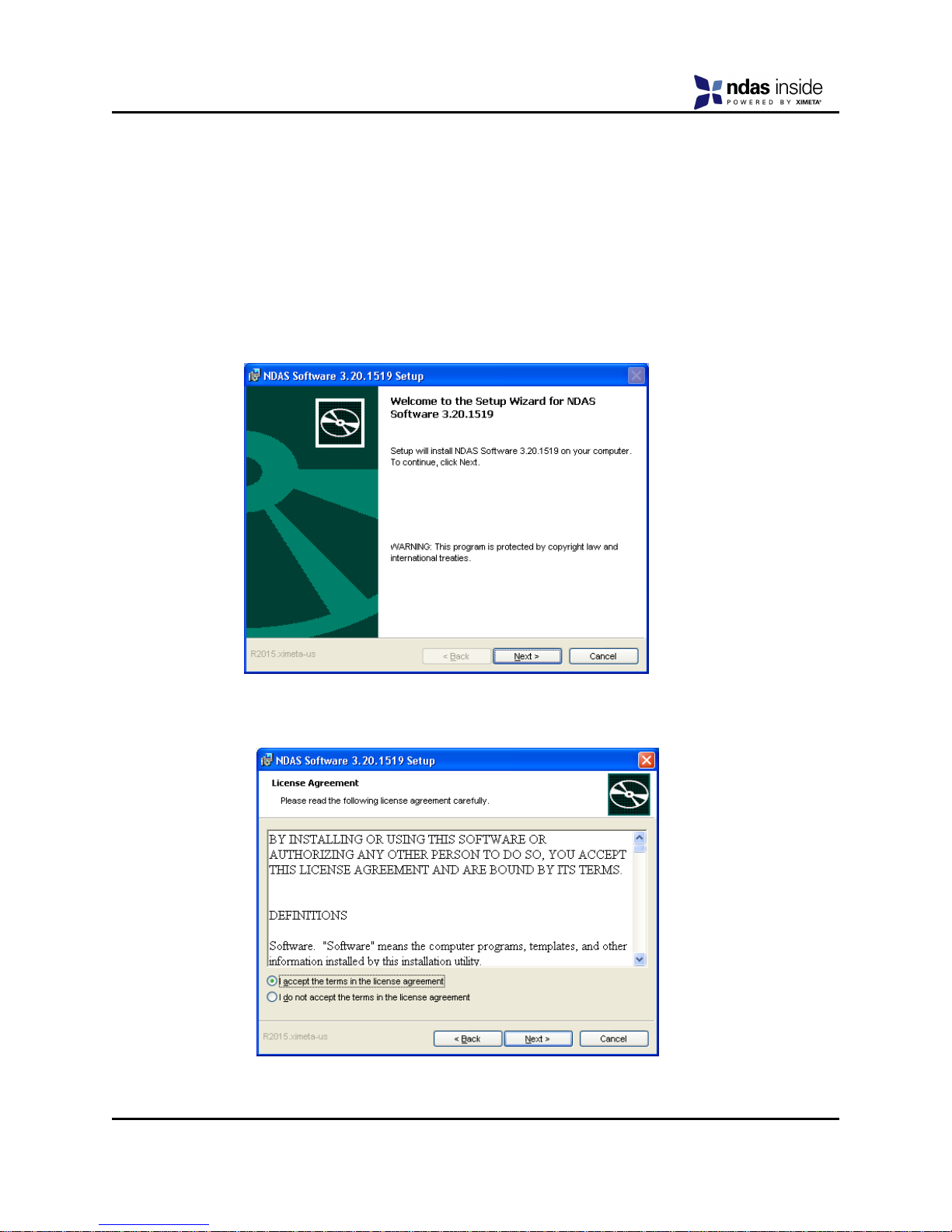
1. InstallShield Wizard will appear. Click the Next button to continue to next step.
2. Accept License Agreement and the click Next to continue installation.
.
User Manual
Klegg Electronics Inc. 8 www.klegg.com
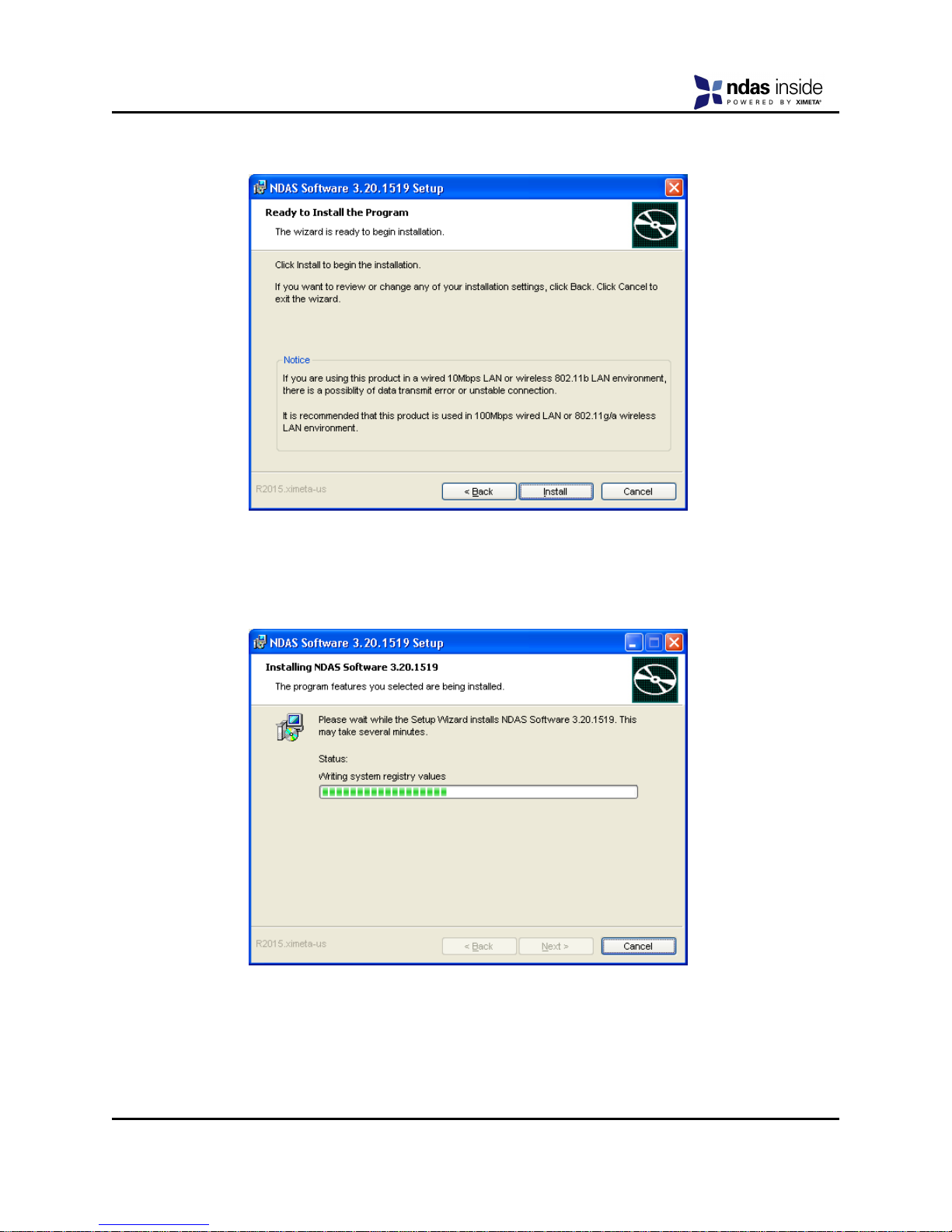
3. Click the Install button to install drivers.
4. Please wait while installation continues.
User Manual
Klegg Electronics Inc. 9 www.klegg.com
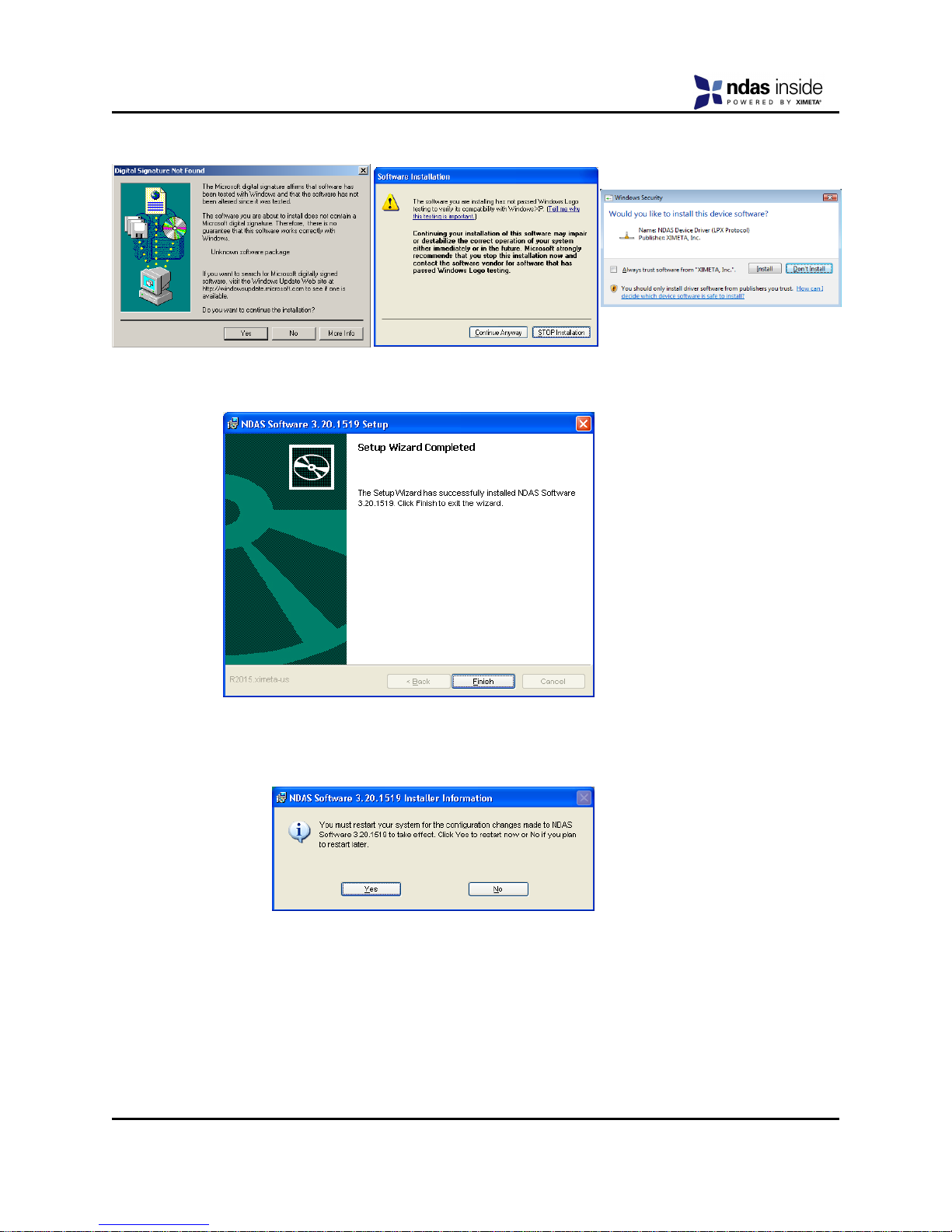
5. Click Yes or Continue Anyway or Install if one of these windows come up.
6. Click the Finish button to complete.
7. Click on the Yes button to restart your computer now, or No to restart later
User Manual
Klegg Electronics Inc. 10 www.klegg.com
Chapter 4 NDAS Device Registration
4.1 Add / Register a New NDAS device using the Registration Wizard
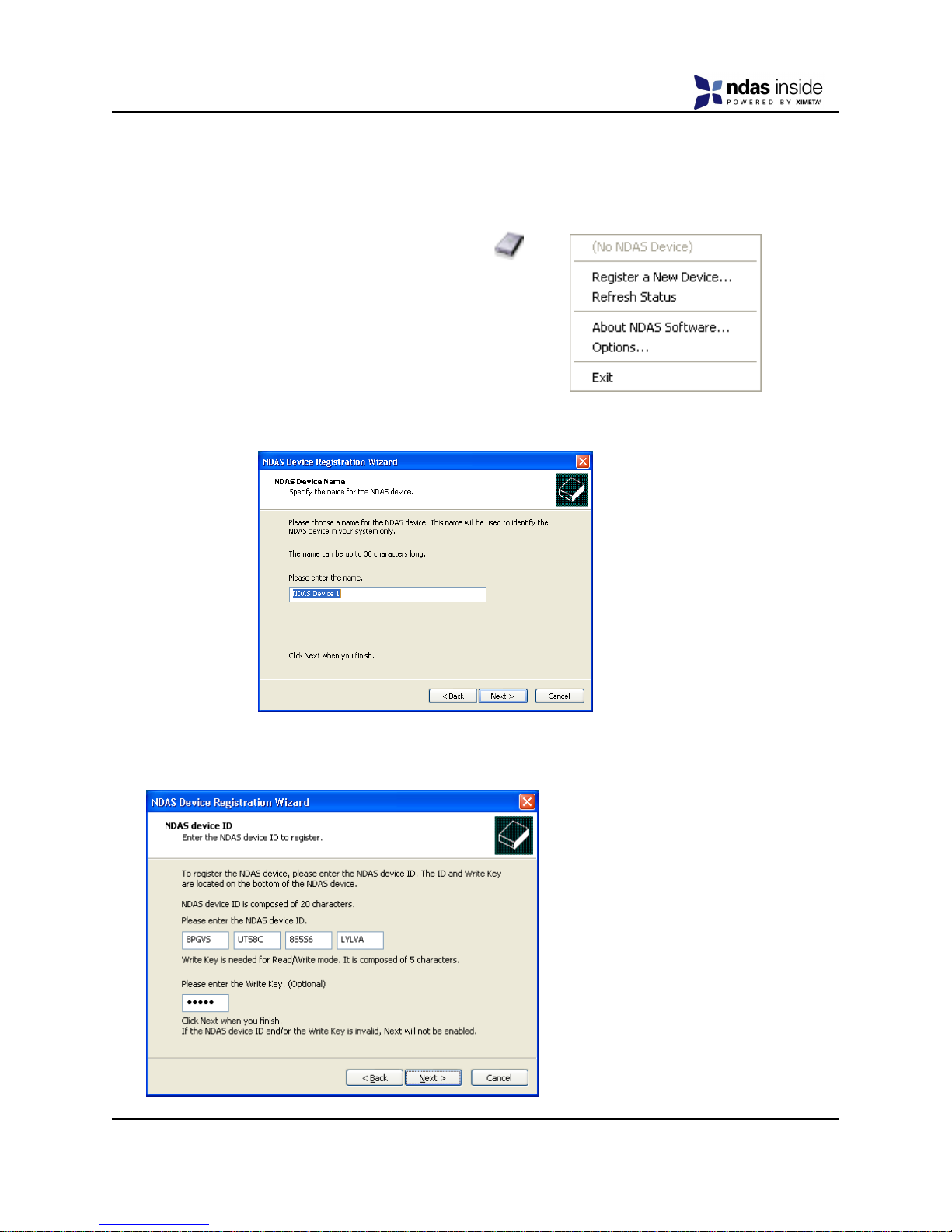
1. Click on the NDAS Device Management Icon
located on the system tray.
2. Select Register A New Device.
3. NDAS Device Registration Wizard will appear.
Click Next to continue.
4. Enter a name for the NDAS device.
Click Next.
5. Add your NDAS device ID and Write Key.Write Key is needed to write to NDAS
device. Click Next to continue.
Note: NDAS device ID and
Write Key do not contain the
letter O. Please use the
number 0 for all letter 0’s.
Ce manuel convient aux modèles suivants
9
Table des matières
Manuels Stockage populaires d'autres marques


Spectra Logic
Spectra Logic T-Series Spectra T50e Manuel utilisateur

Panasonic
Panasonic LKM-F931-1 Manuel utilisateur

Tabernus
Tabernus Enterprise Erase E2400 Manuel utilisateur

Rocstor
Rocstor COMMANDER 3F series Manuel utilisateur

HP
HP P9000 Manuel utilisateur

Western Digital
Western Digital Ultrastar Data60 Manuel utilisateur