
Javelin J320i Manuel utilisateur

General
Information
Rev. 1.1
engenyus limited - August 2003
User's manual
J320i
www.engenyus.com
C
TM
Quick Start
Getting
Started
Operation
Starting to
Print Cards
Cleaning
Trouble
Shooting
Technical
Specifications
General
Information

General
Information
a
Rev. 1.1
1. Install card cleaning cartridge
The card cleaning cartridge is packed separately from
the printer in a protective plastic bag. Remove carefully and
peel off tape from the cleaning roller before installing it.
Refer to printer user’s manual chapter 2 for more
information about the cleaning cartridge.
2. Install card feeder cassette & card output hopper
This two items are delivered separately from the printer in
protective plastic bags.
Refer to printer user’s manual chapter 2 for more
information.
Quick Start!
Before starting to work with your new JAVELINTM card
printer, please refer to this Quick Start guide.
For more complete information regarding all aspects of your
printer’s operation, please refer to the main chapters of the
printer user’s manual.
Quick Start
Getting
Started
Operation
Starting to
Print Cards
Cleaning
Trouble
Shooting
Technical
Specifications
General
Information

General
Information
b
Rev. 1.1
4. Loading ribbon
First, turn on the power to the printer and raise the
printhead. Ribbon loading involves the placement of the
ribbon onto the supply and take-up spindles. As soon as
the ribbon is installed and the printhead is locked down,
the spindles will automatically rotate to take up any slack
and to synchronize the ribbon to the correct panel.
Refer to printer user’s manual chapter 2 for more
instructions.
5. Loading cards
First shuffle a stack of new cards to reduce any electrostatic charge.
Always handle cards by their edges.
Refer to printer user’s manual chapter 2 for more instructions.
6. Set card thickness control lever
This item can be operated by the user to set the card
thickness and to prevent more than one card feeding into
the printer at the same time and causing a jam. Simply
move the lever to adjust correct card thickness position.
Refer to printer user’s manual chapter 2 for more
information.
7. Starting to print cards
First connect the interface cable and install the Windows driver on your PC.
Refer to printer user’s manual chapter 3 for more instructions.
SUPPLY SPINDLE
TAKE-UP SPINDLE
Step 1 Step 2 Step 3
Quick Start
Getting
Started
Operation
Starting to
Print Cards
Cleaning
Trouble
Shooting
Technical
Specifications
General
Information

i
Rev. 1.1
INTRODUCTION
Thank you for choosing the Javelin J320i plastic card printer.
These printers produce cards ideal for personalised identification, access control,
visitor, membership, promotion and luggage card, badges and tags.
This manual guides you to an efficient start up and operation of your
new card printer.
J320i PRINTER MODELS
Here is a quick review of the Javelin card printer series numbering and lettering
system to help you.
The Javelin J320i plastic card printer employs dye sublimation and resin thermal
transfer technologies. Model numbers include identifiers that specify options are
shown using the following lettering conventions:
This information can be found on the printer serial number panel and is also shown
on the test card.
Part Number
M:Magnetic
Encoding
E: Smart Card
i: Intelligent printer.
Use only TrueColoursTM colour
ribbons from Javelin Dealers
Optional
J320i (X) (X) - nnnnnn
}
GENERAL INFORMATION
Quick Start
Getting
Started
Operation
Starting to
Print Cards
Cleaning
Trouble
Shooting
Technical
Specifications
General
Information
User's manual

ii
Rev. 1.1
ICONS
Throughout this manual, different icons highlight important information, as follows:
Important general information
Mechanical hazard, such as one associated with
moving parts, capable of resulting in equipment
damage or personal injury.
Electrical hazard, such as an exposed voltage point,
capable of causing electrical shock and personal injury.
GENERAL INFORMATION
Quick Start
Getting
Started
Operation
Starting to
Print Cards
Cleaning
Trouble
Shooting
Technical
Specifications
General
Information

TABLE OF CONTENTS
1GETTING STARTED ....................................................... 1
1.1 Unpacking your card printer 1
1.2 Indicators and controls 3
1.3 Printer installation 4
2OPERATION 5
2.1 Printer Features 5
2.2 Loading ribbons 6
2.3 Loading cards 8
A- Card Feeder 8
B- Card Cleaning Cartridge 10
C- Card Thickness Control Lever 11
D- Card Output Hopper 11
2.4 Reject Card Box 12
2.5 Feeding one card at a time 14
2.6 Printing a test card 15
2.7 Printer menu information 16
3STARTING TO PRINT CARDS 19
A- Install Driver on windows 95/98 20
B- Install Driver on windows NT4.0 21
C- Set Printer Driver Options and printing a test card 21
4CLEANING 23
4.1 Cleaning system 24
4.2 Cleaning the printhead 25
4.3 Card Cleaning Cartridge 26
5TROUBLESHOOTING 29
5.1 Interpreting LCD Display Messages 29
5.2 Print Quality issues 32
6TECHNICAL SPECIFICATIONS 35
iii
Rev. 1.1
TABLE OF CONTENTS
1GETTING STARTED ...................................................... 1
1.1 Unpacking your card printer ......................................................... 1
1.2 Indicators and controls ............................................................... 3
1.3 Printer installation ...................................................................... 4
2OPERATION ...................................................................... 5
2.1 Printer features ......................................................................... 5
2.2 Loading ribbons ......................................................................... 6
2.3 Loading cards............................................................................ 8
A- Card cartridge ....................................................................... 8
B- Card cleaning cartridge ........................................................... 10
C- Card thickness control lever...................................................... 11
D- Card output hopper................................................................. 11
2.4 Feeding one card at a time........................................................... 12
2.5 Printing a test card .................................................................... 13
2.6 Passcode Electronic Lock............................................................. 14
3STARTING TO PRINT CARDS ................................. 16
A- Install driver on Windows 98, 2000/NT or XP ............................ 17
B- Set printer driver options ......................................................... 18
C- TrueSecure Varnish Imaging Printing .......................................... 19
4CLEANING ......................................................................... 20
4.1 Cleaning system......................................................................... 21
4.2 Cleaning the printhead............................................................... 22
4.3 Card cleaning cartridge ............................................................... 23
5TROUBLESHOOTING .................................................. 25
5.1 Interpreting LCD display messages ............................................... 25
5.2 Print quality issues ..................................................................... 29
6TECHNICAL SPECIFICATIONS................................ 32
GENERAL INFORMATION
Quick Start
Getting
Started
Operation
Starting to
Print Cards
Cleaning
Trouble
Shooting
Technical
Specifications
General
Information

iv
Rev. 1.1
APPENDIX A -
JAVELIN i SERIES
INTELLIGENT PRINTING SYSTEM .............................. 36
Frequently asked questions........................................................... 36
APPENDIX B -
MAGNETIC CARD STRIPE ENCODER ...................... 39
Introduction ................................................................................ 39
A- Media loading orientation ....................................................................... 40
B- Magnetic encoder cleaning .................................................................... 41
APPENDIX C -
SMART CARD CONTACT STATION .......................... 42
Introduction ................................................................................ 42
A- Media loading orientation ...................................................................... 43
B- Smart card contact station interface .................................................... 43
APPENDIX D -
ACCESSORIES & SUPPLIES ......................................... 44
Ribbons......................................................................................................... 44
Cards ............................................................................................................ 45
Accessories ................................................................................................. 46
APPENDIX E -
WARRANTY INFORMATION .......................................... 47
APPENDIX F -
TECHNICAL SUPPORT...................................................... 49
APPENDIX G - ....................................................................... 50
Declaration of Conformity ........................................................................... 50
Trademarks .................................................................................................. 51
Copyright Notice ........................................................................................... 51
GENERAL INFORMATION
Quick Start
Getting
Started
Operation
Starting to
Print Cards
Cleaning
Trouble
Shooting
Technical
Specifications
General
Information

1
Quick Start
Getting
Started
Operation
Starting to
Print Cards
Cleaning
Trouble
Shooting
Technical
Specifications
General
Information
Rev. 1.1GETTING STARTED
Your J320i printer ships in a carton and protective anti-static bag.
Keep all packing material in case you need to move or re-ship the printer.
While unpacking, inspect the carton to ensure that no damage occured
during shipping.
Please ensure that you have a clean and nearly dust free environment for
proper operation and storage of the printer.
1 Getting started
1.1 Unpacking your card printer

2
Quick Start
Getting
Started
Operation
Starting to
Print Cards
Cleaning
Trouble
Shooting
Technical
Specifications
General
Information
Rev. 1.1GETTING STARTED
Make sure the following items are included with your J320i printer:
If any items are missing, please contact your dealer.
To reorder, please refer to Appendix D of this manual.
CLEANING KIT
POWER CABLE
USER MANUAL &
PRINTER DRIVER CD QUICK START GUIDE
INTERFACE CABLE
CLEANING CARTRIDGE
CARD OUTPUT HOPPERCARD FEEDER CASSETTE

General
Information
3
Quick Start
Getting
Started
Operation
Starting to
Print Cards
Cleaning
Trouble
Shooting
Technical
Specifications Rev. 1.1GETTING STARTED
Your J320i printer has an LCD Display and and 2 Panel Buttons.
LCD DISPLAY :
The 16 character LCD Display is used for :
●Showing the printer's current status
●Providing operator and service messages (Chapter 5)
LEDS :
The two LEDs are used for :
●Green: Power LED
●Amber: Alert LED (with beeper)
This alert LED is on when an error condition exists.
The beeper will sound three alert "beeps" and the LCD display will show the
associated error message.
PANEL BUTTONS:
The Menu/Next Button (left) is a push button used for:
●Bringing printer into menu mode when pressed with the printer showing READY
on the LCD Display.
●Using in menu mode to scroll through menu options.
The Clear/Select Button (right) is a push button used for:
●Clearing an error status (when LCD display shows an error report and alert
LED is on).
●Invoking automatic retry of the operation which gave the error.
●Selecting a menu option when in menu mode.
NOTE: the buttons “beep” when pressed
1.2 Indicators and Controls
Power
LED
Menu/Next Button
LCD Display
Clear/Select Button
Alert LED
Quick Start
Getting
Started
Operation
Starting to
Print Cards
Cleaning
Trouble
Shooting
Technical
Specifications
General
Information
Table des matières
Autres manuels Javelin Imprimante

Javelin
Javelin J310 Manuel utilisateur

Javelin
Javelin J110i Manuel utilisateur

Javelin
Javelin J100i Manuel utilisateur

Javelin
Javelin J100i Manuel utilisateur

Javelin
Javelin J330 Manuel utilisateur

Javelin
Javelin J420i Manuel utilisateur

Javelin
Javelin J420 Manuel utilisateur

Javelin
Javelin J120i Manuel utilisateur
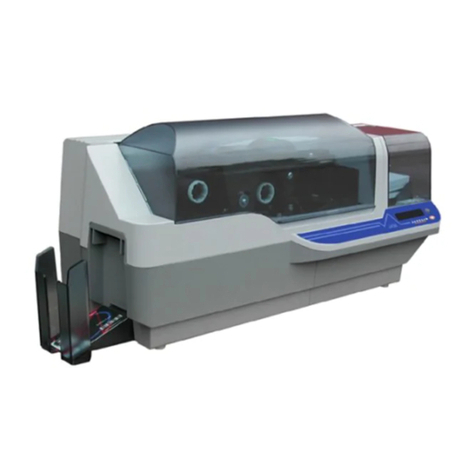
Javelin
Javelin J330i Manuel utilisateur

Javelin
Javelin J120i Manuel utilisateur


