j5 create JWR2100 Manuel utilisateur

JWR2100 User Manual v2
Wireless Presentation System Dual Band AC Router

Directory Contents
Chapter 1: Know Your JWR2100 router
Package Contents ..................................................................................................................................................... 3
JWR2100 router Appearance Description................................................................................................................. 3
Chapter 2: Build your network
Router placement .................................................................................................................................................. ..4
Product system requirements .................................................................................................................................. 4
JWR2100 construct your router ................................................................................................................................5
Wired connection ......................................................................................................................................................6
Wireless connection ..................................................................................................................................................6
Setting system of TCP / IP Settings ............................................................................................................................ 7
Windows system settings .......................................................................................................................................... 7
Mac system settings .................................................................................................................................................. 7
Chapter 3 wireless router management settings interface
Network Setup Wizard............................................................................................................................................... 8
General settings........................................................................................................................................................ .9
Network map .............................................................................................................................................................9
Description ............................................................................................................................................................... 10
Visitors network settings...........................................................................................................................................12
Parental control settings. ......................................................................................................................................... 13
USB applications ....................................................................................................................................................... 14
Wireless 2.4G network set.........................................................................................................................................17
Wireless 5G network settings.................................................................................................................................... 22
Intranet setting ......................................................................................................................................................... 27
External network Settings..........................................................................................................................................27
Traffic management settings.....................................................................................................................................28
IPv6 setting ............................................................................................................................................................... 29
Virtual private network ............................................................................................................................................ 29
Firewall settings ...... ................................................................................................................................................. 30
System management /information............................................................................................................................30
NTP settings .............................................................................................................................................................. 31
Configuration management.......................................................................................................................................31
Upgrade firmware .................................................................................................................................................... 32
System log ................................................................................................................................................................ 32
Chapter 4 introduces wireless projection function
Wireless projection environment needs................................................................................................................... 33
Projection set wireless ............................................................................................................................................. 33
Windows system installtion...................................................................................................................................... 34
Windosw system sound output ............................................................................................................................... 34
Mac system installation ............................................................................................................................................ 35
Android installation................................................................................................................................................... 35
Android sound output system .................................................................................................................................. 36
Key Pad for iOS system installation........................................................................................................................... 36
Key Pad operation instructions lights (App / hardware applicable )......................................................................... 37
Key Pad lights described ........................................................................................................................................... 37
Chapter 5 Troubleshooting.......................................................................................................................................... 38

Chapter 1: know your JWR2100 router
Package contents:
Please check your JWR2100 accessories are complete
□ JWR2100 wireless router □RJ45 Cable
□Power adapter 12V-2A □Quick Setup Guide
□ Warranty Card
□ One Key Pad (Key Pad To purchase, please contact j5create official website)
---------------------------------------------------------------------------------------
☆NOTE
if any one of the above items is damaged or missing, please your as soon as possible contact the place of purchase
or j5create customer service center. j5create Service Contact Please refer to the manual page for contact
information
---------------------------------------------------------------------------------------
JWR2100 Router Description appearance:
●Router panel indicator (Pic 1)
LAN port indicator
WPS indicator
5GHz indicator
2.4GH indicator
POWER indicator
USB 2.0 indicator
VIDEO indicator
WAN port indicator
●Routerside Description port (Pic 2)
USB 2.0 port
Power jack (12V DC-IN)
Power switch
WAN port x 1 (blue)
LAN port x 4 (yellow)
WPS / Reset button (short press to start WPS / long press to restore factory)
HDMI port
VGA port
Audio jack
●Router view (Pic 3)
Authentication stickers
Router preset account number and password
Hook

---------------------------------------------------------------------------------------
☆Note
Please make sure to use the product accompanying power adapter(adapter spec are as follows positive with photo)
use other adapter may cause routers damage.
---------------------------------------------------------------------------------------
Chapter 2: Build your network
Router placement
For wireless best wireless signal transmission between the router and the network devices connected, before
deciding the location of your router, please confirm the following:
●try to place the router in a central area of buildings, in order to cover all the wireless devices
●recommended on the metal objects near or direct sunlight unsheltered
●try strong wave, engine, microwave, refrigerator, and other means to distance power with other Wi-Fi router,
the router in order to prevent signal interference or not receivedto signal
●Keep the router a good ventilationlocal
System requirement to use products:
before setting up your network, use your computer must meet the following system requirements:
●A RJ45 ether net port (LAN Port) 10Base-T / 100bASE-TX / 1000BaseTX)
●Support IEEE 802.11 a / b / g /Wi-functional
●System supports TCP / IP service
●Web browser can be used, such as Google chrome, Firefox, Safari, Opera, etc.
---------------------------------------------------------------------------------------
☆Note
Please note sure your computer has a configuration of any network device.
When the network card used for receiving radio signals JWR2100 you a single frequency IEEE 802.11 b / g / n
wireless network card, you can only receive 2.4GHz band
the network card if you receive a wireless signal is a single frequency JWR2100 IEEE 802.11 a / b / g /wireless
network card, you can receive the 2.4GHz or 5GHz band
RJ-45 ether net network means for connecting the line length can not exceed 100m, in order to avoid non- signal or
signals unstable situation
if you want to replace an existing router, you must start from the existing network are completely disconnected
(unplug the Ethernet cable and close the existing router power supply, etc.)
and then restart the computer.
---------------------------------------------------------------------------------------

Construction your JWR2100
four antennas installed in the clockwise direction following the various packing is mounted onto the router
A wired connection
Router : wireless router 1 Please insert an AC transformer DC-IN port and plug in the power supply input.
2. The use of bundled RJ-45 network cable to connect your computer to your wireless LAN side of the router port
3. Verify the wireless router on the LAN side flashing lamp complete wired connection

Wireless
1. connection the wireless router AC transformer insert DC-IN port and plug in the power supply input.
2. Comes with the web line your modem ISP router connected to the wireless WAN port
3. ISP data confirm that the power machine is ON
4. Using wireless card on the computer starts setting network
System settings TCP / IP setting
Windows system settings: TCP / IP to automatically obtain IP address
1 click start> Control Panel> network and Internet> network and sharing Center> manage network
connections.
2. Click Internet Protocol Version 4 (TCP / IPv4), then click on the content.

3. To automatically obtain i Pv4 IP settings, check to automatically obtain IP addresses.
4. After click OK.
Mac system settings: TCP / IP to automatically obtain IP address
1. Click the Apple icon in the upper left corner.
2. Click System Preferences> Network> Settings ...
3. Click on the TCP / IP tab, setting IPv4 dropdown choose to use DHCP.
4. Click Apply
---------------------------------------------------------------------------------------
☆Note
If you need to get more TCP / IP-related information, refer to your operating system in the "help" For more
TCP / IP information
---------------------------------------------------------------------------------------

Chapter 3: wireless router management settings interface
JWR2100 a smart web graphics configuration management interface(GUI),allowing you to such as Internet
Explorer, Firefox, Chrome, Safari and other router settings of various functions through a variety of web
browsers.
Quick Internet Setup
When first use of the system after the completion of step sign directly into the Quick Internet Setup.
Please log management configuration interface, follow these steps:
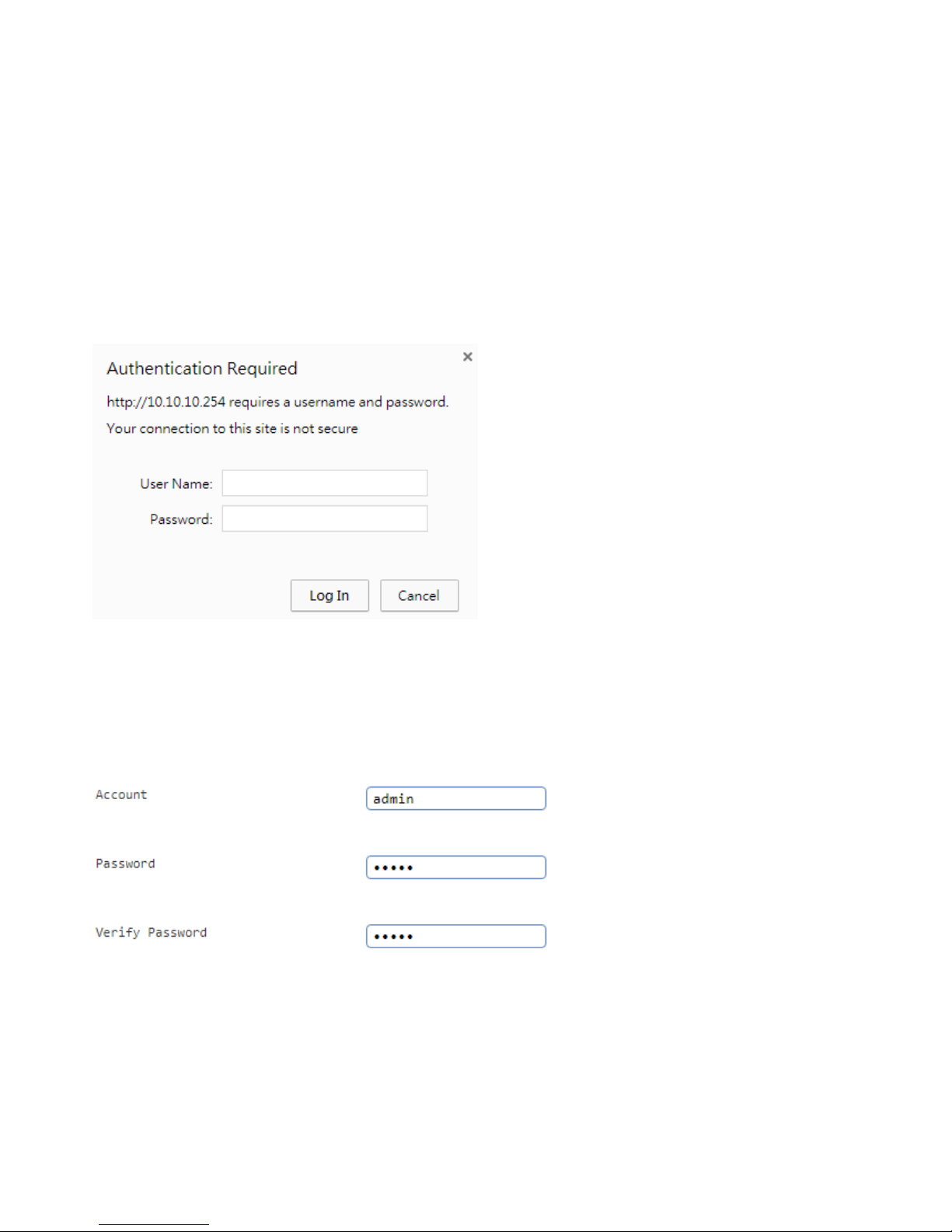
1. Enter the wireless router on your web browser manual preset IP 10.10.10.254, such as Internet
Explorer, Firefox, Google chrome,
address: login window appears, enter the default login account and password. Default Account: admin
default password: admin
---------------------------------------------------------------------------------------
☆Note
Make sure You have to set TCP / IP to automatically obtain IP address
---------------------------------------------------------------------------------------
3. Enter network setup wizard, you must first log in to change the default router login password, modify
the finished press Next
4. Set the time zone for your country after net work Next,

5. External settings to follow individual needs adjustment, press Nextafter
6. Internal network settings, according to personal needs adjustment, it is recommended to use the default
value confirmation press Next after confirmation.
7. The wireless network settings according to personal needs adjustment, it is recommended to modify the
default SSID 2.4G / 5G and authentication password, please complete after confirmation.

General Setup
Network Map:
the basic setting is enter the main menu of the router after completed the "Network Map" to confirm the
current state of 2.4G and 5G, such as SSID, security mode, encryption settings, network switch, the output
status screen.
External network connection state: rapid identification external current network connection
type, network address, net mask, gateway settings like values:
user connection status clear that the username is currently connected to the router and using a
network address
Table des matières
Autres manuels j5 create Routeur réseau
Manuels Routeur réseau populaires d'autres marques

NETGEAR
NETGEAR FS526T - Switch Manuel utilisateur

Korenix
Korenix JetNet 5710G Series Manuel utilisateur

Automated Logic
Automated Logic ZN551 Manuel du propriétaire

Cisco
Cisco ASR 1000 Series Manuel de l'opérateur

EnGenius
EnGenius ESR-9710 Manuel utilisateur

Cisco
Cisco 805 Series Instructions d'utilisation et de sécurité