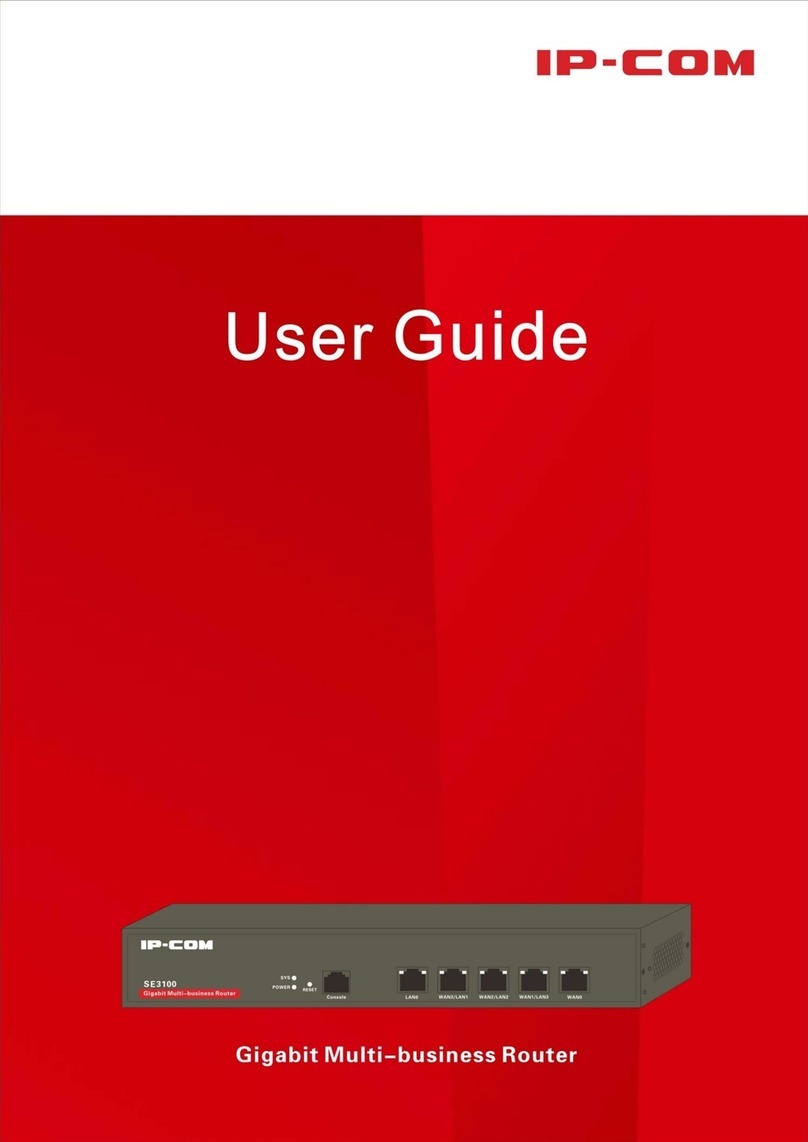
IP-COM SE3100 Manuel utilisateur


i
Copyright Statement
is the registered trademark of IP-COM Networks Co., Ltd. All the products and
product names mentioned herein are the trademarks or registered trademarks of their respective
holders. Copyright of the whole product as integration, including its accessories and software,
belongs to IP-COM Networks Co., Ltd. No part of this publication can be reproduced, transmitted,
transcribed, stored in a retrieval system, or translated into any language in any form or by any
means without the prior written permission of IP-COM Networks Co., Ltd. If you would like to
know more about our product information, please visit our website at www.ip-com.com.cn.
Disclaimer
Pictures, images and product specifications herein are for references only. To improve internal
design, operational function, and/or reliability, IP-COM reserves the right to make changes to the
products described in this document without obligation to notify any person or organization of
such revisions or changes. IP-COM does not assume any liability that may occur due to the use or
application of the product or circuit layout(s) described herein. Every effort has been made in the
preparation of this document to ensure accuracy of the contents, but all statements, information
and recommendations in this document do not constitute the warranty of any kind, express or
implied.

ii
Preface
Thank you for purchasing this IP-COM product! Reading this User Guide will be helpful for
configuring, managing and maintaining this product.
Intended Readers
This User Guide is intended for those who have basic technical knowledge related to the Internet
and network terminology.
Conventions
This User Guide applies to SE3100v1.0. If not specifically indicated, “the device”, or “this
product”mentioned in this User Guide stands for this Gigabit multi-business router.
Symbols in this User Guide:
Item
Meaning
NOTE
This format is used to highlight information of importance or special
interest. Ignoring this may result in ineffective configurations, loss of data
or damage to the device.
TIP
This format is used to highlight a procedure that will save time or resources.
Structure of this User Guide
Contents of all chapters in this User Guide are arranged as below:
Chapter
Content
Chapter 1 Product Overview
Introduces device appearance, package and main features.
Chapter 2 Device Installation
Introduces the device installation, installation notes, etc.
Chapter 3 Login
Introduces device login and logout.
Chapter 4 More Functions
Introduces how to set up the device‟s advanced functions.
Appendix
Introduces FAQs, Technical Specifications, and
Regulatory Compliance Information.

iii
Data Download
Go to our IP-COM website www.ip-com.com.cn to download the latest data and manual.
Technical Support
Website: www.ip-com.com.cn
Tel: (86 755) 2765 3089

iv
Contents
Chapter 1 Product Overview.................................................................................................................1
Overview..............................................................................................................................................1
Features................................................................................................................................................1
Package Contents .................................................................................................................................1
Appearance...........................................................................................................................................2
Front Panel.......................................................................................................................................2
Back Panel........................................................................................................................................3
Label ................................................................................................................................................4
Chapter 2 Device Installation................................................................................................................5
Installation Notes..................................................................................................................................5
Safety Alert ......................................................................................................................................5
Environmental Requests...................................................................................................................5
Installation Tools..............................................................................................................................6
Installation............................................................................................................................................7
A. Rack-mounting............................................................................................................................7
B. Desktop-mounting.......................................................................................................................7
Physical Connection.............................................................................................................................8
Chapter 3 Login....................................................................................................................................11
Log in to the Device...........................................................................................................................11
Web Management...............................................................................................................................13
Logout................................................................................................................................................13
Chapter 4 More Functions...................................................................................................................14

v
System Status .....................................................................................................................................14
Device Info.....................................................................................................................................14
WAN Statistics...............................................................................................................................14
Clients Statistics.............................................................................................................................15
Network Settings................................................................................................................................15
LAN Settings..................................................................................................................................15
WAN Settings.................................................................................................................................16
DHCP Server..................................................................................................................................16
Load Balance..................................................................................................................................18
Bandwidth Control.............................................................................................................................19
Portal Authentication..........................................................................................................................21
Portal Authentication......................................................................................................................21
Advertisement................................................................................................................................22
Online User ....................................................................................................................................23
VPN Settings......................................................................................................................................24
PPTP Server ...................................................................................................................................24
PPTP Client....................................................................................................................................26
L2TP Server ...................................................................................................................................27
L2TP Client....................................................................................................................................28
Application Example of PPTP/L2TP.............................................................................................29
IPSec Settings ................................................................................................................................34
Application Example of IPsec........................................................................................................40
Certificates .....................................................................................................................................46

vi
VPN Clients ...................................................................................................................................47
VPN Passthrough ...........................................................................................................................49
Advanced Settings..............................................................................................................................49
Network Diagnostics......................................................................................................................49
Static Routing.................................................................................................................................52
Port Forwarding .............................................................................................................................55
Remote WAN .................................................................................................................................57
WAN Ping......................................................................................................................................58
DDNS.............................................................................................................................................59
Page Timeout..................................................................................................................................61
System Tools......................................................................................................................................61
Date & Time...................................................................................................................................62
Maintenance...................................................................................................................................63
Administrator .................................................................................................................................66
System Log ....................................................................................................................................67
Appendix ...............................................................................................................................................68
1 FAQs ...............................................................................................................................................68
2 Technical Specifications..................................................................................................................69
3 Regulatory Compliance Information...............................................................................................70

1
Chapter 1 Product Overview
Overview
IP-COM SE3100 is a Gigabit business-class router that has integrated multi-WAN capability, load
balance, bandwidth control, portal authentication, and VPN settings. There are three LAN/WAN
multiplexing ports which can be configured as LAN ports, or WAN ports to suit your needs.
Features
Supports load balance and DHCP server.
Supports bandwidth control, static routing and portal authentication.
Supports DDNS and remote device management.
Supports VPN settings.
Package Contents
Open the box and verify the following package contents:
SE3100 *1
Power cord *1
Ethernet cable *1
Screw *6
L-shaped bracket *2
Rubber footpad sticker *4
Install Guide *1
If any of the items are missing or damaged, please contact your dealer for replacement as soon as
possible.

2
Appearance
Front Panel
LED
LED
Color
Status
Description
POWER
Green
Solid
The device is receiving electrical power.
Off
The device is malfunctioning or not connected to the
power supply.
SYS
Green
Flashing
Slow flashing: Device system is working properly.
Fast flashing: The system is starting up or erased internal
storage (NAND-flash).
Solid
Device system is working improperly.
Off
The device is not yet ready.
Link/Act
Orange
Solid
The corresponding port is connected.
Flashing
The corresponding port is transmitting data.
Off
The corresponding port is connected improperly or not
connected.
Speed
Green
Solid
The connectivity speed of corresponding port is up to
1000Mbps.
Off
The corresponding port is disconnected or connectivity
speed is up to 10/100Mbps.
RESET (button)
Press this button to restore the device to factory default or to erase internal storage (NAND-flash).

3
When the device stays on standby:
Press this button for five~fifteen seconds and release it; in approximately one minute, the
device will reboot and restore to its factory defaults.
Press this button for at least sixteen seconds and release it; in approximately one minute, the
device will reboot and clear its internal storage.
TIP
Erasing internal storage (NAND-flash) will not restore the device to factory defaults.
Interface
This device provides five 10/100/1000Mbps auto-negotiating RJ45 ports, three of which are
LAN/WAN multiplexing ports.
Console port, is specially designed for developers or testers to maintain the connected clients
or debug the device.
Back Panel
AC Input
Power input port
Please use the included power cord to connect the device to the power supply.
ON/OFF (button)
Power button; turn the device on/off.
Autres manuels pour SE3100
1
Table des matières
Autres manuels IP-COM Routeur réseau
Manuels Routeur réseau populaires d'autres marques

NETGEAR
NETGEAR FS526T - Switch Manuel utilisateur

Korenix
Korenix JetNet 5710G Series Manuel utilisateur

Automated Logic
Automated Logic ZN551 Manuel du propriétaire

Cisco
Cisco ASR 1000 Series Manuel de l'opérateur

EnGenius
EnGenius ESR-9710 Manuel utilisateur

Cisco
Cisco 805 Series Instructions d'utilisation et de sécurité