
Invion GPS-4V506-IUS Manuel utilisateur
InVion Language : US
Page : 1 (of 50 Pages)
Version : 1.0
Date : 2007.10.13
Model: GPS-4V506-IUS
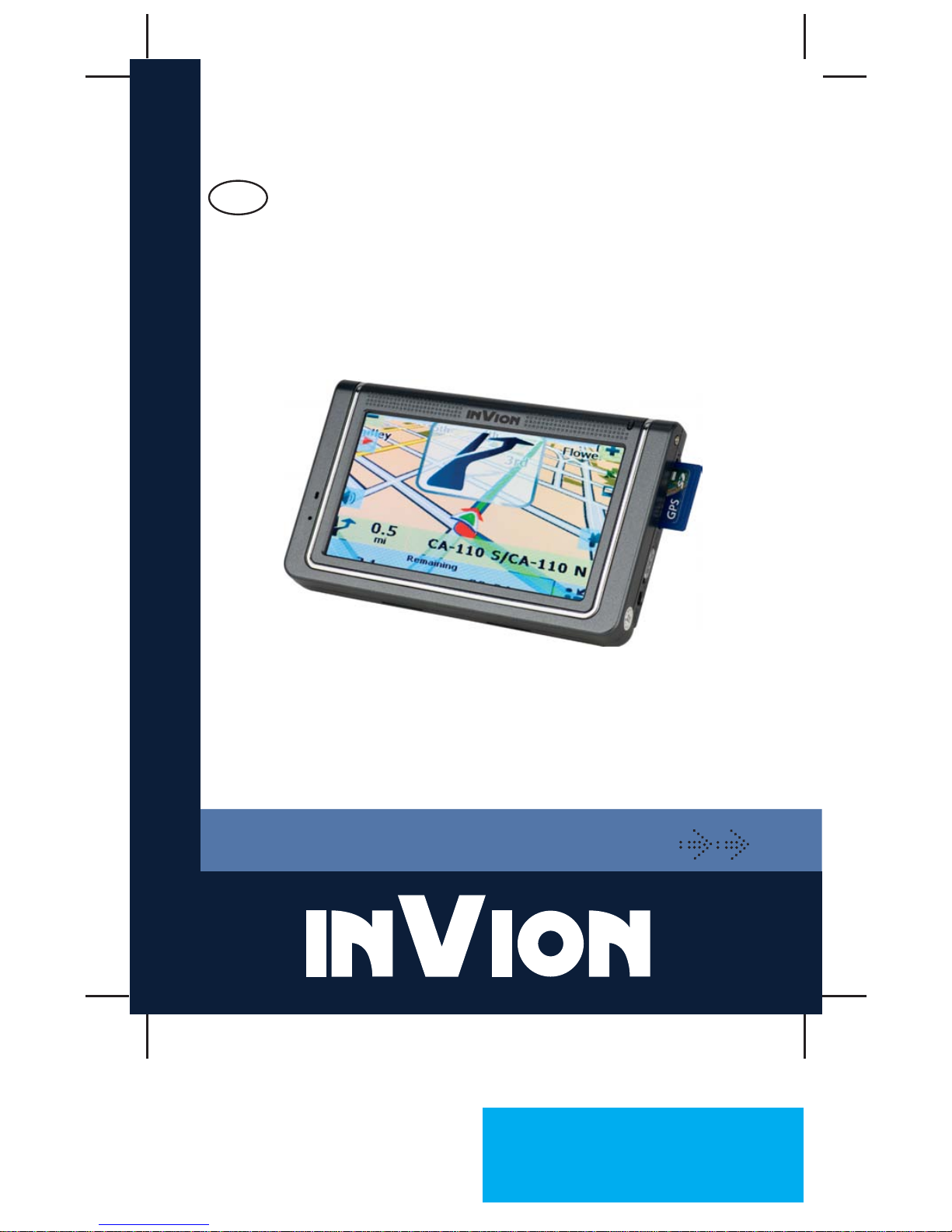
INSTRUCTION MANUAL
GPS NAVIGATION SYSTEM
GPS-4V506-IUS
EN
InVion Language : US
Page : 2 (of 50 Pages)
Version : 1.0
Date : 2007.10.13
Model: GPS-4V506-IUS
2
ENGLISH
Congratulations on choosing your new Invion product. We have
every expectation that you will be completely satised with your new
purchase.
To always guarantee optimal function and performance of your product, we
would ask the following:
Before using the product for the rst time, carefully read the operating
instructions and adhere to the safety precautions!
All activities at and with this product may only be carried out as described
in these operating instructions.
Please be sure to include the operating instructions in case you pass
along this product to someone else.
Packaging:
This product is delivered in protective packaging to prevent transportation
damage. Packaging materials are raw materials and can therefore be
recycled. Please recycle these materials.
Note:
If your original SD card is missing or broken, recovering map datas from
backup DVD.
Use empty 1G SD card(available size should more than 960M)
Insert the supplied DVD disk into your computer, software will
automatically loaded
Copy DestinatorAPPS from DVD disk onto SD card
Then insert the new SD card into your navigation unit
Power up your unit
•
•
•
InVion Language : US
Page : 3 (of 50 Pages)
Version : 1.0
Date : 2007.10.13
Model: GPS-4V506-IUS
3
Brief introduction of hardware. . . . . . . . . . . . . . . . . . . . . . . . .5
NavigationManual...................................7
1. Getting Started ..................................7
Main Map .......................................8
Map Views .....................................10
Route Summary .................................10
Cancel Route ...................................11
2. Select Location and Generate Route .................11
Go to an Address ................................11
Point of Interest (POI) .............................15
QuickNav ......................................19
Recent Place ...................................20
Address Book ...................................21
3. Additional Invion GPS Features .....................24
Driving Directions ................................24
Avoid Roads ....................................25
Detour ........................................28
Map Browsing...................................29
Walking Mode...................................30
Map Selection...................................30
4. Invion GPS Congurations ........................32
Settings Menus ..................................32
Prompts .......................................32
Language Settings ...............................33
Look & Feel Settings ..............................34
GPS Settings ...................................34
Contents
InVion Language : US
Page : 4 (of 50 Pages)
Version : 1.0
Date : 2007.10.13
Model: GPS-4V506-IUS
4
ENGLISH
Units of Measure.................................36
Time Settings ...................................36
Map Settings ...................................36
About.........................................38
Help..........................................38
TopMenu.........................................39
Entertainment .....................................40
Specications .....................................43
Legal.............................................44
1. Notices, Disclaimers, and Terms of Use...............44
2. Copyright Notice ................................45
3. Safety advice...................................46
4. Caution .......................................47
5. FCC compliance ................................48
Claims&Warranties................................49
InVion Language : US
Page : 5 (of 50 Pages)
Version : 1.0
Date : 2007.10.13
Model: GPS-4V506-IUS
5
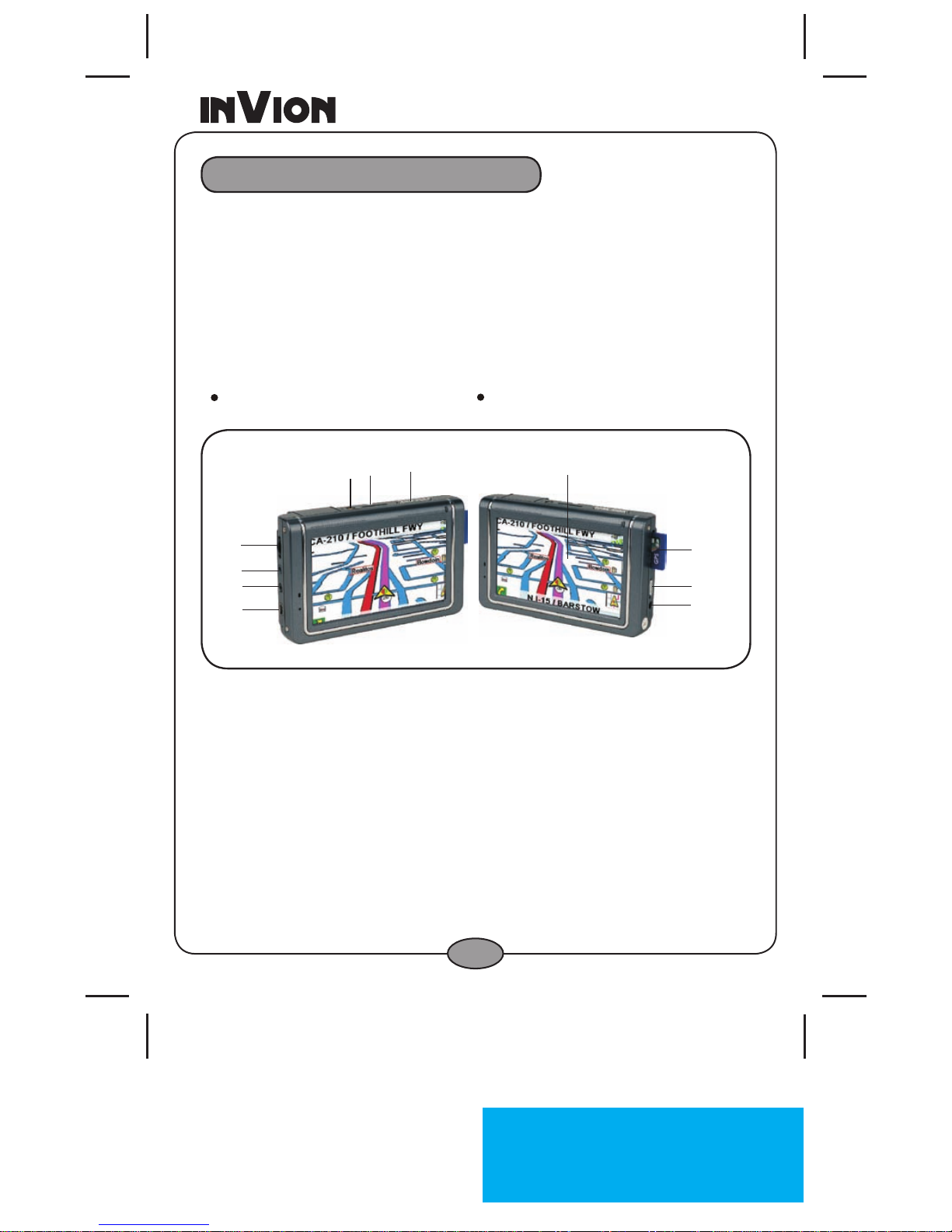
Brief introduction of hardware
(1) USB port
(2) A/V(optional)
(3) Earphone jack
(4) Volumn wheel
(5) Antenna jack
(6) Power button
(7) Menu
(8) Touch screen
(9) Card slot: slot for SD or MMC memory cards
(10) Lock
(11) Power jack
Standard Package
Before getting started with your GPS, check to see that your INVION GPS-
4V5package includes the following items (if you are missing any parts,
please contact your INVION dealer immediately):
3
4
5678
9
10
11
1
2
● GPS unit ● Car power adapter
● Instruction manual ● USB cable
●
Suction mount
Quick Start Guide
● Mounting bracket
SD card
InVion Language : US
Page : 6 (of 50 Pages)
Version : 1.0
Date : 2007.10.13
Model: GPS-4V506-IUS
6
ENGLISH
Connection
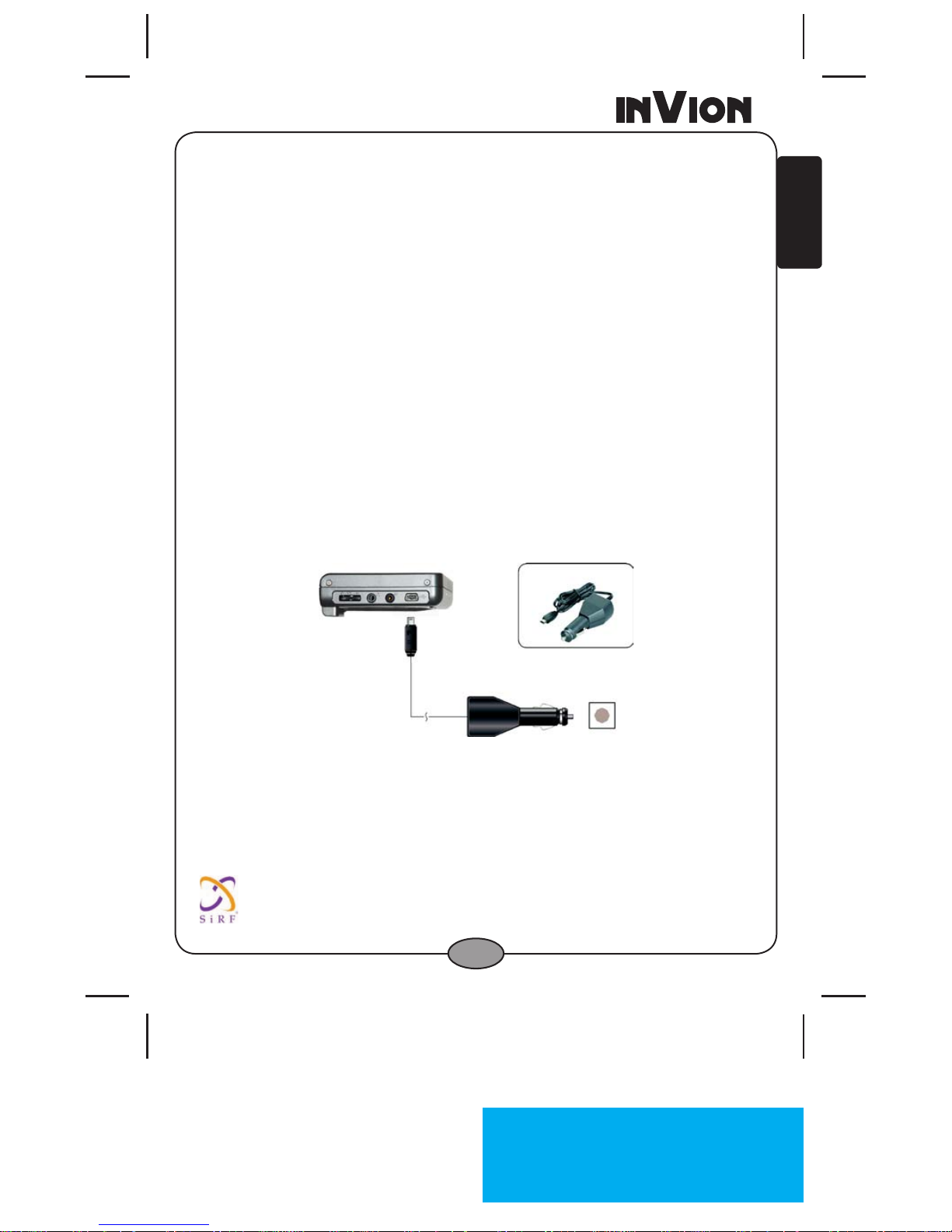
Connect to Car Power
Connect the USB plug of the car power adapter to the USB port on the
side of the GPS Unit.
Connect the car cigarette lighter plug of the car power adapter into the
car cigarette lighter socket.
1.
2.
Chipset Sirf star III
Operates behind athermic windshield
ABOUT THE TOUCH SCREEN
Do not touch the TOUCH SCREEN until the unit starts up completely.
Otherwise, the touch screen may not function correctly.
The navigation device is mainly operated by touching the buttons on the
touch screen.
If nothing happens when you touch the buttons on the touch screen,
remove your hand from the screen and touch the button again.
Do not touch any buttons that are grayed out.
When cleaning the touch screen, use a soft cloth.
* SD CARD SLOT: Insert a SD/MMC card containing maps to load them on
to the GPS device.
For loading MP3 and Movies to the SD card, we recommend using a
separate SD card reader / writer.
•
•
•
•
•
•
InVion Language : US
Page : 7 (of 50 Pages)
Version : 1.0
Date : 2007.10.13
Model: GPS-4V506-IUS
7
1. Getting Started
Welcome to the world of mobile navigation! Simple operation, clear maps in
2D or 3D mode as well as numerous innovative features and functions have
made the Invion GPS the essential guide for every traveler – whether in the
car, on foot or by bike.
You can congure these system settings by going to these system options
from the Settings menu.
Language Settings – Set text and voice language preferences.
End User License Agreement (EULA) – Please review the license
information and tap the I Agree button. The EULA screen appears each
time you use a new map.
Time Zone –You can select the Daylight Saving checkbox to automatically
adjust for daylight saving.
Units of Measure – Specify the system measurement units.
Prompts – Congure the general navigation prompts and notications.
QuickNav Settings – Specify an Address or Point of Interest (POI) that
the Invion GPS navigates to when you tap the QuickNav button on the
Main Map screen.
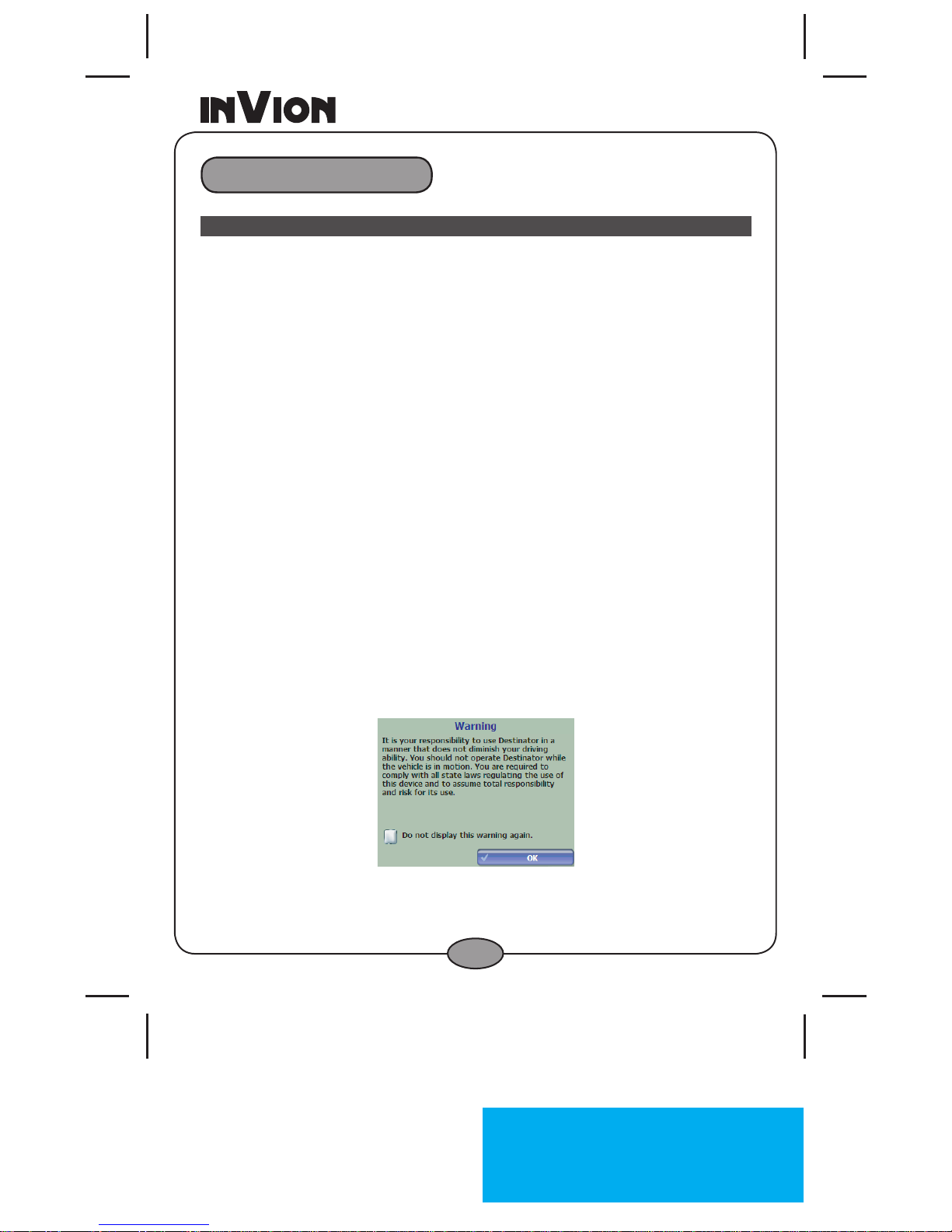
Driver Warning – When you start the Invion GPS, the Driver Warning
screen appears. Please take a moment to review the information provided
before tapping the OK button. Select the “Do not display this warning
again” checkbox to skip this message in the future.
•
•
•
•
•
•
•
Figure 1 – Map Warning Screen
Navigation manual
InVion Language : US
Page : 8 (of 50 Pages)
Version : 1.0
Date : 2007.10.13
Model: GPS-4V506-IUS
8
ENGLISH
Main Map
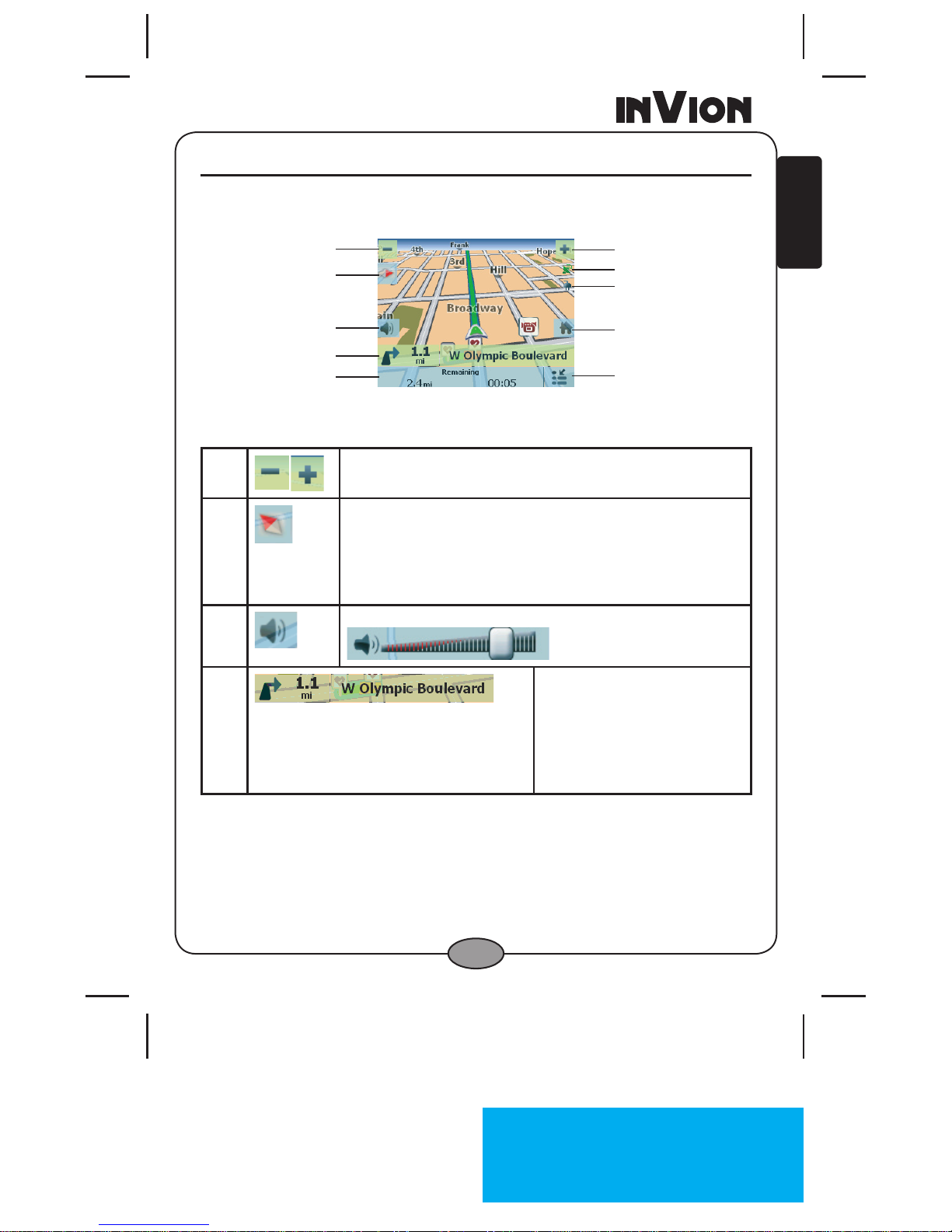
You can use the icons displayed on this screen to plan and view your
route.
Main Map Icons
1, 6 Zoom in or out of the map to view a larger less de-
tailed area or a smaller area in greater detail.
2 Tap the compass to change the map view display as
follows:
2D map view with the forward direction at the top.
3D map view with the forward direction at the top.
2D map view with North at the top.
3 Tap this icon to adjust or mute the volume.
4 When you have calculated
a route, the Directions bar
displays information about
your next turn. Tap this bar
for a complete list of turn-
by-turn directions.
Figure 2 – Map Screen
1
2
3
4
5
6
7
8
9
10
InVion Language : US
Page : 9 (of 50 Pages)
Version : 1.0
Date : 2007.10.13
Model: GPS-4V506-IUS
9
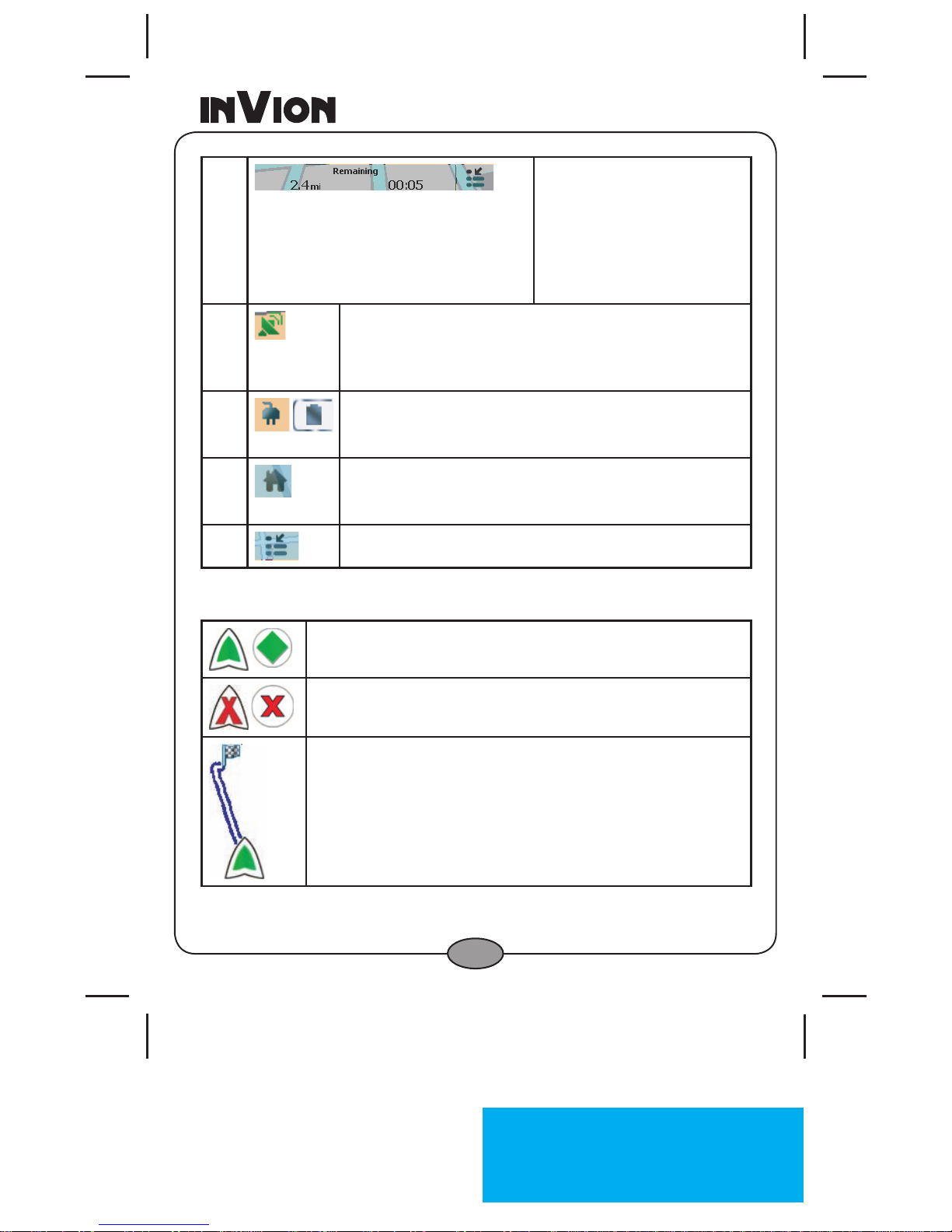
5 The GPS bar is a toggle
button that displays the re-
maining travel distance and
travel time, estimated time
of arrival, street name and
address number, speed
and altitude.
7 The red GPS receiver means that a reliable GPS
signal is not yet located.
The green GPS receiver means that a reliable GPS
signal is located and that you are ready to navigate.
8 These icons display your power source. The battery
appears as green, yellow, or red depending on the
strength of the battery charge.
9 Tap this icon to set your QuickNav location. When
set, you can tap this button to automatically calculate
a route to this location.
10 Tap this icon to display the Go To menu.
Location Icons
Current location in Vehicle Mode or Walking Mode.
Last known location when GPS signal is unreliable.
Generated route.
InVion Language : US
Page : 10 (of 50 Pages)
Version : 1.0
Date : 2007.10.13
Model: GPS-4V506-IUS
10
ENGLISH
Location Point on Main Map
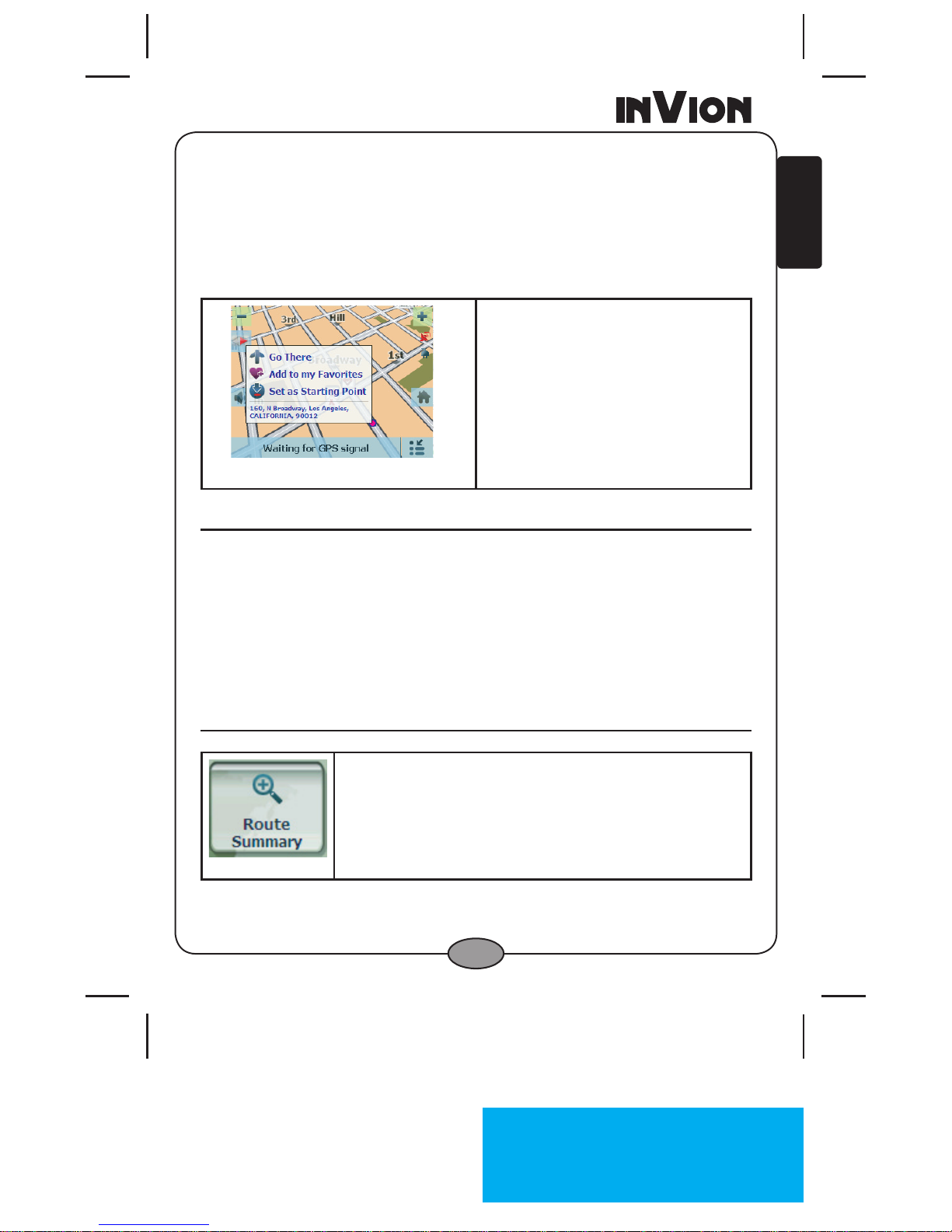
You can drag the map to a specic point and tap the desired location directly
on the Main Map screen in both 2D and 3D map view. This feature is useful
when you want to navigate to a specic point on the map, rather than by the
street address. When you tap on the map, the pop-up menu appears with
the following options:
Figure 3 – Point on the Map Options
Go There – Navigate to the se-
lected point on the map.
Add to my Favorites– Save a
point on the map as a favorite
destination for future use.
Set as Starting Point – Designate
the selected point as the starting
point instead of your current loca-
tion.
Map Views
You can choose to see a two-dimensional or three-dimensional map
adjusted specically for daylight or nighttime conditions.
From the Options & Setting menu, tap the Day/Night View toggle button
to view the map for day or night driving and the 2D/3D View toggle button
to display the map view in 2-dimensional or 3-dimensional views for day or
night driving.
Route Summary
• From the Manage Route menu, tap the Route
Summary button.
An overview of your complete route, the total driving
distance to your destination, the estimated travel time,
and the complete destination address, are displayed
on the screen.
Table des matières
Autres manuels Invion GPS

Invion
Invion GPS-3V106-IUS Manuel utilisateur
Invion
Invion GPS-4V2 Manuel utilisateur

Invion
Invion GPS-4V106-IUS Instructions de montage

Invion
Invion GPS-4V606-IUS Manuel utilisateur

Invion
Invion GPS-3V506-IUS Manuel utilisateur

Invion
Invion GPS-7V106-IUS Instructions de montage

Invion
Invion GPS-4V206-IUS Instructions de montage

Invion
Invion GPS-3V106-IUS Instructions de montage

Invion
Invion GPS-3V4 Manuel utilisateur

Invion
Invion GPS-5V106-IUS Instructions de montage


