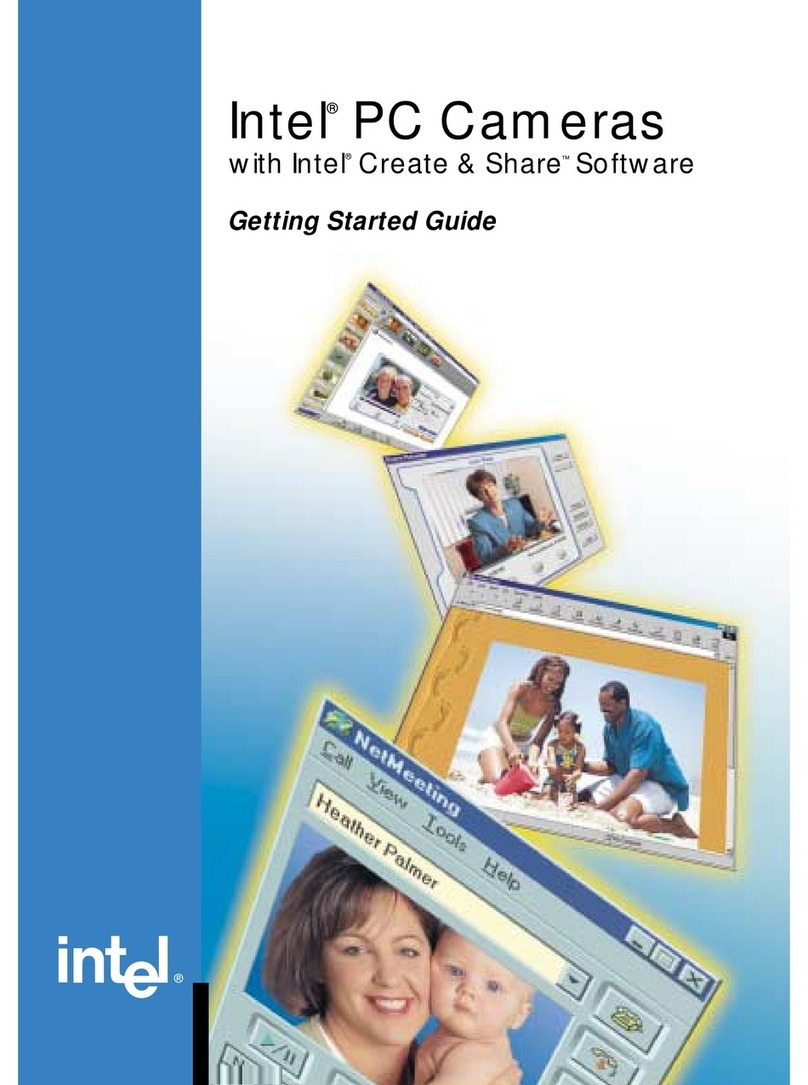
Intel PC Camera Pro Pack Manuel utilisateur

© 1999 Intel Corporation. All Rights Reserved.
* All other names and trademarks are the
property of their respective owners.
*747480-001*
Intel®PC Camera Pro Pack
with Intel®Create and Share™
Software Deluxe
Getting Started Guide
Please Recycle

Camera Mount
for your Notebook PC
If you bought the Intel®PCCamera Pro Pack to install on your notebook
PC, we have the camera mount you need.
It is designed specifically to attach
theIntel®PCCamera Pro to your notebook’s
display. This camera mount is light,
sturdy and compact, and can also be
easily detached from your notebook.
To purchase the mobile camera mount,
visit our web site at
www.intel.com/PCcamera/accessor.htm
Notebook PC, software and camera not included.

GETTING STARTED GUIDE 1
Welcome
Congratulations! You can now start visiting with friends
and family using your new IntelVideo Phone
software as well as using the IntelPC Camera Pro to
capture video, audio, and still images that can be
organized, stored, and incorporated into email
postcards, movies, and home pages using Intel
Create & ShareSoftware Deluxe.
What you should have
Before starting the installation, check that your
package contains these items:
Online Manuals
There are two manuals for this product. Both of the
manuals can be found online, and one is printed as
well. The product manuals are:
Intel PC Camera Pro Video cable Audio cable
Getting Started Guide Intel Create & Share
Software Deluxe CD
Intel Video Phone
“Send to a Friend” CD
Audiostereo-to-mono
adapter

2GETTING STARTED GUIDE
•IntelPC Camera Pack Pro with Intel
Create & Share Software Deluxe Getting
Started Guide - printed and online
•IntelCreate & ShareSoftware Deluxe
User’s Manual- online only
Getting Started Guide -A quick look at the product
features, with a detailed
description of the camera and
how to use it effectively, and
how to make an Internet
phone call.
User’s Manual - Details using the software
including using galleries,
taking snapshots, recording
videos, creating and sending
email postcards, making
movies, creating and adding
content to your own home
pages, setting up the camera
to automatically take
snapshots, as well as making
video phone calls over the
Internet, regular phone lines
or high-bandwidth
connections.
Intel Quick Tour
Intel Quick Tour, a multimedia demonstration,
introduces the Intel PC Camera Pro and the Intel
Create & Share Software Deluxe capabilities.
Run the Quick Tour for tips and hints on what you can
do with the Intel Create & Share Software Deluxe, from
making video phone calls, creating and sending email
postcards, making movies and web pages, to
automatically taking snapshots and more.
Where are the
online manuals?
You can find the
manuals at:
Start>
Programs> Intel
Create & Share
Software>
Manual

GETTING STARTED GUIDE 3
Step-by-step instructions for these tasks and others
can be found in the online Help, or in Chapter 2 of the
IntelCreate & ShareSoftware Deluxe User’s
Manual.
To run the Quick Tour
•Go to Start> Programs> Intel Create & Share
Software> Quick Tour.
Visit the Web site
To find out what’s new, get information on special
offers, learn more about what you can do with your
camera visit the web site at:
http://www.intel.com/PCcamera
Starting Intel® Create &
Share™ Software Deluxe
From the Windows Start menu click Intel Create &
Share Software or double-click the desktop icon.
The first time you run the Intel Create & Share
Software Deluxe:
1The Configuration Wizard guides you through
configuring your system. Be sure to run the
default tests.You must complete all of the tests
and supply all user information to successfully
use the software.
To run the
Configuration
Wizard again, go
to:
Start>Programs
>Intel Create &
Share Software>
Set Up Audio &
Video.

4GETTING STARTED GUIDE
2A splash screen presents you with the options of
running the Quick Tour or using the software.
We suggest you run the Quick Tour to get an
overview the many things you can do with your
new Intel PC Camera Pro.
The second time you run the Intel Create & Share
Software Deluxe:
•The Intel Registration Wizard appears so you
can register your program. If you choose to
register now, complete the requested
information. Remember to connect to the
Internet to register online.
Completing the Configuration
Wizard
1On the first screen Yes is checked confirming
the presence of a camera. Click Next to
continue.
2On the User Information screen type your name,
email address, and location. This information is
used to help your friends call you when you are
running Intel Video Phone software. The email
address you type is what identifies you when
using the Intel Video Phone. Double-check your
email address to ensure that your family, friends,
or business associates can reach you using the
video phone.
3On the Internet Options screen select the kind of
Internet connection you will use with the Intel
Video Phone.
If you are unsure, select “Use the default
Connection”.
Additionally:
aIf you use a modem to connect to your
Internet Service Provider (ISP), select ‘Use
a Dial-up Networking Connection’ and select
the name of your dial-up connection.
Reminder
Use the Next and
Back buttons to
move through the
Configuration
Wizard’s screens.
Note
The information
entered on the User
Information screen
is only used for
video phone calls
To register later,
go to:
Start>
Programs>Intel
Create & Share
Software>
Register Online.
Note
Be sure to register
to “Stay in the
Loop”. Registered
users are
periodically
informed of
updates, upgrades,
and special offers.
Note:
Ensure that the
camera’s shutter is
open and that the
room is well lit.

GETTING STARTED GUIDE 5
bIf you use an Online Service Provider, such
as America Online (AOL*) to log onto the
Internet, select ‘Use a specific Network
Adapter’. Select your adapter from the list
(For example: AOL adapter).
cIf you have more than one connection to the
Internet and don’t care which connection is
used, select ‘Use the default Internet
connection’. Intel Video Phone will use the
same kind of connection used the last time
you connected to the Internet.
dIf your computer is always connected to the
Internet using a cable, DSL, ISDN, or LAN
Internet connection, select ‘My computer
has a Cable, DSL, ISDN, or LAN Internet
connection’. These connection types enable
high-speed connection options.
4On the Speaker Test screen you can adjust the
volume of your speakers. Click Test then click
and drag the slider to adjust the volume of the
recorded message. Click Next when the volume
is adjusted the way you like.
5On the Microphone Test screen you set the
microphone level. Click Test and start speaking
into the microphone. Move the slider up or down
as you speak until you see yellow in the energy
bar. Click Next to continue.
6On the Modem Selection screen you select the
modem that you use for your Internet connection.
Your modem should already be selected. Click
Test to test the modem. This test checks for a
dial tone. If you have problems here click Help to
bring up common troubleshooting tips.
7On the Modem Connection Test screen, your
modem is tested to verify its calling capabilities.
Click ‘Perform the modem connection test’,
and then click Test. (This test only happens if
you are running Windows* 98).

6GETTING STARTED GUIDE
8On the Video Device Detection screen, select the
Intel PC Camera Pro. Click Next to continue.
9On the Video Hardware Test screen you should
see a picture from your camera in the video win-
dow. To adjust the picture click Advanced to
bring up the Video Source tab.
If you do NOT see live video, your camera may
not be configured properly. For solutions, visit the
Troubleshooting Assistant at http://sup-
port.intel.com/support/createshare/camera-
pack/tsa.htm.
10 The Device Profile test profiles the camera and
tunes the Intel Video Phone software for the best
video quality. Click Test to test the video camera.
11 The DirectDraw* test verifies that your computer
can run DirectDraw. DirectDraw lets you view the
other person’s video at full screen during a video
call with Intel Video Phone software. If the video
picture is clear, click Yes to enable DirectDraw. If
anything else happens, click Next. You will still
be able to see the other person’s video during a
call, but not full screen.
12 Configuration Completed screen. Click Finish to
close the Configuration Wizard.
Note
For help with
problems that can
occur during the
Configuration
Wizard see
Appendix A
Troubleshooting in
the User’s Manual.
Note
Wheninstallingona
computer running
Windows* 95,
select Microsoft
WDM Image
Capture on the
Video Device
Detection screen.

GETTING STARTED GUIDE 7
Setting up the IntelPC Camera
Pro
Make sure the camera lens cover is open when you
take pictures or create videos. Use the snapshot
button to take snapshots, and the focus dial to focus
the video picture. To adjust the quality (such as hue,
saturation, or sharpness) of the video picture, follow
the instructions in online Help under camera settings.
Snapshot button. To take a
snapshot, press the button.
Focus dial - to adjust the focus
of the video picture, rotate the
dial.
Easy video-in connector.
Connect the supplied video
cable here to an external
video device like a VCR,
camcorder, or DVD player.
With this cable you can
transform previously
recorded video into digital
video. You can also record
directly through your device
onto your computer’s hard
drive.
Tripod connector. Mount
the camera on a tripod to
avoid camera jitter, which
can contribute to larger file
sizes.
Camera mount. Slide the
camera onto the mount and
connect mount to surface.

8GETTING STARTED GUIDE
Tips
•Place the light source in front of you, not
behind you; avoid bright light which may cause
a glare.
•Wear solid-colored clothing; avoid patterns and
grays.
•To turn on the camera slide the lens cover to
the open position
•Common positions for the camera include on
top of the computer monitor or on a speaker.
Using the Camera’s Video Input
The Intel PC Camera Pro has a connector to connect
other video devices like camcorders or VCRs to your
computer for use with the Intel Create & Share
Software Deluxe.
Now you can take those video tapes of family
gatherings, business meetings, and special occasions
like vacations and turn selected scenes into digital
format for sharing in email, during video phone calls, or
on your home pages.
An example of creating a digital video clip
from video tape
1Connect one end of the supplied video cable to
the Intel PC Camera Pro and the other end to
the external device (we are using a VCR).
2To include the sound from the video as a part of
the recording, connect the supplied audio cable
from the VCR to the computer’s sound card.
Note
The snapshot
button on Intel PC
Camera Pro only
works when the
Intel Create &
Share Software is
running.
This VCR
example uses
the supplied
video and audio
cables.
Your external
device may
require different
cables and
adapters.
Table des matières
Autres manuels Intel Webcam