Innoband 4000-R2 Manuel utilisateur

1
User’s Manual
4000-R2
Wireless N Gigabit Router
Issue 1.1
17th, August, 2011

2
USER MANUAL
INNOBAND 4000-R2
Information in this document is subject to change without notice and does not represent a commitment
on the part of Innoband Technologies, Inc. The software described in this document is furnished under
a license agreement and may be used or copied only in accordance with the terms of the license
agreement. It is against the law to copy the software on any other medium except as specifically
allowed in the license agreement. The licensee may make one copy of the software for backup
purposes. No part of this manual may be reproduced or transmitted in any form or by any means,
electronic or mechanical, including photocopying and recording, for any purpose without the written
permission of Innoband Technologies, Inc.
All contents are Copyright © 2011 Innoband, Inc. All rights reserved.
Manual Version 1.1
August 2011
Innoband is a trademark of Innoband Technologies, Inc. The trademarks, logos and service marks
(“Marks”) displayed on this manual are the property of Innoband or other third parties. Users are not
permitted to use these Marks without the prior written consent of Innoband or such third party that may
own the Mark. IBM is a registered trademark of International Business Machines Corporation. Intel and
Pentium are registered trademarks of Intel Corporation. Microsoft, MS-DOS, Windows, and the
Windows logo are registered trademarks of Microsoft Corporation. All other products are trademarks or
registered trademarks of their respective owners.

3
Table of Contents
User’s Manual ................................................................................... 1
4000-R2............................................................................................. 1
Wireless N Gigabit Router................................................................. 1
Chapter 1 Introduction....................................................................... 4
1.1 Packing List.......................................................................... 4
1.2 Spec Summary Table ........................................................... 5
1.3 Hardware Configuration ....................................................... 7
1.4 LED indicators...................................................................... 8
1.5 Button Definition................................................................... 9
1.6 Procedure for Hardware Installation .................................... 9
Chapter 2 Making Configuration ..................................................... 11
2.1 Login to Configure from Wizard ......................................... 12
2.2 System Status .................................................................... 16
2.3 Advanced ........................................................................... 17
Appendix A: Frequently Asked Questions ...................................... 60
Appendix B: Troubleshooting Guide ............................................... 63
Appendix D: Glossary...................................................................... 66
Appendix F: Regulation ................................................................... 69
Appendix G: Warranties .................................................................. 71
Appendix H: Contact Information .................................................... 73

4
Chapter 1 Introduction
Congratulations on your purchase of this outstanding Wireless Broadband Router. This product is
specifically designed for Small Office and Home Office needs. It provides a complete SOHO solution
for Internet surfing, and is easy to configure and operate even for non-technical users. Instructions for
installing and configuring this product can be found in this manual. Before you install and use this
product, please read this manual carefully for fully exploiting the functions of this product.
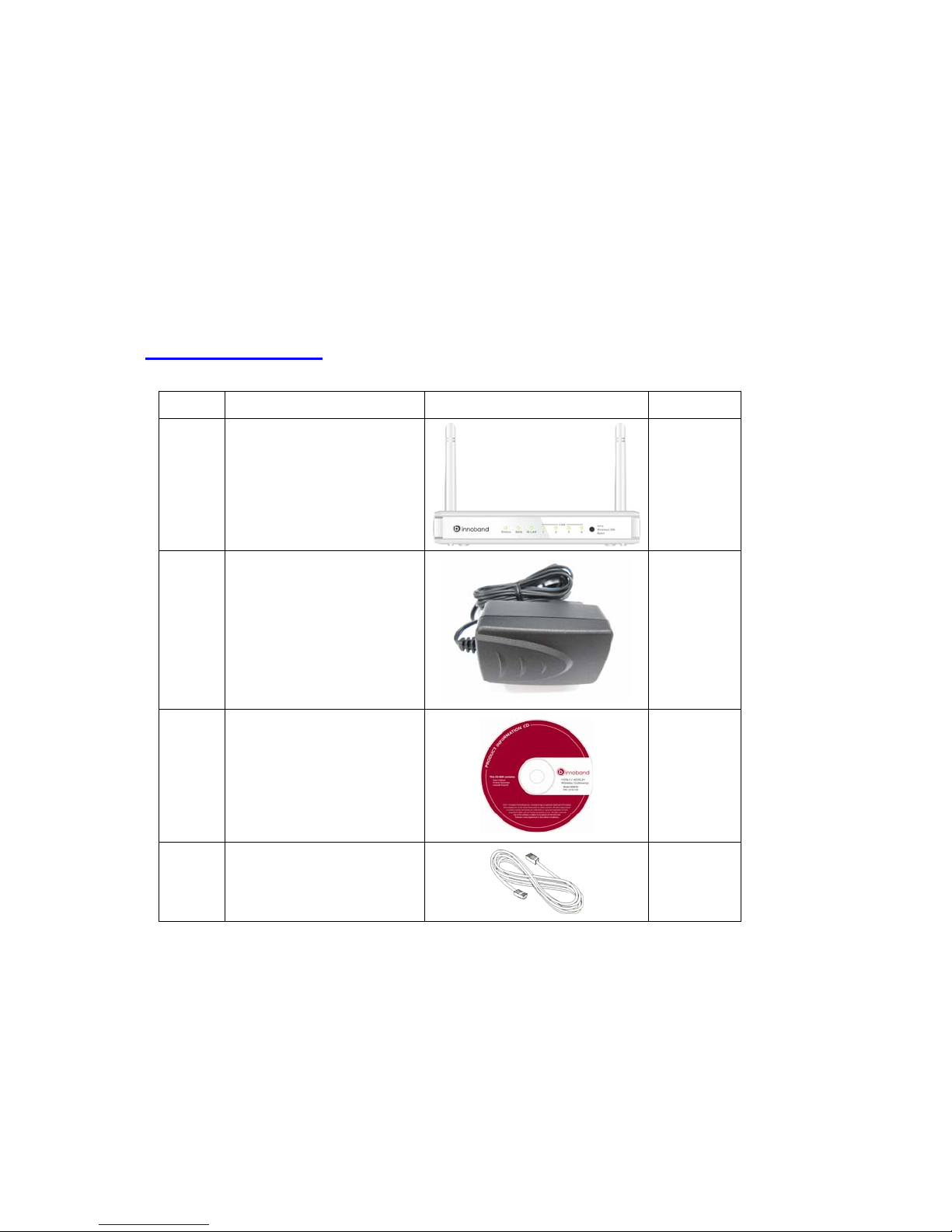
1.1 Packing List
items Description Contents Quantity
1 WiFi Broadband Gigabit
Router
1
2 Power adapter 5V 1.2A
1
3 CD
1
4 RJ-45 cable
1
zWireless broadband gigabit router unit
zPower adapter
zProduct Information CD-ROM
zRJ-45 Cable

5
1.2 Spec Summary Table
Device Interface
Ethernet WAN RJ-45 port, 10/100/1000Mbps, auto-MDI/MDIX 1
Ethernet LAN RJ-45 port, 10/100/1000Mbps, auto-MDI/MDIX 4
Antenna 1.8 dBi Fixed antenna 2
WPS Button For WPS connection 1
Reset Button Reset router setting to factory default
1
LED Indication Power/Status / WAN / LAN1 ~ LAN4/ WiFi ●
Power Jack DC Power Jack, powered via external DC 5V/2A
switching power adapter 1
Wireless LAN (WiFi)
Standard IEEE 802.11b/g/n compliance ●
SSID SSID broadcast or in stealth mode ●
Channel Auto-selection, manually ●
Security WEP, WPA, WPA-PSK, WPA2, WPA2-PSK ●
WPS WPS (Wi-Fi Protected Setup) ●
WMM WMM (Wi-Fi Multimedia) ●
Functionality
Ethernet WAN PPPoE, DHCP client, Static IP ●
WAN Connection Auto-reconnect, dial-on-demand, manually ●
One-to-Many NAT Virtual server, special application, DMZ, Super
DMZ(IP pass-through)
●
NAT Session Support NAT session 20000
SPI Firewall IP/Service filter, URL blocking, Internet Access
Control
●
DoS Protection DoS (Denial of Service) detection and protection ●
Routing Protocol Static route, dynamic route (RIP v1/v2) ●
Management SNMP, UPnP IGD, syslog, DDNS ●
Administration Web-based UI, remote login, backup/restore
setting
●
Performance NAT up to 700Mbps and Wireless up to150Mbps
Environment & Certification
Package Information DC 5V/1.2A power adapter, Quick Installation
Guide
Package Size Device dimension (mm) 156x110x22

6
Information Package dimension (246x210x62mm) SP/MP/ZP ●
Operation Temp. Temp.: 0~40°C, Humidity 10%~90%
non-condensing
●
Storage Temp. Temp.: -10~70°C, Humidity: 0~95%
non-condensing
●
EMI Certification FCC compliance ●
*Specifications are subject to change without prior notice.

7
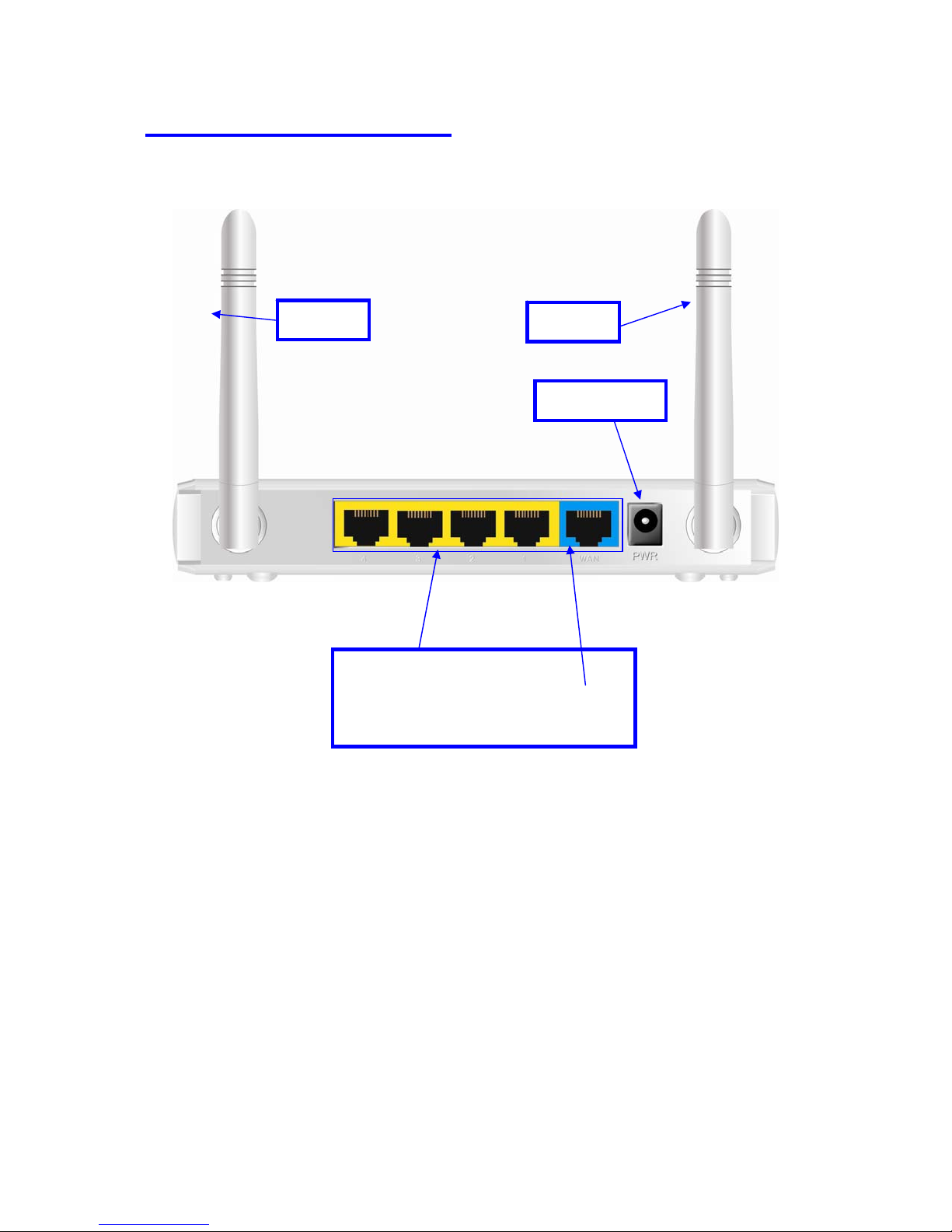
1.3 Hardware Configuration
Auto MDI/MDIX RJ-45 Ports
Automatically sense the types of WAN and
LAN when connecting to Ethernet
Power Jack
Antenna Antenna

8
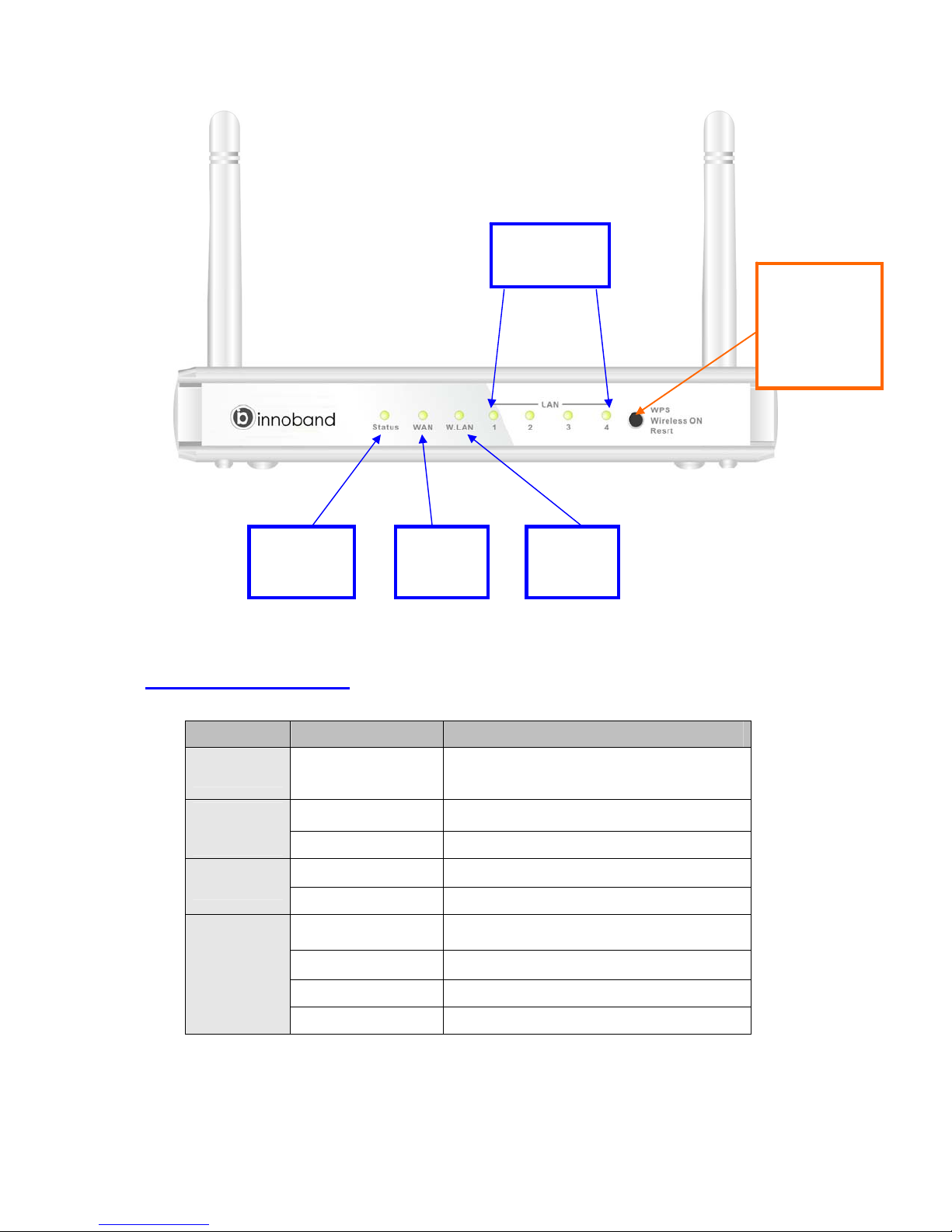
1.4 LED indicators
LED status Description
Status Green in flash Device status is working.
WAN LED
Green RJ45 cable is plugged
Green in flash Data access
LAN LED Green RJ45 cable is plugged
Green in flash Data access
WiFi LED
Green WLAN is on
Green in flash Data access
Green in fast flash Device is in WPS PBC mode
Green in dark Wi-Fi Radio is disabled
LAN1~LAN4
LEDs
Wi-Fi
LED
WAN
LED
3 in1 Button
1.WPS
2.Wireless ON
3.Reset
Status
LED

9
1.5 Button Definition
Description
WPS
When Wireless is On, press this button (about 1 sec) to execute
WPS function.
Wireless On
When Wireless is off depend as Schedule Rule, Press this button
(about 1 sec) to enable "Wireless Radio".
Reset
1. Press this button then Power on the device
2. Press about 3~4 second, the device will reset to default then
Status LED flashes per sec in Normal status.
Notice: If Status LED flashes very fast, it means to press this button
too long and please try again.
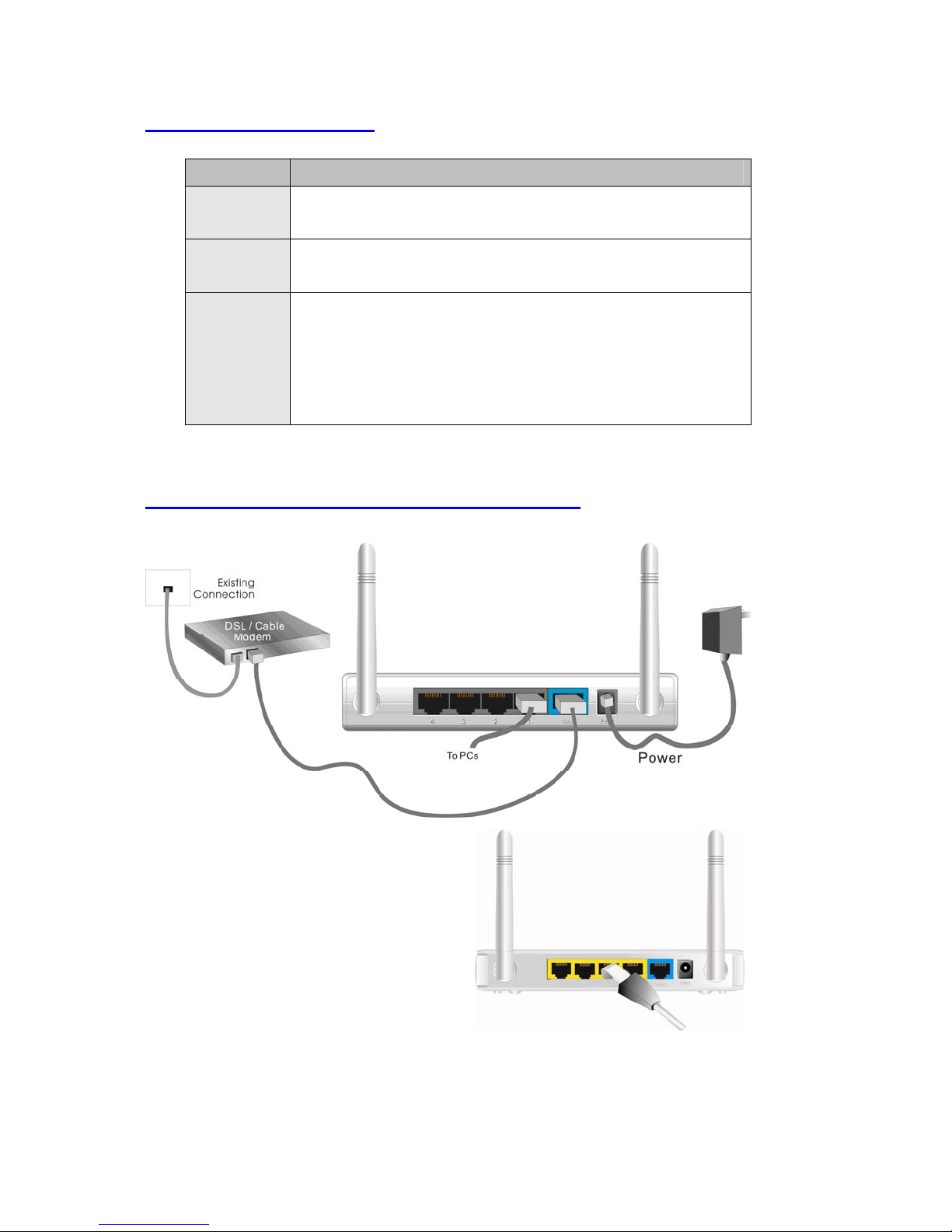
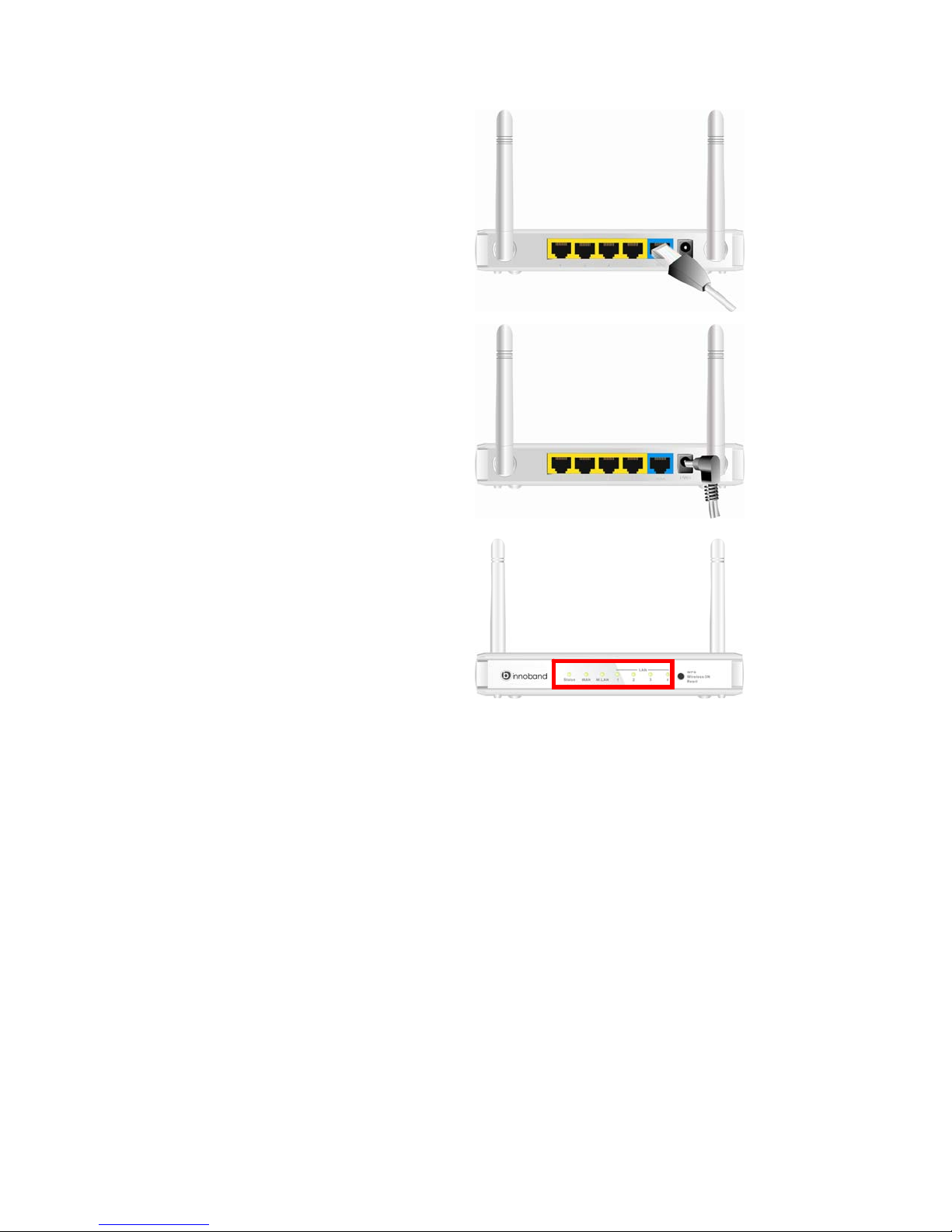
1.6 Procedure for Hardware Installation
Step 1 Insert the Ethernet cable into LAN
Port:
Insert the Ethernet patch cable into LAN port
on the back panel of Router, and an available
Ethernet port on the network adapter in the
computer you will use to configure the unit.

10
Step 2. Insert the Ethernet patch cable into
Wired WAN port:
Insert the Ethernet patch cable form DSL
Modem into Wired WAN port on the back panel
of Router.
Step 3. Power on Router:
Connect the power adapter to the receptor on
the back panel of your Router.
Step 4. Complete the setup.
When complete, the Status LED will flash.
Table des matières
Autres manuels Innoband Routeur sans fil