
IMAGO VisionSensor PV2 Manuel utilisateur
Getting Started
"VisionSensor PV2 / PV3"
Version 1.9 –March 2022

Page 2 / 16
IMAGO Technologies GmbH
Strassheimer Str. 45; 61169 Friedberg; Germany; Tel. +49(0)6031-6842611
info@imago-technologies.com; www.imago-technologies.com
Welcome
Congrats on your new VisionSensor PV2 / PV3! In this “Getting Started” guide, we will show you
all necessary steps to get the VisionSensor PV2 / PV3 ready for first operation.
VisionSensor PV2 / PV3
What you need
•A PC with the following requirements:
oOS: Windows 10 or Debian GNU/Linux
oInternet connection for downloading the required tools
oEthernet port
•Requirements for the VisionSensor PV2 / PV3:
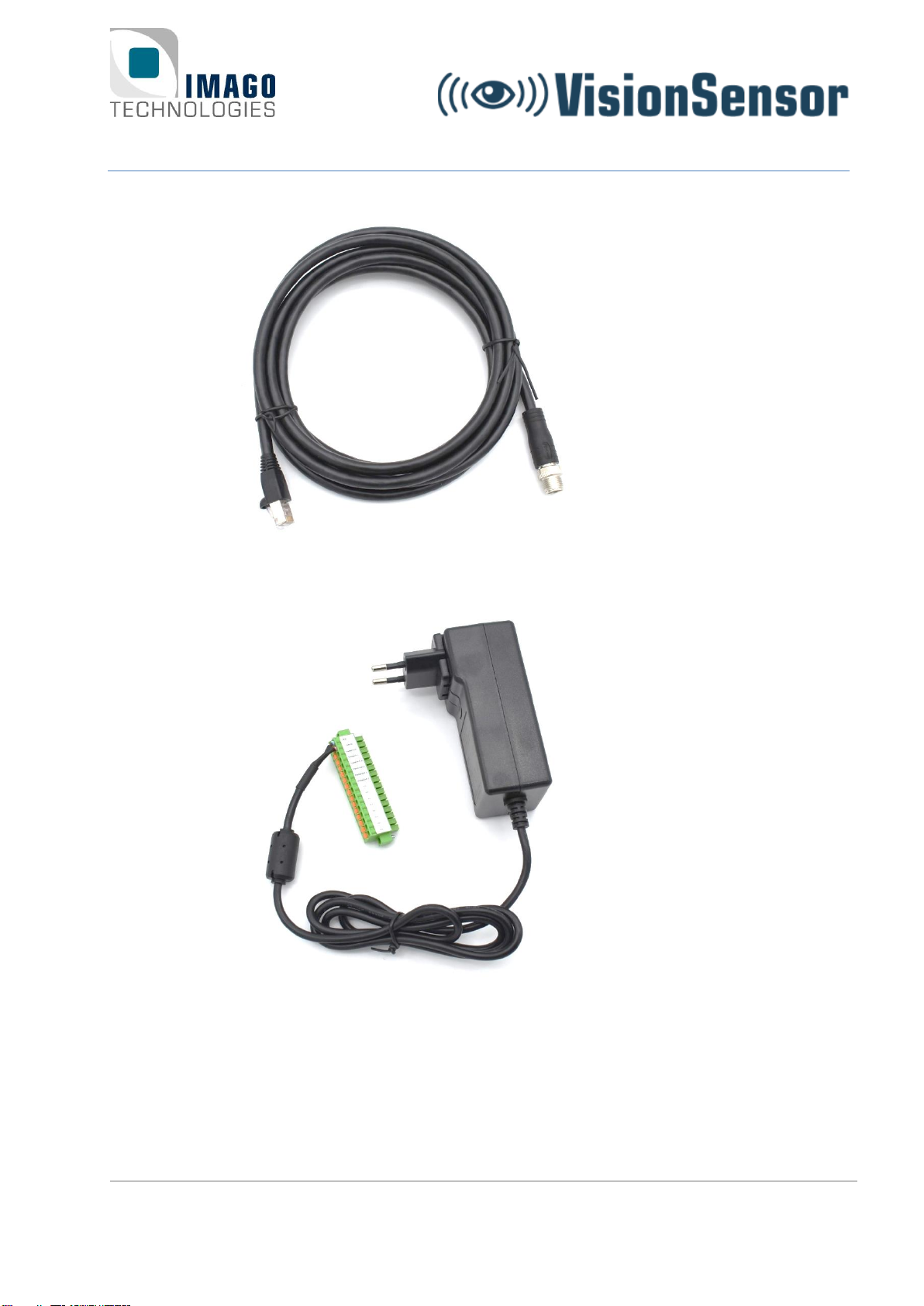
o8-pin power and I/O cable with green terminal connector (included in the Vision-
Sensor PV2 / PV3 starter kit)
Page 3 / 16
IMAGO Technologies GmbH
Strassheimer Str. 45; 61169 Friedberg; Germany; Tel. +49(0)6031-6842611
info@imago-technologies.com; www.imago-technologies.com
oEthernet cable (included in the VisionSensor PV2 / PV3 starter kit)
oPower supply 24 V, minimum 1 A with green terminal connector (included in the Vi-
sionSensor PV2 / PV3 starter kit)

Page 4 / 16
IMAGO Technologies GmbH
Strassheimer Str. 45; 61169 Friedberg; Germany; Tel. +49(0)6031-6842611
info@imago-technologies.com; www.imago-technologies.com
Attach the Ethernet cable
If you have VisionSensor PV2 or a VisionSensor PV3 you have to attach the Ethernet cable to
the Ethernet connector of the camera. Depending on the version of the camera, the Ethernet con-
nector can look like this:
4-pin Ethernet connector of
VisionSensor PV2
8-pin Ethernet connector of
VisionSensor PV3

Page 5 / 16
IMAGO Technologies GmbH
Strassheimer Str. 45; 61169 Friedberg; Germany; Tel. +49(0)6031-6842611
info@imago-technologies.com; www.imago-technologies.com
Prepare the Ethernet connection
The network interface of the VisionSensor PV2 / PV3 is set to DHCP. If you want to connect the
camera to your local network infrastructure, a running DHCP server is required. Usually, every
modern router has a built-in DHCP server.
You also have the possibility to attach the VisionSensor PV2 / PV3 directly to your PC. Due to the
missing DHCP server, the camera and the PC will use Automatic Private IP Addressing (APIPA)
or Zeroconf.
Direct attach (APIPA / Zeroconf):
You can connect the VisionSensor PV2 / PV3 directly to your PC. Simply plug in the Ethernet ca-
ble of the VisionSensor PV2 / PV3 into the Ethernet port of your PC.
For direct attach, the PC and the camera must support Automatic Private IP Addressing (APIPA)
or Zeroconf. If you have a Windows 10 PC, APIPA is enabled by default. Go to the Ethernet
adapter settings. Select the Ethernet adapter (right click), which is connected to the VisionSensor
PV2 / PV3, then click on “Properties”.

Page 6 / 16
IMAGO Technologies GmbH
Strassheimer Str. 45; 61169 Friedberg; Germany; Tel. +49(0)6031-6842611
info@imago-technologies.com; www.imago-technologies.com
Select “Internet Protocol Version 4”. Then click on “Properties”. Make sure that both options “Ob-
tain an IP address automatically” and “Obtain DNS server address automatically” are enabled.
If you are using Debian GNU-/Linux on your PC, you can use for example nmtui to configure the
Ethernet adapter. Start nmtui and select the Ethernet adapter which is connected to the camera.
Then select “Link-Local” as IPv4 address method:

Page 7 / 16
IMAGO Technologies GmbH
Strassheimer Str. 45; 61169 Friedberg; Germany; Tel. +49(0)6031-6842611
info@imago-technologies.com; www.imago-technologies.com
Local network infrastructure (DHCP Server):
You also have the possibility to connect the camera to your local network infrastructure. In this
case, please make sure that a DHCP server is available and running in your network. Usually,
every modern router has a built-in DHCP server.
Now you can continue with the next step “Establish power supply”.

Page 8 / 16
IMAGO Technologies GmbH
Strassheimer Str. 45; 61169 Friedberg; Germany; Tel. +49(0)6031-6842611
info@imago-technologies.com; www.imago-technologies.com
Establish power supply
If you have VisionSensor PV2 or a VisionSensor PV3 an 0.5 meter cable with an M12 8-pin
connector is used for power supply and I/O.
Power and I/O cable
Pin assignment M12 connector camera
Pin
Function
1
Power (21V-28V)
2
GND
3
Digital IN0
4
Digital IN1
5
Digital OUT3
6
Digital OUT0
7
Digital OUT1
8
Digital OUT2
Connect the power and I/O cable to the M12 8-pin connector of the camera. Then connect the
green terminal connector of I/O cable to the green terminal connector of the power supply. Now
you can power on the camera and continue with the next step “First login via SSH”.

Page 9 / 16
IMAGO Technologies GmbH
Strassheimer Str. 45; 61169 Friedberg; Germany; Tel. +49(0)6031-6842611
info@imago-technologies.com; www.imago-technologies.com
First login via SSH
Now we will login via SSH. For your Windows PC you must install a SSH client program. We rec-
ommend using MobaXterm https://mobaxterm.mobatek.net/, which is an enhanced terminal for
Windows with included X11 server, SSH and serial session management. After the installation is
completed, set up the SSH connection. Run MobaXterm and click on the “Session” button.
Next, select “SSH”as session type.
You will see the following menu:
In the text field “Remote host”, enter the serial number of the camera without the hyphen and add
the domain “.local”. You can find the serial number on the camera.
Example: If the serial number of the camera is “VSPV-1904-000315” you must enter
“VSPV1904000315.local” into the text field “Remote host”.

Page 10 / 16
IMAGO Technologies GmbH
Strassheimer Str. 45; 61169 Friedberg; Germany; Tel. +49(0)6031-6842611
info@imago-technologies.com; www.imago-technologies.com
Instead of serial number you can also enter
the IP address of the camera in the text
field “Remote host”. To find out the IP ad-
dress of the camera you can use the
IMAGO VIBFinder program (only available
for Windows PC, see chapter “What´s
next?” for download details). This program
sends a broadcast via SNMP and shows all
IMAGO devices and their corresponding IP
addresses. In this example, the camera
has the IP address 192.168.0.209.
For the login, you need to know the username and password. This device is preconfigured with
two user accounts, namely “root” and “visionsensor”. The password for both is “vision”.
Usernames and passwords
VisionSensor PV2 / PV3
Username
Password
root
vision
visionsensor
vision
You can connect either as user “visionsensor”or as “root”. In this example, we log in as user
“root”. Enable the checkbox “Specify username”in MobaXterm. Enter the username “root” in the
corresponding text field. Confirm all settings with “OK”. Now the SSH connection should be estab-
lished and you will be asked for the password. After successful login, you can continue with the
next step “Set up your system”.
If you have a Debian GNU-/Linux PC you first have to install following package:
apt-get install libnss-mdns
Now you can use the “ssh” program to establish the SSH connection. As already mentioned you
can connect either as user “visionsensor”or as “root”. The password for both accounts is “vision”
(see table above). Enter the serial number of the camera without the hyphen and add the domain
“.local” as SSH destination. You can find the serial number on the camera.
Example: If the serial number of the camera is “VSPV-1904-000315” you must enter
“VSPV1904000315.local” as SSH destination.
ssh root@VSPV1904000315.local
Now the SSH connection should be established and you will be asked for the password. After suc-
cessful login, you can continue with the next step “Set up your system”.
Ce manuel convient aux modèles suivants
1
Table des matières
Autres manuels IMAGO Appareil photo numérique


