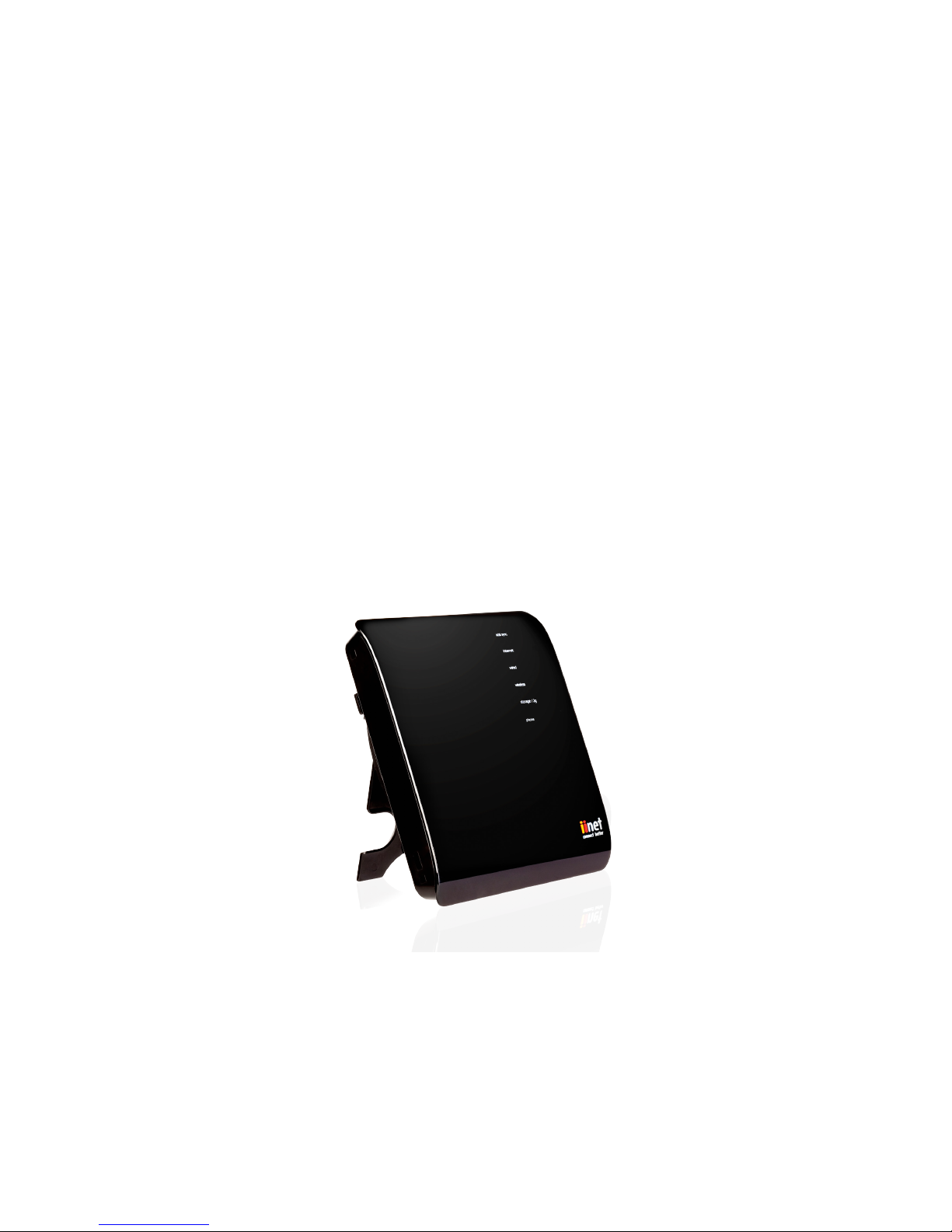
iiNet BOB Lite Manuel utilisateur

User
Manual

2
Introducing BoB Lite™ 4
BoB Lite™ Overview 5
Get to know BoB Lite™ 8
The BoB Lite™ Home Page
How to get to the BoB Lite™ home page 10
What does the information on the home page mean? 11
BoB Lite™ Features
Changing BoB Lite™ login password 13
Enabling remote management 15
Upgrading the firmware 17
Setting up a file server 19
Accessing your file server 21
Contents

3
Setting up the parental controls 22
Blocking internet access for a computer 24
Blocking access to specific websites 26
Showing off BoB Lite™ 27
Troubleshooting
You can’t connect to the Internet 28
Speed and Dropout issues 30
Performing an Isolation Test 31
If connection resumes during the isolation test 32
Performing a factory reset 32

4
Introducing BoB Lite™
Developed by iiNet Labs, BoB Lite™ connects your computer in your home or office to the internet.
This manual will help you get to know BoB Lite™ and all of his great features. It will also help you get your head around
managing BoB Lite™’s settings.

5
BoB Lite™ Overview
This chapter will give you an overview of the capabilities of BoB Lite™. You might encounter some tech-speak ahead;
if that’s not your cup of tea, then skip ahead to page 8.
BoB Lite™ – 4-port integrated wireless modem
Compatibility
BoB Lite™ supports a variety of operating systems including Mac OS® 8.x, 9.x & 10.x, Linux®, Windows® 98SE, ME, NT,
2000, XP, Vista, 7 & 8. You will need an internet browser and a network adapter that supports TCP/IP (the standard
language of the internet).
Internet Access
This device supports internet access through an ADSL or fibre connection. Since many ADSL providers use PPPoE or
PPPoA to establish communications with their customers, BoB Lite™ includes built-in clients for these protocols,
eliminating the need to install these services on your computer.
Advanced Web-based User Interface
You can set up BoB Lite™’s advanced functions easily through your web browser, without having to install additional
software. There are no disks to install or keep track of and best of all, you can make changes and perform setup
functions from any computer on your home network quickly and easily.
DMZ Host Support
DMZ Host Support allows a networked computer to be fully exposed to the internet. This function is used when
Network Address Translation (NAT) and firewall security prevent an internet browser from functioning correctly.
NAT IP Address Sharing
BoB Lite™ employs Network Address Translation (NAT) to share the single IP address he uses to get you online with
the other computers on your home network. This saves the cost of adding additional IP addresses to your account.

6
SPI Firewall
BoB Lite™ is equipped with a firewall that protects your network from a wide array of common hacker attacks.
Universal Plug-and-Play (UPnP) Compatibility
Universal Plug-and-Play is a technology that offers seamless operation of voice messaging, video messages, games
and other applications that are UPnP-compatible.
USB/3G Charge Ports
BoB Lite™ has three USB ports. The first USB port on the right-hand side of the modem (labelled storage/charger) is
for charging USB devices such as mobile phones, or for plugging in a USB hard drive. This port is not designed for a
full Network Attached Service (NAS) storage function. It’s designed for backing up or sharing files around your home
network. The storage port currently supports FATI6/32 and NTFS USB Mass Storage devices.
The second USB port (labelled 3g) is situated under the cover on the back of BoB Lite™. It’s designed for 3G USB
modems. This port will supply a maximum of 5V 500mA. Connecting a third party USB device which requires more
than 500mA of power for charging may result in damage to your equipment.
The third USB port is situated on the lower left-hand side of BoB Lite™ (labelled handset charge only) It’s a designated
port for charging the BoB Lite™ handset and is not for any other devices.
Quality of Service
Quality of Service (QoS) limits the traffic being sent from the modem (upstream) when using a Netphone service
(VoiP) at the same time as your broadband connection. If QoS is disabled, the quality of the phone call can suffer due
to excessive traffic from another source, such as a computer. When QoS is enabled, it limits the upstream traffic and
sets it aside for phone calls, which will maintain call quality.
Virtual Server
If you have a static IP address, you can set BoB Lite™ up to act as a virtual host for Network Address Translation.
Remote users access various services at your site using an unchanging IP address. Then, depending on the requested
service (or port number), BoB Lite™ can route the request to the appropriate server (at another internal IP address).
This secures your connection from direct attack by hackers, and provides more flexible network management by
allowing you to change internal IP addresses without affecting outside access to your network.

7
Support for VPN Pass-through
If you connect to your office network from home using a VPN connection, BoB Lite™ will allow your VPN-equipped
computer to pass through to your office network. BoB Lite™ supports one VPN session at any one time, and supports
three of the most commonly used VPN protocols – PPTP, L2TP and IPSec.
Computer Filter Rule
For added security, you can set up a list of MAC addresses (unique client identifiers) that are allowed access to your
network. Every computer has its own MAC address. Simply enter these MAC addresses into a list using the web-based
user interface and you can control access to your network.
WEP, WPA and WPA2 Encryption Protocols for Wireless
BoB Lite™ features WPA2, a higher level of wireless security. It combines advanced network authentication and
stronger Advanced Encryption Standard (AES) encryption methods. It also supports the legacy security standard
called Wired Equivalent Privacy (WEP) to allow you to use wireless securely with any legacy devices you may have.
Virtual Local Area Network
Virtual Local Area Network (VLAN) adds the ability to manage multiple networks with one modem. BoB Lite™ is
designed to be placed on a desktop. All of the cables exit from the rear of the modem for better organisation. The LED
indicators are easily visible on the front of the modem to provide you with information about your home network’s
status at a glance.

8
Get to know BoB Lite™
Front Panel
1. ADSL sync light: The ADSL sync light indicates if your Internet Service Provider is talking to your
BoB Lite™.
Blue – ADSL link is up and connected
Off/red/flashing – No ADSL connection
2. Internet light: The internet light shows you when your BoB Lite™ is connected to the internet.
Blue – Connected to the internet
Off/flashing/red – Not connected to the internet.
3. Wired light: When a computer is properly connected to the LAN port on the side of BoB
Lite™. This light will illuminate. A solid light means a computer or a network-enabled device is
connected. When information is being sent through this connection, the light will flash.
On – Your computer is connected
Off – Your computer is not connected
Flashing – Information transmission
4. Wireless light: The wireless light shows you when BoB Lite™’s wireless network is enabled.
On – Wireless enabled
Off – Wireless disabled
Front Panel

9
5. Storage/3G light: When a USB hard drive or 3G wireless USB modem is connected to BoB Lite™,
this light will illuminate to inform you that the attached device is ready for use.
On – Attached device is connected and ready for use
Off – No attached device detected
6. Phone one: The phone light indicates whether or not your Netphone service has successfully
registered on the network, and also indicates when a call is in progress.
On – Netphone registered successfully
Off – No Netphone service registered
Flashing blue – Call in progress
Flashing orange – Netphone not registered successfully
1
2
3
4
5
6

10
The BoB Lite™ Home Page
BoB Lite™ has a home page that you can use to manage BoB Lite™’s settings manually, from getting connected to
personalising your wireless network.
How to get to the BoB Lite™ home page
1. Open your computer’s web browser and in the address bar type http://10.1.1.1 - Make sure your computer is
connected to BoB Lite™ either wirelessly or with an ethernet cable.
2. This is the BoB Lite™ home page. From here you can get a snap shot of BoB Lite™’s connection status and statistics
(see next page for more details).
3. Once you’ve arrived at the home page, type the default password ‘admin’ in the box at the top of the screen, then
click ‘log in’.
1 3
Autres manuels pour BOB Lite
3
Table des matières
Autres manuels iiNet Routeur sans fil