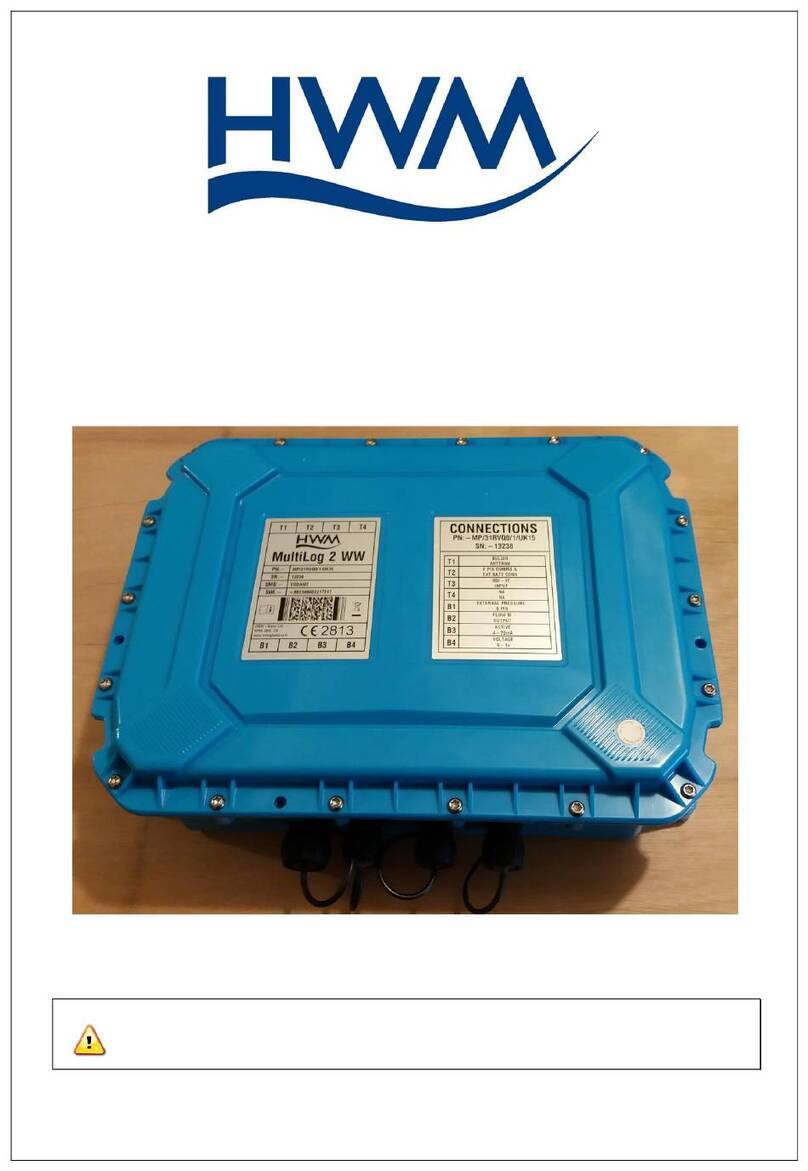
HWM Pegasus Plus Manuel utilisateur

Pegasus Plus
User Manual
Version 1.4
Warning: This manual contains important safety and operating information.
Please read, understand and follow the instructions in the manual.

1
TABLE OF CONTENTS
WEEE AND THE BATTERY DIRECTIVE 2
BASIC CONFIGURATION 3
COMMUNICATIONS CONFIGURATION 5
LOGGER CONFIGURATION 7
Select Communication 9
Configuration Phone Number 11
Configuring Input Channels 11
Setting the controller 13
FEATURES CONTROLLERS PRESSURE REDUCING VALVES 20
Specifications PRV Controllers 20
Installation Procedure 22
GENERAL SYSTEM PRESSURE REGULATING 27
Introduction 27
Hydraulics - Needle Valve 27
Hydraulics - Actuator 27
MAINTENANCE 28
Electronic controller 28
Hydraulic Components of the PRV 28
INSTALLATION SET 29
Installation Details "Pegasus Plus" 29
Intallation using Latch Solenoid for “Latch on Low Unreachable” 30
Intallation using Latch Solenoid for “Latch on High Unreachable” 302
AUTOCALL 32
APPENDIX A - EXAMPLES 33
GRAPHICS EXAMPLE OF REDUCING 33
Time control - Two pressure points 33
APPENDIX B –FLOW CONNECTION 35
APPENDIX C –MANUAL COMMUNICATION 36

2
WEEE and the Battery Directive
Waste Electrical and Electronic Equipment.
HWM-Water Ltd is a registered producer of Electrical and Electronic Equipment in the United
Kingdom (registration number WEE/AE0049TZ). Our products fall under category 9
(Monitoring and Control Instruments) of The Waste Electrical and Electronic Equipment
(WEEE) Regulations. We take all environmental issues seriously and fully comply with the
requirements for collection, recycling and reporting of waste products.
HWM-Water Ltd is responsible for WEEE from customers in the United Kingdom provided
that:
The equipment was produced by HWM-Water Ltd (Palmer Environmental / Radcom
Technologies / Radiotech / ASL Holdings Ltd) and supplied on or after 13th August 2005
The equipment was supplied before 13th August 2005 that has been directly replaced HWM-
Water Ltd products manufactured since 13th August 2005.
HWM-Water products supplied after 13th August 2005 can be identified by the following
symbol:
Under HWM-Water Ltd’s Terms and Conditions of Sale, customers are responsible for the
cost of returning WEEE to HWM-Water Ltd and we are responsible for the costs of recycling
and reporting on that waste.
Instructions for returning WEEE:
Ensure that the WEEE meets one of the two conditions above.
The waste will need to be returned in accordance with the regulations for transporting data
loggers with lithium batteries.
a. Pack loggers in strong, rigid outer packaging to protect them from damage.
b. Attach a Lithium Warning Label to the package.
c. The package must be accompanied by a document (e.g. consignment note) that
indicates:
i. The package contains lithium metal cells;
ii. The package must be handled with care and that a flammability hazard
exists if the package is damaged;
iii. Special procedures should be followed in the event the package is
damaged, to include inspection and repacking if necessary; and
iiii. A telephone number for additional information.
d. Refer to the ADR regulations on shipping dangerous goods by road.
Return the WEEE to HWM-Water Ltd using a licensed waste carrier.
In accordance with the regulations, customers outside the United Kingdom are responsible for
WEEE.
The Battery Directive
As a distributor of batteries HWM-Water Ltd will accept old batteries back from customers for
disposal, free of charge, in accordance with the Battery Directive.
PLEASE NOTE: All lithium batteries MUST be packaged and returned in accordance with the
relevant regulations for transporting lithium batteries.
A licensed waste carrier must be used for transporting all waste.
For more information on WEEE compliance or the Battery Directive please e-mail
CService@hwm-water.com or phone +44 (0)1633 489 479

3
Basic Configuration
The first time Radwin is used the System Configuration window will appear automatically, it
can also be accessed from “Configuration” in any of the Radwin Modules.
In the “Database” tab you can set the folder where you will store all data received, by default
this is C:\Radwin\Data.
In the “Startup”tab you can configure how you want Radwin to Start, checking the box “Short
Splash Screen on Startup”reduces the amount of time which the spinning Radcom logo
appears, and unchecking “Display Help Bar”cancels the appearance of the Radwin Help at
startup.
In the "Units" tab you can change the default units for pressure and flow, by double clicking
on them.

4
In this example the flow units are configured to Litres/sec.
The logger type that appears by default can be configured in the “Logger Lists” tab. Which
logger types appear in the drop down list can also be configured.

5
Communications Configuration
To configure the port for local communication, click on the tab “Manual Call” and for “Direct
Cable Port” choose the correct port that the communications cable is connected to.
If you intend to use a GSM modem to communicate with the logger during a power window
then “Modem Port” should also be configured.
To configure the central computer to receive data, click on the “Autocall Ports” tab

6
Choose a communications port number that is not in use for another application. To do this,
double click on the port and in the new window that appears check "Enable Port ". To direct
data to HWM Datagate, select “Datagate”, and enter “username”and “password”in the boxes
below.

7
Logger Configuration
In the previous steps we configured the central computer to receive the data correctly. In
these steps we will configure the logger and the database for correct operation in the field this
can be done with “Radcom View”.
Select “Dwonload Options” then “Advanced Download/Upload/Utilities”
Note - It is not possible to configure the Pegasus Plus PRV
controller using the Configure Logger Wizard, but if you prefer
the Logging/GPRS elements can be configured using the wizard
and logger type (Multilog SMS / GPRS).

8
Next is to set the logger type “Pegasus Plus (PRV Controller)”the speed of communication
(Baud:) will automatically be set to 19200 and “Connection:” should be “Direct (cable)”.
“Download Parameter Settings for Last Recording” should also be selected.
Having made the above changes click on the OK button to start the communication with the
logger.
Once the current configuration has been downloaded we need to go through the headings on
the left side to configure the logging and pressure control.
Choose the Zone and Location of the logger, either by selecting from the Database or by
creating an new. This will be the folder location where data files will be downloaded and
stored in this example __00_0F.

9
Select Communication
Click on “GPRS Configuration”
To send data to Datagate “GPRS UDP” should be selected, alarms can be sent directly by
SMS, or by through Datagate (GPRS UDP), where they would be forwarded by email, or
SMS(UK Only).
SMS backup can only be used either directly to Datagate (+447786200833) or if an SMS
modem is also available on the central computer.
Call Times
There are 3 options for call in
“Call times table” specifies the exact time(s) data should be sent each day.
Table des matières
Autres manuels HWM Enregistreur de données