
Hommie L3 Manuel utilisateur
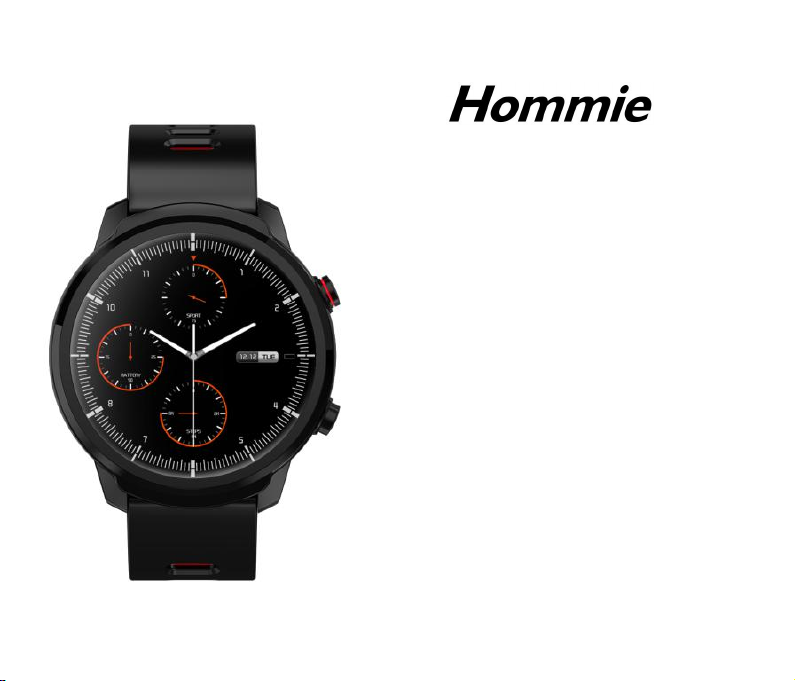
L3 Smart Watch
User Manual
EN.......01/11
FR........12/23
IT.........24/34
ES........35/45
JP.........46/56

1
Thanks for choosing this product. Please read this [user manual] carefully before use
and keep this instruction for future reference. Any problem about this product, please
feel free to contact us at hommiehk@hotmail.com.
Important Assistance
Before use this product, please carefully read the operation about App and Smart
Watch of this user manual so as to properly connect and use. Besides, the relative
video also upload to this website:
http://www.hommiehk.com/supports/helpful-video/.
Proper Wear & Kindly Reminder
1. Generally wear at 1-2 finger width from wrist join. The sensor of smart watch
should be close to skin. Sensor for accurate heart rate monitoring result, it is not
recommended to wear tightly and does not shake. Otherwise, it will affect the
blood circulation.
2. With the functions of water resistant, sweat proof, rain-proof, it can be used directly
in daily washing, shower (cold water) and other daily environments.
3. Do not use in bath, sauna, hot spring or other hot environments with hot water and
steam, which will lead to product failure.
4. Owing to the action of water pressure, do not wear it while swimming or diving.

2
Product Overview
Basic Operations
1. Power button: Press it to turn on/off the screen display. Hold it to turn on or off the
watch.
2. Back button: Press it to go back to the previous interface.
Note: When LED indicator is flashing, it means the watch is monitoring heart rate,
blood pressure. Do not directly look at the blinking sensor light when detecting, which
may cause eye irritation.
Charging Watch
1. Attach the equipped magnetic charger to the metal contact on the back of the
watch, and insert the other end of the charger into USB wall charger or USB interface
of computer.
Strap
Optical sensor
Charging contact
Back
Power button
Stainless steel frame
1.3in dial

3
Charge under the following circumstances:
Use at the first time;
When the battery is low and power off automatically.
2. Screen displays in charging state.
Note: Do not directly look at the blinking sensor light when charging, which may cause
eye irritation.
Smart Watch - Main Menu
Switch Interface
On clock interface, swipe left and right to switch the interfaces of main functions;
Swipe up and down to easily switch the interfaces between secondary function and

4
clock; Hold the clock interface to access the information of watch or swipe down the
interface of watch information to return the clock interface.
Introduction of Main functions
1. Heart Rate & Blood Pressure Monitor
In Heart Rate/Blood Pressure interface, the watch will automatically
monitor your heart rate/blood pressure for about 30s. The LED
indicator of sensor flashes green when detecting.
In addition, you can turn on Continuous heart rate monitoring in
App’s "Device Management"(Mine - Device Management - select to
turn on "Continuous heart rate monitoring"). After that, the watch
will automatically start to continuously monitor your heart rate
every 5 minutes, and synchronize the data to App.
Note:
1) When you are monitoring your heart rate in watch, the
endurance of the watch will decrease.
2) Although this product is used to dynamically detect heart rate in
real time, please keep your body inactive or stilly sit while detecting
heart rate. Otherwise the time for heart rate monitor will be
prolonged or no data can be measured. After the watch had gotten
the measuring data, You can view the real-time dynamic heart rate data or move. If
there is a big difference in the measured data, please take a break to re-measure. The
average value obtained after 5 consecutive measurements will be more accurate.
3) This product is a real-time dynamic heart rate measurement, so the heart rate will
be different when talking, eating, drinking, etc. The monitoring value may be closer to
your actual situation when you are peaceful.
BP
HR

5
4) The data of blood pressure measurement are for reference only. It cannot be used
as a basis for medical related aspects.
2. Sleep Monitor
On this function, you can see the total sleeping time of each night.
Record your sleep from 22:00 pm of the current day to 8:00 am of
the next day. The watch exits sleep monitoring mode after
generating the data. The sleeping data detected by the watch will
be synchronized and updated to the "Sleep" in App through
manually pulling down the the "Today" interface of App.
Introduction of secondary functions.
Dial Selection. Find and tap this icon (left image) to access its function.
Swipe left or right to cycle through 5 different dials. Select one of your
favorite dial and tap it to confirm.
Multi - sport mode. Find and tap this icon (left image) to access its
function. Swipe left or right to cycle through 9 different sports
(Running/Climbing/Walking/Riding/Football/Basketball/Badminton/ Ping
pong/Swimming), and select one of your favorite sport and tap it to start.
Note: Continue; Exit.
Settings. Find and tap this icon (left image) to access its function. A related
list will show, including: Brightness, Auto-lock, Reset. If App can’t search for
the watch, please reset the watch.
Kindly remind: Only connecting the App "WearHealth" successfully can you synchronize
watch's date & time, set message & call notification, continuous HR monitoring, remote

6
shot, and get your specific data of heart rate, sleep and others.
App Download & Supported System.
Note: Mobile phone must support Android 4.4 or iOS 8.2 or above and Bluetooth 4.0
or above.
Binding
Tips for first pairing&connecting
1. Please ensure that the Bluetooth and GPS of your phone have turned on before
access to the App.
2. After turning on App, register an account and enter your personal information
according to the prompt. (Note: In order to make sure the normal connection and use
of the watch, please allow these requests about receiving message, call and so on.
Please make sure that your Android phone have agreed that WearHealth can access to
the applications on phone about WearHealth.)
3. Please make sure the watch's battery with enough power and the connecting
distance within 80cm.
4. When the watch and App are first paired and connected, the time, date, steps and
calorie symbols of the watch will be synchronized to mobile phone. If they disconnect
for a long time, the data of time can not update. It needs to bind App once again to
update the data.
How to Connect: Mine -- Connect a device-- select "L3".
Download and install the App
"WearHealth" by search "WearHealth"
in "App store" on iPhones or in "Google
play" on Android phones.

7
At this moment, there are two situations:
•iOS system: A pairing request will Appear, so you just click "Confirm" to connect.
•Android phones: No pairing request, directly connect.
1) Binding is complete. Note: You need to bind your watch in this App, not directly via
phone's Bluetooth connection.
2) If it can’t search for L3, please check whether the above tips are met or reset the
watch.
Bluetooth Auto Reconnection
1.There is no reminder on the watch when out of the Bluetooth connection range.
However, Bluetooth will automatically reconnect when the watch reaches the valid
range of the Bluetooth connection.
2.If you close the background application or restart the phone or click on "one click
clean-up" of the phone, you need to enter into"WearHealth" App again. And
Bluetooth will automatically reconnect within the valid range of Bluetooth connection.
APP - Main Pages(Today--Sport--Care--Mine)
Today Page
1. Tap the center banner to access the records ( includes last & previous) HR & BP.
2. The above data is last monitoring data; the below data is previous monitoring data.
Sport Page (Take iPhone 7 as an example)
Tap Start running, you will see Figure 1 after 3s; Hold the for 5s, you will see Figure
2; Tap / to continue or stop running. If you tap at image top right, you will
see the Figure 3 (the current running data).

8
Sport
Figure 1 Figure 2 Figure 3
Today

9
Care Page:
Tap the icon +, add your friends who have registered this App. You can add your
friends via searching for his/her nickname, phone number, or e-mail.
Mine Page (Target - Sleep Target - Device Management - Find equipment -
Photograph - About).
Tap Target Steps, scroll the target steps (3000~30000steps) and select your
target steps. Then tap "Confirm".
Tap Sleep Target, scroll the target steps (hrs: 00~09h; mins: 00-59m) and select
your sleep target. Then tap "Confirm".
Tap Device Management , you can choose to enable or disable Lift wrist to
activate screen, Call Remind, SMS Remind, Continuous HR monitoring, Do not Disturb,
Mine
Care
Table des matières
Langues :
Autres manuels Hommie Montre


