
GROM Audio GROM-USB3 Manuel utilisateur

GROM-USB3 MP3 car stereo adapter kit
TABLE OF CONTENTS
Chapter 1 Introduction
1.1 Subject p.2
1.2 Functionality Highlights p.2
1.3 Main Features in USB and Android® phone Mode p.2
1.4 Main Features in USB iPod®/iPhone® Mode p.2
1.5 Bluetooth Hands Free and Wireless, AUX-IN p.2
1.6 Precautions p.2
1.7 Disclaimer p.3
1.8 Completeness and connection of set p.3
1.9 Important Compatibility Notes p.3
1.10 EXT1/EXT2 ports p.4
Chapter 2 General Installation
2.1 General Installation p.5
2.2 Tools needed p.5
2.3 Preparation and adapter installation p.5
2.4 Installation Troubleshooting p.7
Chapter 3 – Usage manual
3.1 Different MODES of GROM-USB p.8
3.2 Android Device Operation p.8
3.2.1 Android Setup and Operation p.8
3.2.2 Android Operation Troubleshooting p.10
3.3 Operation in USB Mode p.10
3.3.1 Supported USB Storage Devices p.10
3.3.2 Supported formats p.10
3.3.3 Directories Setup p.10
3.3. Basic Features p.11
3.3.5 Detailed operation instructions p.12
3.3.6 USB Operation Troubleshooting p.12
3.4 USB iPod/iPhone Mode Operation p.13
3. .1 Simple Mode p.13
3. .2 Advanced Mode p.14
3. .3 Playlist set up for advanced mode p.14
3. . When car ignition is OFF p.15
3. .5 Troubleshooting p.15
3.5 AUX Mode -- AUX-IN or Bluetooth Operation p.15
3.5.1 AUX-IN input p.15
3.5.2 Bluetooth Dongle p.16
Chapter 4 Support p.16
Chapter 5 Warranty, license and disclaimer p.17
V.1.0.0 1

Chapter 1 – Introduction
1.1 Subject
Thank you for purchasing the GROM-USB3 adapter. It has been designed to provide endless hours of listening
pleasure through most vehicle factory stereos. To ensure that your GROM-USB3 interface performs correctly in your
vehicle, we recommend that you read this entire manual before attempting to install the GROM interface.
1.2 Functionality Highlights
- Easily access your media collection in your car, including shuffling songs, skipping between tracks, and adjusting the volume—
all with only your factory car stereo head unit or multifunction steering wheel controls.
- Listen to your favorite music directly from virtually any USB mass storage device, flash stick or portable hard drive, requiring no
dedicated media player.
- Android® phone (most supported) play, charge and control through USB port via standard USB to Android cable.
- iPod®/iPhone®/iPad® play, charge and control via standard USB to iPod cable (supports both 30-pin and Lightning style
connectors).
- Bluetooth or AUX-IN integration. To get AUX-IN you will need GROM MiniDin to 3.5mm audio and 5V USB charging cable, to
get the Bluetooth hands free and wireless functionality you will need GROM-BTD Bluetooth Dongle (both sold separately).
1.3 Main Features in US or Android mode
- Ability to listen to songs in car on USB mass storage device (such as flash drive) or Android phone (using free
AALinQ app for Android from Google® Play Store).
- Ability to control music from car stereo or steering wheel buttons.
- Folders on the USB drives are mapped to an individual “Disc” button on car stereo’s dashboard (different for SAT
emulation – please refer to your installation manual). Play lists on Android phone are mapped to Discs.
- Number of “Discs” limited to the car stereo (up to 99 on select stereos).
- Last listened song position within the Playlist is remembered and time position is restored upon ignition cycle.
- Android phone is charged while in car.
1.4 Main Features in iPod/iPhone Mode
- Ability to play, charge and control iPod/iPhone – all using your factory car stereo.
- Playlists on the iPod/iPhone are mapped to an individual “Disc” button on car stereo’s dashboard (different for SAT
emulation – please refer to your installation manual).
- Number of “discs” limited to the car stereo (up to 99 on select stereos)
- Last listened song position within the playlist is remembered (may not apply to some iPod/iPhone/iPad)
- Last listened song time position is restored upon ignition cycle (may not apply to some iPod/iPhone/iPad)
1.5 luetooth Hands Free and Wireless Audio, AUX-IN Features
- With hands free (HFP) you can receive the phone calls through the factory car stereo, answer or reject the phone
calls using car stereo or steering wheel controls, speak to the other person using microphone provided with GROM
Bluetooth Dongle.
- Wireless music play from your phone to the factory car stereo (A2DP), control the music or Pandora® internet radio
with the car stereo or steering wheel buttons (AVRCP).
- AUX-IN 3.5mm audio connector for any audio source, and additional 5V charging port.
1.6 Precautions
Proper mounting location securely installs the interface in a location free from heat, humidity, moving parts, or direct
sunlight. Beware of hot-air flow from your vehicle’s climate control system. The interface should be secured in a
V.1.0.0 2

suitable location, free of sharp metal edges, using double-sided tape, Velcro, or wire ties. The adapter’s operating
temperature range is -30°C to +70°C (-2 °F to +158°F)
1.7 Disclaimer
- This product is not affiliated with any of the OEM manufacturers
- Modifying the stereo may void any existing warranty
- The purchase of this product carries no warranties, either expressed or implied
- GROM Audio has confirmed the listed stereo and vehicle application to the best of our ability. Due to
uncontrollable factors and various factory options, Grom Audio cannot 100% guarantee every listed application.
These factors include variables such as inconsistencies within a factory stereo, factory stereo models unknown
to Grom Audio and any partial model year changes.
- Keep your eyes on the road while driving!
- We are not liable for the misuse of this product, including improper installation, damage to the board or stereo
during installation, and the illegal use of the stereo
1.8 Completeness and connection of set
a) The GROM audio adapter set consists of the GROM-USB main interface, one USB cable 3FT (of your choice –
Android, USB extension or iPhone), and one vehicle-specific cable.
1. GROM USB3 interface 2.One Automotive grade USB 3FT 3. One Vehicle specific cable
(or USB to Android or iPhone cable)
Figure 1. Package contents
b) The basic package does not include the optional accessories that you can purchase separately:
AUX MiniDin 3.5mm USB charge cable GROM Bluetooth Dongle
Figure 2. Optional Accessories (sold separately)
c) The basic wiring diagram of the GROM Audio adapter is detailed in Figure 3 (some installs may differ):
1.9 Important Compatibility Notes
- If your vehicle is equipped with an external factory CD changer, you must disconnect it in order to be able to install
the GROM interface. You will lose the use of the external CD changer to gain the use of your USB device, iPod,
Bluetooth or MP3 player. The built-in CD changer will remain operational. SAT if present may need to be
disconnected in some case.
- If your vehicle has factory SAT and GROM adapter is using SAT emulation, you must disconnect factory SAT to
gain the use of your USB device, iPod, Bluetooth or MP3 player. This is applicable to Nissan/Infinity with SAT
emulation, Honda/Acura 03 and up with SAT emulation, Ford/Lincoln/Mercury, Mazda 3,5 08-09 and Subaru 07-09.
For a full version of the GROM compatibility guide, please visit http://gromaudio.com/grom_application_guide.pdf or
contact GROM Audio at http://gromaudio.com/support.html.
V.1.0.0 3

1.10 US /EXT1/EXT2 ports
It is recommended for you to use GROM automotive grade USB extension cable. It will ensure better connection using the
latch system that withstands the moving vehicle conditions. In addition it will prevent the wear-out of USB port on GROM-USB3
adapter.
Please refer to the Figure below for the proper connection of the accessories to the EXT1/EXT2 ports on GROM-USB3 module.
Figure 3. Basic wiring diagram.
Figure 4. EXT ports, accessories connection.
V.1.0.0 4

Chapter 2 General Installation
2.1 Installation location
Most installations will require removing the factory stereo in order to plug in the vehicle- specific harness. For some
vehicles, you will also have the option to connect the interface to the factory pre-run CD changer cable located in the
trunk or glove box.
2.2 Tools needed
In most cases, there are no special tools required in order to remove the stereo. For some stereos (e.g., VW, Audi), it
is better to use car stereo removal tools. Please consult your local car audio shop or your vehicle’s dealership for
instructions or assistance as necessary. If you are unsure how to install the interface properly, we recommend
contacting your local car stereo shop for assistance. Some installation examples can be found at
www.gromaudio.com.
2.3 Preparation and adapter installation
1. Turn off car engine and remove key from ignition
2. If your stereo uses a Security Code, make sure that you have the code before unplugging the stereo.
3. Remove your stereo from the dash in order to gain access to the back of the stereo. Some vehicles require special
tools to remove the stereo. Please consult your vehicle’s dealership or a local car audio professional, if necessary.
4. Attach the car harness connector to the CD changer port in the back of the stereo. Be sure to make a secure
connection with no bent pins, but do not force it. Connect the other end to the interface.
For VW/Audi/Seat/Skoda with dashboard cable only:
There is a black single cable on the vehicle-specific harness (Figure 5) that you will need to attach to the back bolt of
the car stereo or the stereo chassis stereo.
Figure 5. VW/Audi/Seat/Skoda Connection Scheme
Remove the PVC from the end of the black wire (2)
•Connect the end of the black wire (2) to the metal part of the car stereo chassis. You can connect it under
the bolt (3) if it is present
•Make sure that solid contact is made between the striped black wire and the metal part of the car stereo
body.
•Note: Failure to attach the black cable to the chassis of the stereo will result in the GROM adapter not
working! All of the specified vehicles require this black cable to be attached.
5. For Audi vehicles only: Some Audi head units require an additional part (AUDS cable) or harness modification
to gain the access to the CD changer port. A solid 20-pin connector occupies the 8-pin CD changer port on such
V.1.0.0 5

stereos. Please refer to the instructions at http://gromaudio.com/docs/grom-audi-how-to.html for more
information.
6. For BMW, Ford, Nissan, Infiniti, Volvo, Mazda 08-12 vehicles only: Please refer to the installation insert for
the special guidelines for BMW, Ford, Nissan, Volvo and Mazda installation.
7. For Toyota and Honda (03 and up) vehicles:
On some Toyota/Lexus/Scion vehicles and Honda/Acura (03 and up) vehicles, the CD changer port is occupied by a
factory harness (such as NAV or audio harness). The GROM package for Toyota and for Honda/Acura (HON1)
includes a Y-shaped vehicle cable. In order to connect the interface properly, please refer to Figure 5. If stereo port is
already empty, simply plug GROM cable into stereo.
Figure 6. Connection Toyota/Lexus/Scion and Honda/Acura
8. Turn your car stereo on and switch it over to CD Changer mode using the Disc/Mode/CD/AUX buttons on your
car stereo (depending on the stereo type). You may have to press CD/Disc twice to access CD Changer mode.
Your display should now show Disc 1, Track 01 or similar.
9. Connect the USB cable to the USB device. Turn on your car stereo and play some music from your USB
device (folders need to be setup). You should hear the sound coming from the car stereo speakers.
10. Once you confirmed the operation of the interface, continue with the installation. If you have trouble with the
installation, please see our troubleshooting section.
11. Find a place for the GROM USB adapter. In many cars, the dash offers sufficient room for installation.
Note: Make sure you mount the GROM USB adapter in a place with sufficient room so that, when you remount
the car stereo, you do not break the adapter. We strongly recommend you mount unit in easy access location
12. You may use the glove box or other spaces on the dash to direct the USB cables away from the unit.
13. Remount your car stereo, making sure it fits securely.
14. Adapter mounting in the trunk (for VW and BMW only)
•Locate trunk mounting cable in your car (usually located in the left side of the car in the back)
•Disconnect existing CD changer, if any.
•Attach matching cables
Note for BMW trunk installations: Some BMW are factory wired for the cellular phone. Except for wire location,
the factory cellular phone connector looks identical to the factory 3-pin connector used for the CD changer. The
CORRECT 3-pin connector for the CD-Changer has a BROWN wire (ground) in the #1 pin position. Please make
V.1.0.0 6

certain you use this connector. The INCORRECT factory cellular phone connector has a BROWN wire in the
center position – DO NOT USE THIS CONNECTOR.
Congratulations! You have installed the GROM USB adapter and may use it immediately with your USB device,
MP3 player, Android phone, or iPod/iPhone/iPad.
2.4 Installation Troubleshooting
Symptom Cause Remedy
Stereo is not recognizing
the GROM USB adapter
Some Honda, Toyota, and Lexus car stereos
have to be restarted before the stereo
catches the signal
After connecting the adapter, turn the stereo
on; turn the ignition off and then back on
Stereo is not recognizing
the GROM USB adapter
External CD changer is present Make sure to disconnect the external CD
changer
Stereo is not recognizing
the GROM USB adapter
Bad cables or cables are not connected
properly between the interface box and car
stereo.
Check connection and cables making sure they
are secure with no bent pins.
No music is audible from
the MP3 player
CD changer is not selected Make sure CD changer, SAT mode, or AUX is
selected (correct key depends on your stereo)
No power Bad connection Check the cable connections.
For VAG only:
Stereo is not recognizing
the GROM USB adapter
Single black wire on the vehicle-specific
harness is not grounded properly.
Make sure black cable is properly grounded
For BMWS (dash
install) only:
Stereo is not recognizing
the GROM USB adapter
Audio is not coming from
the speakers.
Audio is coming only
from one speaker
Bus wire may have become loose.
Sometimes, when using Posi-Tap clips, the
Bus wire may not receive proper connection
due to its wire size.
10-pin audio cable on BMWS harness is not
inserted properly.
The10-pin sound connector is not correctly
aligned.
Make sure the Bus wire is securely attached by
using a multimeter or slightly tighten the Posi-
Tap connector. Refer to the BMWS cable
manual.
Make sure that the 10-pin audio cable on
BMWS harness is inserted properly, with white
stripe or arrow facing up. If radio has 12-pin
connector, make sure to skip “1” column of pins
when connecting 10-pin GROM connector.
Make sure that the 10-pin sound connector on
the vehicle cable is correctly aligned. Please
refer to the BMWS harness manual.
Chapter 3 – Usage manual
3.1.1 Different MODES of GROM-US 3 (for CD changer emulation only!)
Please read this part entirely before attempting to change the modes. You will need to perform all the steps
below quickly within 1-2 seconds interval.
Depending on your GROM firmware version, GROM-USB3 can work in two modes: USB or AUX (EXT2).
Step I. When you need to switch between the MODES, first you will need to enter into the “MODE CHANGING” state
on your car stereo. There are two possible scenarios:
1. The stereo is already in the CD changer mode (GROM USB is activated). Press FM/AM -> wait 1-2 second
-> press CD (DISC).
2. The stereo is in any other mode (FM, SAT, etc…): press CD (DISC) -> wait 1-2 second -> press FM/AM ->
wait 1 second -> press CD (DISC).
Step II. You will hear the voice announcing the currently playing mode (USB or AUX). To switch to the next mode,
press Next Track button quickly (>, ^ or respective button on your car stereo) while the voice prompt is announcing.
The next mode will be announced right after. If you need to select another mode, simply press Next Track button
again and so on until you select the desired mode.
Note: If you do not hear the voice announcement, it means that you did not press quickly enough and the
adapter is not in the “MODE CHANGING” state anymore. Please perform STEP I again.
V.1.0.0 7

Once you hear the desired mode announcement, simply wait for 1-2 seconds and the adapter will start operating in
that mode.
3.1.2 Different MODES of GROM-US (for SAT emulation only!)
Please read this part entirely before attempting to change the modes.
Depending on your GROM firmware version, GROM-USB can work in two modes: USB or AUX (EXT2).
Step I. When you need to switch between the MODES, Simply move to the next SAT band.
i.e. XM1 -> XM2 or XM preset A -> XM preset B -> XM Preset C or SAT1-> SAT2 -> SAT3
Step II. You will hear the voice announcing the currently playing mode (USB or AUX). If you need to select another
mode, simply switch to next XM/SAT preset Band again, i.e. XM2 -> X1 until you are in the mode you would like to
be in.
Once you hear the desired mode announcement, simply wait for 1-2 seconds and the adapter will start
operating in that mode.
Note: The US mode and/or AUX mode is not restricted to just one Satellite Radio and. (i.e. XM1 only US )
oth can flip places with each other while changing through the modes. Please listen for the announcement
to know what MODE you are in.
Note: If your car is Nissan/Infinity (with SAT/CAT), Ford/Lincoln/Mercury, Mazda 3,5 08-12, Subaru 08-09, or
Honda/Acura with SAT emulation – please use the special instructions that came with your package for the
usage/operation instructions.
3.2 US MODE - Android Operation
3.2.1 Android Setup and Operation
The GROM-USB3 adapter when in USB mode allows you to connect your Android device
directly to the GROM USB port. Scan QR code with your phone to download AALinQ
app from Google Play store. AALinQ is the free app that allows you to integrate your
Android phone to car stereo. Play and control, charge while in use. Digital music
transmission via standard MicroUSB cable. Once you have AALinQ installed on your
Android device, you can connect your Android to the USB port using your own or provided
USB Android connector cable. If the version of your Android software is 2.3 and newer, you
may or may not need to have USB Debugging enabled to allow AALinQ to communicate between your Android and
the GROM-USB3. If AALinQ does not work with the USB Debugging off, try to turn it on. If the version of your
Android software is older than 2.3, you will need to enable USB Debugging function on your phone.
•To enable/disable USB Debugging, on Android device go to Settings Applications Development
USB Audio Streaming is available for most Android devices with Jelly Bean and up Android software. In the case of
USB Audio Streaming you will not need AALinQ media player, you will be able to use the media player of your
choice, or stream the music through any Android music apps, such as Pandora, TuneIn, Spotify and so on. Config
file will have to be loaded onto GROM to enable USB streaming.
V.1.0.0 8
•Once you connect your Android device to GROM-USB3 and the GROM unit is in USB playback mode,
AALinQ should automatically start playing a song from your Android device.
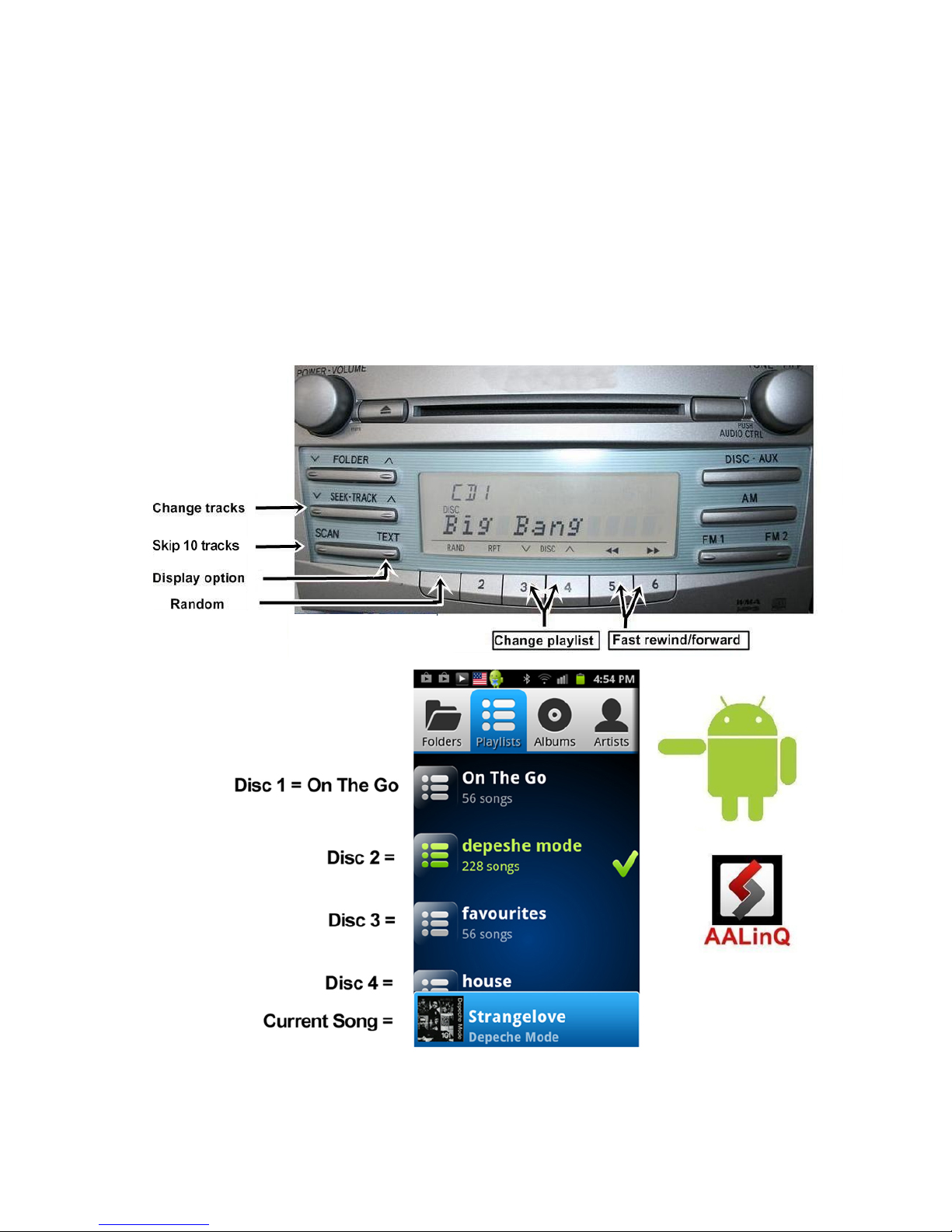
•Android and USB stick functionality is essentially identical. Playlists on AALinQ will be mapped to discs on
the stereo. Skip tracks, change disc, fast forward, random, scan controls are identical to USB controls. Text
of current song is displayed for stereos that support text for GROM mode.
•Disc 1 will play On The Go playlist on the AALinQ app. Disc 2 or higher are your regular playlists.
•The files are played in ascending order of the file creation date/time.
•The playlists are sorted in ascending order of the playlist creation date/time, and assigned to a respective
virtual disc.
•AALinQ can be controlled using the screen of your phone or car stereo/steering wheel controls. It also
responds to the gestures. To check what gestures are available go to AalinQ → Settings → Gestures.
Figure 7. Android operation
V.1.0.0 9

3.2.2 Android Operation Troubleshooting
Symptom Cause Remedy
No music is coming from the
car speakers or sound is
distorted
GROM-USB3 is in the wrong
mode
Make sure that you are in the USB playback mode
You can’t hear the music in
AALinQ
An empty album or playlist is
selected on the AALinQ
Make sure that you select a playlist that has songs and it
is not empty.
Music is not playing You do not have USB Debugging
enabled
To enable USB Debugging, on Android device go to
Settings Applications Development
3.3 Operation in US MODE
3.3.1 Supported US Storage Devices
All FAT16/32 formatted storage:
-USB sticks/hard drives
-Android phone with AALinQ app (most supported)
The GROM USB supports only FAT16/32 formatted storage. NTFS is NOT supported!
3.3.2 Supported formats
The GROM-USB supports the following formats:
-MP3 with bitrates up to 320Kbps
-FLAC Lossless up to 2 bits, 8 khz
-WMA with bitrates up to 389Kbps
-AAC / iTunes with bitrates up to 389Kbps
-OGG/Vorbis with bitrates up to 389Kbps
-VBR/CBR
Note 1: No digital rights management (DRM)-protected content purchased through major online stores will play
directly through the USB-MP3 adapter as such content is encrypted and signed by the media publisher. This includes
but is not limited to iTunes, Rhapsody, Zune Marketplace, and MSN. You need to burn such files to a CD and then
rip them back with any capable software.
The music purchased from Amazon and iTunes+ is compatible with GROM-USB2 without any modifications.
Note 2: AAC files stored on USB Flash Drives may have a delay of 5-10 seconds before the music starts playing.
3.3.3 Directories Setup
V.1.0.0 10
Table des matières
Autres manuels GROM Audio Adaptateur

GROM Audio
GROM Audio Grom-BT3 Manuel utilisateur

GROM Audio
GROM Audio GROM-MST3 PLUS Manuel utilisateur

GROM Audio
GROM Audio AUX adapter Manuel utilisateur

GROM Audio
GROM Audio GROM-IPD3 Manuel utilisateur

GROM Audio
GROM Audio GROM-MST3 PLUS Manuel

GROM Audio
GROM Audio GROM-USB2i Manuel utilisateur

GROM Audio
GROM Audio GROM-USB2 MP3 Manuel utilisateur

GROM Audio
GROM Audio GROM-MST4-VOLS6 Manuel utilisateur
GROM Audio
GROM Audio MST3 PLUS Manuel

GROM Audio
GROM Audio GROM-MST4 AUDI MMI 2G Manuel utilisateur


