GRE PSR-216 Manuel utilisateur

1
PSR-216
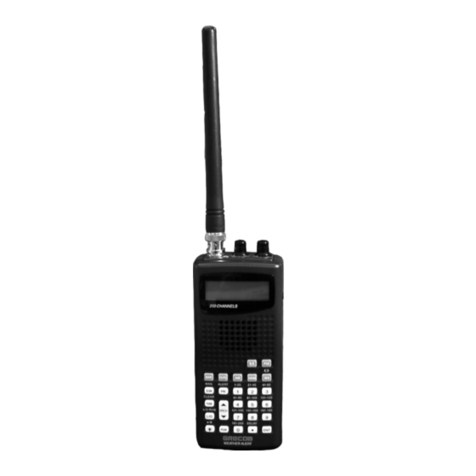
200-Channel Portable Scanner
OWNER'S MANUAL
PSR216OM.p65 2004/04/08, 16:49Page 1 AdobePageMaker6.5J/Win

2
INTRODUCTION
Your new PSR-216 Programmable Scanner lets you in on all
the action! This scanner gives you direct access to over
35,000 frequencies. You can store frequencies in your
scanner's 200 channels, and you can change your selec-
tions at any time.
It incorporates a custom-designed microprocessor — a tiny,
built-in computer which gives your scanner these special
features:
Ten Preprogrammed Search Bands – let you search for
transmissions within preset frequency ranges, so you can
find interesting frequencies more quickly.
Ten Channel-Storage Banks – lets you group your stored
frequencies so you can easily identify calls.
Duplicate Frequency Check – automatically warns you if
you try to store a frequency you’ve already stored, to help
you use the scanner’s memory more efficiently.
Liquid Crystal Display – shows the selected channel and
frequency.
Two Second Scan Delay – helps prevent the loss of replies
on a channel while you are scanning.
Memory Backup – keeps the channel frequencies stored in
your scanner's memory for up to 1 hour without the battery.
Lockout Function – makes your scanner skip over speci-
fied channels.
Priority Channel – helps keep you from missing important
calls on the selected priority channel.
Monitor Memories – let you save up to 20 channels located
during a frequency search.
Flexible Antenna with BNC Connector – provides excel-
lent reception. The BNC connector makes it easy to attach
and remove the antenna or a variety of optional antennas.
Your PSR-216 covers the following bands:
68–88 MHz
108–174 MHz
380–512 MHz
806–960 MHz
PSR216OM.p65 2004/04/08, 16:49Page 2 AdobePageMaker6.5J/Win

3
Use of scanners must conform to the requirements of the
law of the country where they are utilized. Always check that
your intended use is legally permitted.
Avoid using your scanner in close proximity to a Radio or TV
receiver to prevent unwanted interference.
CONTENTS
PREPARATION .............................................................................. 4
Power Sources ............................................................................. 4
Connecting The Antenna ............................................................. 6
Using The Belt Clip ....................................................................... 7
Connecting An Earphone/Headphones ....................................... 7
Connecting An Extension Speaker .............................................. 7
YOUR SCANNER .......................................................................... 8
A Look At The Keypad .................................................................. 8
The Display ................................................................................... 9
Understanding Bank/Bands/Monitor Memory ........................... 10
OPERATION ............................................................................... 11
Turning On The Scanner/Setting Volume And Squelch ............. 11
Programming Frequencies ......................................................... 11
Scanning Stored Channels ........................................................ 13
Searching ................................................................................... 14
Monitoring One Channel ............................................................ 15
Deleting a Frequency From A Channel ...................................... 16
Deleting All Channel Frequencies .............................................. 16
Deleting All Locked Out Channel Frequencies .......................... 16
Monitor Memory ......................................................................... 16
Store The Frequency In Monitor Memory .................................. 17
SPECIAL FEATURE .................................................................... 18
Locking Out ................................................................................ 18
Using Keylock ............................................................................. 18
Using Delay ................................................................................ 18
Turning the Key Tone On And Off ............................................... 19
Battery-Saving Feature ............................................................... 19
GENERAL GUIDE TO SCANNING ............................................. 20
Birdie Frequencies ..................................................................... 20
Specified Intervals ...................................................................... 20
TROUBLESHOOTING ................................................................ 21
Resetting/Initializing The Scanner .............................................. 22
CARE AND MAINTENANCE ....................................................... 23
SPECIFICATIONS ....................................................................... 24
PSR216OM.p65 2004/04/08, 16:49Page 3 AdobePageMaker6.5J/Win

4
PREPARATION
POWER SOURCES
You can power your scanner from any of four sources:
•Internal batteries (not supplied) with the provided battery
holder
•A rechargeable scanner battery pack (not supplied)
•Standard AC power (using an optional AC adapter)
•Vehicle battery power (using an optional DC cigarette-
lighter adapter)
You can power your scanner from six AA batteries. For the
longest operation and best performance, we recommend
alkaline batteries. You can also power the scanner using a
rechargeable scanner battery pack or rechargeable nickel-
cadmium batteries, and recharge it as you use the scanner.
Caution: Do not mix old and new batteries, different types of
batteries (standard, alkaline, or rechargeable), or recharge-
able batteries of different capacities.
Notes:
•The POWER jack lets you connect an external AC or DC
adapter to operate the scanner. Connecting an adapter
to POWER disconnects the internal batteries. You can use
the POWER jack with either non-rechargeable or recharge-
able nickel-cadmium batteries installed.
•The CHARGE jack lets you connect an external AC or DC
adapter to operate the scanner. The internal batteries re-
main connected when you connect an adapter to
CHARGE, and get recharged when you connect a charger.
Warning: Never use the CHARGE jack with non-recharge-
able batteries! If you try to recharge non-rechargeable bat-
teries, they could get very hot and explode.
Battery Install
1. Press down on the battery compartment cover on the bot-
tom of the scanner and slide the cover in the direction of
the arrow to remove it.
2. Slide the battery holder out of the battery compartment.
3. If you are installing individual batteries, insert six AA bat-
teries in the battery holder as indicated by the polarity
PSR216OM.p65 2004/04/08, 16:49Page 4 AdobePageMaker6.5J/Win

5
symbols (+ and –) marked on the battery holder.
4. Slide the battery holder or battery pack into the compart-
ment.
Caution: The battery holder or battery pack fits only one
way inside the battery compartment. Do not force it.
5. Replace the cover.
When battery power is low, BATT flashes and the scanner
beeps about every 3 seconds. Immediately replace all six
non-rechargeable batteries or recharge the rechargeable
batteries or battery pack.
Caution: Always dispose of old batteries promptly and prop-
erly. Do not bury or burn them.
Using Standard AC Power
To power the scanner from AC power, you need an AC
adapter.
Cautions:
•You must use an AC adapter that supplies 9 volts and
delivers at least 300 milliamps. Its center tip must be set
to negative, and its barrel plug must correctly fit the
scanner's POWER/CHARGE jack. The recommended
adapter meets these specifications. Using an adapter that
does not meet these specifications could damage the
scanner or the adapter.
•When you finish using the AC adapter, disconnect it from
the AC outlet first. Then disconnect it from the scanner.
Plug the adapter's barrel plug into the scanner's POWER
jack. Then plug the adapter's power module into a standard
AC outlet.
Using Vehicle Battery Power
To power the scanner from your vehicle's cigarette-lighter
socket, you need a DC adapter.
Cautions:
•You must use a DC adapter that supplies 9 volts and de-
livers at least 300 milliamps. Its center tip must be set to
negative, and its plug must correctly fit the scanner's
POWER/CHARGE jack. The recommended adapter
meets these specifications. Using an adapter that does
not meet these specifications could damage the scanner
or the adapter.
PSR216OM.p65 2004/04/08, 16:49Page 5 AdobePageMaker6.5J/Win

6
•To protect your vehicle's electrical system, always plug
the adapter into the scanner before you plug it into your
vehicle's cigarette-lighter socket. Always unplug the
adapter from the vehicle's cigarette-lighter socket before
you unplug it from the scanner.
Plug the adapter's barrel plug into the scanner's POWER
jack. Then plug the adapter's power module into your vehicle's
cigarette-lighter socket.
Charging a Rechargeable Battery Pack/
Rechargeable Batteries
Your scanner has a built-in charging circuit that lets you
charge a rechargeable battery pack or rechargeable nickel-
cadmium batteries while it is in the scanner. To charge it,
simply connect an AC or DC adapter to the scanner's
CHARGE jack.
It takes about 14–16 hours to recharge a battery pack (or
nickel-cadmium rechargeable batteries) that is fully dis-
charged. You can operate the scanner while recharging the
battery pack (rechargeable batteries), but charging takes
longer.
Note: A rechargeable battery pack (rechargeable batteries)
lasts longer if you let it fully discharge once a month. To do
this, simply use the scanner until BATT flashes and the scan-
ner beeps about every 3 seconds. Then fully charge it.
CONNECTING THE ANTENNA
Follow these steps to attach the supplied flexible antenna to
your scanner.
1. Align the slots around the scanner's connector with the
tabs on the ANT jack.
2. Press the antenna down over the jack and turn the
antenna's base clockwise until it locks into place.
Connecting an Optional Antenna
The ANT jack on the top of the scanner makes it easy to use
the scanner with a variety of antennas. Instead of the sup-
plied antenna, you can attach a different one, such as an
external mobile antenna or outdoor base station antenna.
Follow the installation instructions supplied with the antenna,
route the antenna cable to the scanner, then connect it to the
ANT jack.
PSR216OM.p65 2004/04/08, 16:49Page 6 AdobePageMaker6.5J/Win

7
Warning: Use extreme caution when installing or removing
an outdoor base station antenna. If the antenna starts to fall,
let it go! It could contact overhead power lines, if the an-
tenna touches a power line, contact with the antenna, mast,
cable or guy wires can cause electrocution and death! Call
the power company to remove the antenna. Do not attempt
to do so yourself.
USING THE BELT CLIP
You can use the belt clip for hands-free carrying when you
are on the go. Simply slide the belt clip over your belt or
waistband.
CONNECTING AN EARPHONE/
HEADPHONES
For private listening, you can plug an earphone or mono
headphones with a 3.5 mm plug into the PHONE jack on top
of your scanner. This disconnects the internal speaker.
Caution: To protect your hearing, follow these guidelines
when you use an earphone or headphones:
•Do not listen at extremely high volume levels. Extended
high-volume listening can lead to permanent hearing loss.
•Once you set the volume, do not increase it. Over time,
your ears adapt to the volume level, so a volume level
that does not cause discomfort might still damage your
hearing.
Warning: Do not use an earphone or headphones with your
scanner when operating a motor vehicle or riding a bicycle,
in or near traffic. Doing so can create a traffic hazard and
could be illegal in some areas.
CONNECTING AN EXTENSION SPEAKER
In a noisy area, an amplified speaker might provide more
comfortable listening.
Plug the speaker cable's 3.5 mm plug into your scanner's
PHONE jack.
PSR216OM.p65 2004/04/08, 16:49Page 7 AdobePageMaker6.5J/Win

8
YOUR SCANNER
A LOOK AT THE KEYPAD
Your scanner’s keys might seem confusing at first but this
information should help you understand each key’s func-
tion.
MAN – stops scanning to let you directly enter a channel
number.
SCAN – scans through the programmed channels.
BAND – selects a preprogrammed search band.
LIGHT – turns on/off the displays backlight.
Number Keys – use these keys to enter the numbers for a
channel or frequency. The range of numbers above the key
(21-40 for example) indicate the channels that make up a
channel-storage bank.
•/DELAY – programs a two-second delay while scanning or
searching, or enters a decimal point.
L/OUT – turns the channel lock on or off.
PROG – lets you program frequencies into channels.
LIMIT – enters the limit search mode; allows you to set the
search range.
MEM – accesses the monitor memory or store the frequency
to the monitor memory.
PRI – turns the priority function on and off.
CLEAR – clears an incorrect entry or helps initialize the scan-
ner.
PSR216OM.p65 2004/04/08, 16:49Page 8 AdobePageMaker6.5J/Win

9
- turns Keylock feature on or off.
< > - selects a scan or search direction.
ENT - stores a frequency into channels.
THE DISPLAY
The display lets you know what your unit is doing. The fol-
lowing is a list of display messages you will encounter and
what they mean.
– appears when the keylock is turned on.
BANK – appears with numbers (1-10). Numbers with a bar
under them show which channel-storage banks are turned
on for scanning.
MEM – appears when you listen to a frequency stored in
monitor memory.
PRI – appears when the priority feature is on.
< > – appear to indicate the scan or search direction.
BATT – appears when the batteries are low.
P– appears when you listen to the priority channel.
000 CH – indicates the channel number.
000.0000 MHz – digits that precede this indicator show which
of the 35,000 possible frequencies you have tuned the scan-
ner to.
SRCH – appears during frequency search.
SCAN – appears when you scan through the channels.
MAN – appears when you manually select a channel.
PROG – appears when you program a frequency into a chan-
nel.
DLY – appears when the scanner tunes to the delay feature.
PSR216OM.p65 2004/04/08, 16:50Page 9 AdobePageMaker6.5J/Win

10
L/O – appears when you listen to a channel that is locked
out of the scan mode.
Display Message
Error – appears when you make an entry error.
–dUPL– – (duplicate) appears when you try to store a fre-
quency that is already stored in another channel.
–L– – appears during a limit search.
Lo – appears when you program a lower limit frequency
range.
Hi – appears when you program a higher limit frequency
range.
–d– – appears during a direct search.
bX (X: 1 to 0, search band number) – appears during a
band search.
ALL Ch0000 – appears when you clear all stored channels.
Ch–FULL – appears when you try to enter a frequency into a
channel during a search when all channels are full.
L–o Ch0000 – appears when you clear all locked-out chan-
nels.
Lo ALL–CL – appears when you remove all lockouts from
channels.
P.–SA – appears when the scanner turns on the power save
feature.
rE. St – appear when press CLEAR to stop limit search or
band search. In this condition press >to start up search
from the bottom band edge and press <to start down search
from the top band edge.
UNDERSTANDING BANK/BANDS/MONITOR
MEMORY
Channel Storage banks
To make it easier to identify and select the channels you want
to listen to, channels are divided into 10 banks of 20 chan-
nels each. Use each channel-storage bank to group frequen-
cies, such as those used by the fire department, ambulance
services, or aircraft.
PSR216OM.p65 2004/04/08, 16:50Page 10 AdobePageMaker6.5J/Win
Table des matières
Autres manuels GRE Scanner