GRDIAN KRIOS Manuel utilisateur

USER MANUAL
V 1.2
WWW.GRDIAN.COM
english

CONTENTS
Safety Information...................................................................................................................0
In the Box................................................................................................................................1
Overview..................................................................................................................................2
Mounting the Camera..............................................................................................................3
Mounting the Front Camera.............................................................................................3
Mounting the Rear Camera..............................................................................................4
Connecting the Camera and Memory.......................................................................................5
GPSAntenna............................................................................................................................6
GRDIAN Viewer Pro: Gallery Menu..................................................................................17
Viewing Downloaded Content and Snapshots.......................................................17
Playback..............................................................................................................18
Viewing Files on the Computer...............................................................................................19
File Naming Structure............................................................................................................20
Understanding the File Sequence.........................................................................20
Parking Mode........................................................................................................................21
Troubleshoot...........................................................................................................................23
GesturePhotography..............................................................................................................22
Customer Support..................................................................................................................24
GRDIAN Viewer Pro..................................................................................................................7
GRDIAN Viewer Pro: Main Menu...............................................................................................8
GRDIAN Viewer Pro: Cam Menu.................................................................................9-13
CameraSettings............................................................................................10-11
VideoLibrary........................................................................................................12
Video Playback....................................................................................................13
GRDIAN Viewer Pro: Track Menu.............................................................................14-16

SAFETY INFORMATION
WARNING: Failure to follow these safety instructions could result in damage to your device
and other surrounding property. Read all the safety information below before using.
Handling
Handle your device with care. Your device can be damaged if dropped, burned, punctured,
crushed, or if it comes in contact with liquid. If your device is damaged, do not continue using
it, as it may cause injury. Use the correct input voltage. Do not spray cleaning products on
the device. Detach the power cord from the device if the device emits an unusual smell or if
there is smoke. Do not remove the microSD card while it is saving or reading data. Remove
the power cord from the device if you are not planning to use the device for a long time. If the
product is damaged or the power supply is cut due to an accident, video may not be recorded.
Repairing
Do not attempt to repair the device yourself. Doing so will void the Warranty, damage your
device or may cause injury. If your device is damaged or is defective, contact GRDIAN.
Distraction
Do not operate the device while driving. Operate only when your vehicle is parked. Do not
install the device where it interferes with the driver’s vision.
Exposure to Extreme Heat
KRIOS and its accessories comply with applicable surface temperature standards and limits.
However, even within these limits, sustained exposure to heat for long periods of time may
cause damage to the device. Use common sense to avoid situations where your skin is in
contact with a device or its power adapter when it’s operating or plugged into a power source
for long periods of time. It is important to keep KRIOS and its power adapter in a well ventilat-
ed area when in use.
Choking hazard
Some accessories may present a choking hazard to small children. Keep these accessories
away from small children.

1
MAIN UNIT
GPS ANTENNA (OPTIONAL)
USB CABLE USB CAR
CHARGER
REAR CAMERA CABLE REAR CAMERA
IN THE BOX

2
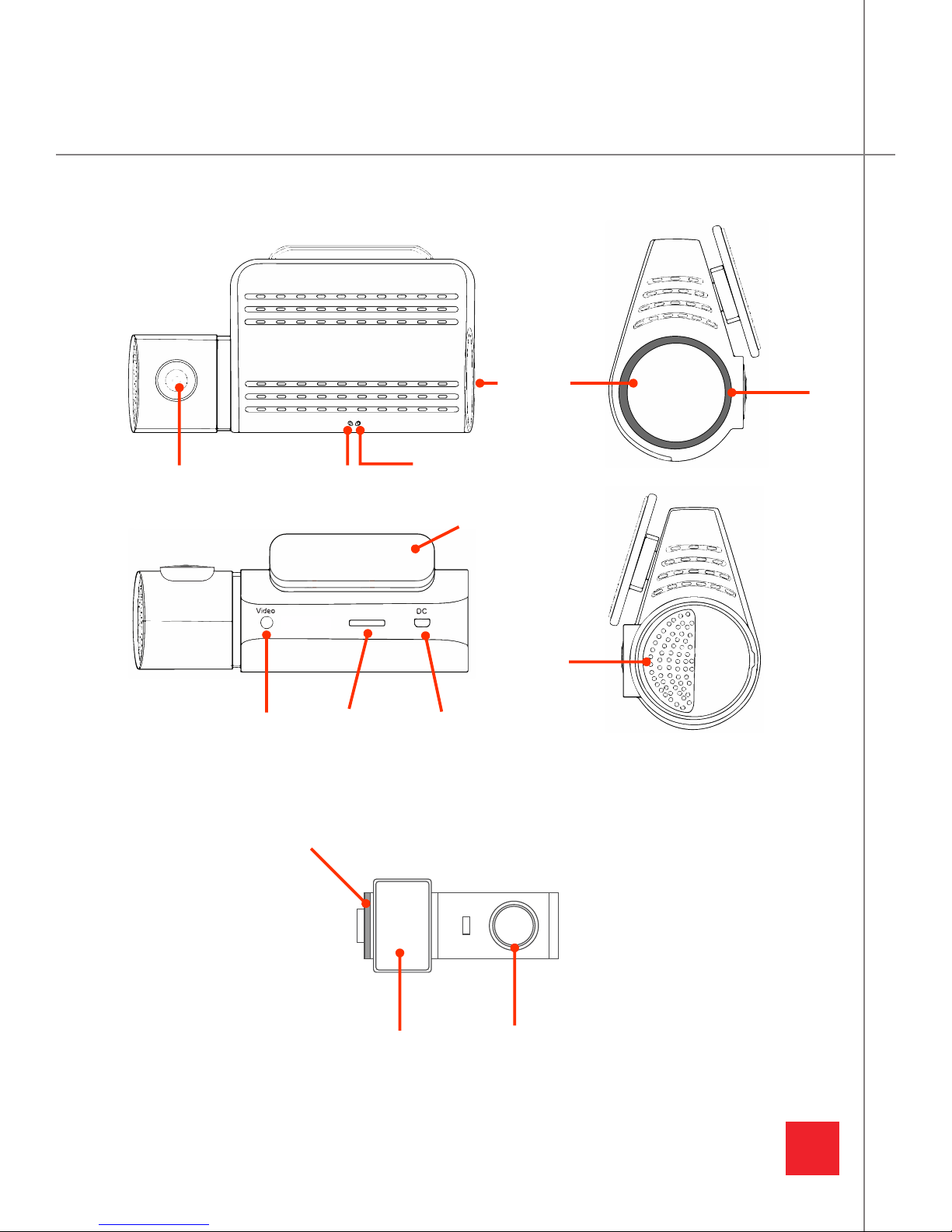
Camera Lens
Start/Pause
Gesture
Sensor Removable Adhesive
Mount
micro USB
Power Socket
Rear Camera Video
Speaker
LED
microSD slot
Camera LensRear Camera Bracket
Unscrew side ring to remove
rear camera from bracket
MIC
OVERVIEW

3
MOUNTING THE CAMERA
MOUNTING THE FRONT CAMERA
1. Peel away the 3M tape and place the main unit at the center of your windshield.
2. Locate a power source. This can either be a USB terminal or a cigarette outlet.
3. Use the micro USB power cable to route the wire inside your headliner. Route the cable
left or right depending on the location of your power source.
4. Continue through the headliner of your vehicle and down the A Pillar. Tuck your wire intthe
rubber weather guide to conceal wiring.
5. Continue down in the direction of your power source. Tuck in additional wiring into the
nooks and crannies of your vehicle.
6. Plug the micro USB power cable into your power source with the provide car charger or
directly into your USB terminal.
Affix your camera to the
center of the windshield.
NOTE: The power cable and rear cable can
be routed in either direction, depending on
the location of your cigarette outlet/USB.
Route the power cable
into your headliner.
Route the rear camera
cable into your head-
liner.
Rear Camera Cable micro USB Power Cable
Continue to route into
the rubber rain-guard.

4
MOUNTING THE REAR CAMERA
MOUNTING THE CAMERA
1. Peel away the 3M tape and place the rear camera at the center of your rear windshield.
Make sure the rear camera is mounted in the correct orientation. The USB side should be
pointed to the left when facing the rear window from inside your vehicle.
2. Plug the rear camera cable into the main unit. Route the cable into the front headliner
through the A Pillar, B Pillar, C Pillar and then to the rear headliner.
3. Plug the rear camera cable into the rear camera. Excess wires can usually be tucked into
the rear headliner.
Affix your rear camera to
the center of the wind-
shield with the USB side
to the left when facing
the rear windshield from
inside the cabin.
Rear Camera Cable

5
INSERTING YOUR MEMORY CARD
Insert your memory card into the main device.
CONNECTING THE CAMERA AND MEMORY
MEMORY CARD
USE A COMPATIBLE MEMORY CARD
For optimal performance, please use one of the recommended memory cards
listed here: grdian.com/blog/dash-cam-memory-cards
NOTE
For memory cards 64gb and
higher, format your memory
card to FAT32. For a how-
to-guide visit: grdian.com/
blog/how-to-format-your-
memory-card-to-fat32-
for-windows-and-mac
CONNECTING THE REAR CAMERA
TURNING ON YOUR CAMERA
1. Plug the rear camera cable into the
main unit.
2. Plug the micro USB end into the rear
camera.
1. Plug the micro USB power cable into the
main unit.
2. The camera will automatically turn ON and
begin recording.

6
GPS ANTENNA
GPS ANTENNA (SOLD SEPARATELY)
The GPS Antenna is optional and replaces your existing
micro USB power cable. It is setup the same way as the
micro USB power cable. Peel away the VHB adhesive to
attach to the windshield.
FEATURES
The GPS antenna gives your camera the ability to track
your route history, average speed, distance traveled, and
more.
View your GPS data with the GRDIAN Viewer Pro app. To
purchase, please visit www.grdian.com

7
GRDIAN VIEWER PRO
1. Plug the camera into a power source to turn ON.
2. Download the GRDIAN Viewer Pro app.
3. Locate SSID: KP323_XXXXXX in your Wifi settings.
4. Enter the password: 12345678
6. Open the GRDIAN Viewer Pro app and press Connect.
APP GRDIAN Viewer Pro
SSID KP323_XXXXXX
PW 12345678
INSTALLING AND CONNECTING TO THE APP
NOTE
Compatible with Android 6.0 and up and iOS 9.0 and up
WARNING
Do not attempt to operate when vehicle is in motion. Only operate when your
vehicle is parked
Table des matières
Autres manuels GRDIAN Caméra embarquée