Graphic Products DuraLabel 7000 Manuel utilisateur

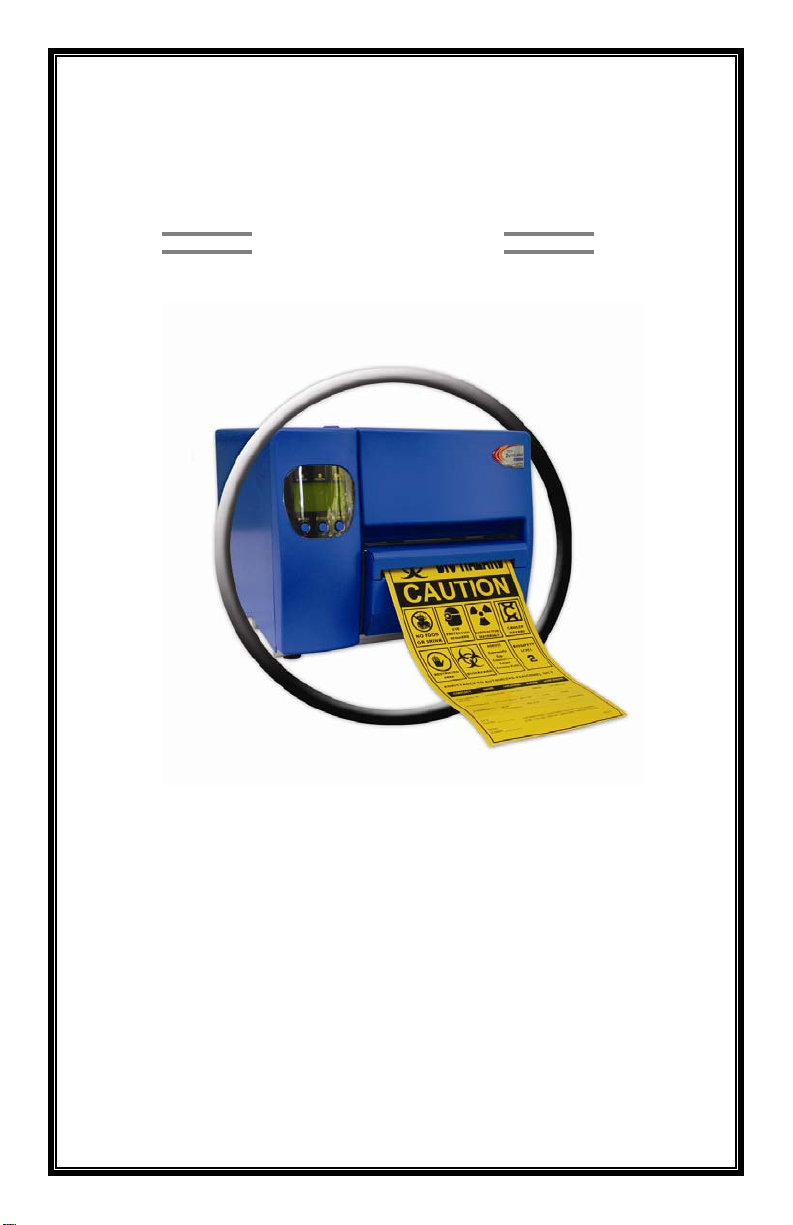
DuraLabel 7000
User’s Guide
Graphic Products, Inc.
1-800-788-5572
Local: 503-644-5572
www.DuraLabel.com
www.GraphicProducts.com
e-mail: info@graphicproducts.com

2
Please contact us for all your labeling needs. From standardized to
custom labels, we’re ready to provide the labeling supplies you need.
Call 1-800-788-5572 today to get your labeling problems solved.

3
Contents
1. Product Introduction……………..4
1.1 Compliances
1.2 Warranty Information
1.2.1 Thermal Print Head
1.2.2 Warranty Service Procedures
1.2.3 General Warranty Provisions
1.2.4 Limitation of Liability
2. Getting Started……………..……..5
2.1 Unpacking and Inspection
2.2 Equipment Checklist
3. Setting up the Printer……………6
3.1 Connecting the Printer
3.2 Install using USB
3.3 Manual Installation
4. Loading Supply…………..12
4.1 Printer Parts
4.2 Loading the Ribbon
4.3 Loading the Vinyl Supply
4.4 Adjusting for Different-sized Vinyl
5. Making Labels…………………...15
5.1 Configure Driver
5.2 Setup to Print
5.3 Using Templates
5.4 Designing Labels
6. Printer Information……………………20
6.1 Self Test
6.2 Dump Mode
6.3 Auto Sensing
6.4 Sensor Adjustment for Specialty Stock
6.5 Orientation
6.6 Setting Mode
6.7 Standard Settings
6.8 Printer Specifications
7. Print Darkness and Speed Settings for Ribbon…28
8. Trouble Shooting……………………………………...29

4
1. PRODUCT INTRODUCTION
Thank you for purchasing the Graphic Products, Inc., DURALABEL 7000
Thermal Transfer Printer. This compact desktop printer delivers superior
performance at an economical price. Both powerful and simple to
operate, the DURALABEL 7000 is your best choice in desktop label
printing.
1.1 Compliances
CE, FCC, UL, CUL, TÜV-GS, CNS
1.2 Warranty Information
Graphic Products, Inc., warrants to the customer that under normal use
and service the printer (with the exception of the print head) purchased
hereunder shall be free from defects in material and workmanship for a
period of one year, from the date of shipment by Graphic Products, Inc.
Expendable items or parts such as labels and ribbons are not covered by
this warranty. This warranty does not cover equipment or parts that have
been misused, altered, neglected, carelessly handled, or used for
purposes other than those for which the printer was manufactured. This
warranty also does not cover loss, damages resulting from accident, or
damages resulting from unauthorized service.
1.2.1 Thermal Print Head
The warranty of the thermal print head is limited to nine months from the
date of shipment to buyer. The warranty does not cover thermal print
heads which have been misused, altered, neglected, handled carelessly,
or damaged due to improper cleaning or unauthorized repairs.
1.2.2 Warranty Service Procedures
If defects should occur during the warranty period, the defective unit shall
be returned, freight and insurance prepaid, in the original shipping
container to Graphic Products, Inc. Include a contact name, action
desired, and a description of the problem and examples when possible.
Graphic Products, Inc. shall not be responsible for any loss or damages
incurred during shipping. Any warranty repairs to be performed by
Graphic Products, Inc., shall be subject to said company’s confirmation
that the product meets warranty guidelines in the event of a defect
covered by its warranty.

5
1.2.3 General Warranty Provisions
Graphic Products, Inc., makes no warranty as to the design, capability,
capacity, or suitability of any of its hardware, supplies or software.
Software is licensed on an “as is” basis without warranty.
Except and to the extent expressly provided in this warranty and in lieu of
all other warranties, expressed or implied, including, but not limited to
any warranties of merchantability or fitness for a particular product,
purchaser shall be solely responsible for the selection, use, efficiency
and suitability of Graphic Products’ products.
1.2.4 Limitation of Liability
In no event shall Graphic Products, Inc., be liable to purchaser for any
indirect, special, or consequential damages or lost profits arising out of or
relating to Graphic Products’ products, or of the performance or a breach
thereof, even if Graphic Products, Inc., has been advised of the
possibility thereof. Graphic Products’ liability, if any, to the purchaser or
to the customers of purchaser hereunder shall in no event exceed the
total amounts paid to Graphic Products hereunder by the purchaser for a
defective product.
In no event shall Graphic Products, Inc., be liable to purchaser for any
damages resulting from or related to any failure or delay of Graphic
Products in the delivery or installation of the computer hardware,
supplies, or software in the performance of any services.
The remedies set forth here are the sole and exclusive remedies
available to any person for any damages of any kind and nature
including incidental, consequential, or special, whether arising from
warranty (including implied warranties), contract, negligence, tort or
otherwise. In the event that any implied warranties (including but not
limited to the implied warranties of merchantability and fitness for a
particular purpose) are found to exist, such warranties are limited in
duration to their respective warranty periods.
2. GETTING STARTED
2.1 Unpacking and Inspection
The printer has been specially packaged to withstand damage in the
shipping process. However, upon receiving the printer, carefully inspect
the package and the device. In case of evident damage, contact the
carrier directly to specify the nature and extent of the damage. Please
retain the packaging materials in case you need to reship the printer.

6
4
3
5
2.2 Equipment Checklist
•The DURALABEL 7000 thermal transfer printer unit with cutter
•Ribbon paper core
•Power cord
•CD with printer driver and label templates
•USB cable
If any parts are missing, please contact the Graphic Products customer
service department.
3. Setting up the Printer
3.1 Connecting the Printer
1. Place the printer on a flat, secure surface near the computer it
will be working with.
2. Make sure the power switch is OFF.
3. Connect the DuraLabel 7000 to the printer with the RS-232 or
USB cable.
4. Plug the power cord into the power supply connector on the rear
of the printer; plug the opposite end of the cord into a properly
grounded outlet.
3.2 Install Using USB Cable
Important! You must have IT administrator privileges in order to install
driver.
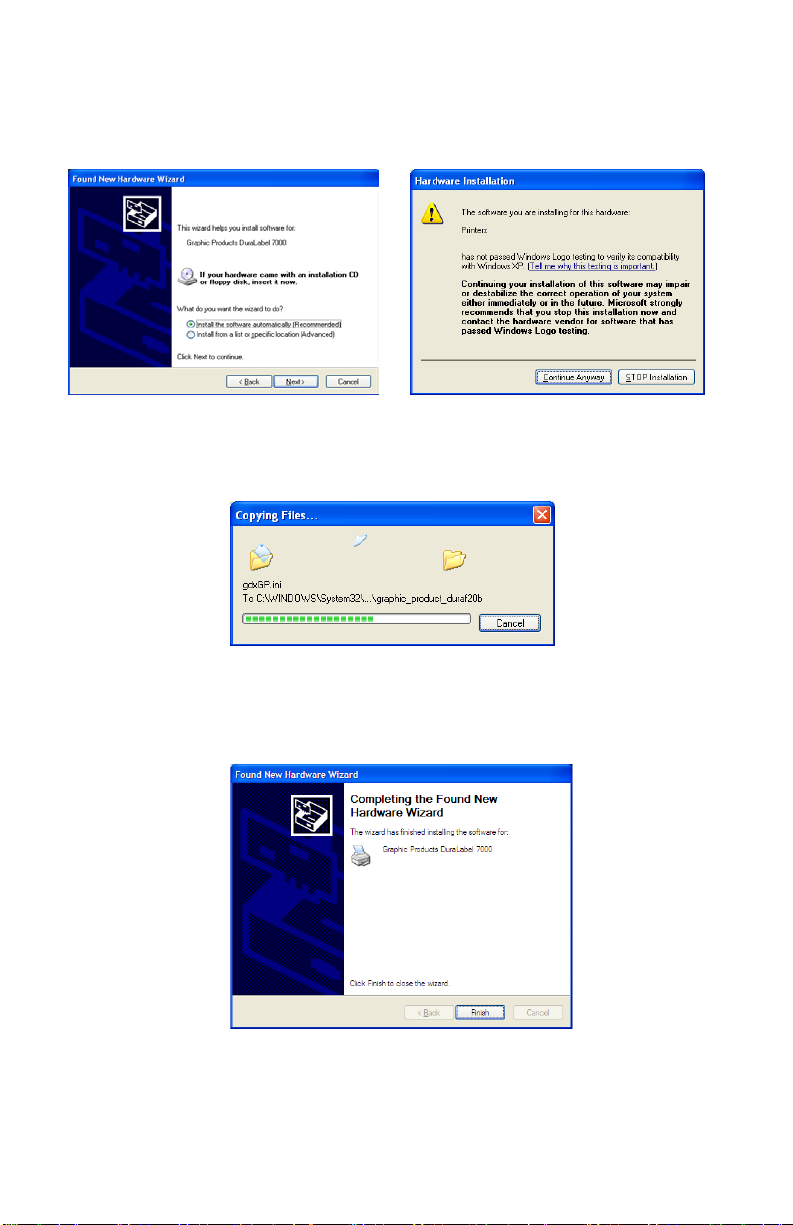
A Found New Hardware dialog box may appear. If so, select No, not
this time.

7
Insert the DuraLabel 7000 CD into the CD-ROM drive. Select Install the
software automatically and click Next (This step may run
automatically.) When prompted to continue, click Continue Anyway.
A dialog box will appear showing the progress of the files being copied.
It will close after copying is complete.
A Found New Hardware Wizard dialog box will appear after completion.
Click Finish to exit and close the screen.
The driver is now installed and the computer is ready for printing using the
duralabel 7000.

8
3.3 Manual Installation
Important! You must have IT Administrative Privileges in order to install driver.
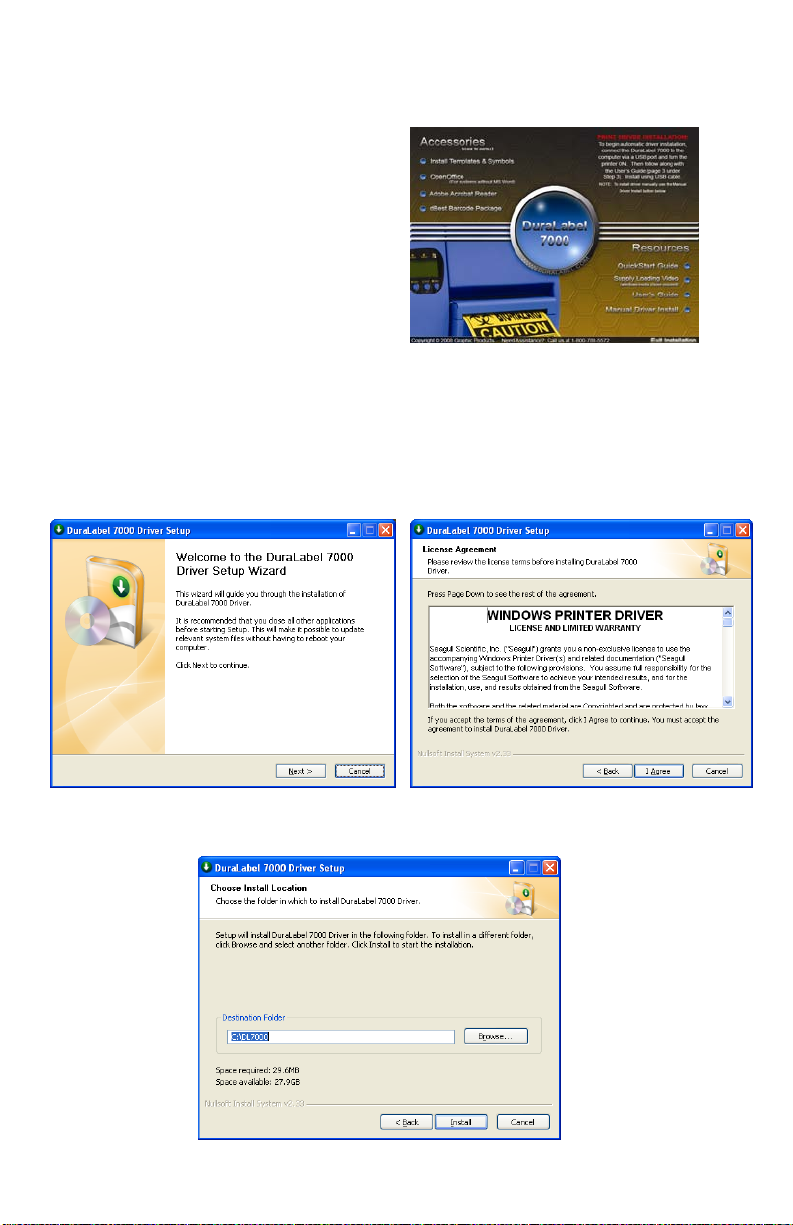
Insert the Installation CD into the
CD-ROM driver.
Note: If the CD does not
automatically run, go to Start >>
My Computer and double-click on
the DLP-icon.
To begin, click Manual Driver
Install at the bottom right corner
of the DuraLabel 7000 setup screen.
A “DuraLabel 7000 Driver Setup” dialog box will appear, click Next to
begin installation. Click I agree to the Windows Printer Driver License
Agreement.
Click Install to accept the default directory, “C:\DL7000”

9
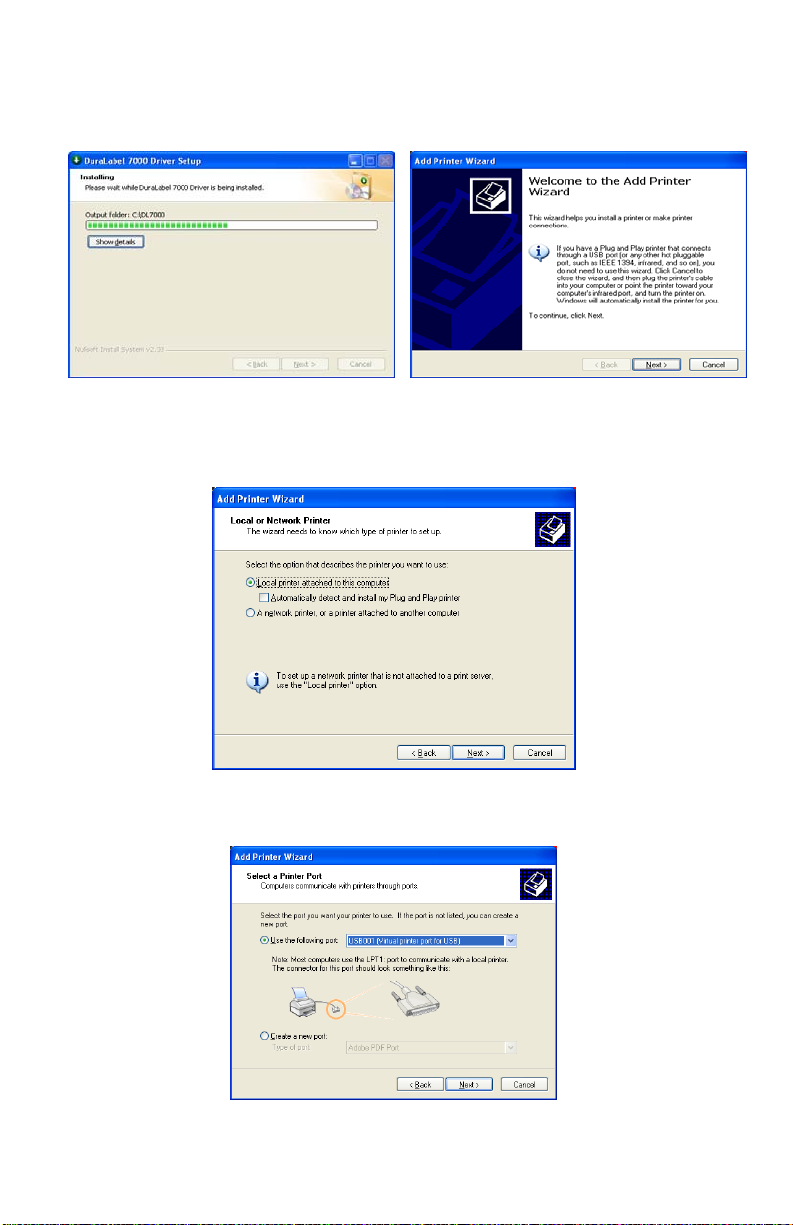
A screen may appear showing the progress of installation.
An Add Printer Wizard window should appear on the screen when
progress is completed; click Next.
Depending on how the printer will be used, select either Local or
Network. If “Local” is selected, make sure the “Automatically detect
and install my Plug and Play printer,” is unchecked.
Check Use the following port, and select the appropriate port, then
click Next.

10
Select Graphic Products DuraLabel 7000 and click Next.
Keep existing printer name as Graphic Products DuraLabel 7000 and
select Yes to set the DuraLabel 7000 as the default printer, then click
Next.
The next window provides an option that allows the DuraLabel 7000 to
be shared with other network users. Pick the appropriate setting then
click Next.
Table des matières
Autres manuels Graphic Products Étiqueteuse