GlobalScale MiraBox Manuel utilisateur

MiraBox User Guide –page1/ 29
MiraBox User Guide
Table of Contents
A. Package contents.............................................................................................................................................. 2
B. MiraBox appearance and connecting ports................................................................................................... 5
C. LED indication.................................................................................................................................................... 7
D. System console and debugging...................................................................................................................... 8
1. Driver and tool installation..................................................................................................................................... 8
2. Go into debugging console. ................................................................................................................................ 11
3. WiFi AP mode testing......................................................................................................................................... 12
4. WIFI Client mode testing .................................................................................................................................... 14
5. Bluetooth testing................................................................................................................................................ 17
6. Gigabit ethernet ports......................................................................................................................................... 18
7. USB 3.0 port ..................................................................................................................................................... 19
8. Multi-IO port ...................................................................................................................................................... 20
9. Reset................................................................................................................................................................ 28
10. Download sites .............................................................................................................................................. 29
-Sep18, 2012

MiraBox User Guide –page2/ 29
A. Package contents
1.Standard package contents
1
2
4
3

MiraBox User Guide –page3/ 29
MiraBox standard contents List
Remark
1
MiraBox
1 unit
Mirabox main unit
2
AC-DC Power Adapter
1 pc
Input 90-240VAC / output 5V,3A DC
3
Ethernet Cable
1 pc
Cat 5e
4
Mini-USB Cable
1 pc
For debug console use
5
Quick reference card
1 pc
Not shown in the above picture
6
Warranty card
1 pc
Not shown in the above picture

MiraBox User Guide –page4/ 29
2. Optional package contents
MiraBox Optional contents List
8
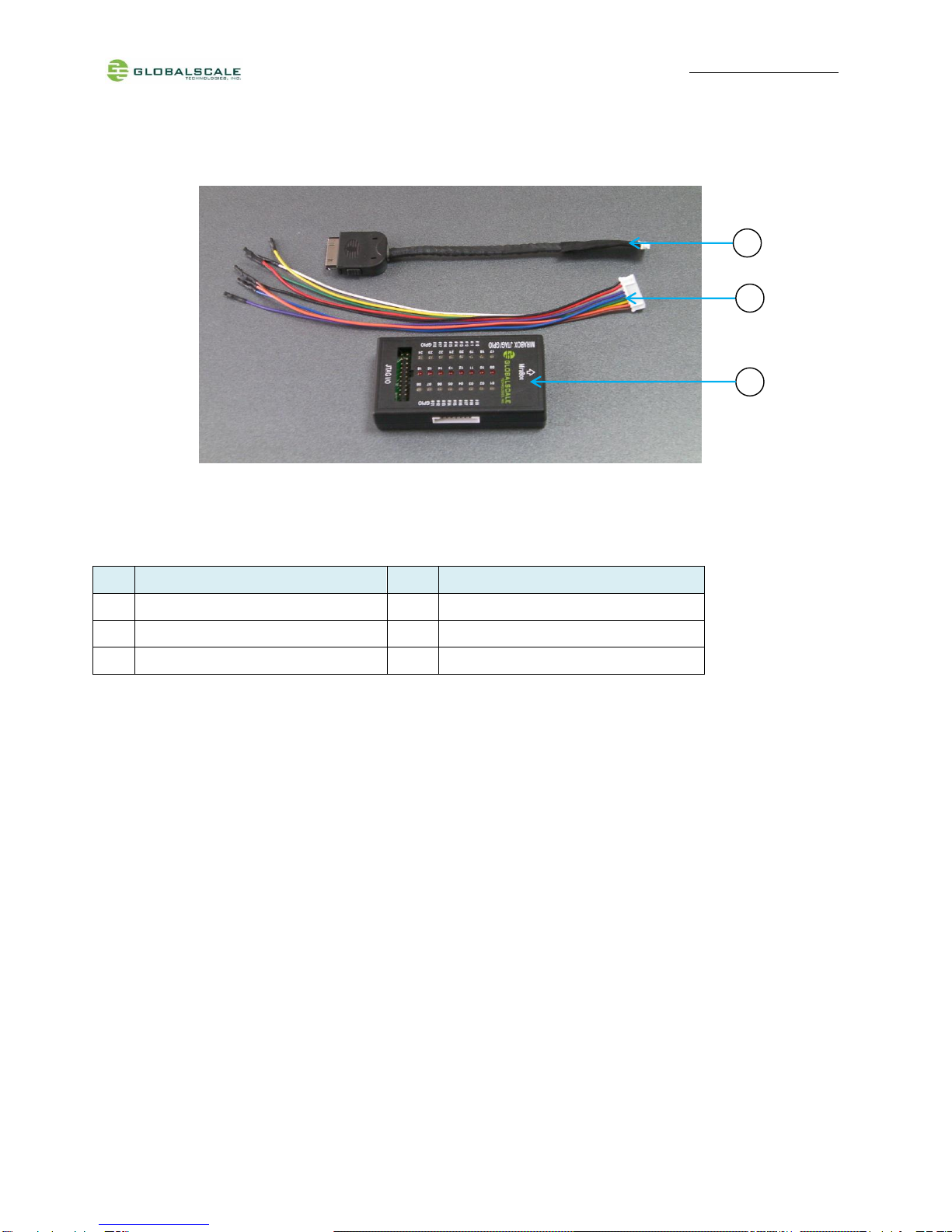
Multi I/O Cable
1 pc
Connect from MiraBox to JTAG/GPIO box
9
GPIO Cable
1 pc
For GPIO port connection
10
MiraBox JTAG/GPIO box
1 pc
External JTAG/GPIO box for debugging
10
8
9

MiraBox User Guide –page5/ 29
B. MiraBox appearance and connecting ports
1
2
3
6
4
5

MiraBox User Guide –page6/ 29
Mirabox ports description
Connection port
Description
Remark
1
Power Port
DC 5V/3A port
2
RJ45 #1
Gigabit Ethernet port1
3
RJ45 #2
Gigabit Ethernet port2
4
USB 3.0 port#1
USB 3.0 high speed host
5
USB 3.0 port#2
USB 3.0 high speed host
6
Mini USB console port
Debug console
Connect to PC USB port
7
Multi-I/O port
JTAG and GPIO port
Connect to external JTAG/GPIO box for system
development.
8
Micro SD slot
External Micro-SD slot
9
Reset button hole
System reset button
Reset through GPIO
9
8
7

MiraBox User Guide –page7/ 29
C. LED indication
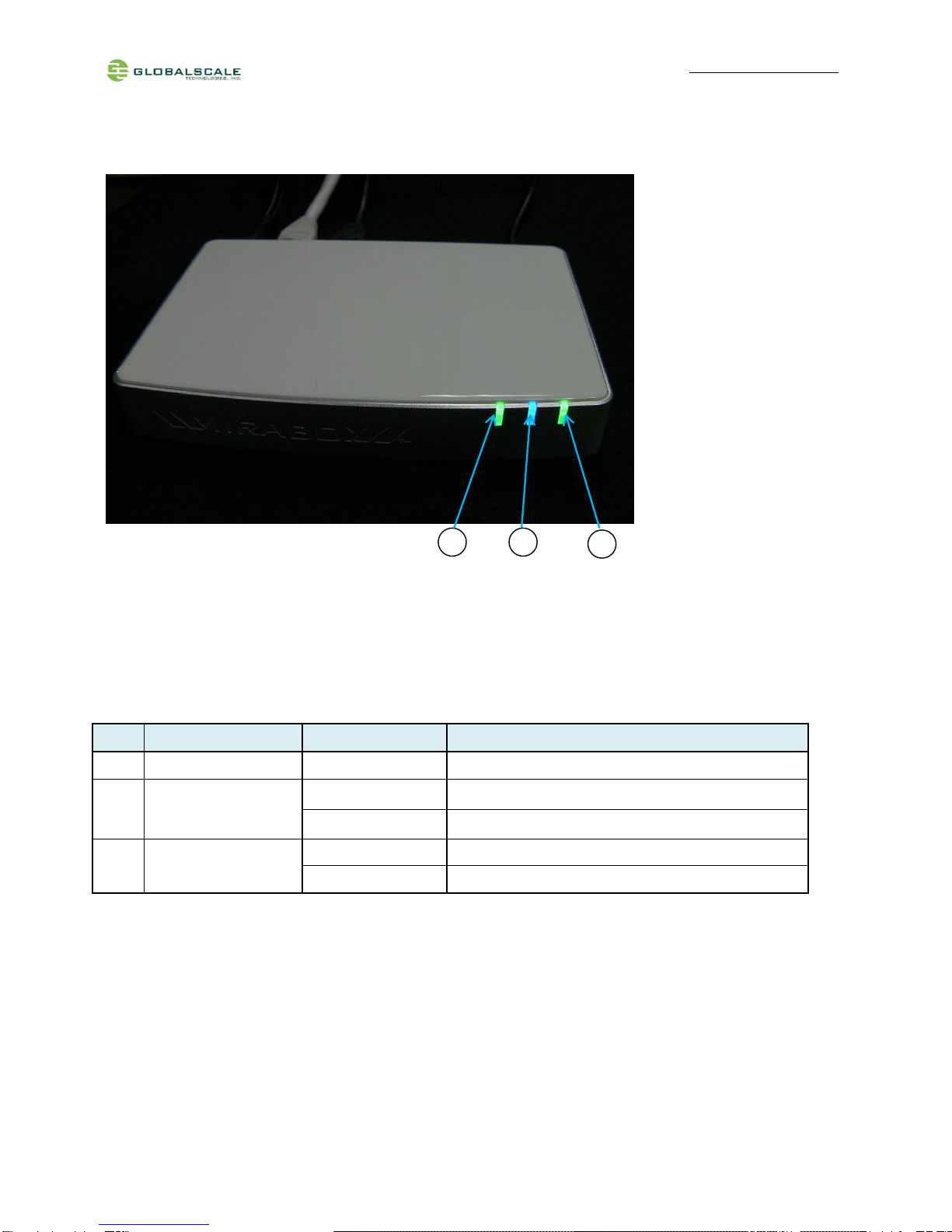
LED indication table
LED
Color/ Pattern
Description
1
Power on LED
Solid green
Upon power on, this LED lights up
2
WiFi AP
Blinking blue
Indicate WiFi AP mode is activated as default after boot up
Off
WiFi AP mode is not activated
3
WiFi client
Blinking green
WiFi client mode is activated
Off
WiFi client mode is not activated
3
1
2

MiraBox User Guide –page8/ 29
D. System console and debugging
1. Driver and tool installation
(1) Prepare one Windows PC.
(2) Download the serial communication tool “putty.exe”.
(3) Download the driver, “2KXPVDock.exe”, for Prolific-USB-to-Serial-Comm-Port at our Website.
http://www.globalscaletechnologies.com/t-downloads.aspx
(4) Install driver on your PC (only for the first time)
(4-1) Connect Mirabox to your Windows PC.
(4-2)The first time when you connect Mirabox to the Windows computer, you will be asked to install the driver.
Connect Mini USB cable here. The other end
connects to computer’s USB port.

MiraBox User Guide –page9/ 29
(4-3)Run “2KXPVDock.exe”and the driver will be installed to the PATH “C:\cabs\2KXPVDock”.
(5) Find out the com port of your debugger on your windows PC.
(5-1)Right click [My Computer] [Properties] [Hardware] [Device Manager]
Click “Next”to complete the installation

MiraBox User Guide –page10 / 29
(5-2)Find out your com port as below (here is COM3 for example).
(6) Run “putty.exe”and configure as below on your Windows PC.
The “Serial line”should be
configured the same as the
COM port in Device Manager
Give it a name and “Save”for
easy execution next time
Give it a name and “Save”for
easy execution next time
Click
“Open"
Autres manuels pour MiraBox
1
Table des matières