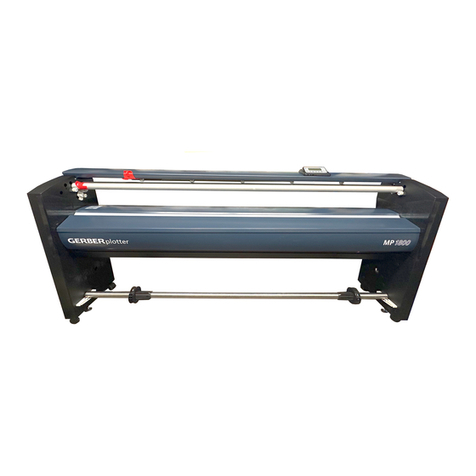
Gerber Technology AccuPlot AP-100 Manuel utilisateur

AccuPlot
AP-100/AP-300/AP-520 USER’S GUIDE

!
!!
"#$$%$$&'#()$!!
!!
! *
!!!
!
) !
! !
!+
!!!
!, !!
!-!!!
./.,!&
0/11
,!,!
!
! !&'!"
(!./ !
2!,3!
- ,3 ,
!&
'#43#43&#"#443#3!
3!
)5"3/0
6&$7$5
*87$9:;$)
.-*87$9:;%:(
"6&<
=1$::($$$$

i
Contents
PREFACE iii
Product Documentation.............................................................................................iii
Chapter Summary................................................................................................iii
Conventions in this Guide....................................................................................iv
GGT Product Support ...............................................................................................iv
Within the United States and Canada ..................................................................iv
Outside the United States and Canada ................................................................iv
INTRODUCTION CHAPTER 1
AccuPlot AP-100 and AP-300 Series Plotters.............................................................1
AccuJet AJ-520 Plotters.............................................................................................1
Safety ........................................................................................................................2
Remember These Safety Practices.......................................................................2
Emergency Stop...................................................................................................2
Sliding Covers ......................................................................................................2
STARTING AND STOPPING THE PLOTTERS CHAPTER 2
Power On and Initialization.........................................................................................1
Power On..............................................................................................................1
Initializing the Plotter ............................................................................................2
Putting the Plotter Online...........................................................................................3
Stopping the Plotter....................................................................................................4
Offline...................................................................................................................4
Power Down..........................................................................................................4
PLOTTER HARDWARE COMPONENTS CHAPTER 3
Hardware Summary ...................................................................................................1
Main Power Panel......................................................................................................4
Paper Transport System.............................................................................................5
Carriage and Pen Assembly.......................................................................................5
Control Panel.............................................................................................................6
Table Orientation .......................................................................................................8
OFFLINE OPERATION CHAPTER 4
The Offline Menu.......................................................................................................1
Initializing the Plotter..................................................................................................3
Putting the Plotter Online...........................................................................................3
Advancing the Paper..................................................................................................4
Reversing the Take-up Roll........................................................................................5
Setting the Origin.......................................................................................................6
Raising and Lowering the Pen....................................................................................7

ii
OFFLINE OPERATION (Cont’d) CHAPTER 4
Disabling and Enabling Servo Power.........................................................................8
Resetting the Plotter........................................................................................... 10
Plotter Parameters................................................................................................... 11
Changing Plotter Parameters..............................................................................12
Saving Parameters.............................................................................................19
Loading Default Parameters...............................................................................20
Setting the Pen and Inkjet Timers............................................................................21
Downloading Firmware............................................................................................23
Diagnostic Tests...................................................................................................... 26
ACCUPLOT AND ACCUJET MAINTENANCE CHAPTER 5
Plotter Supplies .........................................................................................................1
Routine Cleaning.......................................................................................................2
Loading Plotter Paper................................................................................................3
To Load A New AJ-520 Supply Roll......................................................................4
Load New AccuJet Take-up Roll...........................................................................7

Loading Paper on the AP-100/AP-300..................................................................9
Switching to the Second Paper Roll....................................................................12
Using Paper Width Adapters ..............................................................................13
Plotter Pen Maintenance..........................................................................................14
Task overview....................................................................................................14
AJ-520 Pen Maintenance ...................................................................................15
AccuPlot Longlife Pen Maintenance ................................................................... 18
GLOSSARY G-1
INDEX I-1
List of Figures
Figure 3-1 Top view of the AP-320......................................................................3-2
Figure 3-2 Top view of the AccuJet 520 ..............................................................3-3
Figure 3-3 AccuPlot 100/300 Power Panel...........................................................3-4
Figure 3-4 AccuJet 520 Power Panel...................................................................3-4
Figure 3-5 AJ-520 dancer bar..............................................................................3-5
Figure 3-6 Control panel assembly......................................................................3-6
Figure 3-7 X-axis, Y-axis, and GGT default origin................................................3-8
Figure 4-1 Plotter Menu Structure........................................................................4-2
Figure 4-2 Plotter Diagnostics Menu..................................................................4-27
Figure 5-1 AJ-520 Longlife Pen Assembly.........................................................5-15
Figure 5-2 AccuPlot Longlife Pen & Ink Reservoir.............................................5-19

iii
Preface
AccuJet™ and AccuPlot™ is an optional plotting device used with the AccuMark™ ,
MicroMark™, and AccuMark Silhouette™ systems.
Product Documentation
This Operator’s Guide is intended to be used by the person responsible for day-to-day
plotting operations and for the person responsible for the plotter’s routine
maintenance. This document includes operating instructions for the AccuJet AJ-520
plotter as well as the AccuPlot AP-100 and AP-300 series of plotters.
Chapter Summary
Topics covered include plotter functions, default operating parameters, and routine
maintenance guidelines. The guide is organized into the following chapters:
1. Introduction This chapter covers AccuPlot and AccuJet safety procedures.
2. Starting and Stopping Plotters This chapter describes how to turn on and
turn off the AccuPlot and AccuJet plotters.
3. Plotter Hardware Components This chapter is provided to help identify
the parts of the plotters referenced in this document. This chapter also tells
you how to turn the plotter on, how to put the plotter online, and how to
turn the plotter off.
4. Offline Operation This chapter covers the Offline menu structure and
offline plotter operations, with an emphasis on plotter commands and
functions.
5. AccuPlot and AccuJet Maintenance This chapter describes maintenance
procedures required to keep your AccuJet or AccuPlot plotters operating at
maximum efficiency and accuracy.

iv
Conventions in this Guide
The following conventions are used throughout this guide:
WARNING: WARNINGS ALERT YOU TO CONDITIONS THAT CAN CAUSE INJURY TO
YOU OR CAUSE DAMAGE TO THE EQUIPMENT.
DO NOT IGNORE WARNINGS.
This type of heading indicates the beginning of a procedure.
Procedure steps are numbered and should be followed in the order presented.
Always read the entire procedure before beginning, to be sure you understand the
steps, have all necessary tools or supplies, and are aware of any warnings.
GGT Product Support
As part of our commitment to excellence, GGT® provides complete worldwide support
for the AccuJet and AccuPlot plotters.
Within the United States and Canada
For service support within the US and Canada, call 1-800-321-2448. For information
about training or about other GGT products, call your local GGT Sales and Service
Office.
Outside the United States and Canada
For service support, information about training, or information about other GGT
products outside the US and Canada, call your local GGT Sales and Service Office.

Introduction 1-1
AccuPlotAccuPlot APAP-100 and AP-100 and AP-300 Series Plotters-300 Series Plotters
AccuPlot plotters are designed to plot markers and pieces, either full-size or in
miniature. Working with your marking and grading system, these plotters draw
individual pieces or markers on paper for verification of piece accuracy, or for
later use in cutting fabric.
The models that make up the series are the AP-100, the AP-110, the AP-300,
the AP-310/320 and the AP-350/360. The AP-100 and AP-300 use a different
paper transport method and a smaller diameter paper roll than the other
plotter models.
The only difference between the AP-320 and AP-360 models is the maximum
paper width that can be used:
• AP-310/320 2000 millimeters (78.7 inches)
• AP-350/360 2400 millimeters (94.5 inches)
AccuJet AJAccuJet AJ-520 Plotter-520 Plotter
The GGT AccuJet 520 plotter combines the speed and quality of pen plotting
of pattern outlines with the throughput and efficiency of inkjet printing for
annotation.
Annotation is printed at speeds up to 635 mm per second (25 ips) and can be
placed at any angle.
The AccuJet 520 plotter works with your marking and grading system.
IntroductionIntroduction
11

Introduction
1-2Safety
SafetySafety
Every effort has been made to design safety into AccuPlot and AccuJet plotters.
• Edges are rounded to eliminate pinch points.
• Electronic components are enclosed.
• Emergency Stop (E-Stop) push buttons are easily reached.
In addition, control programs include safety functions which automatically
stop operation under certain error conditions.
Remember These Safety PracticesRemember These Safety Practices
• Use extreme caution when reaching under the carriage or beam.
• When a plotter is networked, jobs can be sent to the plotter from any
system on the network. Do not assume the system will not begin
operating simply because you are not sending work.
• Stay out of the path of the beam at all times.
• Do not perform any maintenance on the plotter while the servos are
enabled.
• Do not access the electrical panels while power is applied.
Emergency StopEmergency Stop
The emergency stop switch is a red, push/twist switch that turns the plotter on
and off. The switch is located in the lower right corner of the control panel.
Twisting the emergency power switch in the direction of the marked arrows
allows the plotter to be powered on. Pushing the switch down turns the power
off and immediately stops the beam and carriage assemblies.
NoteNote: In an emergency, push the emergency power switch down. This stops the
beam and carriage instantly.
Sliding CoversSliding Covers
The AccuJet 520 is equipped with covers which help prevent injury to
operators or damage to the AccuJet during plotter operation. The sliding
covers should be closed before operating the plotter.

Power On and Initialization 2-1
The plotter must be online before it can accept and process data from your
marking and grading system. Before the plotter can be put online, power must
be applied and the plotter must be initialized.
The following are the procedures for starting, initializing, and putting the
plotter online. Read all the steps before beginning a procedure to be sure you
understand the process.
Power On and InitializationPower On and Initialization
The system must be initialized if power has been turned off or after an
Emergency Stop (E-Stop) is detected. Initializing clears the system’s memory
buffer and positions the head at the origin (starting) position.
NOTE: Before turning the system on, be sure the table surface and surrounding area
are clear of obstructions.
Power On
1. Be sure all plugs and connectors are in place and all safety features are in
place.
2. Switch the plotter main power to ON.
3. Turn the emergency stop switch in the direction of the arrows until it
unlocks and pops up. The plotter performs a self-test and then displays the
following system prompt:
Starting and Stopping the PlottersStarting and Stopping the Plotters
22
PLOTTER MODEL V X.X.X
Press enter to
enable the plotter.

Starting and Stopping the Plotters
2-2Power On and Initialization
4. Press Enter to display page one of the Offline menu.
Initializing the Plotter
Initializing clears the plotter memory buffer and positions the pen assembly at
the origin (starting) position. Initializing also loads the operating parameters
currently defined for the plotter.
You must initialize the plotter after turning the power on and after any
emergency stop.
TO INITIALIZE THE PLOTTER
1. From page one of the Offline menu, press F2-INITIALIZE. To interrupt the
process, press F3-STOP.
2. Once initialization is complete, page one of the Offline menu appears in
the control panel window again.
OFFLINE . . .
ONLINE PAPER ADV
INITIALIZE ORIGIN
OFFLINE . . .
ONLINE PAPER ADV
INITIALIZE ORIGIN
INITIALIZING . . .
STOP
Ce manuel convient aux modèles suivants
2
Table des matières
Autres manuels Gerber Technology Traceur