
GeoVision GV-Smart Box Manuel utilisateur

Before attempting to connect or operate this product,
please read these instructions carefully and save this manual for future use.
User's Manual V1.0.1
GV-Smart Box

© 2010 GeoVision, Inc. All rights reserved.
Under the copyright laws, this manual may not be copied, in whole or in part,
without the written consent of GeoVision.
Every effort has been made to ensure that the information in this manual is
accurate. GeoVision, Inc. makes no expressed or implied warranty of any kind
and assumes no responsibility for errors or omissions. No liability is assumed
for incidental or consequential damages arising from the use of the information
or products contained herein. Features and specifications are subject to
change without notice.
GeoVision, Inc.
9F, No. 246, Sec. 1, Neihu Rd.,
Neihu District, Taipei, Taiwan
Tel: +886-2-8797-8377
Fax: +886-2-8797-8335
http://www.geovision.com.tw
Trademarks used in this manual: GeoVision, the GeoVision logo and GV
series products are trademarks of GeoVision, Inc. Windows and Windows XP
are registered trademarks of Microsoft Corporation.
January 2011

i
Important Notice
After updating the firmware from V1.0 to V1.1, you must restore GV-Smart Box to factory
default settings. Refer to 5.2 Restoring to Factory Default Settings for detailed instruction.

ii
Contents
Chapter 1 Introduction ..........................................................1
1.1 Key Features ............................................................................................................2
1.2 Packing List ..............................................................................................................2
1.3 System Requirements ..............................................................................................2
1.4 Optimal Camera Installation .....................................................................................3
1.5 Recognition Limitations on Face Counter.................................................................4
1.6 Reference for Recording Capacity of a 1G Mini SD Card ........................................5
1.7 Options .....................................................................................................................6
1.8 Overview...................................................................................................................7
1.8.1 Front
View......................................................................................................7
1.8.2 Rear View ......................................................................................................8
Chapter 2 Getting Started .....................................................9
2.1 Installing on a Network .............................................................................................9
2.2 Assigning an IP Address ........................................................................................10
2.3 Configuring Basic Features ....................................................................................11
Chapter 3 Accessing the GV-Smart Box ...........................12
3.1 Accessing Your Surveillance Images .....................................................................12
3.2 Functions Featured on the Main Page ...................................................................13
3.2.1 People Counting and Face Counter.............................................................14
3.2.2 Network Status.............................................................................................18
Chapter 4 Administrator Mode ...........................................19
4.1 Video and Motion....................................................................................................20
4.1.1 Video Settings ............................................................................................20
4.1.2 Detection Mode............................................................................................22
4.1.3 GV-Smart Box Settings ..............................................................................24
4.2 I/O Control ..............................................................................................................25
4.2.1 Input Setting ...............................................................................................25
4.2.2 Output Setting ............................................................................................26
4.3 Events & Alerts .......................................................................................................27
4.3.1 VSM (Vital Sign Monitor)............................................................................27
4.3.2 Compact DVR Setting ................................................................................28
4.3.3 Web Report Setting....................................................................................29

iii
4.3.4 Database Inquiry ........................................................................................30
4.4 Schedule.................................................................................................................34
4.5 Network ..................................................................................................................35
4.5.1 LAN ............................................................................................................35
4.5.2 UMTS .........................................................................................................37
4.5.3 Advanced TCP/IP.......................................................................................39
4.5.4 IP Filter Setting...........................................................................................41
4.6 Management...........................................................................................................42
4.6.1 Date & Time Setting ...................................................................................42
4.6.2 Storage Settings.........................................................................................44
4.6.3 User Account..............................................................................................46
4.6.4 Log Information ..........................................................................................47
4.6.5 Tools ..........................................................................................................48
Chapter 5 Advanced Applications .....................................49
5.1 Upgrading System Firmware ..................................................................................49
5.1.1 Upgrading Firmware over LAN...................................................................50
5.1.2 Upgrading Firmware by Using the Utility....................................................50
5.2 Restoring to Factory Default Settings.....................................................................53
Chapter 6 The I/O Terminal Block ......................................54
6.1 I/O Port ...................................................................................................................54
6.2 RS-485/RS-232 Terminal Block .............................................................................56
Chapter 7 Integration with other GV Applications............57
7.1 Connecting to GV-Web Report...............................................................................58
7.2 Connecting to GV-System ......................................................................................59
7.3 Connecting to GV-Compact DVR ...........................................................................62
Specifications .........................................................................63
Appendix .................................................................................64

Introduction
1
1
Chapter 1 Introduction
The GV-Smart Box is a standalone device designed for indoor environments such as shops
and offices. Connecting to any analog camera, the GV-Smart Box counts the number of
visitors or faces. Having this data not only helps you keep an eye on your properties, but also
helps retailers identify peak traffic hours, providing valuable information for making strategic
decisions.
Without installing any software, you can easily access the live images and counting data of
the GV-Smart Box from anywhere in the world through a computer using the IE browser. You
can also integrate the GV-Smart Box with GV applications such as GV-Web Report,
GV-System and GV-Compact DVR to support extended functionality.
Live Images, People Counting and Face
Counting Results
User 1
(IE browser)
User 20
(IE browser)
Network
GV-Smart Box
Figure 1-1

2
1.1 Key Features
•Counts the number of visitors
•Counts the number of faces
•Easily accessible Web-based interface to watch live views, query database, and
customize settings
•Triggers alarm when faces covered with masks are detected
•Supports UMTS
•Integrates with GV-Web Report, GV-System or GV-Compact DVR
•Connects to VSM and sends alerts in the event of I/O trigger, video lost and network
disconnection
•Supports adjustment of video attributes
•Sets detection mode by schedule
1.2 Packing List
1. GV-Smart Box x 1
2. I/O Cable with RJ-45 Connector x 1
3. Power Adaptor x 1
4. GV-Smart Box Software DVD x 1
5. GV-Smart Box User’s Manual on Software DVD
1.3 System Requirements
These are the requirements for the computer that displays the image or controls the
GV-Smart Box.
•OS: Microsoft Windows XP / Vista / 7 / Server 2008
•Web Browser: Internet Explorer 7 or later

Introduction
3
1
1.4 Optimal Camera Installation
To get the optimal results for the People Counting and Face Counter function, follow the
instructions below to install the camera.
People Counting:
•The camera should be installed to the ceiling at least 2.5 meters above the floor. The
camera should face straight down.
•Position the camera in the middle of the two defined detection zones so that the system
can easily identify people when they pass through.
•Don’t install the camera in such an angle that the size of people varies dramatically in the
camera view.
•Make sure that no doors or any items are ever crossing the middle line where the camera
is installed. If a door is opened towards the camera, place the camera further away from
the door.
•Avoid placing the camera where it can be subjected to direct sunlight or reflections. If
sharp shadow edges are visible in the camera view, the count accuracy might be less than
what it normally is.
•If the camera has the Auto Gain Control (AGC) and Auto White Balance (AWB) features,
disable them.
Positioning the camera in the middle of two
defined detection zones.

4
Face Counter:
•Install the camera inside an entrance pointing horizontally outward. The face counting
function is designed to detect front-view faces only.
•Avoid installing the camera where it can be subjected to direct sunlight or reflections. The
lighting of the entrance where you set the camera should be sufficient but not be too bright
or dark. Light should be distributed evenly across faces without too much light coming
from one side. If sharp shadow edges are visible in the camera view, the count accuracy
might be less than what it normally is.
1.5 Recognition Limitations on Face Counter
•Recognition Angle: Front face only (side face cannot be recognized)
•Face with Mask Filter: Not recommended for people with long beard or mustache
•Recognition Area Range: The area of the detected face must take up 10% to 50% of
camera view
Introduction
5
1
1.6 Reference for Recording Capacity of a 1G Mini SD
Card
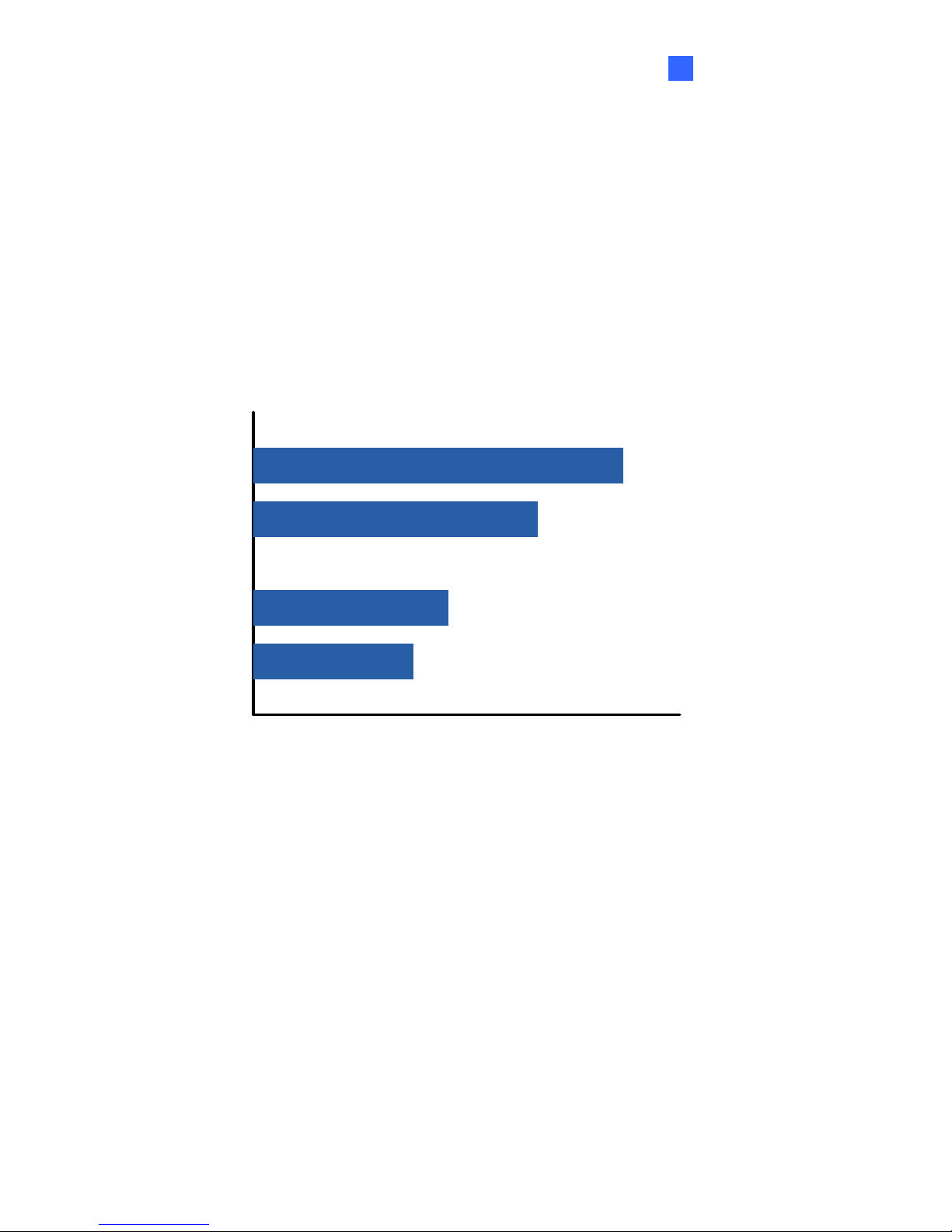
For Face Counter function, a mini SD card with 1G capacity can store approximately 40,000
log events (both MDB and images) at D1 resolution, and 97,000 log events at CIF resolution.
For People Counting function, a mini SD card with 1G capacity can store approximately
52,000 log events at D1 resolution, and 122,000 log events at CIF resolution.
Face Counter
People Counting CIF: 122,000
Face Counter
People Counting
D1: 40,000
D1: 52,000
Log Events
(MDB and Images)
Function
CIF: 97,000
Table des matières


