Gemini GWAP23 Manuel utilisateur

1
MODEL NO.: GWAP23
WIFI SMART
HEPA FILTER
AIR PURIFIER
A GILMAN GROUP BRAND
WIFI無線網絡智能
HEPA高效濾網
空氣淨化機

2
Please read and retain for future reference.
• Ensure the appliance is in placed on a horizontal, even and stable surface.
• Verify that the mains voltage is the same as that indicated on the rating plate
on the appliance before use.
• Make sure that you always use a grounded wall socket to connect the
appliance.
• Always remove the plug from the wall socket when the appliance is not in use.
• Remove the plug from the wall socket by pulling the plug, not the power cord.
• Make sure that the appliance, the power cord and plug do not make contact
with water.
• Make sure that the appliance, the power cord and plug do not make contact
with hot surface, such as a hot hob or naked ame.
• Check the appliance’s power cord regularly to make sure it is not damaged.
• Do not use the appliance if the power cord is damaged. If the power cord is
damaged, it must be replaced by an electrical technician or a person with
similar qualication, in order to avoid any hazards.
SAFETY INSTRUCTION - GENERAL
SAFETY INSTRUCTION - ELECTRICITY AND HEAT
• Use this appliance solely in accordance with these instructions.
• This appliance is for household personal use only, not for commercial purpose.
• Remove all packaging material from the appliance before use.
• This appliance shall not be used by children of 0 to 8-year old.
• This appliance can be used by children older than 8-year old and persons
with reduced physical, sensory or mental capabilities or lack of experience
and knowledge, but only if they have been given supervision or instruction
concerning use of the appliance in safe way and understand the hazards
involved.
• Children should be supervised to ensure that they do not play with the appliance.
• Cleaning and maintenance must not be done by children.
• Have any repairs carried out solely by a qualied electrician. Never try to
repair the appliance yourself.
• Do not handle the plug or appliance with wet hands.
• Do not immerse the main body in water.
• Children shall not play with the appliance.
• Do not leave the appliance unattended when connected to the mains supply.
• Only use the attachments/accessories supplied with the product.

3
• Leave at least 30cm of space on the back and sides of the product, and at
least 50cm of space above the product when using.
• Please remove the packaging of the HEPA lter before using for the rst time.
• Do not pick up the appliance if falls into water. Remove the plug from the
socket immediately. Do not use the appliance again.
• Never immerse the appliance, the power cord or the plug in water or any
liquid.
• Do not use the liquids, such as water or ammable solvents to clean the product,
please use a soft cloth to clean when product not in running.
• Please keep air circulation and do not cover air inlet/outlet and detect air quality
sensor when the product is running.
• Do not use other type power adapters, keep use the original accessories
which accompany with the package.
• Please refer to “Cleaning and Storage” section to clean the appliance.
SAFETY INSTRUCTION - DURING OPERATION

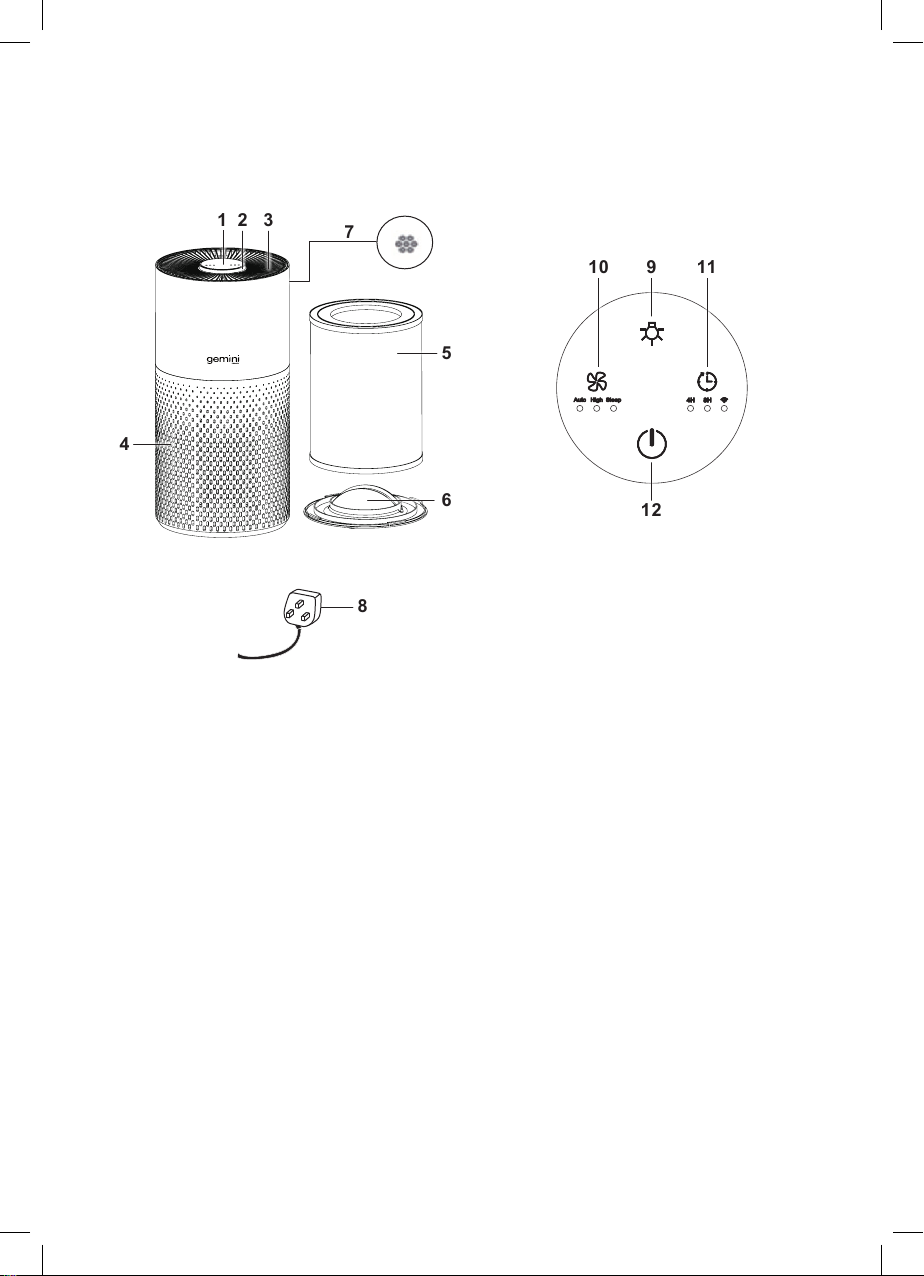
1 2 3
4
5
6
7
4
Main Unit
1. Control Panel
2. LED Light Ring
3. Air outlet
4. Air inlet
5. 3-IN-1 HEPA filter
6. Base Cover
7. Detect air quality sensor
8. Adaptor
Control panel
9. LED ring light touch button (Off/ Soft/Bright)
10. Wind speed touch button ( Auto/High/Sleep)
11. Timer Off/ WiFi setting touch button (4/8H/WiFi)
12. Power On/ Off touch button
PRODUCT OVERVIEW
Main unit Control panel
Back side
8
9
12
10 11
Off / Soft / Bright

5
INSTALLATION FILTER
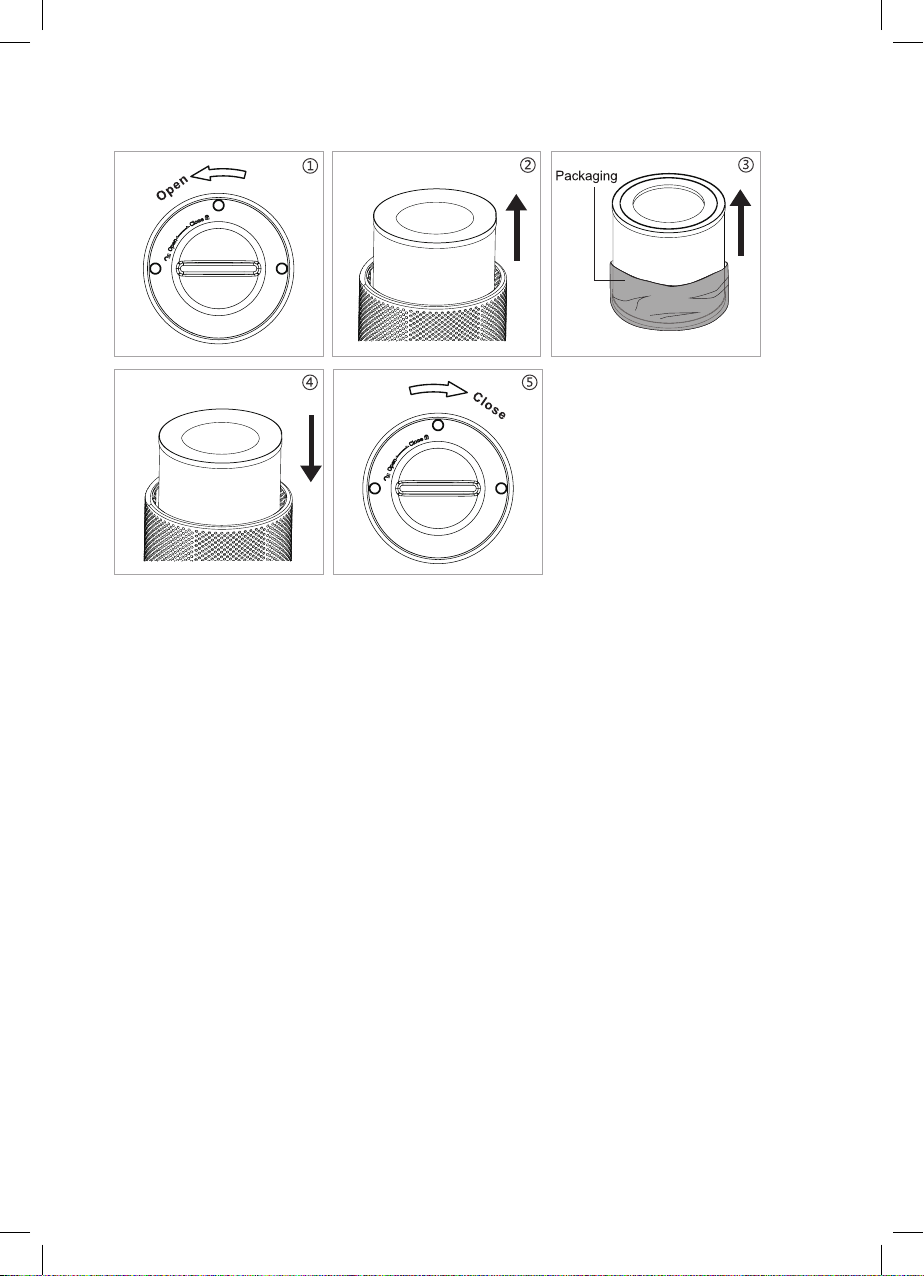
• Invert the appliance, and rotate the base cover along the direction marked
“OPEN”. (Pic 1)
• Take out the 3-IN-1 HEPA lter from the appliance. (Pic 2)
• Remove the packaging of the 3-IN-1 HEPA lter. (Pic 3)
• Install the 3-IN-1 HEPA lter into the appliance. (Pic 4)
• Then install the base cover, rotate and tighten the base cover along the
direction marked “CLOSE”. (Pic 5)
WARNING
• Please remove the polybag packaging of the 3-IN-1 HEPA lter before using
for the rst time.
•
Ensure the appliance is unplugged before removing or installing the
3-IN-1
HEPA lter.
FILTER REPLACEMENT
• When the LED light ring keeps ashing in red as lter replacement warning
indicator, the lter should be replaced.
• When you replace a new 3-IN-1 HEPA lter, connect the power supply again,
press and hold the ON/OFF touch button for 5 seconds to disengage the red
warning indicator for replacing the lter
NOTE:
• User use the appliance at the rst time, after remove the polybag of the lter
and install it in place. No need to reset the lter.
• For best performance, suggest replacing a new 3-IN-1 lter around 3-6 months.

6
OPERATING INSTRUCTION
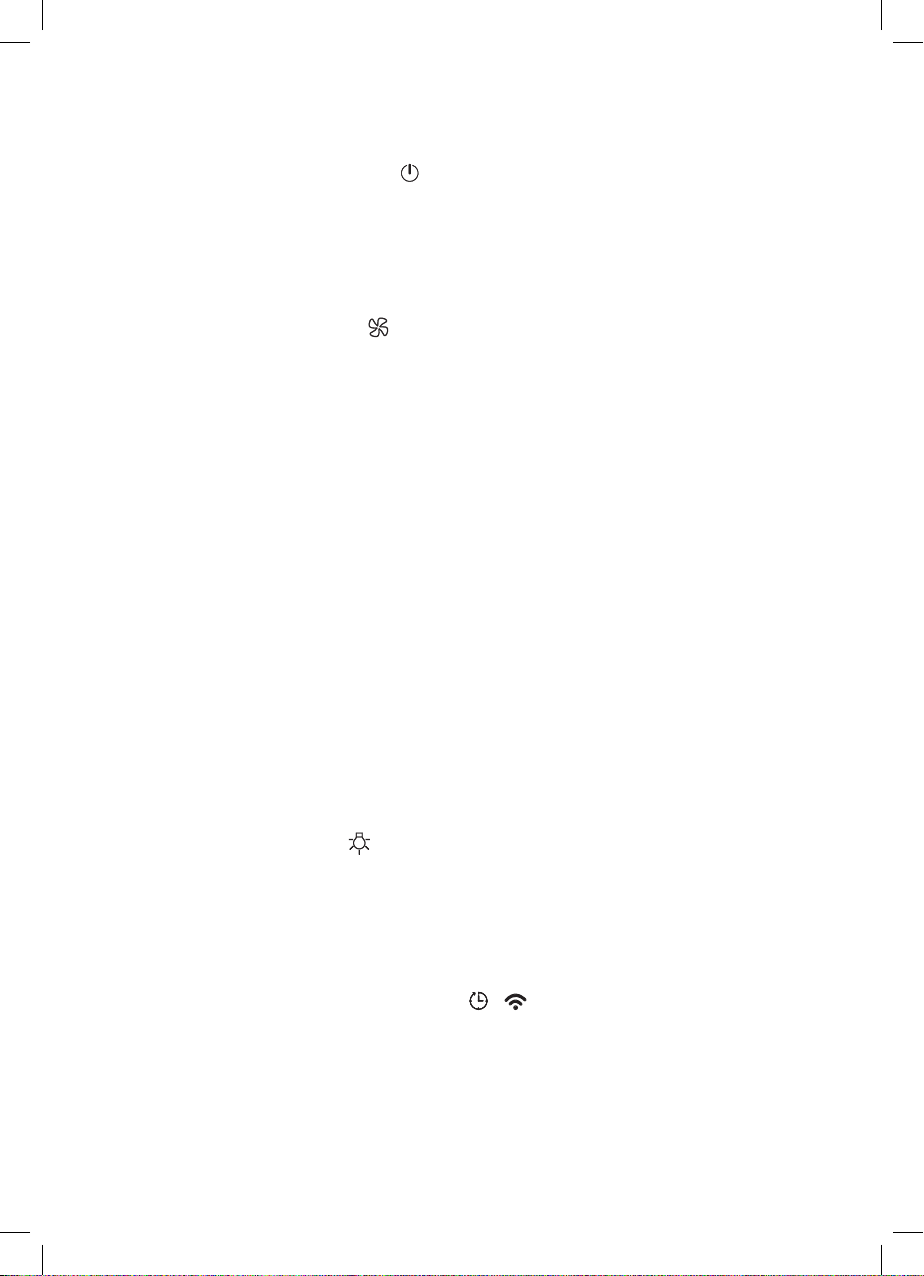
Power ON/ OFF Touch Button
• Touch the power ON/OFF touch button to turn on the appliance, hear a
“beep” sound. And the default setting is High wind mode, the corresponding
wind speed indicator lights on.
• Touch the button again to turn off the appliance, the “beep” sound rings for
once and the appliance will turn off with all lights turn off.
Wind Speed Touch Button
• During the working, you will hear a “Beep” sound when you touch the wind
speed touch button each time. Touch the wind speed touch button to set
among the wind speeds of Auto-High-Sleep, and the corresponding white
indicator lights on.
• Auto mode means the wind speed will automatically adjust according to air quality.
• Red LED light ring - Bad air quality (default High wind speed setting automatically)
• Yellow LED light ring
-
Normal air quality (default Mid wind speed setting
automatically)
• Blue LED light ring - Good air quality (default Low wind speed setting auto-
matically)
• High Wind Mode: connect the power supply, the light ring will turn among
b
lue, cyan, green, yellow, red, purple. After around 30 seconds, the appliance
will detect automatically based on detect air quality to display the air quality
condition, the LED light ring (Blue/Yellow/Red), but the wind speed keeps at
high wind mode.
• Sleep Mode: runs at low wind speed, the LED light ring will at the purple
gradient for about 3 seconds, then the appliance will detect the air quality
automatically by the detect air quality sensor to display the LED light ring
(Blue/ Yellow/ Red), if no operation for about 5 seconds, all light ring will be
off. Press any button can wake up the light.
LED Light Touch Button
• During the working, touch the LED ring light touch button, hear a “Beep”
sound, and to set Soft light or Bright light mode of the LED light ring.Touch
the button again, hear a “Beep” sound, the LED light ring turn off completely.
NOTE: The LED light button can not operate in the status of shutdown.
Timer Off/ WiFi Setting Touch Button /
• During the working, touch the Timer off touch button to set among the circulation
of 4H and 8H timer off with a “Beep” sound, and the corresponding white
indicator lights on.
• Touch again, the timer indicator turns off and the appliance will work
continuously without timer setting.
• In the status of timing the appliance begins to count down. When time is up,
the fan will stop working and all lights and appliance will be off.

7
MOBILE APP USAGE
Scan the QR code, download and install the Tuya Smart App for
mobile APP function, please reference the mobile APP interface below.
WiFi setting
Long press around 5 seconds Timer off/ WiFi setting touch
button can switch to WiFi connection mode, when the WiFi
indicator ashes quickly ( 3 times per second), which means
WiFi works under in EZ mode (default mode) the WiFi
indicator continuous bright, it means the WiFi connection is
successful.
If EZ mode (default mode) connection is failed, long press Timer off/ WiFi
setting touch button again, the indicator ashes slowly (3 seconds once), which
means WiFi works under the AP mode; If the WiFi indicator is off during
the
connection, it means the connection fails. You need to operate the previous
step
to reconnect the WiFi.
• Long press around 5 seconds Timer off/ WiFi setting touch button can switch
to WiFi connection mode, when the WiFi indicator ashes quickly ( 3 times per
second), which means WiFi works under in EZ mode (default mode) the WiFi
indicator continuous bright, it means the WiFi connection is successful.
• If EZ mode (default mode) connection is failed, long press Timer off/ WiFi
setting touch button again, the indicator ashes slowly (3 seconds once),
which means WiFi works under the AP mode; If the WiFi indicator is off during
the connection, it means the connection fails. You need to operate the previous
step to reconnect the WiFi.

8
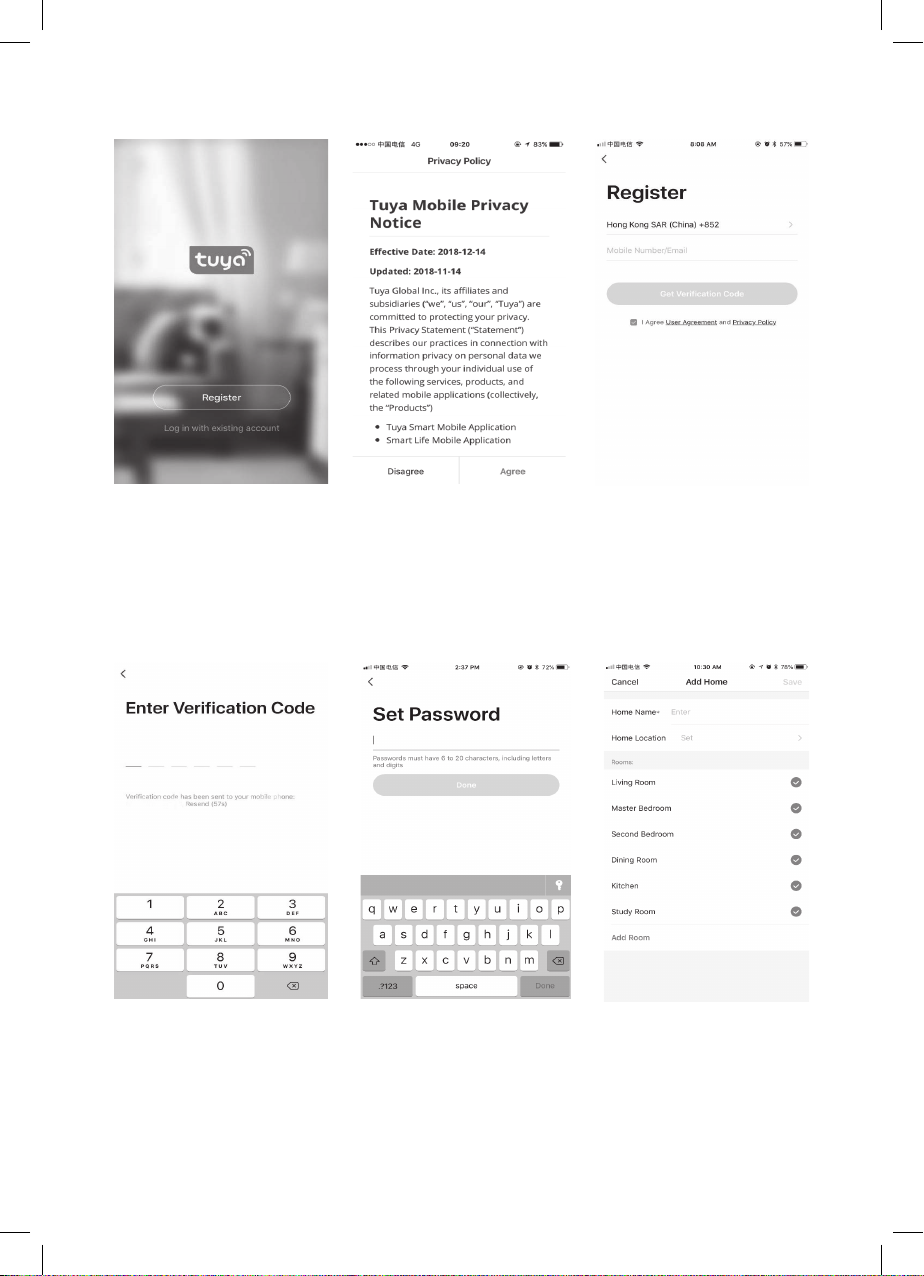
• Open Tuya Smart App and press to create New Account. (Picture 1)
• Enter the privacy policy interface and press Agree. (Picture 2)
• Input your phone number / email to get a verication code to register. (Picture 3)
Picture 1 Picture 2 Picture 3
• Enter the Verication code.(Picture 4)
• Set the password (1-20 characters, including alphabets and numbers) and
tap Done. (Picture 5)
• Fill in the Add home (Home name & Home location) page (Picture 6)
Picture 4 Picture 5 Picture 6

9
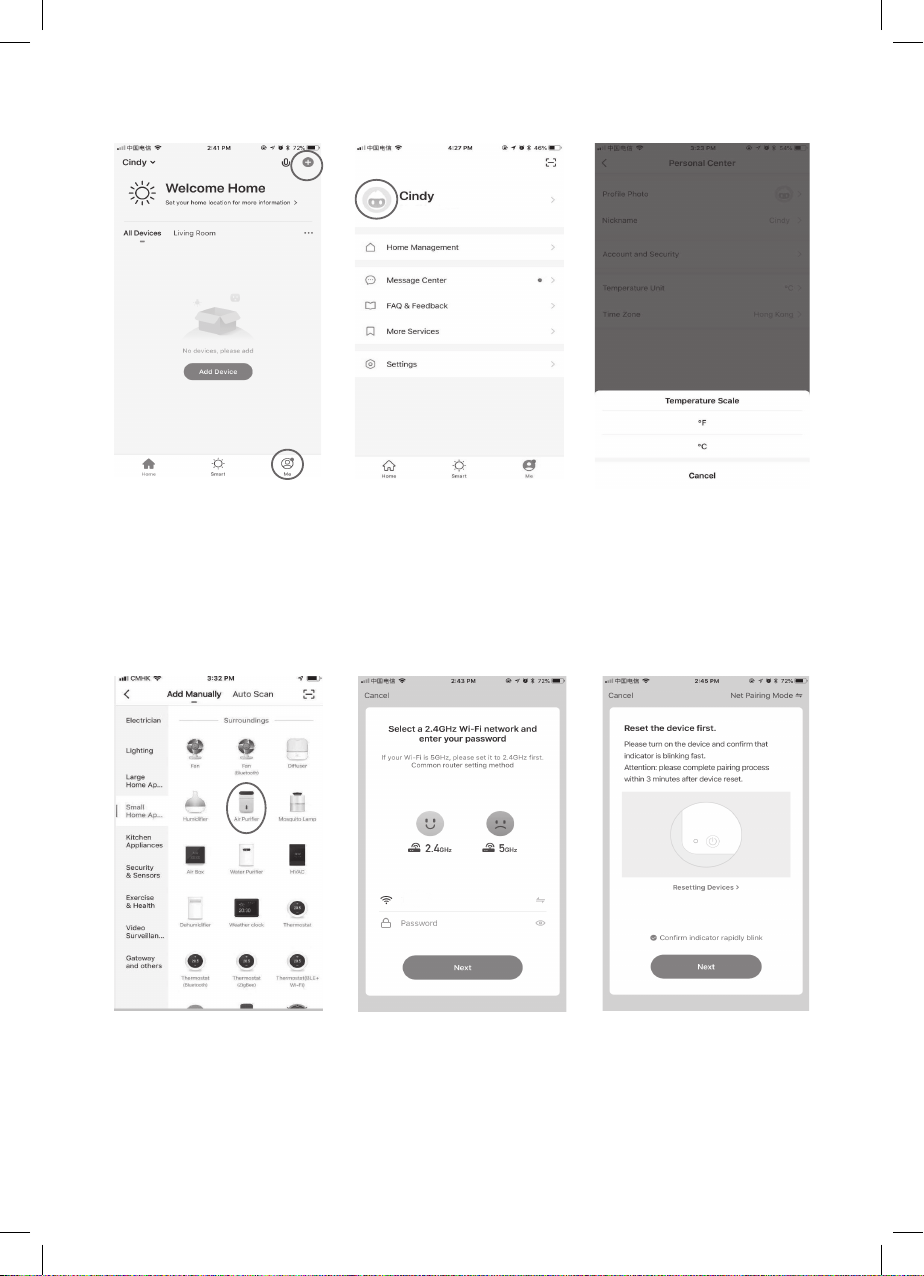
• Tap the “+ ” icon on the right corner of APP to enter into “Select Device Type”
(Picture 7) Or “Me” to select ˚F & ˚C in interface. (Picture 7)
• Choose your personal ID to select ˚F & ˚C in interface. (Picture 8 &9)
Picture 7 Picture 8 Picture 9
Picture 10 Picture 11 Picture 12
• Interface choose “Small Home Appliances”, select “ Air Purier” into “Add
device” interface. (Picture 10)
• Select a 2.4GHz Wi-Fi network and enter the password.(Picture 11)
• Conrm WiFi indicator rapidly blink and go next. If not, press the Timer off/WiFi
setting touch button of the appliance for 5 seconds to ensure the indicator rapidly
blink. (Picture 12)

10
22˚ Kowloon / Overcast
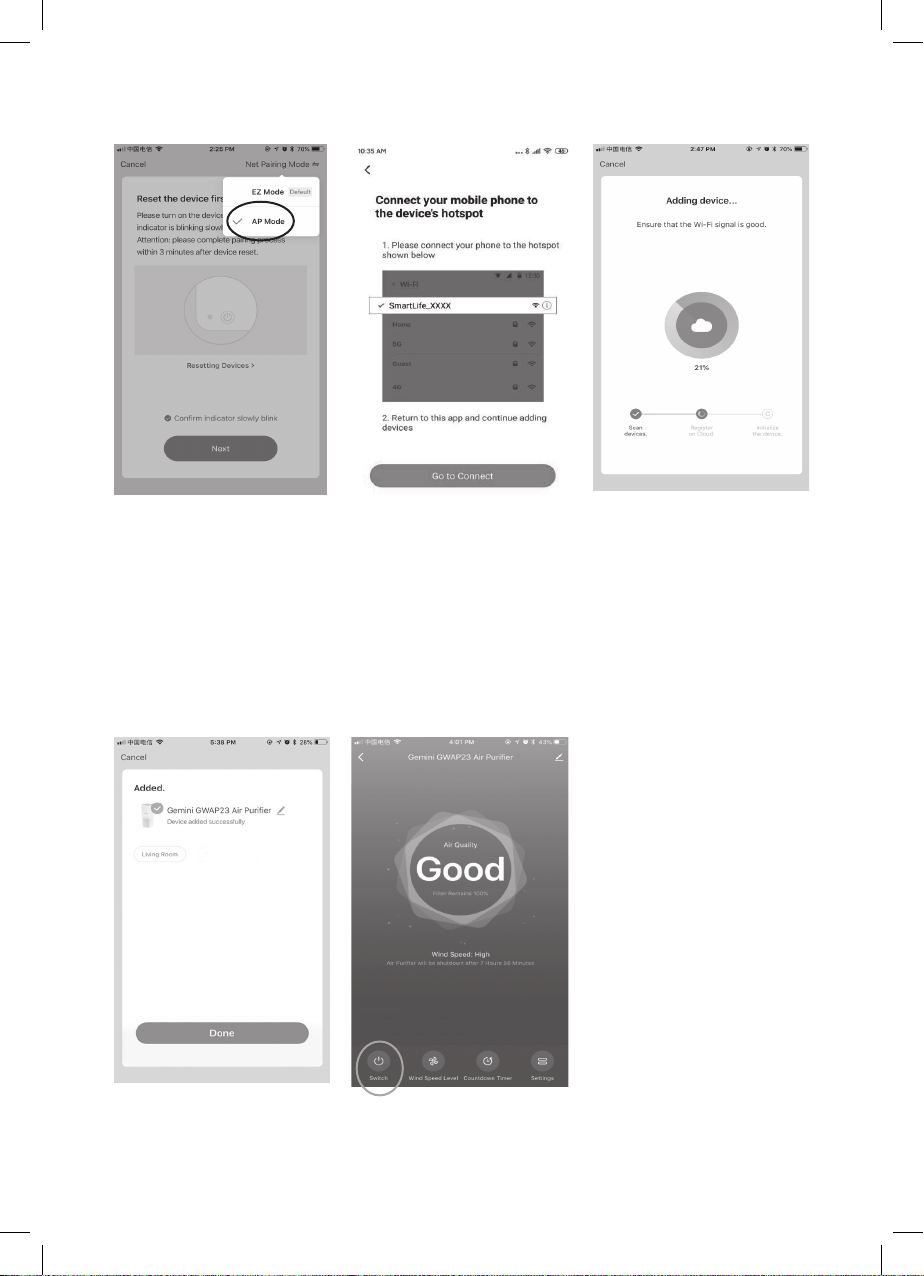
• If EZ mode (default mode) connect to WiFi is failed. Please try to select AP
mode. AP mode: Long press Timer off/ WiFi setting touch button, the indicator
ashes slowly (3 seconds once), please select AP mode in the interface.
(Picture 13)
• Search your mobile with device’s hotspot smartlife_XXXX and choose “Go
to connect”. Connect hotspot smartlife_XXXX and tap back button in your
mobile phone. (Picture 14)
• Adding the device until 100% complete in interface. (Picture 15)
Picture 13 Picture 14 Picture 15
Picture 16 Picture 17
• Wait for the device added successfully, then tap “ Done”. (Picture 16)
• You can switch on/off the appliance on the mobile app control panel.
(Picture 17)
Table des matières
Autres manuels Gemini Purificateur d'air