
FeiYu Tech Feiyu pocket Manuel utilisateur

Instructions V 1.1

Catalogue
1. Overview 1
2
2
2
2
3
3
3
4
2. Start to Use
3. Function Operation
3.1 Power Button
3.2 Function Button
3.3 Shutter Button
2.1 Charging
2.2 Insert MicroSD Card
2.3 Power ON / OFF
7
7
7
4. Using the Feiyu Cam App
4.1 Connect with Feiyu pocket via Wi-Fi
4.2 Interface Introduction
8
9
4.3 Camera Interface
4.4 Firmware Upgrade
11
6. Specifications
10
5. Maintenance
3.4 Touch Screen
3.5 Indicator Explanation
4
6
10
4.5 Overload Protection

Feiyu pocket is a new intelligent handheld stabilized camera, support 4K/ 2.7K/
1080P video recording. It is small and easy to carry. With a built-in touch screen,
it can control and display a live view from the camera to shoot at any time easily.
Connect with Feiyu Cam App to achieve more functions.
This product includes below information, please read the information before
using it.
Suggestion
Download the Feiyu Cam
The tutorial videos can be watched at FeiyuTech official website
or scan the QR code as below: http://www.feiyu-tech.com/play/
Scan the QR code to download the app, or search for "Feiyu Cam" in the App Store or
Google Play.
1. Quick start guide
2. Online instruction
3. Tutorial
iOS Version Android Version
* Requires iOS 9.0 or above, Android 6.0 or above.
Google play
App Store
TIPS
Please tear lens film before using.

1. Overview
01
Feiyu pocket Instructions / Overview
1. Power Button
2. Function Button
3. Shutter Button
4. Touch Screen
5. Indicator
6. 1/4 inch Thread Hole
7. Tilt Axis
8. Handle (Built-in battery)
9. Wrist Strap Hole
10. MicroSD Card Slot
11. USB-C Charging Port
12. Pan Axis
13. Roll Axis
14. Camera Lens
Accessories
x 1 x 1 x 1
Protective cover USB-C cable Wrist strap
1
7
2
6
3
5
4
12
13
14
11
10
8
9

!
2. Start to Use
2.1 Charging
2.2 Insert MicroSD Card
2.3 Power ON / OFF
02
Feiyu pocket Instructions / Start to Use
Connect USB-C cable with charging port to charge Feiyu pocket.
We recommend that you charge your camera
at least once a month.
Please format the microSD card with Feiyu
pocket when insert it at the first time.
An UHS -ⅠSpeed Grade 3 (U3) rating microSD
card (equipped by user) is required.
Long press power button for 1 second to power
ON/ OFF.
Charging
Status
Charging
Complete
While Working
(screen status) (indicator status)
While OFF
Red light is on
Green light is on
Display
Disappear
(1) Please fully charge the battery before powering on the product for the first time.
(2) When not in use, power off the product.
* A formal microSD card from well-known brands (like
Samsung, Sandisk, Kingston, etc.) is recommended.

Pan
Tilt
Roll
The roll and tilt direction are fixed, and the lens moves according to the left-right movements
of the user's hand.
The roll direction is fixed, and the lens moves according to the left-right
movements, up-down movements of the user's hand.
3.1 Power Button
3.2 Function Button
3. Function Operation
(1) Follow mode(Default mode)
(2) All follow mode
(3) Pan mode
The lens moves according to the user's hand.
(4) Lock Mode
The orientation of the lens is fixed.
(5) Recenter
Lens return to center and keep towards front or back as before.
Long press for 1s Power ON/ OFF
Operation Description
Single tap
Single tap Switch working modes
Operation Description
Double tap Recenter
Triple tap Enter/ Exit selfie mode
Press and hold Enter lock mode
①
①
Switch working mode in this order: (1) follow mode (2) all follow mode (3) pan mode, and mode
(1) is default mode after power on.
03
Feiyu pocket Instructions / Function Operation
(1) Switch among Video/ Photo mode/
Recently used function
(2) Return to the previous menu
Working modes Introduction
4K30
00:10:05
SD
04
Feiyu pocket Instructions / Function Operation
3.3 Shutter Button
3.4 Touch Screen
Single tap Take Photo/video/
return to the home page
Operation Description
Long press for 3s Turn on/off Wi-Fi
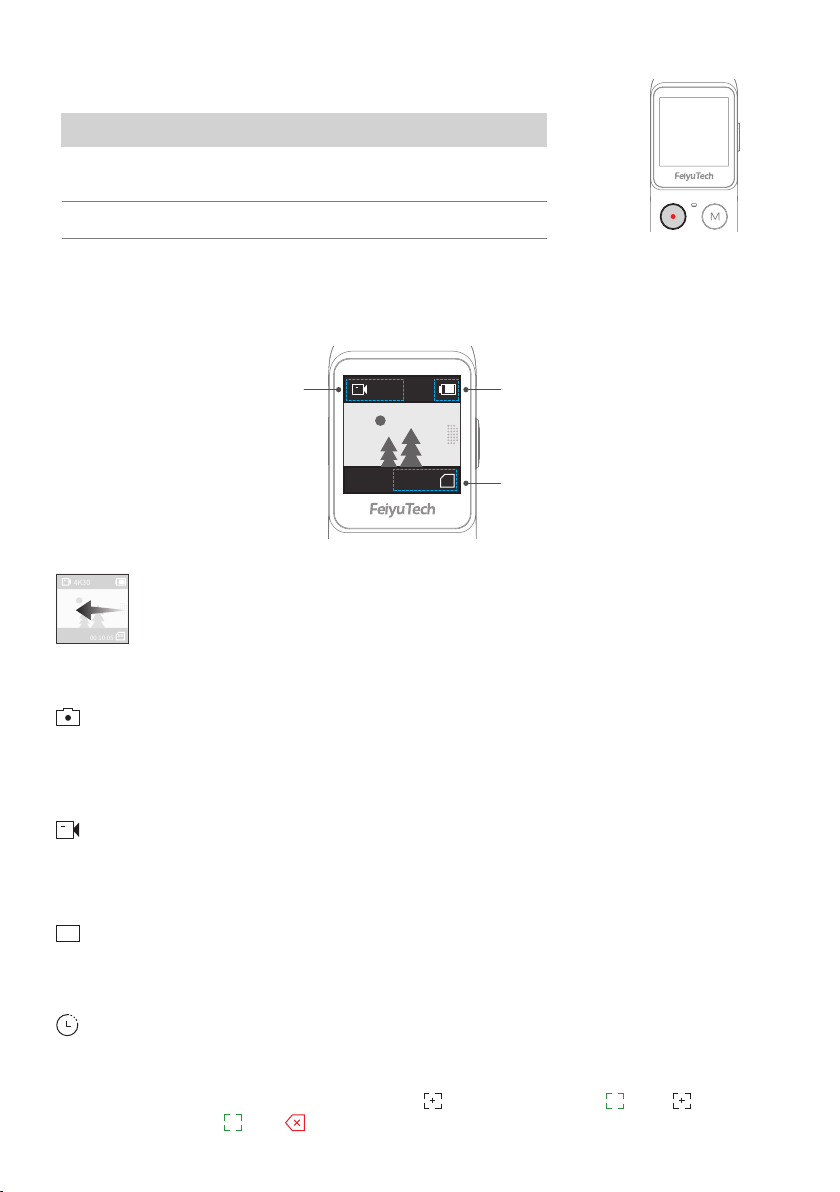
Shooting mode Battery level
Video duration/ number of photos
can be stored for reference
Slide from right to left
Slide up and down to switch among photo/ video/ slow-motion/ timelapse/
panorama mode, tap to enter corresponding mode setting.
Users can choose static or motion timelapse, and enter shooting interface after chose,
and set shooting interval and duration by tap the bottom of the interface.
Switch among different shooting modes and set corresponding mode
parameters.
Photo
Users can set aspect ratio of photos and countdown to take photo.
Video
Slow Motion
Users can shoot slow-motion video.
Timelapse
Users can set video resolution and FPS.
Optional video resolution/ FPS:
4K 24/25/30/48/50/60, 2.7K 24/25/30/48/50/60, 1080P 24/25/30/48/50/60/120
Optional aspect ratio: 4:3 / 16:9
Optional countdown time: Off/ 3s/ 5s/ 7s
SLO
When you choose motion timelapse, tap to set start position , tap again to
set end position , tap to delete position.
1
2
4K30
00:10:05
SD
Optional ratio of slow-motion recording: 4K 2X/ 1080P 4X/ 720P 8P

Users can recenter gimbal/ switch to selfie mode/ modify follow sensitivity/
switch working modes.
Photos and videos which are marked as like, can be viewed in album [ Favorite ] after
connected Feiyu Cam App.
05
Feiyu pocket Instructions / Function Operation
Enter album.
Slide up and down to view photos or videos.
Slide from left to right
Panorama
Users can choose different panorama modes: 2x2/ 3x3/ 180°
2x2:
3x3:
180°:
two images above and two below combine to one picture
3 images above in every three layers combine to one picture
4 lateral images combine to one picture
Slide upward
Enter gimbal control interface.
4K30
00:10:05
SD
4K30
00:10:05
SD
Play
Favorite
Tap to unmark.
Tap to play the current video.
Haven't been marked as favorite yet
Tap to mark it as favorite.
Delete
Delete the current picture or video.
Please hold the product or mount it on tripod when shooting
panorama. Do not put camera on plane directly to shoot !
(1) Recenter
(2) Camera turn
around
(3) Modify follow
sensitivity
(4) Switch working
modes Follow mode
All follow mode
Pan mode
Face Tracking
Tap to recenter, lens return to center and keep towards front or
back as before.
Camera horizontally rotate 180° to shoot, which can be used to
take selfie.
Motion follow, the lens follows the handle's movement faster.
Smooth follow, the lens follows the handle's movement move
smoothly.

Enter setting interface, slide upward to return the previous menu. Slide to
left/ right to switch among different settings.
Medium brightness
Slide downward
(1) HiBoard Video/slow motion mode:
Photo mode:
Timelapse mode:
(2) System
(3) Professional/Normal mode
After switch to professional mode, users can tap icon to set the related parameters.
(4) Full screen
(5) Brightness setting
Super high quality
Slide to left/ right to get move settings.
Display battery level
Switch between stabilization priority or quality first.
Default to stabilization priority.
Tilt control on/off
Key tone on/off
Anti-flicker setting
Auto power off setting
Turn on/off Wi-Fi
High quality
Open beautyClose beauty
Save photos and videoSave video only
Normal modeProfessional Mode
Normal displayFull screen display
Low brightnessHigh brightness
Enter calibration. When camera is not level, users can use it to fix. Place
the product on a stable horizontal plane such as table, and follow the
prompts on the screen to operation.
Display remaining storage spaces, tap to show format option.
Metering mode setting, average metering and spot metering is available.
QUALITY QUALITY
SD
Move settings, users can switch languages/ reset system parameters/
view device information( firmware version, SN code, etc.)
4K30
00:10:05
SD
HD
Shooting Modes
Parameter
Settings
PRO Professional Mode
Photo
Video
Slow Motion
Timelapse
Panorama
Photo
Format Photo format: save pictures as JPG or J+R
White balance: choose scene or adjust the
color temperature.
Exposure: auto or manual setting.
Color: switch between normal color or FY-log
color(Keep more color).
Volume: set video volume.
White
Balance Exposure Color Volume
PRO
※Stabilization priority is not available in 1080 120p mode.
06
Feiyu pocket Instructions / Function Operation

07
Feiyu pocket Instructions / Using the Feiyu Cam App
4. Using the Feiyu Cam App
4.1 Connect with Feiyu pocket via Wi-Fi
App Connection
Smartphone Wi-Fi Connection
!
Since Feiyu pocket's Wi-Fi doesn't connect with internet, please turn off the
APP which would auto switch to available Wi-Fi, if system prompt cannot
connect to internet, please allow using the Wi-Fi.
You can choose any of the following ways to connect
Feiyu pocket via Wi-Fi:
After connection succeed, the touch screen of Feiyu pocket will show the device
name which connect with it, and the touch screen will temporarily ineffective
disconnect the Wi-Fi connection to recover.
Turn on Feiyu Cam App, tap [ Feiyu Pocket ] option,
long press shutter button to turn on Wi-Fi, follow the
prompts to connect Feiyu pocket.
Turn on Feiyu Cam App, long press shutter button to
turn on Wi-Fi, turn on smartphone Wi-Fi connection
interface to connect Feiyu pocket via Wi-Fi (no
internet connection).
Indicator Description Status
Photo
Video
Charge complete
Powering on
Powering on
Powering off
Powering off
Indciator status
Flashes once
Green light Keeps flashing
Constant
Red light ChargingConstant
3.5 Indicator Explanation
Table des matières
Autres manuels FeiYu Tech Caméra d'action


