FEC AerTablet Manuel utilisateur

1
AerTablet
User's Manual
(Windows)
Version 0.2
AT-1450
10.1” mobile POS Tablet

Copyright Notice
This document is copyrighted, © 2016. All rights are reserved. Firich Enterprises Co., Ltd reserves
the right to make improvements of the product described in this manual at any time without notice.
No part of this manual may be reproduced, copied, translated, or transmitted in any form or by
any means without the prior written permission from Firich Enterprises Co., Ltd. Information
provided in this manual is intended to be accurate and reliable. However, Firich Enterprises Co.,
Ltd assumes no responsibility for its use, nor for any infringements upon the rights of third parties,
which may result from its use.
The material in this document is for product information only and is subject to change without
notice. While reasonable efforts have been made in the preparation of this document to assure its
accuracy, Firich Enterprises Co., Ltd, assumes no liabilities resulting from errors or omissions in
this document, or from the use of the information contained herein.
Record of Revision
Date
Specs Ver.
Description
Note
2016/10/04
V0.1
Initial
2017/02/16
V0.2
Description / Function update

Safety and Warranty
1. Read these safety instructions carefully.
2. Keep this user's manual for later reference.
3. Disconnect this equipment from any AC outlet before cleaning. Do not use liquid or spray
detergents for cleaning. Use a damp cloth.
4. For pluggable equipment, the power outlet must be installed near the equipment and must be
easily accessible.
5. Keep this equipment away from humidity.
6. Put this equipment on a reliable surface during installation. Dropping it or letting it fall could
cause damage.
7. The openings on the enclosure are for air convection. Protect the equipment from overheating.
DO NOT COVER THE OPENINGS.
8. Make sure the voltage of the power source is correct before connecting the equipment to the
power outlet.
9. Position the power cord so that people cannot step on it. Do not place anything over the power
cord.
10. All cautions and warnings on the equipment should be noted.
11. If the equipment is not used for a long time, disconnect it from the power source to avoid
damage by transient over-voltage.
12. Never pour any liquid into an opening. This could cause fire or electrical shock.
13. Never open the equipment. For safety reasons, only qualified service personnel should open
the equipment.
14. If any of the following situations arises, get the equipment checked by service personnel:
a. The power cord or plug is damaged.
b. Liquid has penetrated into the equipment.
c. The equipment has been exposed to moisture.
d. The equipment does not work well, or you cannot get it to work according to the user’s manual.
e. The equipment has been dropped and damaged.
f. The equipment has obvious signs of breakage.
15. DO NOT LEAVE THIS EQUIPMENT IN AN UNCONTROLLED ENVIRONMENT WHERE
THE STORAGE TEMPERATURE IS BELOW -20°C (-4°F) OR ABOVE 60°C (140°F). IT MAY
DAMAGE THE EQUIPMENT.

Table of Content
Chapter 1 1
Introduction 1
AerTablet (AT-1450) Introduction.........................................................................................1
A Quick Tour for AT-1450....................................................................................................2
AT-1450 Dimensions (mm)...........................................................................................5
Rear I/O Panel Connectivity.................................................................................................9
AerTablet AT-1450 Contents .............................................................................................10
Chapter 2 12
Hardware Installation and Upgrading 12
Cradle Installation..............................................................................................................12
Docking Station Installation...............................................................................................13
Cash Drawer Installation....................................................................................................15
Chapter 3 16
Software Installation and Setup 16
Chipset Driver Installation..................................................................................................16
Intel Chipset Installation Utilities for Windows 10 ........................................................16
Chapter 4 18
Specifications 18
AT-1450 Specifications......................................................................................................18
Chapter 5 21
Troubleshooting 21
Touch Panel Does Not Work.......................................................................................21
LAN Is Not Functioning Properly.................................................................................21
COM1 ~ COM5 Are Not Functioning Properly.............................................................21
Cash Drawer Port Is Not Functioning Properly............................................................21

AetTablet Series AT-1450
1
Chapter 1
Introduction
AerTablet (AT-1450) Introduction
AerTablet is the perfect solution to reduce your Total Cost Ownership (TCO) and a versatile
mobile POS (mPOS) system. Our innovative modular design provides a compact package yet
delivers stellar performance.
Main Features:
Dual OS support: Windows 10 64bits and Android 5.1
10.1 inch HD LED IPS panel with high brightness
The high quality projective capacitive touch has 10 point multi-touch and is scratch
resistant.
Mobile platform aims for green and energy saving requirement
Modularized design allows easy function expansion via service cradle
All-new innovative docking station provides extra I/O addition (USB, Video, Audio, DC
Power, LAN)

AetTablet Series AT-1450
2
A Quick Tour for AT-1450
Front Camera 2MP
Light Sensor
Up
Volume
Down
Power Button
Power LED
Red
Blue
Purple
Charging
Discharging
Full
10.1” IPS
Touch Display
Cradle Port
Read Camera 8MP
(Option)
Speaker

AetTablet Series AT-1450
3
AT-1450 Cradle (Components may vary depending on your configuration)
AT-1450 Docking Station (Option)
Docking Expansion Port
Micro SD Card Expansion
Micro USB (OTG/DC In)
3.5mm Earphone Jack
1D/2D Barcode Scanner
BAT LED
NFC Reader
IC Card Reader
Full-size USB 2.0 Port
Red
Blue
Charging
Discharging
Full
ISO MSR
Mic
Purple

AetTablet Series AT-1450
4
Docking Connector
Tablet Lock

AetTablet Series AT-1450
5
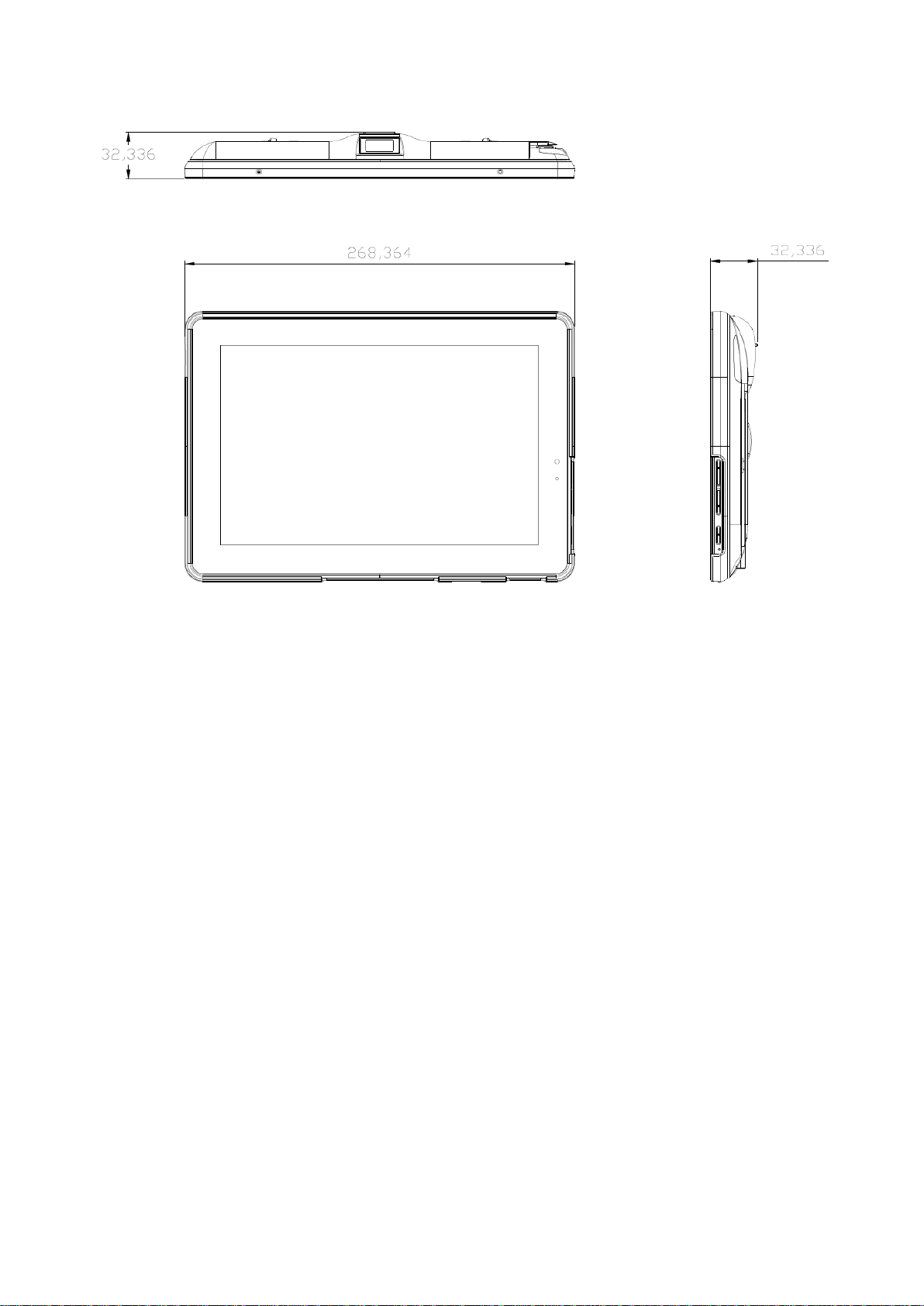
AT-1450 Dimensions (mm)

AetTablet Series AT-1450
6
Ce manuel convient aux modèles suivants
1
Table des matières